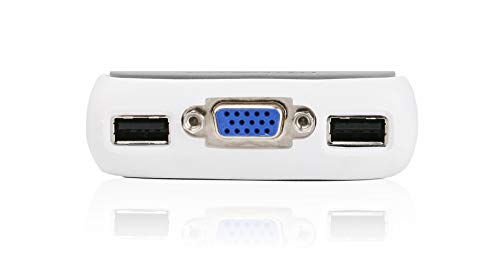
IOGEAR 2-Port USB VGA Miniview Micro Cabled KVM Switch - 2048 x 1536 - Hot Keys Switch - w/Audio - Plug n Play - PC, MAC, SUN - GCS632U



Key features
- •Use one USB keyboard, monitor and USB mouse to control two USB computers
- •Share your multimedia speakers among the two connected computers
- •Full support for Mac and Sun systems
- •Supports special keys on Mac and Sun keyboards
- •Port selection through convenient Hot Keys
IOGEAR 2-Port USB VGA Miniview Micro Cabled KVM Switch - 2048 x 1536 - Hot Keys Switch - w/Audio - Plug n Play - PC, MAC, SUN - GCS632U
List Price: $86.85$78.17DEALYou Save: $8.68 (10%)
Free shippingFree Returns – 30 daysFree Order CancellationSecure Payment2–3 Days DeliveryGet It October 26, 2026In Stock (1)No marketing spamNo account requiredFulfilment by FedEx / Amazon / UPS / ShipwirePayPal / Card Buyer Protection
Customer Reviews
Reviews sourced from verified Amazon purchasers4.5
out of 5
Based on 10 reviews
5★
50%
4★
50%
3★
0%
2★
0%
1★
0%
Perfect solution
06champ✓ Verified Purchase•August 1, 2023
I spent many hours researching KVM switches to find one that satisfactorily switched between older PCs using Windows XP Home and a new PC running Windows 7 (64 bit). Essentially every one worked well with the older PC, but needed to have the monitor reset when switched to the Windows 7 PC. This unit advertised it would do this flawlessly. It actually does.
All the equipment needed to connect the PCs to a single monitor are included in the package. Setup is relatively easy with picture directions, as well as written ones to guide you to make sure all connections are correct. There is sufficient cord length from the unit to have PCs about 6 ft away. One word of caution - connections between the unit, PCs and monitor are made through VGA connections, not DVI.
During installation, I was unable to get the system to work properly. I was using the new keyboard, optical mouse connected to the unit through the USB connections. A phone call to the IOGEAR help line connected me to a most helpful tech representative. After making sure all the connections were properly done, the problem turned out to be "user error" by my failure to note the difference between the new keyboard and the old one. Once my training was updated, everything worked beautifully. There is no problem when going back and forth to the Windows 7 unit with the 20 inch widescreen monitor - no change in the settings. The only issue with the old Windows XP Home PC and the switch is the resolution of the PC is limited by the graphics card and not the switch. Still the slightly stretched view is perfectly satisfactory for any of our use of that machine. For sound reproduction from either of he PCs, I used only the connection provided with the switch and the sound through the monitor speakers is extremely satisfactory for my usage.
From my experience, I can heartily recommend this inexpensive method to maintain quick access to data and files on an old Windows computer, while working with your new updated Windows 7 machine.
All the equipment needed to connect the PCs to a single monitor are included in the package. Setup is relatively easy with picture directions, as well as written ones to guide you to make sure all connections are correct. There is sufficient cord length from the unit to have PCs about 6 ft away. One word of caution - connections between the unit, PCs and monitor are made through VGA connections, not DVI.
During installation, I was unable to get the system to work properly. I was using the new keyboard, optical mouse connected to the unit through the USB connections. A phone call to the IOGEAR help line connected me to a most helpful tech representative. After making sure all the connections were properly done, the problem turned out to be "user error" by my failure to note the difference between the new keyboard and the old one. Once my training was updated, everything worked beautifully. There is no problem when going back and forth to the Windows 7 unit with the 20 inch widescreen monitor - no change in the settings. The only issue with the old Windows XP Home PC and the switch is the resolution of the PC is limited by the graphics card and not the switch. Still the slightly stretched view is perfectly satisfactory for any of our use of that machine. For sound reproduction from either of he PCs, I used only the connection provided with the switch and the sound through the monitor speakers is extremely satisfactory for my usage.
From my experience, I can heartily recommend this inexpensive method to maintain quick access to data and files on an old Windows computer, while working with your new updated Windows 7 machine.
Why VGA? Because it's superior to HDMI and DVI for this use case
DAG✓ Verified Purchase•July 4, 2023
This is the best KVM on the market in my opinion... I used it years ago but replaced it with a digital one a while back and very much regretted it.
Pros
1) hotkey actually exists (unlike most KVMs on the market)
2) hotkey is ultra easy (unlike others which say, require hotkey plus a number)
3) hotkey is very fast/responsive
4) VGA means Windows will not lose its mind and re-arrange your screens (it does not know that you've switched, so it doesn't do annoying things).
Cons
1) It's analog so resolution is limited... I'm using 1080p and it's great, but you should not expect 4K to work well.
I made the mistake of using a cheap VGA cable on the output of this device. It had ghosting (blurriness) which was entirely solved by using a better VGA cable with a ferrite bead.
Pros
1) hotkey actually exists (unlike most KVMs on the market)
2) hotkey is ultra easy (unlike others which say, require hotkey plus a number)
3) hotkey is very fast/responsive
4) VGA means Windows will not lose its mind and re-arrange your screens (it does not know that you've switched, so it doesn't do annoying things).
Cons
1) It's analog so resolution is limited... I'm using 1080p and it's great, but you should not expect 4K to work well.
I made the mistake of using a cheap VGA cable on the output of this device. It had ghosting (blurriness) which was entirely solved by using a better VGA cable with a ferrite bead.
No more disconnect/connect sounds!
Matt✓ Verified Purchase•June 14, 2023
EDITED:
Still going strong after 2 years. I haven't ever had a game/program have issues while changing keyboard in the middle (thanks to the mouse/keyboard emulation) unlike other KVMs I have used. I don't use this for audio or video, so no thoughts there. I wish they made one without all the extra wires (I only want mouse/keyboard). I also found someone else's review useful that told how to change "double-press ScrollLock" to change to "double-press Ctrl". To make the switch, hold NumLock, press "-", then release both and tap "t".
ORIGINAL:
I've gone through several KVM switches in the past 10 years. The issue I was having with other KVM switches was my computers were having issues reconnecting to the USB keyboard when switching between them (I have a Mac laptop and Windows desktop). This is not an issue with the IOGEAR KVM, since it puts an emulated mouse and keyboard on both computers. Switching between systems no longer makes the audible disconnect/connect sounds in Windows/MAC.
I am using Microsoft Natural Ergonimic Keyboard 4000 (HIGHLY recommended if you use computers a lot, I got carpal tunnel syndrome within a few years of programming out of college). They special keys seem to be passed through. For instance, I pressed the 'calculator' and 'mute' buttons and they happen in Windows.
I am not using any mice or displays with this KVM, so can't say much about that. For those using two computers, I recommend having two separate mice. They don't take much space on the desktop, unlike having two keyboards. And most of the time I can get away with keeping the keyboard on one system and just using the mouse on the other.
Still going strong after 2 years. I haven't ever had a game/program have issues while changing keyboard in the middle (thanks to the mouse/keyboard emulation) unlike other KVMs I have used. I don't use this for audio or video, so no thoughts there. I wish they made one without all the extra wires (I only want mouse/keyboard). I also found someone else's review useful that told how to change "double-press ScrollLock" to change to "double-press Ctrl". To make the switch, hold NumLock, press "-", then release both and tap "t".
ORIGINAL:
I've gone through several KVM switches in the past 10 years. The issue I was having with other KVM switches was my computers were having issues reconnecting to the USB keyboard when switching between them (I have a Mac laptop and Windows desktop). This is not an issue with the IOGEAR KVM, since it puts an emulated mouse and keyboard on both computers. Switching between systems no longer makes the audible disconnect/connect sounds in Windows/MAC.
I am using Microsoft Natural Ergonimic Keyboard 4000 (HIGHLY recommended if you use computers a lot, I got carpal tunnel syndrome within a few years of programming out of college). They special keys seem to be passed through. For instance, I pressed the 'calculator' and 'mute' buttons and they happen in Windows.
I am not using any mice or displays with this KVM, so can't say much about that. For those using two computers, I recommend having two separate mice. They don't take much space on the desktop, unlike having two keyboards. And most of the time I can get away with keeping the keyboard on one system and just using the mouse on the other.
just to add to all the comments
Martin✓ Verified Purchase•June 7, 2023
my setup is a little different so I thought I should add a review of it:
I have two Samsung Monitors hooked up individually to two laptops. Basically one is my work laptop and the other is my personal laptop and pending on the day of the week I take my personal one home with me (I try NOT to touch yet another computer when I'm home!) What I was looking for wasn't to share the monitor view but only the keyboard and mouse. I only hooked up the USB and Audio end and skipped the VGA.
The work laptop (a Dell) has a docking station on it so all I had to do was to hook the USB to it. The audio however doesn't seem to connect with the dock so I had to connect it directly to the Dell itself. This might have been an issue if I also had to hook up the VGA. Having said that, the KVM cable is generous enough to go around a 15" laptop.
The personal one (a Lenovo) is more of a direct hookup. USB, and audio only again. The VGA was directly from the monitor. Once again pending on the placement of the your i/o settings this may have caused an issue but I was fine.
Having been warned about the Audio issues and the "lag" in the keyboard (minimal and very tolerable!) I wasn't surprised when I ran into both. My concern was whether the KVM would work without the VGA connections - like a fail-safe if you may if nothing flowed in the VGA line. It was a mild gamble (I couldn't see why it wouldn't work) and I'm happy to report it paid off.
I may look for a workaround for the audio either by using a Y connector from radioshack or perhaps open up the KVM and see if I can insulate the audio cables better to minimize the static noise but overall this is a cool $30 spent.
PS: both my peripherals are USB standard.
I have two Samsung Monitors hooked up individually to two laptops. Basically one is my work laptop and the other is my personal laptop and pending on the day of the week I take my personal one home with me (I try NOT to touch yet another computer when I'm home!) What I was looking for wasn't to share the monitor view but only the keyboard and mouse. I only hooked up the USB and Audio end and skipped the VGA.
The work laptop (a Dell) has a docking station on it so all I had to do was to hook the USB to it. The audio however doesn't seem to connect with the dock so I had to connect it directly to the Dell itself. This might have been an issue if I also had to hook up the VGA. Having said that, the KVM cable is generous enough to go around a 15" laptop.
The personal one (a Lenovo) is more of a direct hookup. USB, and audio only again. The VGA was directly from the monitor. Once again pending on the placement of the your i/o settings this may have caused an issue but I was fine.
Having been warned about the Audio issues and the "lag" in the keyboard (minimal and very tolerable!) I wasn't surprised when I ran into both. My concern was whether the KVM would work without the VGA connections - like a fail-safe if you may if nothing flowed in the VGA line. It was a mild gamble (I couldn't see why it wouldn't work) and I'm happy to report it paid off.
I may look for a workaround for the audio either by using a Y connector from radioshack or perhaps open up the KVM and see if I can insulate the audio cables better to minimize the static noise but overall this is a cool $30 spent.
PS: both my peripherals are USB standard.
Good Value... Works with Logitech Wireless Keyboard PC & Mac
Ayied Tamimi✓ Verified Purchase•May 30, 2023
This KVM is quit simple and very small device without external button to switch between two computers and you need to use the keyboard by press & release "Scroll Lock" key twice. Cables provided are long enough but your can't change them in case of demage because they are sealed with the KVM switch. I give this KVM 4 out of 5 because of delay when I switch to Windows but this problem my exist only if you use Wireless Keyboard & mouse set. It is a very good vlaue and I save $20 with Amazon instead of buying from Bestbuy or Microcenter Plus fast shipping offer "one day". Thank you Amazon.
After one hour palying with the KVM switch trying to figure out how function it with wireless keyboard and two different Operating systems. Finally, I make it and I would like to sure my expirence with other customers who couldn't be able to make it.
:My setup:
- Logitech Wireless Combo Mk520 With Keyboard and Laser Mouse (920-002553)
-Laptop Windows Vista 32Bit SP2
-MacBook Pro 13, Mac OS X 10.6.8
First of all: make sure you get latest updates for both operating systems.
Step1: install the wireless keyboard & mouse on the PC/laptop and make sure it is working fine. Don't use the KVM switch yet.
Step2: plug the keyboard & mouse USB wireless stick into the KVM switch keyboard USB port not the other USB port on the KVM. connect the KVM to your external monitor and your external speaker to the KVM.
Step3: Connect the KVM VGA & USB & Audio cables to your laptop. Test your keyboard & mouse and make sure they are working without problem. Label the VGA, USB, and audio cable that connected to your PC/laptop, so you don't use them with your Mac.
Step4: Repeat the step 1 & 2 & 3 but with your Mac and make sure you remove the connection between KVM & your PC/laptop before do that. Note: if your keyboard & mouse don't support Mac, they might still work and you might get a wizard on your Mac asking you to identify your keyboard and choose the layout which it is usually English 101.
Note: to avoid any conflict, all the time use the same USB ports in laptop/PC/Mac which while connect it to the KVM switch.
Step5: Unplug both PC/Laptop and Mac. Start plug first cables set to your Laptop/PC and after that connect another cables set to your Mac. To switch between to machines press and release "Scroll Lock" twice on your keyboard.
Note: I faced some kind of delay when I switch on the laptop/PC for around 8 seconds but when I switch to Mac it is up immediately.
Please, rate this review it is helpful for your.
After one hour palying with the KVM switch trying to figure out how function it with wireless keyboard and two different Operating systems. Finally, I make it and I would like to sure my expirence with other customers who couldn't be able to make it.
:My setup:
- Logitech Wireless Combo Mk520 With Keyboard and Laser Mouse (920-002553)
-Laptop Windows Vista 32Bit SP2
-MacBook Pro 13, Mac OS X 10.6.8
First of all: make sure you get latest updates for both operating systems.
Step1: install the wireless keyboard & mouse on the PC/laptop and make sure it is working fine. Don't use the KVM switch yet.
Step2: plug the keyboard & mouse USB wireless stick into the KVM switch keyboard USB port not the other USB port on the KVM. connect the KVM to your external monitor and your external speaker to the KVM.
Step3: Connect the KVM VGA & USB & Audio cables to your laptop. Test your keyboard & mouse and make sure they are working without problem. Label the VGA, USB, and audio cable that connected to your PC/laptop, so you don't use them with your Mac.
Step4: Repeat the step 1 & 2 & 3 but with your Mac and make sure you remove the connection between KVM & your PC/laptop before do that. Note: if your keyboard & mouse don't support Mac, they might still work and you might get a wizard on your Mac asking you to identify your keyboard and choose the layout which it is usually English 101.
Note: to avoid any conflict, all the time use the same USB ports in laptop/PC/Mac which while connect it to the KVM switch.
Step5: Unplug both PC/Laptop and Mac. Start plug first cables set to your Laptop/PC and after that connect another cables set to your Mac. To switch between to machines press and release "Scroll Lock" twice on your keyboard.
Note: I faced some kind of delay when I switch on the laptop/PC for around 8 seconds but when I switch to Mac it is up immediately.
Please, rate this review it is helpful for your.
Page 1 of 2