Inateck PCI-E to USB 3.0 (5 Ports) PCI Express Card and 15-Pin Power Connector, Red (KT5001)
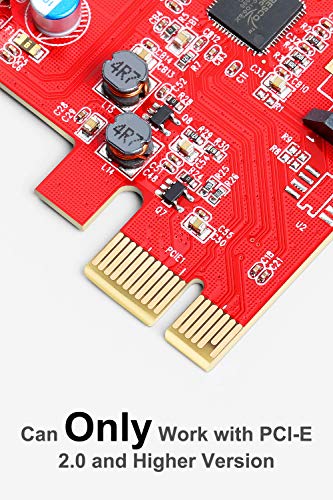


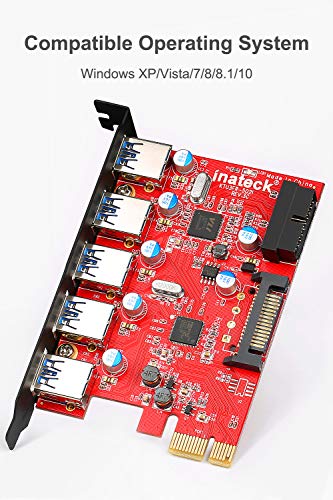
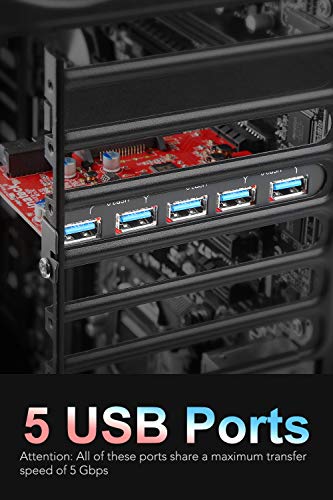
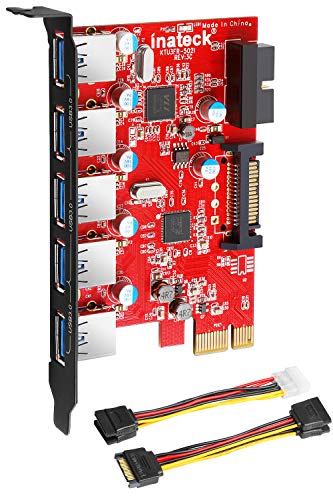
Key features
- •SuperSpeed USB 3.0 supports transfer rates of up to 5Gbps - The actual transmission speed is limited by the setting of the device connected.
- •One Step Update your Computer to 5 ports USB3.0 Easily with PCI Express to USB3.0 Controller Adapter Card; 1 USB 3.0 20-pin Connector ( expand another two USB 3.0 ports )
- •Backwards compatible with USB 2.0 and 1.1 devices; Operating System Compatibility: Windows XP/Vista/7/8
- •With quick and easy installation, this USB 3.0 PCI express I/O Card offers a simple solution for connecting to and using USB 3.0 devices on your standard desktop PC. Enjoy copying videos, music, photos, data files between USB devices and the computer at blazing fast speeds
- •Windows XP and Vista Users Please Note: Due to OS limitations, the real transfer speed after installation of the respective drivers will be located between the level of USB 2.0 and 3.0
Inateck PCI-E to USB 3.0 (5 Ports) PCI Express Card and 15-Pin Power Connector, Red (KT5001)
List Price: $48.87$43.98DEALYou Save: $4.89 (10%)
Free shippingFree Returns – 30 daysFree Order CancellationSecure Payment2–3 Days DeliveryGet It October 26, 2026In Stock (1)No marketing spamNo account requiredFulfilment by FedEx / Amazon / UPS / ShipwirePayPal / Card Buyer Protection
Customer Reviews
Reviews sourced from verified Amazon purchasers4.5
out of 5
Based on 10 reviews
5★
60%
4★
30%
3★
0%
2★
0%
1★
10%
we felt like we must have fallen down a 20-plus-year-old time warp ...
Dr. Larry J. Paden✓ Verified Purchase•January 8, 2018
This Inateck board has some sort of intermittent failure. The board didn't work when first installed, then worked and even transferred high-bandwidth video from a Microsoft Life Cam. A few minutes later, the Inateck board had died again. (Notice that several users talk about their boards mysteriously disappearing from their installed devices, only to reappear later!)
When we read the manual section on trouble shooting, we felt like we must have fallen down a 20-plus-year-old time warp into the days of manually setting addresses and interrupts on the ISA bus. Nevertheless, we needed to get the USB 3.0 ports working, so we followed the Inateck manual advice and moved the Inateck board to a different slot. The board performed no better, so we did try a third slot.
We then called the factory to see what they had to say. They said that everybody was out of the factory the first week in January, so trouble shooting was by email only! Shesh!
Moral of Story: Don't buy an Inateck board!
If you somehow have no choice, be sure to read the manual first:
"¢If there is a yellow exclamation point on the controller in the Device Manager:
1. Please shut down your computer and move the card to another available PCIe
slot, then re-install the USB 3.0 driver.
2. In the device manager, select the Fresco Logic Xhci (USB 3) Root hub, right-click
using your mouse, and select "Update Driver"to update the USB driver.
3. This exclamation point usually means there is a resource conflict between this
card and another card in your system. Please move the card to another available
slot and then restart your computer. Windows will re-configure itself and reassign
resources. Check the device manager again to insure the issue has been
resolved.
That was on Tuesday. We filed a return with Amazon for the Inateck and ordered (for $1 less), the Mailiya PCI-E to USB 3.0 5-Port PCI Express Expansion Card and 15-Pin Power Connector, Mini PCI-E USB 3.0 Hub Controller Adapter with Internal 20-Pin Connector - Expand Another Two USB 3.0 Ports Mailiya PCI-E to USB 3.0 5-Port PCI Express Expansion Card.
The Mailiya card arrived the next day, today, Wednesday, although we only asked for regular shipping! (Thanks, Amazon!) The Mailiya card is installed and all five ports are working as expected. (Even though it's installed in the same PCIe slot as the nonfunctional Inateck ard.) Additionally, the ten-pin connector connects to the cable supplied with the
XinYS USB 3.0 7-Ports 5.25 inch Metal Front Panel USB Hub, sold by Amazon!
XinYS USB 3.0 7-Ports 5.25 inch Metal Front Panel USB Hub with 15 Pin SATA Power Connector [ 20 Pin Connector & 2ft Adapter Cable]
So we have five USB 3.0 connectors on back and seven USB 3.0 connectors on the front of the computer.
When we read the manual section on trouble shooting, we felt like we must have fallen down a 20-plus-year-old time warp into the days of manually setting addresses and interrupts on the ISA bus. Nevertheless, we needed to get the USB 3.0 ports working, so we followed the Inateck manual advice and moved the Inateck board to a different slot. The board performed no better, so we did try a third slot.
We then called the factory to see what they had to say. They said that everybody was out of the factory the first week in January, so trouble shooting was by email only! Shesh!
Moral of Story: Don't buy an Inateck board!
If you somehow have no choice, be sure to read the manual first:
"¢If there is a yellow exclamation point on the controller in the Device Manager:
1. Please shut down your computer and move the card to another available PCIe
slot, then re-install the USB 3.0 driver.
2. In the device manager, select the Fresco Logic Xhci (USB 3) Root hub, right-click
using your mouse, and select "Update Driver"to update the USB driver.
3. This exclamation point usually means there is a resource conflict between this
card and another card in your system. Please move the card to another available
slot and then restart your computer. Windows will re-configure itself and reassign
resources. Check the device manager again to insure the issue has been
resolved.
That was on Tuesday. We filed a return with Amazon for the Inateck and ordered (for $1 less), the Mailiya PCI-E to USB 3.0 5-Port PCI Express Expansion Card and 15-Pin Power Connector, Mini PCI-E USB 3.0 Hub Controller Adapter with Internal 20-Pin Connector - Expand Another Two USB 3.0 Ports Mailiya PCI-E to USB 3.0 5-Port PCI Express Expansion Card.
The Mailiya card arrived the next day, today, Wednesday, although we only asked for regular shipping! (Thanks, Amazon!) The Mailiya card is installed and all five ports are working as expected. (Even though it's installed in the same PCIe slot as the nonfunctional Inateck ard.) Additionally, the ten-pin connector connects to the cable supplied with the
XinYS USB 3.0 7-Ports 5.25 inch Metal Front Panel USB Hub, sold by Amazon!
XinYS USB 3.0 7-Ports 5.25 inch Metal Front Panel USB Hub with 15 Pin SATA Power Connector [ 20 Pin Connector & 2ft Adapter Cable]
So we have five USB 3.0 connectors on back and seven USB 3.0 connectors on the front of the computer.
Works Great with Windows 10 on older PC!
Arjuna✓ Verified Purchase•December 7, 2017
I've been using this card for two months now 24/7.
Installation was very easy on my Windows 10 PC running on an older i7-860 CPU and an Asus P5P55C motherboard that did not have USB 3.x ports.
I already had one 3 port USB 3.0 PCIe card in it, but needed more USB 3.0 ports.
I bought the version with a rear 20-pin USB 3.0 header connector, as oppposed to the version with the two rear USB 3.0 ports. This version of this card does not seem to currently be an option.
In order to have two of the ports available from the front of my Pc I also purchased an Anker 2-Port USB 3.0 3.5 inch Front Panel Data Hub that fits into a hard drive bay and provides USB 3.x ports.
https://smile.amazon.com/dp/B00J4EZE4U/ref=cm_cr_ryp_prd_ttl_sol_5
If installing into a 5.25" hard drive bay like I did you will need a 5.25" USB 3.x panel like this one.
https://smile.amazon.com/gp/product/B01FWK8PMC/
Those USB 3.x front panels require a USB 3.x header connector to plug into, typically found on motherboards, but in my case I connected the header cable to this Inateck USB 3.0 7-port card's 20-pin rear header connector.
I did not have to install any driver software. I contacted Inateck asking if I should install their driver and they said that if the card was functioning to NOT install their driver.
I am using ALL 7 ports and have not had any trouble. The speed is very, very good.
This card works! I would definitely buy again.
Note: I always recommend installing the rear power connector BEFORE you install any PCIe card in the motherboard slot. This allows you to get a better hold of the card's power connector and not risk breaking the connector off. It can take considerable force to install a power connector, so this reduces any risk. I did not have any trouble and the power connector fit was actually very good.
Installation was very easy on my Windows 10 PC running on an older i7-860 CPU and an Asus P5P55C motherboard that did not have USB 3.x ports.
I already had one 3 port USB 3.0 PCIe card in it, but needed more USB 3.0 ports.
I bought the version with a rear 20-pin USB 3.0 header connector, as oppposed to the version with the two rear USB 3.0 ports. This version of this card does not seem to currently be an option.
In order to have two of the ports available from the front of my Pc I also purchased an Anker 2-Port USB 3.0 3.5 inch Front Panel Data Hub that fits into a hard drive bay and provides USB 3.x ports.
https://smile.amazon.com/dp/B00J4EZE4U/ref=cm_cr_ryp_prd_ttl_sol_5
If installing into a 5.25" hard drive bay like I did you will need a 5.25" USB 3.x panel like this one.
https://smile.amazon.com/gp/product/B01FWK8PMC/
Those USB 3.x front panels require a USB 3.x header connector to plug into, typically found on motherboards, but in my case I connected the header cable to this Inateck USB 3.0 7-port card's 20-pin rear header connector.
I did not have to install any driver software. I contacted Inateck asking if I should install their driver and they said that if the card was functioning to NOT install their driver.
I am using ALL 7 ports and have not had any trouble. The speed is very, very good.
This card works! I would definitely buy again.
Note: I always recommend installing the rear power connector BEFORE you install any PCIe card in the motherboard slot. This allows you to get a better hold of the card's power connector and not risk breaking the connector off. It can take considerable force to install a power connector, so this reduces any risk. I did not have any trouble and the power connector fit was actually very good.
Incomplete Instructions and Useless CD
Harold✓ Verified Purchase•December 1, 2016
This product is now working very well for me, though as is so often the case, the instructions leave much to be desired. Before beginning installation of either hardware or software, for example, you will need to reboot, run the BIOS setup, and DISABLE any USB 3.0 hardware, if any, on your motherboard; otherwise there will be a conflict with the new card. The hardware installation instructions fail to mention that you need to connect the card directly to the power supply. This step is implied, of course, by the inclusion of two power pigtails. In addition, Windows 10 users will be well advised to download from the manufacturer's website, the driver written specifically for windows 10 rather than trying to use the driver on the enclosed CD. These issues may not be so difficult for experienced users to overcome, but relatively inexperienced installers are going to find the installation difficult.
A great card at a great price at $21.99 lightning deal
The Fine Print✓ Verified Purchase•November 5, 2016
I edit a lot of videos so having file transfer speed over 100MB/sec is important to me. I don't know why I didn't do this sooner but I finally woke up and look to purchase a USB 3.0 card to connect my many hard drives. This Inateck card appeared on Amazon Lightning Deal at a good price and with good reviews. I hesitated a little since I have never heard of this brand. But eventually I clicked "submit" and order it. I am happy to say that this is a great USB 3.0 card. I added 7 USB 3.0 ports to my computer without much effort. It took a mere 10 minutes. I had to use the included SATA power connector to power the Inateck card. Otherwise, devices were not detected or even spin up. I downloaded the driver off the website, and didn't even bother with opening the CD that came with the package.
I really hate it that as companies get bigger that they feel the need to protect their bottom line, and do stupid things like prevent someone from inserting a URL in their review (that is not an Amazon product link). God forbid someone links to a competitor website. I was trying to link you, the shoppers, to the device driver file on the manufacturer's website but the A-hole company that also starts with an A (and whose CEO is a Bozo for allowing this bad policy) decided to remove the URL after I post it. So now I am resorting to cryptic languages and more wasted time to edit it back in.
The drivers are here:
inateck dot com \ pci-e-to-usb-3-0-cards \ usb-3-0-pci-express-card-works-with-extra-power-cable \ inateck-ktu3fr-5o2u-usb-3-0-pci-express-card.html
I plugged in all my USB 3.0 drives and they all worked fine. One issue I did encounter was on Windows 7. Two of my drives would collide and would only work if the other is not plugged in. If both are plugged in, one one is visible. This was caused by a duplicate drive ID in the boot block (not the same as drive letter). I googled around and found that I had to go into Windows Disk Administrator and look for the "offline" drive and right click on the "offline" area and select "online". That caused Windows to create a new disk ID for the offline drive and all is good. This problem never appear to me in the past because I had only two USB 3.0 ports, so I never had these two drives connected at the same time. It is really a Windows issue, not Inateck. Overall a great USB 3.0 card and highly recommended.
One more thing. Before trying this card, I tried a generic 7 port USB 3.0 hub by "7 Ports" that I bought at an auction site. That hub has an interesting feature in that each USB port can be turned off with a switch. That hub worked fine, but when I tried plugging in the power adapter to the hub so that I could get extra power to run external 2.5" drives, the computer wouldn't even boot. Apparently the power adapter is wired such that it is shorting out the computer, causing the computer to not boot. So just a word of caution if you are considering going the hub route. The compatibility testing is still not quite there yet in the hub world. Go with this instead. You will be much happier.
Update: 9 months later, it is still working fine. I have 5 USB drives connected permanently to these ports and they all work fine, giving me great speed without having to open up the computer and connect to the SATA port directly. I get 90MB/S writes with the WD drives I use, so that is plenty fast for my video editing needs. Windows hibernation works great, all drives are found after coming back from hibernation. My WD drives spin down on their own after hibernation.
I really hate it that as companies get bigger that they feel the need to protect their bottom line, and do stupid things like prevent someone from inserting a URL in their review (that is not an Amazon product link). God forbid someone links to a competitor website. I was trying to link you, the shoppers, to the device driver file on the manufacturer's website but the A-hole company that also starts with an A (and whose CEO is a Bozo for allowing this bad policy) decided to remove the URL after I post it. So now I am resorting to cryptic languages and more wasted time to edit it back in.
The drivers are here:
inateck dot com \ pci-e-to-usb-3-0-cards \ usb-3-0-pci-express-card-works-with-extra-power-cable \ inateck-ktu3fr-5o2u-usb-3-0-pci-express-card.html
I plugged in all my USB 3.0 drives and they all worked fine. One issue I did encounter was on Windows 7. Two of my drives would collide and would only work if the other is not plugged in. If both are plugged in, one one is visible. This was caused by a duplicate drive ID in the boot block (not the same as drive letter). I googled around and found that I had to go into Windows Disk Administrator and look for the "offline" drive and right click on the "offline" area and select "online". That caused Windows to create a new disk ID for the offline drive and all is good. This problem never appear to me in the past because I had only two USB 3.0 ports, so I never had these two drives connected at the same time. It is really a Windows issue, not Inateck. Overall a great USB 3.0 card and highly recommended.
One more thing. Before trying this card, I tried a generic 7 port USB 3.0 hub by "7 Ports" that I bought at an auction site. That hub has an interesting feature in that each USB port can be turned off with a switch. That hub worked fine, but when I tried plugging in the power adapter to the hub so that I could get extra power to run external 2.5" drives, the computer wouldn't even boot. Apparently the power adapter is wired such that it is shorting out the computer, causing the computer to not boot. So just a word of caution if you are considering going the hub route. The compatibility testing is still not quite there yet in the hub world. Go with this instead. You will be much happier.
Update: 9 months later, it is still working fine. I have 5 USB drives connected permanently to these ports and they all work fine, giving me great speed without having to open up the computer and connect to the SATA port directly. I get 90MB/S writes with the WD drives I use, so that is plenty fast for my video editing needs. Windows hibernation works great, all drives are found after coming back from hibernation. My WD drives spin down on their own after hibernation.
Works great and works in Multi-Card setup. Beware of newer drivers though (update)
Amazon Customer for a really long time✓ Verified Purchase•August 19, 2016
I managed to get two of these cards installed on my ASUS Z-97 Pro motherboard. Both work well and now I have 10 external USB 3.0 ports and 4 internal USB 3.0 ports.
I use the internal ports for things such as USB Bluetooth dongle, Logitech USB receiver (mouse, keyboard), a small hard drive mounted inside my PC case. The external ports work flawlessly and I've had no problems with them.
If you have a motherboard similar to the ASUS Z-97 Pro and have a SATA drive plugged into the internal SATA Express port, then note that one of your PCIe slots will not function and you will not be able to use that PCIe slot as the SATA Express drive is taking up the data lane for that PCIe slot. This can be very frustrating if you aren't aware of this situation .
To install one card it is straight forward and pretty much self explanatory. To install multiple cards you will need an open PCIe (and functioning) slot for each additional card and a power supply. I suggest a multi-SATA power cable. Before installing the second card, if you haven't already installed the first card do so and install the drivers and make sure it is working, then turn off the computer and slot in the second card and turn on the computer. You do not need to install the drivers again. The original drivers for the first card should recognize and configure the second card as well. You might receive a minor error while the computer is configuring the drivers for the second card. It shouldn't affect the functioning of the card.
During the installation of the second card, once I turned on my computer, my computer automatically recognized the card and installed drivers for it automatically (which were the same drivers already installed and hence the error).
Once you have the second card working, verify both cards are functioning properly.
I don't think the drivers were really designed for multiple cards in mind, but they seem to work under Windows 7 64-bit no problem. As for Windows 10 I don't know.
I deducted a star from my review because the drivers haven't been updated since 2014 and are likely out of date, especially for Windows 10.
So, that is my experience with multi-card installation and my two cards are identical cards with identical chipsets. Using different cards with differing chipsets might yield differing results.
I hope this helps anyone trying to get two or more cards working.
---------------update---------------------------
As of yesterday (1/27/17) after updating the drivers ( to 3.6.9.0 8/2/16), the external ports (all 5 ports on both cards) no longer work. The internal ports (2 on each card) still work fine, but no external ports work at all. Trying to diagnose the issue. I will update when and if I find a fix.
--------------update -----------------------------
After some tinkering with the cards (installing and uninstalling and restarting the computer a few dozen times) I was able to determine the cause of the problem. It appears that when I updated the drivers to version 3.6.9.0 8/2/16 that the old drivers were left behind and still active. I imagine some sort of conflict was being caused with the old drivers and new drivers trying to control the same cards at the same time. Anyhow, the solution I found was to user Driver Boost 4 to uninstall all the drivers (old and new) (while removing the drivers you will find about 7 per card and they all contain the name 'Frisco' in their description). Once all the drivers were removed I removed both cards from my PCI slots and started my computer absent of the cards. Then registry cleaned my registry to get rid of any lingering registry entries. I then shut down the computer, and installed only one card then turned on the computer. Once the desktop appeared the card was present but no drivers could be found for it. That was a positive sign. So I installed the newest drivers again (3.6.9.0). I removed all the USB cables from the external ports and reconnected them one by one and they came back to life and all my devices worked.
For the second card, I then shut down the computer and installed the second card (connecting power and placing in a seperate PCI slot). Then I restarted the computer. Once the desktop came up the computer automatically installed the drivers for the second card as it recognized that it uses the identical drivers to the first card. I connected my USB cables to the second card and everything worked as expected.
So, the cards are very good, however, for some reason the new drivers did not uninstall the old drivers properly and that is what caused my problems.
I use the internal ports for things such as USB Bluetooth dongle, Logitech USB receiver (mouse, keyboard), a small hard drive mounted inside my PC case. The external ports work flawlessly and I've had no problems with them.
If you have a motherboard similar to the ASUS Z-97 Pro and have a SATA drive plugged into the internal SATA Express port, then note that one of your PCIe slots will not function and you will not be able to use that PCIe slot as the SATA Express drive is taking up the data lane for that PCIe slot. This can be very frustrating if you aren't aware of this situation .
To install one card it is straight forward and pretty much self explanatory. To install multiple cards you will need an open PCIe (and functioning) slot for each additional card and a power supply. I suggest a multi-SATA power cable. Before installing the second card, if you haven't already installed the first card do so and install the drivers and make sure it is working, then turn off the computer and slot in the second card and turn on the computer. You do not need to install the drivers again. The original drivers for the first card should recognize and configure the second card as well. You might receive a minor error while the computer is configuring the drivers for the second card. It shouldn't affect the functioning of the card.
During the installation of the second card, once I turned on my computer, my computer automatically recognized the card and installed drivers for it automatically (which were the same drivers already installed and hence the error).
Once you have the second card working, verify both cards are functioning properly.
I don't think the drivers were really designed for multiple cards in mind, but they seem to work under Windows 7 64-bit no problem. As for Windows 10 I don't know.
I deducted a star from my review because the drivers haven't been updated since 2014 and are likely out of date, especially for Windows 10.
So, that is my experience with multi-card installation and my two cards are identical cards with identical chipsets. Using different cards with differing chipsets might yield differing results.
I hope this helps anyone trying to get two or more cards working.
---------------update---------------------------
As of yesterday (1/27/17) after updating the drivers ( to 3.6.9.0 8/2/16), the external ports (all 5 ports on both cards) no longer work. The internal ports (2 on each card) still work fine, but no external ports work at all. Trying to diagnose the issue. I will update when and if I find a fix.
--------------update -----------------------------
After some tinkering with the cards (installing and uninstalling and restarting the computer a few dozen times) I was able to determine the cause of the problem. It appears that when I updated the drivers to version 3.6.9.0 8/2/16 that the old drivers were left behind and still active. I imagine some sort of conflict was being caused with the old drivers and new drivers trying to control the same cards at the same time. Anyhow, the solution I found was to user Driver Boost 4 to uninstall all the drivers (old and new) (while removing the drivers you will find about 7 per card and they all contain the name 'Frisco' in their description). Once all the drivers were removed I removed both cards from my PCI slots and started my computer absent of the cards. Then registry cleaned my registry to get rid of any lingering registry entries. I then shut down the computer, and installed only one card then turned on the computer. Once the desktop appeared the card was present but no drivers could be found for it. That was a positive sign. So I installed the newest drivers again (3.6.9.0). I removed all the USB cables from the external ports and reconnected them one by one and they came back to life and all my devices worked.
For the second card, I then shut down the computer and installed the second card (connecting power and placing in a seperate PCI slot). Then I restarted the computer. Once the desktop came up the computer automatically installed the drivers for the second card as it recognized that it uses the identical drivers to the first card. I connected my USB cables to the second card and everything worked as expected.
So, the cards are very good, however, for some reason the new drivers did not uninstall the old drivers properly and that is what caused my problems.
Page 1 of 2