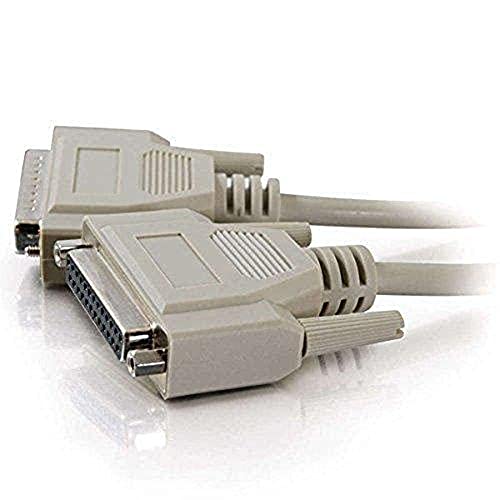
SABRENT USB to Parallel IEEE 1284 Printer Cable Adapter (CB-CN36)



Key features
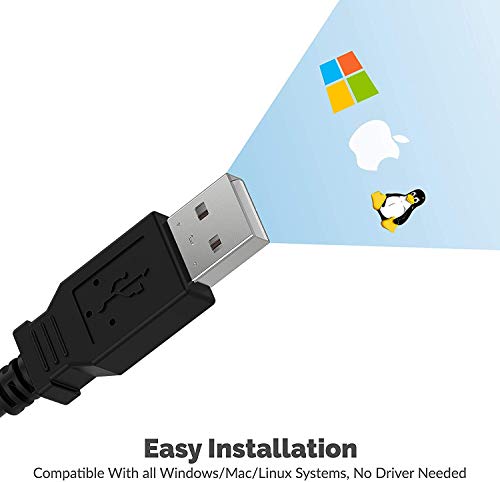
- •Supports multiple operation systems
- •IEEE 1284 (Bi-Directional Parallel Interface)
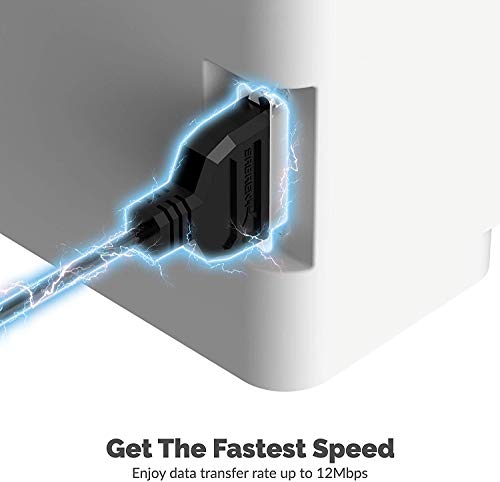
- •Enjoy data transfer rate up to 12Mbps
- •Eliminate manual or automatic parallel switch boxes
- •Simple Plug & Play installation
SABRENT USB to Parallel IEEE 1284 Printer Cable Adapter (CB-CN36)
List Price: $19.30$17.37DEALYou Save: $1.93 (10%)
Free shippingFree Returns – 30 daysFree Order CancellationSecure Payment2–3 Days DeliveryGet It October 25, 2026In Stock (2)No marketing spamNo account requiredFulfilment by FedEx / Amazon / UPS / ShipwirePayPal / Card Buyer Protection
Customer Reviews
Reviews sourced from verified Amazon purchasers4.6
out of 5
Based on 10 reviews
5★
80%
4★
0%
3★
10%
2★
0%
1★
10%
Great cable.... saved my old HP Laserjet printer for me
Alias•October 3, 2017
Quick and easy installation - allowed me to use my old HP Laserjet 5P printer with my Compaq laptop running Windows XP. Just plugged it in and it immediately worked.... WONDERFUL! Thought I would never be able to use the old HP printer again before I found this.....
UPDATE: Just plugged this cable into my HP 64-Bit Windows-10 PC and the Laserjet 5P printer just works, no fuss, no bother... Miraclulus!
UPDATE: Just plugged this cable into my HP 64-Bit Windows-10 PC and the Laserjet 5P printer just works, no fuss, no bother... Miraclulus!
It looks like I'll be trying to return this
Michael L. Meier•September 13, 2017
It simply didn't work for me. It took several times plugging and unplugging it from my computer (Win7) before it loaded correctly and installed the drivers for my printer (HP Laserjet 5P). Still, I could not get it to print anything. When printing a test page the job would show up briefly in the queue then disappear, as if the document had printed. It never printed. I tried printing a larger file using Photoshop and the job flashed through the queue quickly, but never printed.
I went to their web site and FireFox blocked it, something about a certificate. Another link got me through but half the site did not work and on the part that did (Downloads) the CB-CN36 was not listed.
Also, the photo is misleading. The cable is not where near as long as shown in the photo.
I see in other reviews it worked for the HP Laserjet 4.
It looks like I'll be trying to return this.
I went to their web site and FireFox blocked it, something about a certificate. Another link got me through but half the site did not work and on the part that did (Downloads) the CB-CN36 was not listed.
Also, the photo is misleading. The cable is not where near as long as shown in the photo.
I see in other reviews it worked for the HP Laserjet 4.
It looks like I'll be trying to return this.
awesome cable, works great
dv•August 4, 2017
Many of us have newer computers that lack parallel printer port, but have old laser printers that are work-horses but incompatible due to newer USB connections. With help from this cable, i was able to use my Brother MFC 4650 multifunction printer (from 2000), and printer is working flawlessly in 2017 with windows 7, windows 10 computers.. The review written by 'Wally Waffleson January 22, 2015" was the most helpful. I am rewriting his/her suggestions:
--------------------------
Installation Guide:
1) Plug the Sabrent cable into the back of your ancient printer.
2) Turn on the printer.
3) Plug the cable into a USB port on your PC. Windows should automatically install drivers for the USB device, and when it's done it will report the following devices as "Ready to use": "USB Printing Support" and "No Printer Attached".
4) Open the control panel's Printer listing, and select "Add a printer."
5) Select "Add a local printer."
6) When prompted to "Choose a printer port," select "Use an existing port," and from the drop-down list find and select the item containing "Virtual printer port for USB." It may look something like "USB001 (Virtual printer port for USB)."
7) When prompted to "Install the printer driver," if you cannot find your ancient printer listed, click "Windows Update." The installer will contact MicroSoft's online database to search for more printer drivers. This WILL take several minutes.
8) If you still cannot find your printer, refer to your printer's official documentation (a web search may be necessary) to see if it lists any "compatible drivers." (My printer's manual lists 9 alternative printers with compatible drivers. I selected "Epson LQ-570+ ESC/P 2" which was a successful match.)
9) Click "Next" and continue the printer installation to the end as normal.
10) Once the installation is complete and you are prompted to print a test page, print a test page to confirm your success!
Troubleshooting:
1) If your print job sits in the queue for a long time before eventually changing its status to "out of paper" even though the printer is clearly not having any paper issues, your cable probably is not plugged all the way into the printer. Ensure the plug is in all the way and try again. (After my first hour of trying to get the printer to work, I discovered the cable wasn't plugged in all the way, despite the cord catch successfully latching.)
2) If your printer is printing random garbage, you probably installed the wrong driver. Install a different driver and try again.
3) Consult the original manual for your printer. Fortunately, many old technical manuals can be found in PDF form on the internet.
4) If you unplug the USB cable from your computer, then plug it back into a different port, your computer WILL think you have plugged in an entirely new device. You will have to either plug the USB cable back into the same port you originally used, or reinstall the printer drivers.
--------------------------
Installation Guide:
1) Plug the Sabrent cable into the back of your ancient printer.
2) Turn on the printer.
3) Plug the cable into a USB port on your PC. Windows should automatically install drivers for the USB device, and when it's done it will report the following devices as "Ready to use": "USB Printing Support" and "No Printer Attached".
4) Open the control panel's Printer listing, and select "Add a printer."
5) Select "Add a local printer."
6) When prompted to "Choose a printer port," select "Use an existing port," and from the drop-down list find and select the item containing "Virtual printer port for USB." It may look something like "USB001 (Virtual printer port for USB)."
7) When prompted to "Install the printer driver," if you cannot find your ancient printer listed, click "Windows Update." The installer will contact MicroSoft's online database to search for more printer drivers. This WILL take several minutes.
8) If you still cannot find your printer, refer to your printer's official documentation (a web search may be necessary) to see if it lists any "compatible drivers." (My printer's manual lists 9 alternative printers with compatible drivers. I selected "Epson LQ-570+ ESC/P 2" which was a successful match.)
9) Click "Next" and continue the printer installation to the end as normal.
10) Once the installation is complete and you are prompted to print a test page, print a test page to confirm your success!
Troubleshooting:
1) If your print job sits in the queue for a long time before eventually changing its status to "out of paper" even though the printer is clearly not having any paper issues, your cable probably is not plugged all the way into the printer. Ensure the plug is in all the way and try again. (After my first hour of trying to get the printer to work, I discovered the cable wasn't plugged in all the way, despite the cord catch successfully latching.)
2) If your printer is printing random garbage, you probably installed the wrong driver. Install a different driver and try again.
3) Consult the original manual for your printer. Fortunately, many old technical manuals can be found in PDF form on the internet.
4) If you unplug the USB cable from your computer, then plug it back into a different port, your computer WILL think you have plugged in an entirely new device. You will have to either plug the USB cable back into the same port you originally used, or reinstall the printer drivers.
Works perfectly with Raspberry Pi
Electronics for Dogs•July 10, 2017
Compared to traditional printer cables, this is impressively thin and convenient. I used it to connect an HP Laserjet 6P to a Raspberry Pi computer which acts as a print server for my other computers. Step by step instructions for Raspberry Pi and other Linux computers can be found on the web at "How-to Geek". If you are using an HP printer, you will also need to install HPLIP.
Unfortunately, there is a bug in the current Ubuntu 4.4.0-83 kernal which prevents this product from working directly with my desktop computer, but it does work with the Pi's Raspian Linux and probably many other distributions. Because this bug is not the fault of the QinHeng Electronics HL-340 USB-Serial adapter chip used in this product, I am not deducting any stars.
Unfortunately, there is a bug in the current Ubuntu 4.4.0-83 kernal which prevents this product from working directly with my desktop computer, but it does work with the Pi's Raspian Linux and probably many other distributions. Because this bug is not the fault of the QinHeng Electronics HL-340 USB-Serial adapter chip used in this product, I am not deducting any stars.
One of the best investments I've made !!
TMA658•May 29, 2017
My old HP Laserjet 4 Plus Parallel port printer works great using this cable from a USB Port. That printer was retired long ago and replaced with a new WIFI HP Printer but I have plenty of toner left for the old 4 plus that I hate to see go to waste so I tried this cable and Windows 10 instantly began installing drivers for the printer as soon as the USB Plug was connected to my laptop. On the first try after it showed up in my printer list it printed !! Now I can use all of the dry toner in the old laserjet without tossing it out saving me a ton of money. This is one of the best investments I've made in a long time !!!
Page 1 of 2