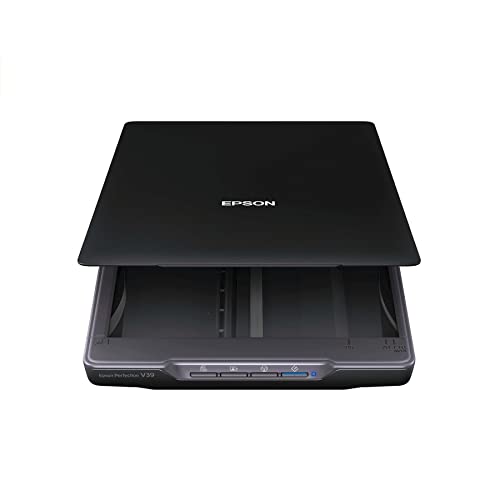
Canon Canoscan Lide 300 Scanner (PDF, AUTOSCAN, COPY, SEND)


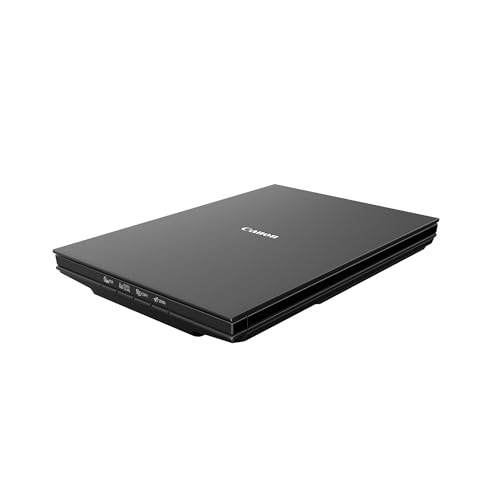


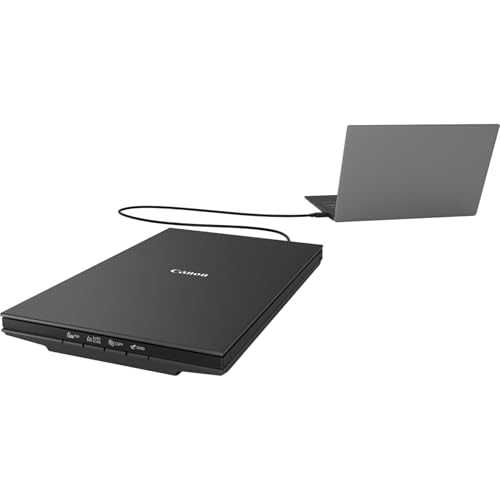
Key features
- •Scan documents quickly and easily with fast scanning up to 10 seconds
- •Digitize documents and images thanks to 2400 x 2400 dpi resolution, and with image enhancements, such as fade correction and dust reduction, Your photos will continue to look great
- •Enjoy ease of use with 4 'EZ' Buttons. With auto scan mode, the Scanner automatically detects what you're scanning; built in PDF button, easily scans and saves pdf's that are editable and searchable
Canon Canoscan Lide 300 Scanner (PDF, AUTOSCAN, COPY, SEND)
List Price: $94.44$85.00DEALYou Save: $9.44 (10%)
Free shippingFree Returns – 30 daysFree Order CancellationSecure Payment2–3 Days DeliveryGet It October 25, 2026In Stock (45)No marketing spamNo account requiredFulfilment by FedEx / Amazon / UPS / ShipwirePayPal / Card Buyer Protection
Customer Reviews
Reviews sourced from verified Amazon purchasers4.2
out of 5
Based on 10 reviews
5★
60%
4★
40%
3★
0%
2★
0%
1★
0%
I can't believe it's this good.
Pano✓ Verified Purchase•February 2, 2024
This little scanner is quote the workhorse. When I got it I sat down and scanned about 3500 documents - some text, some photos. Never a glitch. And the results are nice.
Now I didn't expect this given the price, but it certainly exceed my expectations. I know high end scanners, I used them for a living and most scanners I used cost several thousand dollars. Does this inexpensive little Canon beat those? No, not at all. But it does very well on both text documents and photos.
The bulk of my scanning was black and white 8x10 photos from the 1950-1970s. The Lide 300 captured all there was to get, no problem with shadows, no blown out highlights. I scanned the 8x10s at 400 dpi and they look great. I experimented with 600 dpi, but the difference in detail was so slight that it wasn't worth it. At 600 dpi 100% zoom there was a tiny bit more detail than at 400dpi, but mostly it was just more grain. It felt like I had reached the limit of what the prints had to offer. Anything smaller than 8x10 I scanned at 600dpi, just for sake of it. Color photos were nice too, even the faded ones. Printed test of course was clean and crisp.
Software: I used the included Canon software 90% of the time, but also scanned a lot of pages with Adobe Acrobat and some with Photoshop. No problems at all. The Canon software is very basic looking, but actually has all the adjustments and settings I needed. Even for difficult scans with low contrast or color backgrounds, there was always either a basic or advanced setting that worked. The software interface can be a bit clunky in places, but you get used to it. Take some time and try the different settings, you can even customize them.
Overall I am amazed at what Canon can do in a sub $60 USB powered scanner.
Yes, it is noisy, especially on fast scans. But you get used to it. And for the price and the quality, I don't mind the noise.
Now I didn't expect this given the price, but it certainly exceed my expectations. I know high end scanners, I used them for a living and most scanners I used cost several thousand dollars. Does this inexpensive little Canon beat those? No, not at all. But it does very well on both text documents and photos.
The bulk of my scanning was black and white 8x10 photos from the 1950-1970s. The Lide 300 captured all there was to get, no problem with shadows, no blown out highlights. I scanned the 8x10s at 400 dpi and they look great. I experimented with 600 dpi, but the difference in detail was so slight that it wasn't worth it. At 600 dpi 100% zoom there was a tiny bit more detail than at 400dpi, but mostly it was just more grain. It felt like I had reached the limit of what the prints had to offer. Anything smaller than 8x10 I scanned at 600dpi, just for sake of it. Color photos were nice too, even the faded ones. Printed test of course was clean and crisp.
Software: I used the included Canon software 90% of the time, but also scanned a lot of pages with Adobe Acrobat and some with Photoshop. No problems at all. The Canon software is very basic looking, but actually has all the adjustments and settings I needed. Even for difficult scans with low contrast or color backgrounds, there was always either a basic or advanced setting that worked. The software interface can be a bit clunky in places, but you get used to it. Take some time and try the different settings, you can even customize them.
Overall I am amazed at what Canon can do in a sub $60 USB powered scanner.
Yes, it is noisy, especially on fast scans. But you get used to it. And for the price and the quality, I don't mind the noise.
An inexpensive, adequate quality flat bed scanner
Fergie✓ Verified Purchase•January 31, 2024
Canon CanoScan LiDe 400 Slim Scanner, sold by Canon.
After almost 20 years of reliable performance, my trusty Microtek SlimScan C6 flatbed finally bit the dust. I seriously considered buying another C6 (new old stock) because it was so reliable, easy to use, and full of features. BUT, the C6 probably won't interface well with newer versions of Windows (i.e., anything later than XP), so I decided to look for something newer.
For $ 90, the LiDe 400 seemed to fit both my budget and needs. Here's the PROs and CONs I have found:
PROs:
1. Really inexpensive
2. Pretty simple to install on any Windows computer with Win 7 or higher.
3. Does a really decent job of scanning documents and photographs (see below).
CONs:
1. Doesn't come with a manual (hardcopy or on the CD), and there doesn't seem to be a way to download a whole manual from the Canon LiDe Website (it's a pain in the ass to have to find the information you are looking for, piece by piece, on the Website... a downloaded complete manual would be so much easier).
2. The cable from the scanner to computer is relatively short (a little less than 5 feet). That's fine for hooking to my laptop that sits adjacent to the scanner, but doesn't work for my laptops or PC that are at more distant workstations. It would be really nice if Canon provided a cable that is 2 - 3 time longer, or at least provided cable specifications so you could buy an appropriate longer cable (it's apparently a "special" cable... you can't just use a run-of-the-mill extension).
3. You can't remove the scanner bed cover to facility scanning larger media. With my C6, you could take off the cover so you could scan large media like maps without having to fold (damage) the original. For me, this is the most serious downside to the LiDe 400, and is something Canon could have easily rectified with a different type of cover hinge.
4. Apparently doesn't work with earlier version of Windows. I'd really like to use the scanner with my old XP desktop, because I have lots of really good XP-based image processing software. The work-around appears to be to buy VueScan drivers from Hamrick. That will be one of my next tasks.
As far as use, so far I have been reasonably satisfied with the Canon LiDe 400.
I used the front buttons to scan pages and create a pdf document, and it was a really simple and intuitive process. The Auto Scan front button made a decent copy of a photograph, but you can get much better photo scanning results (including higher resolutions than what "Auto Scan" provides) using the Twain compliant ScanGear software that is included.
ScanGear lets you do some limited image correction and post-processing. It's OK, but the ULead PhotoImpact software that came with my Microtek SlimScan C6 was FAR more versatile. In particular, ScanGear has very limited options for descreening when scanning printed images (like newspaper or magazine articles, or some types of laser printed originals). I'm really hoping that when I install the VueScan drivers on my XP machine, I can interface the LiDe 400 with the much better PhotoImpact image processing software that I already have.
Overall... the Canon LiDe 400 scanner is a decent, inexpensive, basic-use flatbed scanner. For most people who just want to scan letter-size documents, or digitize a bunch of photographs with good resolution, this scanner will more than suffice.
FINAL NOTE: Like most inexpensive flatbed scanners, you are limited to original documents that are no more than 8.5 x 12 inches in size. Supposedly, there is a way to scan larger originals in pieces, and then "stitch together" the pieces to create a full-size digital product. I haven't tried this feature, so I can't tell you if it really works as advertised or not.
Original review: 15 June 2022. This review will be updated once the Hamrick VueScan drivers are installed, or if any problems with the scanner are subsequently found.
After almost 20 years of reliable performance, my trusty Microtek SlimScan C6 flatbed finally bit the dust. I seriously considered buying another C6 (new old stock) because it was so reliable, easy to use, and full of features. BUT, the C6 probably won't interface well with newer versions of Windows (i.e., anything later than XP), so I decided to look for something newer.
For $ 90, the LiDe 400 seemed to fit both my budget and needs. Here's the PROs and CONs I have found:
PROs:
1. Really inexpensive
2. Pretty simple to install on any Windows computer with Win 7 or higher.
3. Does a really decent job of scanning documents and photographs (see below).
CONs:
1. Doesn't come with a manual (hardcopy or on the CD), and there doesn't seem to be a way to download a whole manual from the Canon LiDe Website (it's a pain in the ass to have to find the information you are looking for, piece by piece, on the Website... a downloaded complete manual would be so much easier).
2. The cable from the scanner to computer is relatively short (a little less than 5 feet). That's fine for hooking to my laptop that sits adjacent to the scanner, but doesn't work for my laptops or PC that are at more distant workstations. It would be really nice if Canon provided a cable that is 2 - 3 time longer, or at least provided cable specifications so you could buy an appropriate longer cable (it's apparently a "special" cable... you can't just use a run-of-the-mill extension).
3. You can't remove the scanner bed cover to facility scanning larger media. With my C6, you could take off the cover so you could scan large media like maps without having to fold (damage) the original. For me, this is the most serious downside to the LiDe 400, and is something Canon could have easily rectified with a different type of cover hinge.
4. Apparently doesn't work with earlier version of Windows. I'd really like to use the scanner with my old XP desktop, because I have lots of really good XP-based image processing software. The work-around appears to be to buy VueScan drivers from Hamrick. That will be one of my next tasks.
As far as use, so far I have been reasonably satisfied with the Canon LiDe 400.
I used the front buttons to scan pages and create a pdf document, and it was a really simple and intuitive process. The Auto Scan front button made a decent copy of a photograph, but you can get much better photo scanning results (including higher resolutions than what "Auto Scan" provides) using the Twain compliant ScanGear software that is included.
ScanGear lets you do some limited image correction and post-processing. It's OK, but the ULead PhotoImpact software that came with my Microtek SlimScan C6 was FAR more versatile. In particular, ScanGear has very limited options for descreening when scanning printed images (like newspaper or magazine articles, or some types of laser printed originals). I'm really hoping that when I install the VueScan drivers on my XP machine, I can interface the LiDe 400 with the much better PhotoImpact image processing software that I already have.
Overall... the Canon LiDe 400 scanner is a decent, inexpensive, basic-use flatbed scanner. For most people who just want to scan letter-size documents, or digitize a bunch of photographs with good resolution, this scanner will more than suffice.
FINAL NOTE: Like most inexpensive flatbed scanners, you are limited to original documents that are no more than 8.5 x 12 inches in size. Supposedly, there is a way to scan larger originals in pieces, and then "stitch together" the pieces to create a full-size digital product. I haven't tried this feature, so I can't tell you if it really works as advertised or not.
Original review: 15 June 2022. This review will be updated once the Hamrick VueScan drivers are installed, or if any problems with the scanner are subsequently found.
Easy to use and set up
Marianne✓ Verified Purchase•January 17, 2024
This is the second scanner I bought because the first one didn't work. I spent hours trying to set up the first one and finally have up and returned it. After finally receiving my refund after about 2 weeks I decided to take a chance and order a replacement. It set up in no time and I was scanning within 15 minutes. All I wanted it for is digitizing a ton of photos, so I didn't want to spend hundreds on a scanner. This one works just fine for my purposes.
great scanner especially for the price with great photo reproduction. 4800dpi requires setup
Patrick H. Nguyen✓ Verified Purchase•December 16, 2023
I love this scanner, but I'll start off talking about a certain aspect because I did see a lot of reviews saying you can't scan at 4800DPI or you are limited to a tiny image. After some trial and error, I found out you can do 4800 DPI. The limitation of the ScanGear software (included with the scanner) is apparently memory. But oh well. The image cannot exceed 50,000x50,000 pixels or 4GB. so that means the biggest image I was able to scan at 4800 DPI is 6.7 inches x 9.20 inches which is just below 4GB in size for a JPEG. I shouldn't have any limitations because my PC has 128 GB of RAM and 80 TB of storage but oh well. Note that this 6.7 inches x 9.2 inches is the output resolution. The input can be whatever can fit on the glass (example, 8.5 inches x 11 inches).
In order to get to 4800 DPI, if you want to use the included Canon software, you have to use ScanGear. It doesn't appear to be available in Canon's other scanning modes. If you use a paid commercial scanning software like Vuescan, maybe this 4800 DPI memory limitation doesn't exist because the hardware can do 4800 DPI. Here's the key point, you have to go to the settings for ScanGear and select the checkbox for "Enable large image scans". I don't know why this is even an option. Whoever wrote the software should just allow for large image scans because it's only going to confuse people.
If you don't set this checkbox, the biggest image you can scan is something like 14000x10000 pixels which means at 4800DPI, the biggest image is something like 2 inches x 2.5 inches. Once the setting is saved, go to ScanGear to scan the image. TYPE 4800 into the resolution box (don't use the dropdown arrow). Set max scan to 6.7"x9.2". That will produce a 4GB data file. If you're expecting to scan a 4800DPI 6.7"x9.2" TIFF image, you would probably need terabytes of RAM because it doesn't scan to your storage. It scans into your memory and then saves that image to disk. Considering a lot of users have only 8GB or 16GB of RAM, scanning a 4800DPI TIFF image isn't really feasible.
Then you will be able to scan at 4800DPI. Remember, this 6.7"x9.2" is the output resolution. The input can be the full size of the scanner glass. For example, you put on a 8.5 inch x 11 inch paper. and then the output is 6.7"x9.2". And the last aspect of 4800 DPI scanning is how long it takes. This is not the seconds of scanning you get with 300 DPI or 600 DPI. No, this is many minutes. You really have to realize whether 4800 DPI is worth it to you. If you're scanning a printed photo, 4800 DPI won't really make it better. you're at the limit of the print.
4800 DPI aside, how is this scanner? It's super thin as a scanner. You can put books or whatever on the glass (platen). I thought about the Epson photo scanner where you can feed pictures. But then I realized it was $600 and that you can't scan books and non-fed sheets and it was limited to 600 DPI. This Canon is super fast at more normal resolutions (300, 600, 1200, etc.). It comes with a stand so you can have the scanner vertically positioned while scanning! Not sure how useful that is but it is neat to see it scanning something while vertical. The color reproduction and the scanner features are top-notch.
I totally recommend this if you're scanning at 2400 DPI and below. I bought it mostly for photo scanning.
For photos I plan to share through social media or email, I'll probably scan at 300 DPI or 600 DPI (that I then compress down) because email's limit is 25MB which is something like 7000x7000. I know the JPEGs I output out of photoshop from my digital camera are 45 megapixels (8192x5464 resolution) and 31.5MB in size so already too big for email or social media.
If your main thing is scanning everything at 4800DPI, then I would suggest getting something else. For photos I'm going to print, I'll probably scan at 1200 or 2400 DPI. But if you'll only occasionally use 4800 DPI, then this can totally do it and do it well (as long as you're below 50000x50000 resolution). I just scanned a 32162x44160 which ended up being a 410 MB JPEG. It took about 20 minutes (ballpark estimate). Note that if 4800 DPI was seamless and was selectable from a dropdown menu, I would've given this scanner 5 stars. But for making it a hassle, I knocked off a star.
In order to get to 4800 DPI, if you want to use the included Canon software, you have to use ScanGear. It doesn't appear to be available in Canon's other scanning modes. If you use a paid commercial scanning software like Vuescan, maybe this 4800 DPI memory limitation doesn't exist because the hardware can do 4800 DPI. Here's the key point, you have to go to the settings for ScanGear and select the checkbox for "Enable large image scans". I don't know why this is even an option. Whoever wrote the software should just allow for large image scans because it's only going to confuse people.
If you don't set this checkbox, the biggest image you can scan is something like 14000x10000 pixels which means at 4800DPI, the biggest image is something like 2 inches x 2.5 inches. Once the setting is saved, go to ScanGear to scan the image. TYPE 4800 into the resolution box (don't use the dropdown arrow). Set max scan to 6.7"x9.2". That will produce a 4GB data file. If you're expecting to scan a 4800DPI 6.7"x9.2" TIFF image, you would probably need terabytes of RAM because it doesn't scan to your storage. It scans into your memory and then saves that image to disk. Considering a lot of users have only 8GB or 16GB of RAM, scanning a 4800DPI TIFF image isn't really feasible.
Then you will be able to scan at 4800DPI. Remember, this 6.7"x9.2" is the output resolution. The input can be the full size of the scanner glass. For example, you put on a 8.5 inch x 11 inch paper. and then the output is 6.7"x9.2". And the last aspect of 4800 DPI scanning is how long it takes. This is not the seconds of scanning you get with 300 DPI or 600 DPI. No, this is many minutes. You really have to realize whether 4800 DPI is worth it to you. If you're scanning a printed photo, 4800 DPI won't really make it better. you're at the limit of the print.
4800 DPI aside, how is this scanner? It's super thin as a scanner. You can put books or whatever on the glass (platen). I thought about the Epson photo scanner where you can feed pictures. But then I realized it was $600 and that you can't scan books and non-fed sheets and it was limited to 600 DPI. This Canon is super fast at more normal resolutions (300, 600, 1200, etc.). It comes with a stand so you can have the scanner vertically positioned while scanning! Not sure how useful that is but it is neat to see it scanning something while vertical. The color reproduction and the scanner features are top-notch.
I totally recommend this if you're scanning at 2400 DPI and below. I bought it mostly for photo scanning.
For photos I plan to share through social media or email, I'll probably scan at 300 DPI or 600 DPI (that I then compress down) because email's limit is 25MB which is something like 7000x7000. I know the JPEGs I output out of photoshop from my digital camera are 45 megapixels (8192x5464 resolution) and 31.5MB in size so already too big for email or social media.
If your main thing is scanning everything at 4800DPI, then I would suggest getting something else. For photos I'm going to print, I'll probably scan at 1200 or 2400 DPI. But if you'll only occasionally use 4800 DPI, then this can totally do it and do it well (as long as you're below 50000x50000 resolution). I just scanned a 32162x44160 which ended up being a 410 MB JPEG. It took about 20 minutes (ballpark estimate). Note that if 4800 DPI was seamless and was selectable from a dropdown menu, I would've given this scanner 5 stars. But for making it a hassle, I knocked off a star.
Good scanner for a good price.
Jonathan D. Evenboer✓ Verified Purchase•December 3, 2023
Needed a scanner to send homework in for submission. Didn't want to spend a ton, but wanted a good scanner with decent quality imaging. This did the trick. Light weight, compatible with Windows 11, hooks up to a laptop easy enough, and is very user friendly once you get past the slightly confusing initial set-up.
Over-all, a good pick-up if you need a quality scanner. It's not top of the line, but it gets the job done. For the price, you really can't do much better.
Over-all, a good pick-up if you need a quality scanner. It's not top of the line, but it gets the job done. For the price, you really can't do much better.
Page 1 of 2