Outdoor Smart Plug, Surge Protector, POWRUI Smart Power Strip with 4-Outlet Extender, Remote Control, Timer, Weatherproof for Indoor and Outdoor Use, Compatible with Alexa, Google Assistant and IFTT



Key features
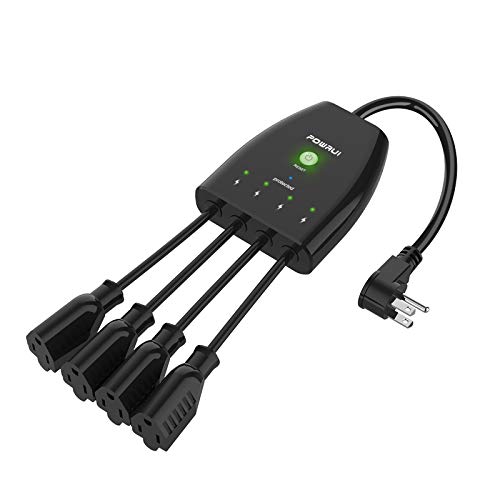
- •【4 Outlets Controlled Individually】Outdoor extension cord with 4 AC outlets design, 15A/1875W max for each, App/voice control 4 appliances seperately. 1080 Joules surge protector.
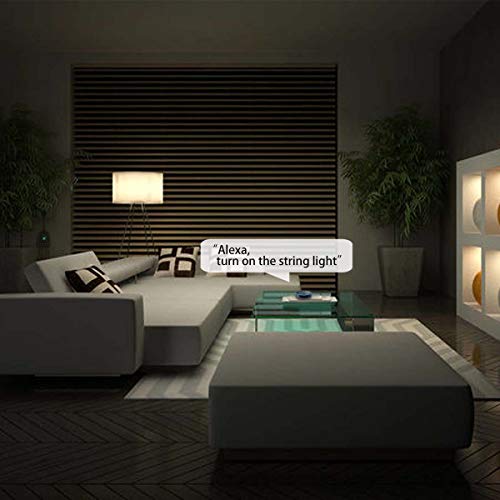
- •【Voice Control & Schedule and Timer】Compatible with Amazon Alexa, Amazon echo dot/tap/show and Google Assistant for voice control. You can schedule an timer event or countdown event on your phone anytime and anywhere.
- •【Easy and Quick Setup】Plug on the smart outdoor socket and complete the network configuration in minutes. Connectivity:IP/Network-2.4GHz Wireless, Only Supports 2.4GHz Network, no hub required. Important notice: This product can only work with 2.4G network, please confirm before purchasing.
- •【Indoor & Outdoor Use and surge protector】IP44 Weatherproof , With PC fireproof material and splash-proof design, POWRUI 3-level complementary Surge Protection Circuit with 1080 Joules, features weather and impact resistant housing withstands damp or wet conditions.
- •【Support Guarantee】 Our friendly and reliable customer service will respond to you within 24 hours. You can purchase with confidence, with our 30-day money back guarantee and 12-month replacement warranty.
Outdoor Smart Plug, Surge Protector, POWRUI Smart Power Strip with 4-Outlet Extender, Remote Control, Timer, Weatherproof for Indoor and Outdoor Use, Compatible with Alexa, Google Assistant and IFTT
List Price: $52.33$47.10DEALYou Save: $5.23 (10%)
Free shippingFree Returns – 30 daysFree Order CancellationSecure Payment2–3 Days DeliveryGet It October 30, 2026In Stock (1)No marketing spamNo account requiredFulfilment by FedEx / Amazon / UPS / ShipwirePayPal / Card Buyer Protection
Customer Reviews
Reviews sourced from verified Amazon purchasers4.4
out of 5
Based on 10 reviews
5★
50%
4★
50%
3★
0%
2★
0%
1★
0%
Fine product, but instructions from vendor for setup are dead wrong.
Ceera Brandt✓ Verified Purchase•August 25, 2023
Okay, once you get it paired, this is a very nice device. But the instructions packed with it, as well as the guidance offered by the seller's support people is dead wrong.
Here is how to set it up, to use the Smart Life app on an iPhone to control it.
The switch needs to physically be less than three to four feet away from your wireless hub during pairing. I tried from just eight feet away for over an hour, before I tried moving it closer, on the end of a three prong extension cord. It was still trying to sync when I moved it closer, and it snapped right into sync when I got three feet away.
Your iPhone needs to be on the same 2.4 GHz wifi as the switch during setup. (You can change the phone back to 5 GHz wifi for your phone after the device is set up.) The switch will select the closest available 2.4 GHz wifi when you pair it. (Which is possibly why it needs to be close during setup, so it knows which wifi to pair on.)
That almost unreadably tiny QR code in the instructions did take me to a download webpage for the "Smart Life" app, for my iPhone. Searching in the Apple App store for Smart Life found two apps, with no way to tell which was the correct one. You want the one with a blue app icon, with a white house-shaped outline on it. Download it and sign up for a new account, if you have not used that app before.
Open the app, and click on the + or on the add device button. Choose wifi power strip, then click through the instructions, giving it your wifi password, and stop when it asks you to confirm the light is blinking rapidly.
Plug the switch in, and the button will light up green, indicating all outlets are on. You first need to press that button one time, so it turn BLUE, indicating it is off. Then and only then, you can hold the button down for five seconds, and it will start the rapid blue blinking.
In the app, confirm the light is blinking. It should start scanning for a device to pair with.
If all goes well, it should pair as "AW39".
Click on that in the device list in the app, to control your switch. You'll see a representation of a four outlet power strip.
The power button on the top of the displayed strip toggles all four outlets on or off at once. If some are already on, first they all go off, then they all go on. (Just like the physical switch on the device.)
Clicking on an individual outlet toggles that outlet's power on or off. #1 is the far right outlet, #4 is the far left one. You can rename each outlet in the app.
The schedule button allows you to set on and off times for each outlet. One on or off action per rule, scheduled for "˜just once', or to repeat on certain days. Times should be within 30 seconds of the specified minute. Expired "˜just once' rules remain in the schedule, deactivated, and can easily be reactivated or edited. Swipe left on any schedule item to get the delete button.
The countdown button lets you turn an outlet on after immediately counting down a time in hours and minutes.
To rename the device itself in your list, click on the three dots in the upper right corner, then click on the pencil and paper icon to the right of the name.
I'll probably buy a few more, now that I know how to get them to work. But the supplier needs to hire an English-speaking technical writer, who has actually tried to perform the setup instructions!
Here is how to set it up, to use the Smart Life app on an iPhone to control it.
The switch needs to physically be less than three to four feet away from your wireless hub during pairing. I tried from just eight feet away for over an hour, before I tried moving it closer, on the end of a three prong extension cord. It was still trying to sync when I moved it closer, and it snapped right into sync when I got three feet away.
Your iPhone needs to be on the same 2.4 GHz wifi as the switch during setup. (You can change the phone back to 5 GHz wifi for your phone after the device is set up.) The switch will select the closest available 2.4 GHz wifi when you pair it. (Which is possibly why it needs to be close during setup, so it knows which wifi to pair on.)
That almost unreadably tiny QR code in the instructions did take me to a download webpage for the "Smart Life" app, for my iPhone. Searching in the Apple App store for Smart Life found two apps, with no way to tell which was the correct one. You want the one with a blue app icon, with a white house-shaped outline on it. Download it and sign up for a new account, if you have not used that app before.
Open the app, and click on the + or on the add device button. Choose wifi power strip, then click through the instructions, giving it your wifi password, and stop when it asks you to confirm the light is blinking rapidly.
Plug the switch in, and the button will light up green, indicating all outlets are on. You first need to press that button one time, so it turn BLUE, indicating it is off. Then and only then, you can hold the button down for five seconds, and it will start the rapid blue blinking.
In the app, confirm the light is blinking. It should start scanning for a device to pair with.
If all goes well, it should pair as "AW39".
Click on that in the device list in the app, to control your switch. You'll see a representation of a four outlet power strip.
The power button on the top of the displayed strip toggles all four outlets on or off at once. If some are already on, first they all go off, then they all go on. (Just like the physical switch on the device.)
Clicking on an individual outlet toggles that outlet's power on or off. #1 is the far right outlet, #4 is the far left one. You can rename each outlet in the app.
The schedule button allows you to set on and off times for each outlet. One on or off action per rule, scheduled for "˜just once', or to repeat on certain days. Times should be within 30 seconds of the specified minute. Expired "˜just once' rules remain in the schedule, deactivated, and can easily be reactivated or edited. Swipe left on any schedule item to get the delete button.
The countdown button lets you turn an outlet on after immediately counting down a time in hours and minutes.
To rename the device itself in your list, click on the three dots in the upper right corner, then click on the pencil and paper icon to the right of the name.
I'll probably buy a few more, now that I know how to get them to work. But the supplier needs to hire an English-speaking technical writer, who has actually tried to perform the setup instructions!
One of the better smart plugs
I Am The Dark Side✓ Verified Purchase•August 5, 2023
I've had this for over 3 Christmas seasons (2020-2022) now and it's worked like a champ. Outside. In the rain. In the snow. Without fail.
Except"¦..when I had to change the wifi ID/password. But the trick is to be able to turn off the 5Ghz signal on your home wifi router. Just using the 2.4 SSID on your phone isn't enough because the device needs the associate with the router, and when both 5Ghz/2.4Ghz are broadcasting the device won't pair.
Otherwise the ability to have 4 individual control outlets is perfect for holiday lights. I use this next to a TP-Link 2-outlet smart plug but I'll probably get another one of these as my display/lights grow. I use the schedule option on the app to have the inflatables turn on first, but since this also integrates with Alexa (via Smart Life app) can schedule it there as well. My only complaint is that there is no SmartThings integration. But with the new Matter standard being pushed (finally) in 2023 that could change.
Piece of advise: use extension cord gaskets outside on all your cord/plug connections. Rain Block gaskets are a top seller here on Amazon but there are others. They also make plug covers to make sure the open ends aren't exposed. I've been using them on the connections for fence lights for full 2 years and have yet to have any outlet/light/shorting issues regardless of weather.
Except"¦..when I had to change the wifi ID/password. But the trick is to be able to turn off the 5Ghz signal on your home wifi router. Just using the 2.4 SSID on your phone isn't enough because the device needs the associate with the router, and when both 5Ghz/2.4Ghz are broadcasting the device won't pair.
Otherwise the ability to have 4 individual control outlets is perfect for holiday lights. I use this next to a TP-Link 2-outlet smart plug but I'll probably get another one of these as my display/lights grow. I use the schedule option on the app to have the inflatables turn on first, but since this also integrates with Alexa (via Smart Life app) can schedule it there as well. My only complaint is that there is no SmartThings integration. But with the new Matter standard being pushed (finally) in 2023 that could change.
Piece of advise: use extension cord gaskets outside on all your cord/plug connections. Rain Block gaskets are a top seller here on Amazon but there are others. They also make plug covers to make sure the open ends aren't exposed. I've been using them on the connections for fence lights for full 2 years and have yet to have any outlet/light/shorting issues regardless of weather.
Exactly what I needed!
GP✓ Verified Purchase•July 8, 2023
I've only had them for a few days but so far they work great and we're easy to setup. You do have to download the smart life app and setup a quick account but it recognized both of them first time. I set mine up with Alexa.
2 out of the 4 plugs I use with 2 Wyze cams that I leave powered on. The other 2 plugs I use with 2 different Flood lights that I use Alexa to turn off and on without it affecting the Wyze cams. I'm really glad I found these. I just bought 3 more right now.
2 out of the 4 plugs I use with 2 Wyze cams that I leave powered on. The other 2 plugs I use with 2 different Flood lights that I use Alexa to turn off and on without it affecting the Wyze cams. I'm really glad I found these. I just bought 3 more right now.
Used outdoors to automaticall turn on lights on pergola
Wm Gait✓ Verified Purchase•June 15, 2023
Fairly easy setup although the instructions included aren't great. For example, it wasn't clear what method I should use to set the device up: WiFi or Bluetooth. I let it sit for awhile and it was clear that the app installed on my Android phone finally sensed my home wireless network. The setup went OK after that. I've only setup one of the four outlets to turn on via a set time. It turns on lights seamlessly during the programmed times. The other outlets run appliances and phone chargers etc. The three-pronged electric plug is big and prevents full use of the two outlets wired by my electrician, but having the four outlets off of Smart Plug makes this less of an issue.
Love it for summer lights and Christmas lights!!
Amazon Customer✓ Verified Purchase•June 15, 2023
We have ours set up for our late night summers and our holiday display. It's so nice not having to go out and play with plugs in the cold & snow. You'll wonder why you didn't buy it sooner!!
Page 1 of 2