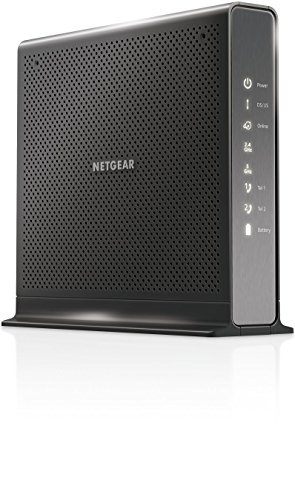
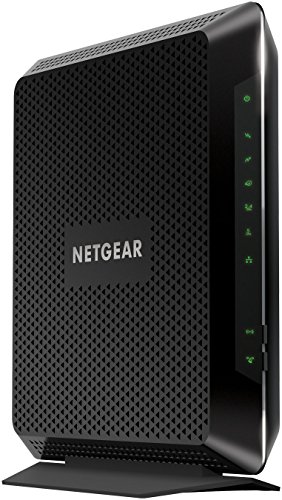
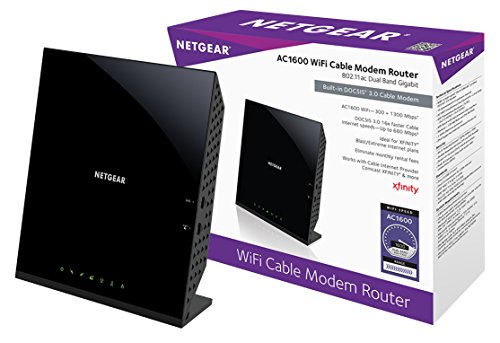
NETGEAR Cable Modem Wi-Fi Router Combo C6250 - Compatible with All Cable Providers Including Xfinity by Comcast, Spectrum, Cox | for Cable Plans Up to 300 Mbps | AC1600 Wi-Fi Speed | DOCSIS 3.0
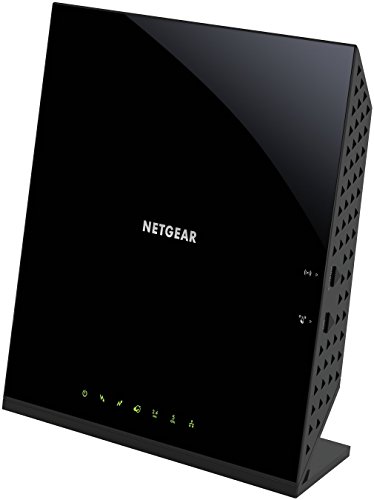


Key features
- •COMPATIBLE WITH ALL MAJOR CABLE INTERNET PROVIDERS: Including certification by Xfinity by Comcast, COX, and Spectrum. NOT compatible with Verizon, AT&T, CenturyLink, DSL providers, DirecTV, DISH and any bundled voice service
- •SAVE MONTHLY RENTAL FEES: Model C6250 replaces your cable modem and WiFi router saving you up to $150/yr in equipment rental fees
- •BUILT FOR FAST SPEED: Best for cable provider plans up to 300 Mbps speed
- •FAST WiFi PERFORMANCE: Get up to 1500 square feet wireless coverage and 25 devices connected with AC1600 speed (up to 1600 Mbps)
- •VERSATILE CONNECTIONS: 2 Gigabit Ethernet ports and 1 USB port give you fast wired connections to your computer, printer, game box, storage drive, and other devices
- •MODEM TECHNOLOGY: Engineered with 16x4 channel bonding and DOCSIS 3.0
BrandNETGEAR
CategoryModem Router Combos
Size300Mbps Max Download | WiFi AC1600
ColorBlack
WarrantyLimited (1) Year Warranty
NETGEAR Cable Modem Wi-Fi Router Combo C6250 - Compatible with All Cable Providers Including Xfinity by Comcast, Spectrum, Cox | for Cable Plans Up to 300 Mbps | AC1600 Wi-Fi Speed | DOCSIS 3.0
List Price: $213.84$192.46DEALYou Save: $21.38 (10%)
Free shippingFree Returns – 30 daysFree Order CancellationSecure Payment2–3 Days DeliveryGet It October 26, 2026In Stock (4)No marketing spamNo account requiredFulfilment by FedEx / Amazon / UPS / ShipwirePayPal / Card Buyer Protection
Customer Reviews
Reviews sourced from verified Amazon purchasers4.3
out of 5
Based on 10 reviews
5★
90%
4★
10%
3★
0%
2★
0%
1★
0%
Does bring faster speeds but make sure your router supports 5G!
Historian✓ Verified Purchase•April 21, 2018
Although expensive, this router does what it claims. Keep in mind that this is a DOCSIS 3.1 modem whereas many others out there are only DOCSIS 3.0. Buying into the higher standard now will push off obsolescence.
I purchased the modem for use with Xfinity's internet service and my download speeds went from 150MBps, limited by my old modem, to 290MBps. Thanks to other reviews, I called Comcast with the device serial number and MAC address before hooking it up. They then stepped me through the startup process. It took about 15-20 minutes. My Netgear Nighthawk router required me to log into it once the new modem was on-line so you should have that username and password handy.
The faster speed was immediately confirmed using Comcast's Speedtest website and accessing it with a laptop plugged into the back of the router. I did find that the faster speed only showed up on wireless devices that could access the 5G band of the router. Not all our devices, like older Roku boxes, have 5G capability and didn't benefit in a big way from the speed boost. Newer iPads do pretty well as long as they are connected to the 5G band.
I also noticed that I had to buy a new WIFI receiver for my desktop computer as the old one, although rated at 300MBps, didn't really get that speed and topped out around 180MBps. I replaced it with a Netgear AC1900 receiver, which is also expensive but gave me 100% of the max speed being sent by the modem and router. Altogether, it cost about $240 to get the new speed bump from Comcast. Of course, you can opt to lease a new modem from Comcast instead of buying it. In my case, the new modem pays for iteself after about two years.
I do owe Comcast a note of thanks for sending an email that my old modem would not give me the higher speeds and when I called their customer service to confirm, I actually talked to someone who knew what they were doing and talked me through using 5G, checking older devices and making sure that routers and receivers were all gigbit rated.
I purchased the modem for use with Xfinity's internet service and my download speeds went from 150MBps, limited by my old modem, to 290MBps. Thanks to other reviews, I called Comcast with the device serial number and MAC address before hooking it up. They then stepped me through the startup process. It took about 15-20 minutes. My Netgear Nighthawk router required me to log into it once the new modem was on-line so you should have that username and password handy.
The faster speed was immediately confirmed using Comcast's Speedtest website and accessing it with a laptop plugged into the back of the router. I did find that the faster speed only showed up on wireless devices that could access the 5G band of the router. Not all our devices, like older Roku boxes, have 5G capability and didn't benefit in a big way from the speed boost. Newer iPads do pretty well as long as they are connected to the 5G band.
I also noticed that I had to buy a new WIFI receiver for my desktop computer as the old one, although rated at 300MBps, didn't really get that speed and topped out around 180MBps. I replaced it with a Netgear AC1900 receiver, which is also expensive but gave me 100% of the max speed being sent by the modem and router. Altogether, it cost about $240 to get the new speed bump from Comcast. Of course, you can opt to lease a new modem from Comcast instead of buying it. In my case, the new modem pays for iteself after about two years.
I do owe Comcast a note of thanks for sending an email that my old modem would not give me the higher speeds and when I called their customer service to confirm, I actually talked to someone who knew what they were doing and talked me through using 5G, checking older devices and making sure that routers and receivers were all gigbit rated.
So I opted to get a new modem and a new router so that I could have better control of the devices
Amazon Customer✓ Verified Purchase•April 7, 2018
After buying a new 4K TV I realized that the ISP's modem/router combo with built in wifi wasn't cutting it. So I opted to get a new modem and a new router so that I could have better control of the devices. This device was easy enough to set up. Once I installed it I tried to use Comcast's useless self install feature. It kept asking me if I wanted to bring over the old wifi settings as if this were a router. So it wouldn't let me specify that it's just a modem. So I had to call support directly. I had the guy change me over in their system (he commented that this is a great modem and that lots of customers are getting them) and then I waited the usual 10-15 minutes for it to start working. So far I've had it over a month and it hasn't needed a single reboot. Download speeds from Comcast are rated at 250Mb's but with this modem my speed test hits about 300 every time.
Excellent product and seamless transition. Good user tips included with this review
jcgoobee✓ Verified Purchase•April 1, 2018
I upgraded my speed with my ISP to 1 Gbps but my old Arris modem wouldn't cut it. After doing some research and I narrowed down to Motorola and this Netgear CM1000. I've had several Netgear products before and they are all pretty reliable so I decided to give it a try. I managed to get close to 1 Gbps with this modem. When I did a raw wired test, I could hit the speed to around 980 Mbps consistently.
This is what I did to make things work seemlessly.
1. Do not unplug your old modem yet
2. Take a picture of the MAC and Serial number of the CM1000 (should be on the box too)
3. Sit the new CM 1000 next to your old modem then call your ISP (I use Comcast)
4. Tell them that you need to replace your modem and have your model, MAC, and serial number (they don't ask sometimes) ready
5. Once they input the MAC in their system, swap the modem, give it about 3 minutes to boot up then you're rock and rolling
6. Keep your old modem for contingency
Hope this review helps and if it does, please give me a thumb up.
This is what I did to make things work seemlessly.
1. Do not unplug your old modem yet
2. Take a picture of the MAC and Serial number of the CM1000 (should be on the box too)
3. Sit the new CM 1000 next to your old modem then call your ISP (I use Comcast)
4. Tell them that you need to replace your modem and have your model, MAC, and serial number (they don't ask sometimes) ready
5. Once they input the MAC in their system, swap the modem, give it about 3 minutes to boot up then you're rock and rolling
6. Keep your old modem for contingency
Hope this review helps and if it does, please give me a thumb up.
Bam! Saved $11/month in 2 days and 5 minutes! (UPDATED 4/5)
Chris M.✓ Verified Purchase•March 19, 2018
Five minutes after arriving on our doorstep, the new cable modem is up and running. Bracing myself for difficulty with Comcast, I was pleased at how easy setup was without ever having to speak to Comcast's clueless CS. Using a laptop with an Ethernet jack, here's how easy it was:
1) Wrote down my Comcast account number (This is the MOST important step!!!)
2) Connected modem to cable, power, and phone line
3) Connected Ethernet cable to modem and computer
4) Waited three minutes for the first three lights to blink steady (they'll blink and flash while the modem is syncing. You could wait up to 10 minutes for sync).
5) Turned off WiFi
6) Opened web browser, and Firefox had a nice little 'show login page' button appeared (if this doesn't show, you can go to xfinity.com/activate)
7) Entered my account number and street address
8) The modem reset itself. I plugged that into my Luma and we were off to the races!
Ironically, Comcast sent a new tower modem a week ago. I don't know if it's me, but this seems faster than that did - speed about the same but ping time is now 9ms instead of 14 and pages that seemed to load slowly before pop in immediately. Biggest bonus is that we're saving $11/month going forward.
UPDATE: 4/5/18 - Everything was working perfectly until Comcast turned off my service this weekend because the modem wasn't registered in the right database and Comcast thought I had no equipment. Object lesson: After activating online, call Comcast to make sure the equipment has registered across all of their databases - 5 minutes could save you 2 hours! The modem, however, is working flawlessly and I still highly recommend it!
1) Wrote down my Comcast account number (This is the MOST important step!!!)
2) Connected modem to cable, power, and phone line
3) Connected Ethernet cable to modem and computer
4) Waited three minutes for the first three lights to blink steady (they'll blink and flash while the modem is syncing. You could wait up to 10 minutes for sync).
5) Turned off WiFi
6) Opened web browser, and Firefox had a nice little 'show login page' button appeared (if this doesn't show, you can go to xfinity.com/activate)
7) Entered my account number and street address
8) The modem reset itself. I plugged that into my Luma and we were off to the races!
Ironically, Comcast sent a new tower modem a week ago. I don't know if it's me, but this seems faster than that did - speed about the same but ping time is now 9ms instead of 14 and pages that seemed to load slowly before pop in immediately. Biggest bonus is that we're saving $11/month going forward.
UPDATE: 4/5/18 - Everything was working perfectly until Comcast turned off my service this weekend because the modem wasn't registered in the right database and Comcast thought I had no equipment. Object lesson: After activating online, call Comcast to make sure the equipment has registered across all of their databases - 5 minutes could save you 2 hours! The modem, however, is working flawlessly and I still highly recommend it!
Easiest cable modem replacement ever
hoytlington✓ Verified Purchase•March 5, 2018
Like most people reviewing the Netgear CM1000, I was swapping out the Comcast Xfinity supplied modem after recently upgrading to their Gigabit plan.
I did a little research before hand and found that the previous model (cm700) and a lot of other Docsis 3.1 modems manufactured in 2017 were defective due to the reliance on an Intel-based chipset known as the "Puma 6". Before ordering, I got detailed technical specs and found the CM1000 uses a broadcom chipset, thus removing any concerns.
There's really not much to say other than:
Easiest modem swap ever.
Total time spent installing the new modem: 5 minutes.
Product manual comes with a list of modem activation URLs for both Xfinity and Cox on the back of the manual (I didn't need it, however).
No issues, no loss in connectivity, no loss in throughput. Just like it should be!
I did a little research before hand and found that the previous model (cm700) and a lot of other Docsis 3.1 modems manufactured in 2017 were defective due to the reliance on an Intel-based chipset known as the "Puma 6". Before ordering, I got detailed technical specs and found the CM1000 uses a broadcom chipset, thus removing any concerns.
There's really not much to say other than:
Easiest modem swap ever.
Total time spent installing the new modem: 5 minutes.
Product manual comes with a list of modem activation URLs for both Xfinity and Cox on the back of the manual (I didn't need it, however).
No issues, no loss in connectivity, no loss in throughput. Just like it should be!
Page 1 of 2