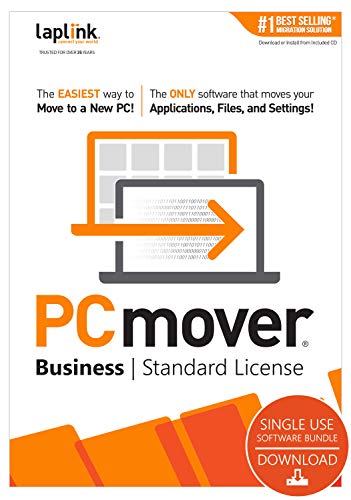
PCmover Professional 11 (1 Use) [PC Download]
![PCmover Professional 11 (1 Use) [PC Download]](https://m.media-amazon.com/images/I/41VQP6jwsGL._SL500_.jpg)
![PCmover Professional 11 (1 Use) [PC Download]](https://m.media-amazon.com/images/I/51rTGdjVNiL._SL500_.jpg)
![PCmover Professional 11 (1 Use) [PC Download]](https://m.media-amazon.com/images/I/519WjbNTF-L._SL500_.jpg)
![PCmover Professional 11 (1 Use) [PC Download]](https://m.media-amazon.com/images/I/518wIVkYaqL._SL500_.jpg)
![PCmover Professional 11 (1 Use) [PC Download]](https://m.media-amazon.com/images/I/411EZPZAWoL._SL500_.jpg)
![PCmover Professional 11 (1 Use) [PC Download]](https://m.media-amazon.com/images/I/51dV1SVleVL._SL500_.jpg)
![PCmover Professional 11 (1 Use) [PC Download]](https://m.media-amazon.com/images/I/51u5vZavASL._SL500_.jpg)
Key features
- •Easy-to-Use - Install PCmover on both of your computers and follow the simple wizard to transfer everything you select to your new PC.
- •Set It and Forget It - You start the transfer and walk away. PCmover does the rest!
- •PCs Auto Connect - Discovers and connects PCs using the fastest method detected.
- •Optimized for Fastest Transfer - Provides maximum performance and time savings. You will quickly be using your new PC with everything ready to go.
- •Complete Selectivity - Automatically transfers all selected applications, files, folders, settings, and user profiles to your new PC.
- •Easy-to-Use – Install PCmover on both of your computers and follow the simple wizard to transfer everything you select to your new PC.
- •Set It and Forget It – You start the transfer and walk away. PCmover does the rest!
- •PCs Auto Connect – Discovers and connects PCs using the fastest method detected.
- •Optimized for Fastest Transfer – Provides maximum performance and time savings. You will quickly be using your new PC with everything ready to go.
- •Complete Selectivity – Automatically transfers all selected applications, files, folders, settings, and user profiles to your new PC.
- •USB 3.0 Support – Transfer data up to 5 Gbps with a Laplink SuperSpeed USB 3.0 cable (included in select PCmover Ultimate boxes or sold separately).
- •“Undo” Feature – Quickly reverse changes made to your new PC if you change your mind or want to re-do the transfer with different selections.
- •24/7 FREE Transfer Assistance - Simply set up your new PC with the help of a certified PC migration expert, over the phone or remotely. Free, 24 hours a day, 7 days a week.
- •Microsoft’s recommended migration solution
- •PCmover is not designed for migrations from newer operating systems to older operating systems.
- •Display screen size: N/A
- •Other (internet; browser): N/A
- •List of interface languages: English, French, German, Italian, Spanish, Chinese (Simplified), Chinese (Traditional), Czech, Dutch, Indonesian, Korean, Polish, Portuguese (Brazilian), Russian, Thai, Turkish, and Vietnamese
- •Operating System: Windows (All)
- •Processor: 32-bit and 64-bit
- •Storage: 200 MB available space
- •Additional Requirements: Active Internet account for download and installation. Active network or direct connection required between the old and the new PC.
BrandLAPLINK
CategoryPC Maintenance
PCmover Professional 11 (1 Use) [PC Download]
List Price: $69.75$62.78DEALYou Save: $6.97 (10%)
Free shippingFree Returns – 30 daysFree Order CancellationSecure Payment2–3 Days DeliveryGet It October 26, 2026In Stock (1)No marketing spamNo account requiredFulfilment by FedEx / Amazon / UPS / ShipwirePayPal / Card Buyer Protection
Customer Reviews
Reviews sourced from verified Amazon purchasers3.7
out of 5
Based on 10 reviews
5★
90%
4★
10%
3★
0%
2★
0%
1★
0%
Worked like a charm
Vicka✓ Verified Purchase•December 29, 2023
I purchased the Pro version to make complete transfer including my apps from an older Windows 7 Pro computer onto a new Windows 10 Home computer. The purchase was easy, I paid for the software, then was instructed to go into my "Digital games and software" link under my Amazon account. That's where the license key and the download link is. I started on the "From" computer first. I downloaded the software, activated the product, was asked how I wanted to connect to the "To" computer. I chose network since both computers sit on a home network. Computers can be either wired to the network via an ethernet cable or wirelessly, it doesn't matter as long as they can see each other on the network. I then proceeded to the "To" computer. Again, I downloaded the software to it, had it activated. The software found my "From" computer on the network. The software did some calculations based on the speed of my network and amount of data to be transferred and was told it would take about 4 hours to complete from start to finish. One word of caution: please, read what the software is saying such as disable temporarily any anti-virus software you may have running as well as sleep mode on both computers until next reboot. I then started the transfer and walked away. The process completed in about 4.5 hours (98G of data transferred). I was then presented with a report telling me which applications were transferred successfully and which applications were left behind due to them being incompatible with Windows 10. I had some older Office software as well as my printer software that wasn't transferred but I knew that going in. Once you go past the report, you are then asked to reboot the "To" machine. Upon reboot, my "To" computer began to look just like my "From" computer with icons, software links and background picture all transferred. In several cases, Acrobat and Autodesk software needed to be refreshed by going into the Apps section and simply choosing to Modify the product. Autodesk decided to repair itself which took 10 seconds and then it started to work just fine. I also have Quickbooks Pro software which asked me to activate it. However, when I clicked to activate the product, it reactivated itself without my input. That was it and I was able to start using my new computer right away. Overall, this was effortless and worked great.
Easy for idiots
horsin✓ Verified Purchase•December 18, 2023
I'm not a techie. I'm also not a very patient person. This works for me because it does exactly what it says it will do. I used a cord between the two computers because my wifi can be a little flaky. It took awhile, but when it was done it was done. I haven't had to reinstall anything and my settings transferred flawlessly. I was transferring from a Dell Win 10 to an HP Win 11.
Read the User Guide, available before you buy.
Nora Jean Stone✓ Verified Purchase•December 12, 2023
The picture is my new HP after I got everything working. It's a mess but I was right happy.
TL/DR: It's great as long as you read the user's guide first.
Update: LapLink didn't transfer all the data needed for Dragon 16, a dictation software, this is a problem that is common to Nuance customers.
After doing due diligence on programs that transfer everything from an old PC to a new PC, I settled on LapLink, the cheapest version because I'm just a grandma with a new desktop. The best advice I can give anyone before buying is "read the user's guide" before proceeding. I got the user's guide PDF from LapLink's website before I bought the product. I read it and discovered a lot of things that might have tripped me up. I'm glad I was going from Windows 10 to Windows 11, HP to HP. I learned I needed to turn off the firewalls and "sleep" mode.
I was using one monitor on two computers, which LapLink FAQ told me how to do. I ran into a problem with hardware on myside of the equation, but I was able to figure it out.
I bought the program 9-3-2023 at 8am. I was done at 11pm the same day. The transfer took a while because I had family using the WiFi, myself included (on my back up laptop). I'm sure it would have gone faster if I did it overnight but that felt like leaving soup cooking on the stove overnight, made me nervous.
Great product and I'm a happy grandma.
TL/DR: It's great as long as you read the user's guide first.
Update: LapLink didn't transfer all the data needed for Dragon 16, a dictation software, this is a problem that is common to Nuance customers.
After doing due diligence on programs that transfer everything from an old PC to a new PC, I settled on LapLink, the cheapest version because I'm just a grandma with a new desktop. The best advice I can give anyone before buying is "read the user's guide" before proceeding. I got the user's guide PDF from LapLink's website before I bought the product. I read it and discovered a lot of things that might have tripped me up. I'm glad I was going from Windows 10 to Windows 11, HP to HP. I learned I needed to turn off the firewalls and "sleep" mode.
I was using one monitor on two computers, which LapLink FAQ told me how to do. I ran into a problem with hardware on myside of the equation, but I was able to figure it out.
I bought the program 9-3-2023 at 8am. I was done at 11pm the same day. The transfer took a while because I had family using the WiFi, myself included (on my back up laptop). I'm sure it would have gone faster if I did it overnight but that felt like leaving soup cooking on the stove overnight, made me nervous.
Great product and I'm a happy grandma.
WOW
Arleen Vaughan✓ Verified Purchase•November 10, 2023
Its the second time I used it and it was easy and fast (I used a laplink cable) and it was "FAST".
WORKED GREAT
Ron S.✓ Verified Purchase•October 23, 2023
This software worked as advertised without any problems. But you must do your homework first. You need an ethernet cable or USB cable (I used ethernet) to connect your old PC to the new one. You have to disable antivirus protection on your old PC and new PC. Additionally you must run the program both on your old PC and new simultaneously which means the software has to be downloaded on both PCs.
AN IMPORTANT ITEM: My old PC was a desktop and so was my new PC. I had only one monitor (full HD) connected to my old PC which I was then going to use for new PC. I couldn't run my new PC without a monitor hooked up but I needed my monitor hooked up to my old PC. So since you have to run PCMover simultaneously on both PCs I needed (at least temporarily) 2 monitors. I solved this by borrowing a second monitor temporarily to run PCmover on my new PC. I had this resource available and you must also have the same. Note this applies only for an old desktop PC transfer to new desktop PC. If you are doing a transfer to/from a laptop PC to either a desktop PC or laptop PC, you won't need an additional monitor since a laptop PC contains its own monitor.
Using this software, I transferred 420 GB from my old PC to new and it took 4 hours. Not too shabby.
AN IMPORTANT ITEM: My old PC was a desktop and so was my new PC. I had only one monitor (full HD) connected to my old PC which I was then going to use for new PC. I couldn't run my new PC without a monitor hooked up but I needed my monitor hooked up to my old PC. So since you have to run PCMover simultaneously on both PCs I needed (at least temporarily) 2 monitors. I solved this by borrowing a second monitor temporarily to run PCmover on my new PC. I had this resource available and you must also have the same. Note this applies only for an old desktop PC transfer to new desktop PC. If you are doing a transfer to/from a laptop PC to either a desktop PC or laptop PC, you won't need an additional monitor since a laptop PC contains its own monitor.
Using this software, I transferred 420 GB from my old PC to new and it took 4 hours. Not too shabby.
Page 1 of 2


![Avast Cleanup Premium 2022 | 1 PC, 1 Year [Download]](https://m.media-amazon.com/images/I/41bd04k9nfL._SL500_.jpg)
![Undupe 1.2 Free Trial [Download]](https://m.media-amazon.com/images/I/41JWl0OfBGL._SL500_.jpg)
![Smart Defrag 3 [Download]](https://m.media-amazon.com/images/I/41JW6pMQzML._SL500_.jpg)