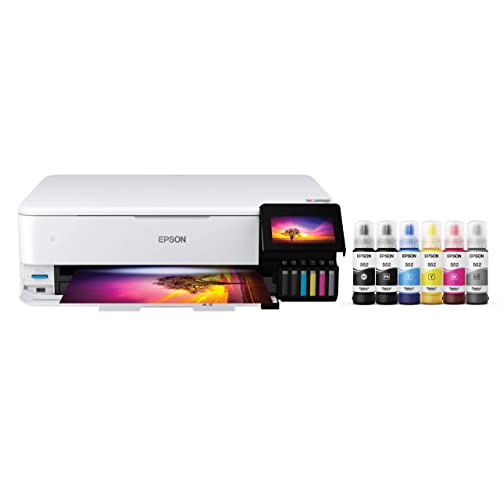
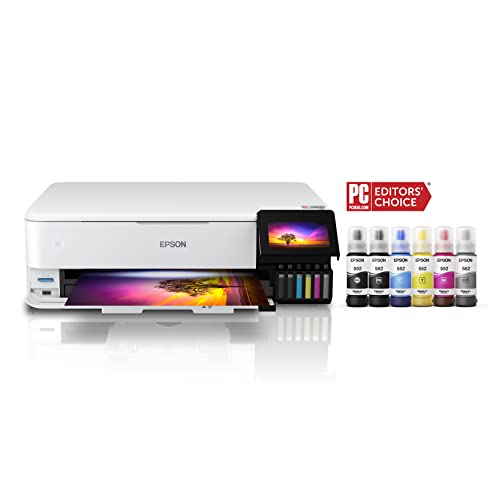
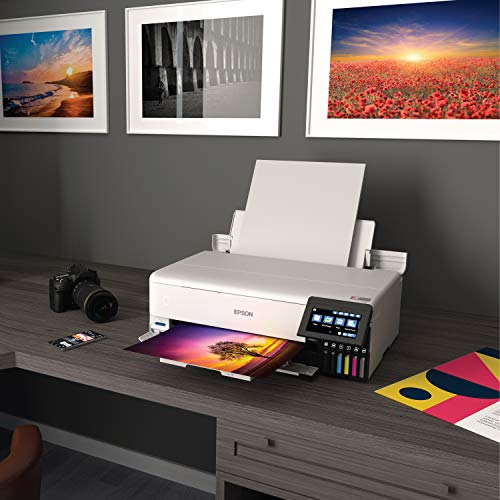
Epson EcoTank Photo ET-8550 Wireless Wide-format Color All-in-One Supertank Printer with Scanner Copier, Ethernet and 4.3-inch Colorfull Touchscreen


Key features
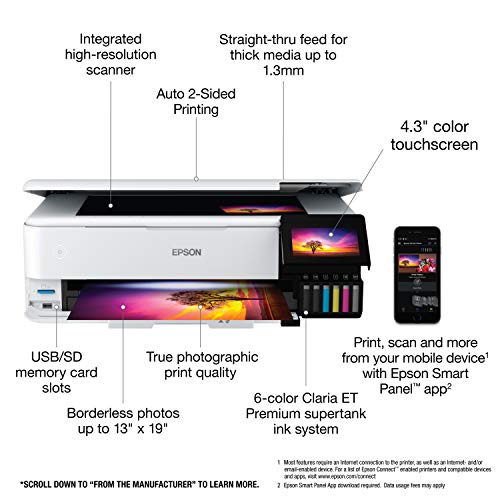
- •Cartridge-free printing for lab-quality photos, graphics and creative projects — get vibrant colors and sharp text with Epson's high-accuracy printhead and Claria ET Premium 6-color inks; print a 4 x 6" photo in as fast as 15 seconds (4)
- •Extraordinary media support, including borderless photos up to 13" x 19" — accommodates cardstock, CD/DVDs and other specialty media up to 1.3 mm thick; auto 2-sided printing
- •Amazing value — save a ridiculous amount on photos (1) and creative projects with affordable in-house photo printing; print 4" x 6" photos for about 4 cents each vs. 40 cents with traditional ink cartridges (1)
- •Save up to 80% with low-cost replacement ink bottles vs. ink cartridges (3) — that's about Dollar-2000 on each set (3), enough ink to print up to 6,200 pages color (5)
- •Print up to 2 years (2) — with each included and replacement ink bottle set
- •Zero-cartridge waste — with high-yield ink bottles; each replacement ink bottle set is equivalent to about 100 individual ink cartridges (6)
Epson EcoTank Photo ET-8550 Wireless Wide-format Color All-in-One Supertank Printer with Scanner Copier, Ethernet and 4.3-inch Colorfull Touchscreen
List Price: $907.92$817.13DEALYou Save: $90.79 (10%)
Free shippingFree Returns – 30 daysFree Order CancellationSecure Payment2–3 Days DeliveryGet It October 26, 2026In Stock (16)No marketing spamNo account requiredFulfilment by FedEx / Amazon / UPS / ShipwirePayPal / Card Buyer Protection
Customer Reviews
Reviews sourced from verified Amazon purchasers4.3
out of 5
Based on 10 reviews
5★
80%
4★
20%
3★
0%
2★
0%
1★
0%
DON'T count on WiFi working..
dcon✓ Verified Purchase•September 28, 2023
Only had it for less than a month, and so far when it prints, it prints good and I love these ink tanks so far. HOWEVER, I was about to throw it out the window the other day when in the middle of printing an 8x10 or a 13x19 it just stopped and said cancelled. Huh?? What? I also noticed that it would take forever for the WiFi to connect upon starting up.. or not at all actually until I reconnected it. So I decided to switch to a USB connection.. and... flawless. Prints faster, no errors, nothing. So this think must have the most junky WiFi card built in or some kinda bug in firmware, because my connection, my router all top notch. I'm a geek.. trust me.. NO other issues with any WiFi devices on my network. For me.. not a deal breaker cuz if I'm need to print a "good" print then I'm doing it from my desktop anyway and no biggie to have it plugged in.. but kinda poopy if I want to print a quick 4x6 from my iPhone or whatever. And really.. in 2023... WiFi should just work.. period.. perfectly.. So lose a star for that epson.. but otherwise so far so good.
Not as fast as the Canon PIXMA pro-9000 MII I had, but honestly the ink on that sucked to replace and I think this is just as good quality to my eye at least..
And oh.. the touchscreen is odd. Makes you confirm when a pic has finished. Actually one of my biggest complaints is that it doesn't close the output drawer on its own when shutting down.. umm?? why? And don't you dare close it manually.. it's sounds like it'll break.. so you have to turn it on again just to click close drawer just to turn it off again.. I almost want to take off another star just for that.. like WHY??!!!
Not as fast as the Canon PIXMA pro-9000 MII I had, but honestly the ink on that sucked to replace and I think this is just as good quality to my eye at least..
And oh.. the touchscreen is odd. Makes you confirm when a pic has finished. Actually one of my biggest complaints is that it doesn't close the output drawer on its own when shutting down.. umm?? why? And don't you dare close it manually.. it's sounds like it'll break.. so you have to turn it on again just to click close drawer just to turn it off again.. I almost want to take off another star just for that.. like WHY??!!!
Epson is the best printer I’ve ever had.
Richard✓ Verified Purchase•September 26, 2023
I'm sold on all things Epson now. Have had this beautiful, excellent machine since August and love it. Easy setup, beautiful prints, and printing wireless from my Android phones and tablets (haven't set up on Laptops yet). I've had the Canon Pro 10 but this simply does the job that I want without any fuss or muss.
I might look into another upgraded Epson machine soon because this thing just works and when I want it to work and the way I want it to work. It's true plug and play. And their attention to an easy setup for their customers is excellent. Highly recommended.
I might look into another upgraded Epson machine soon because this thing just works and when I want it to work and the way I want it to work. It's true plug and play. And their attention to an easy setup for their customers is excellent. Highly recommended.
Scanning Function Review
Sarah✓ Verified Purchase•September 20, 2023
My mother passed away this past May and I was scared of losing pictures of her to time. I purchased this all-in-one because I wanted to digitize old photos, restore them, and print my favorites. I received the printer yesterday and have only tested the scanning function, so far. I was initially concerned because I had read that there weren't drivers for Windows 11 or the newest versions of Macs, but I had read on their website that there might be some drivers that would still work.
Setting it up was relatively easy, though the "cassettes," as the trays are called, could be better labeled. It took me a while to figure out where cassette 2 was to load paper for the calibrations. Ink is super easy to fill and the calibrations weren't hard either. I used my iPhone for set up (you'll need to download the Epson Smart Panel app*) and connected my MacBook Pro running Ventura 13.4.1 to it once set up was complete. It was easy going to epson.com/support, searching for the printer, and downloading the drivers. The computer and laptop must be on the same SSID or they will not be able to communicate. (I mention this because I normally keep my laptop/phones/IoT devices on different WiFi networks.)
I started by scanning an 11x14 of my mother's senior photo. This was a little frustrating because parts of the picture would be cut off and I could see no obvious way on the scanner or my phone to adjust this. Only one device can be actively attached to the scanner at any one time, so I had to close the application in the phone completely and go back to the home screen on the scanner. Once that was done, instead of hitting scan on the scanner screen and telling it to send the image to my computer, I had to open Epson Smart Scan on the computer and I could finally adjust the settings. I set the scan size to maximum and then could also finally adjust the DPI at which it was scanning. Instead of 200 DPI (default), I set it to 2400 DPI and also did a second scan at 600 DPI for uploading to social media. The other amazing feature is color restoration. I had been watching tutorials for Adobe Lightroom so I would be able to restore all these photos and Smart Scan does this natively (if enabled). The two photos of my mother attached show the before and after enabling the color restoration feature. One thing I have noticed is that occasionally it seems to forget color restoration is enabled. After messing around with it and closing and opening the software repeatedly, I hit "Preview" before scan and it fixed my issue. Using Preview has also fixed an issue where rarely it would scan about only an inch of whatever photo was inside.
I have a ton of photos, so it's been a bit slow going, but I love how quality the scans are and the time that's been saved on the back end with the color restoration feature. For someone that has the same uses I do, I would strongly recommend this scanner.
I gave it four stars because of the intermittent errors and it could be a little easier to use. It also makes tiny crops to the photos I cannot get it to stop. Most of the time, they don't matter so much, unless a subject is already close to the edge.
I will test the print function and update once I've finished scanning all my photos.
*You can also scan and print from this app.
Setting it up was relatively easy, though the "cassettes," as the trays are called, could be better labeled. It took me a while to figure out where cassette 2 was to load paper for the calibrations. Ink is super easy to fill and the calibrations weren't hard either. I used my iPhone for set up (you'll need to download the Epson Smart Panel app*) and connected my MacBook Pro running Ventura 13.4.1 to it once set up was complete. It was easy going to epson.com/support, searching for the printer, and downloading the drivers. The computer and laptop must be on the same SSID or they will not be able to communicate. (I mention this because I normally keep my laptop/phones/IoT devices on different WiFi networks.)
I started by scanning an 11x14 of my mother's senior photo. This was a little frustrating because parts of the picture would be cut off and I could see no obvious way on the scanner or my phone to adjust this. Only one device can be actively attached to the scanner at any one time, so I had to close the application in the phone completely and go back to the home screen on the scanner. Once that was done, instead of hitting scan on the scanner screen and telling it to send the image to my computer, I had to open Epson Smart Scan on the computer and I could finally adjust the settings. I set the scan size to maximum and then could also finally adjust the DPI at which it was scanning. Instead of 200 DPI (default), I set it to 2400 DPI and also did a second scan at 600 DPI for uploading to social media. The other amazing feature is color restoration. I had been watching tutorials for Adobe Lightroom so I would be able to restore all these photos and Smart Scan does this natively (if enabled). The two photos of my mother attached show the before and after enabling the color restoration feature. One thing I have noticed is that occasionally it seems to forget color restoration is enabled. After messing around with it and closing and opening the software repeatedly, I hit "Preview" before scan and it fixed my issue. Using Preview has also fixed an issue where rarely it would scan about only an inch of whatever photo was inside.
I have a ton of photos, so it's been a bit slow going, but I love how quality the scans are and the time that's been saved on the back end with the color restoration feature. For someone that has the same uses I do, I would strongly recommend this scanner.
I gave it four stars because of the intermittent errors and it could be a little easier to use. It also makes tiny crops to the photos I cannot get it to stop. Most of the time, they don't matter so much, unless a subject is already close to the edge.
I will test the print function and update once I've finished scanning all my photos.
*You can also scan and print from this app.
The size and quality print
Frank S.✓ Verified Purchase•September 8, 2023
My last 13"x19" printer died. Hal a lot of paper this size so getting the Epson Eco tank was my goal, although I pick 3 other models and return them because advertising print size doesn't seem to be a priority in advertising
Epson ET-8500 versus Canon G620
Bob Goldrick✓ Verified Purchase•September 4, 2023
I am an accomplished amateur photographer, not a professional or a techie. I take photos with an iPhone 12 and a Panasonic SLR. I do not make highly technical adjustments to the images. Both of these printers produce excellent results. I purchased them for two reasons: saving on ink, and printing photographs with accurate colors. I have used Canon Pixma printers for decades, so I first tried the G620. Although I do most of my shopping on Amazon I purchased it at Best Buy for ease of potential return. It cost $330 (rounded up by a penny).
THE CANON G620:
PRO's:
It was easy to fill the six ink tanks. Canon cleverly designed the tops of each one so they can only be inserted into the correct tanks.
No problem connecting to my wi-fi.
Documents printed quickly and looked fine.
The first 4x6 print I did was acceptable but not as good as I had expected. I corrected this quickly per the next bullet.
By default my Windows laptop installed its own drivers for the printer. These are not as good as Canon's. I went to the Canon website and downloaded and installed their drivers for the 6 series.
Voila, very good photos, with accurate color and sharp edges! Thanks to other Amazon reviewers for calling this to my attention.
Photos printed quickly enough.
CON'S:
The most significant one, and why I switched to the Epson, is the paper handling. There is only one input tray, at the rear of the printer, which takes all sizes and types: 8x11 plain paper, 4x6, 5x7 and 8x11 photo paper, etc. At first I didn't think I'd mind changing the paper, but after a while I did, per next bullet.
The display on the top of the printer is small, dim and awkwardly placed. I thought I might not need to use it that much, but every time you change paper you have to.
You need to pull the output tray out manually. No big deal if you are at your desk, but if you are in another room and want to print out an item on your phone you have to go the printer. A minor inconvenience but a nettlesome one at times.
THE EPSON ET-8500:.
PRO's:
Equally easy to connect to wi-fi.
Even easier to set up. The correct drivers were downloaded automatically.
A terrific screen on the right front of the printer. Large, bright, easy to use.
Two input trays at the front, one for 4x6 and 5x7 photo paper, the other for 8x11 paper of either type.
Another input tray at the back! I use this on the relatively few occasions I print 8x11 photos, and I keep plain paper in the front tray. This is extremely convenient.
When you send an item to the printer it wakes up even if it's turned off. The G620 did not do that.
The output tray comes out automatically; no need to pull it.
There is a button on the screen for pushing the output tray back in and closing the front.
That bright tilt-able front screen has every setting you need and is very intuitive.
Everything I printed came out fine and quickly. The photos were equal to Canon's in quality, plus there is an Epson app for making further adjustments to them. I downloaded it and found it easy to use.
CON's:
The cost: $700. That's more than double the Canon G620, which is a significant consideration.
Two others that are not significant. The photo tray can be a little tricky to pull out and a tight fit when reinserting (it goes well toward the back). This can be relieved by first pulling out the 8x11 tray underneath it, giving your fingers more room.
Not really a con but when the printer is finished the screen shows two items: a little Home icon on the left and a larger "Troubleshooting" message next to that. Some users might think that means there was a problem, but it's just in case there was. Touch Home and you're set, then touch the Close Tray button on the bottom right.
BOTTOM LINE:
You may be wondering, Why spend that much more? And, why not buy a Canon Ink Tank printer of equivalent cost? Re the first, for the convenience of the paper handling and ease of use of the screen. I keep printers a long time and the cost spreads out over the years, especially not needing to buy cartridges. Re the second, I did research those, but prefer the size of the Epson, which is comparable to the G620. The higher priced Canons that I looked at were bulkier.
I hope this helps others. If I omitted anything you think should be included, or if you have questions or a difference of opinion, leave a comment and I'll respond to it.
THE CANON G620:
PRO's:
It was easy to fill the six ink tanks. Canon cleverly designed the tops of each one so they can only be inserted into the correct tanks.
No problem connecting to my wi-fi.
Documents printed quickly and looked fine.
The first 4x6 print I did was acceptable but not as good as I had expected. I corrected this quickly per the next bullet.
By default my Windows laptop installed its own drivers for the printer. These are not as good as Canon's. I went to the Canon website and downloaded and installed their drivers for the 6 series.
Voila, very good photos, with accurate color and sharp edges! Thanks to other Amazon reviewers for calling this to my attention.
Photos printed quickly enough.
CON'S:
The most significant one, and why I switched to the Epson, is the paper handling. There is only one input tray, at the rear of the printer, which takes all sizes and types: 8x11 plain paper, 4x6, 5x7 and 8x11 photo paper, etc. At first I didn't think I'd mind changing the paper, but after a while I did, per next bullet.
The display on the top of the printer is small, dim and awkwardly placed. I thought I might not need to use it that much, but every time you change paper you have to.
You need to pull the output tray out manually. No big deal if you are at your desk, but if you are in another room and want to print out an item on your phone you have to go the printer. A minor inconvenience but a nettlesome one at times.
THE EPSON ET-8500:.
PRO's:
Equally easy to connect to wi-fi.
Even easier to set up. The correct drivers were downloaded automatically.
A terrific screen on the right front of the printer. Large, bright, easy to use.
Two input trays at the front, one for 4x6 and 5x7 photo paper, the other for 8x11 paper of either type.
Another input tray at the back! I use this on the relatively few occasions I print 8x11 photos, and I keep plain paper in the front tray. This is extremely convenient.
When you send an item to the printer it wakes up even if it's turned off. The G620 did not do that.
The output tray comes out automatically; no need to pull it.
There is a button on the screen for pushing the output tray back in and closing the front.
That bright tilt-able front screen has every setting you need and is very intuitive.
Everything I printed came out fine and quickly. The photos were equal to Canon's in quality, plus there is an Epson app for making further adjustments to them. I downloaded it and found it easy to use.
CON's:
The cost: $700. That's more than double the Canon G620, which is a significant consideration.
Two others that are not significant. The photo tray can be a little tricky to pull out and a tight fit when reinserting (it goes well toward the back). This can be relieved by first pulling out the 8x11 tray underneath it, giving your fingers more room.
Not really a con but when the printer is finished the screen shows two items: a little Home icon on the left and a larger "Troubleshooting" message next to that. Some users might think that means there was a problem, but it's just in case there was. Touch Home and you're set, then touch the Close Tray button on the bottom right.
BOTTOM LINE:
You may be wondering, Why spend that much more? And, why not buy a Canon Ink Tank printer of equivalent cost? Re the first, for the convenience of the paper handling and ease of use of the screen. I keep printers a long time and the cost spreads out over the years, especially not needing to buy cartridges. Re the second, I did research those, but prefer the size of the Epson, which is comparable to the G620. The higher priced Canons that I looked at were bulkier.
I hope this helps others. If I omitted anything you think should be included, or if you have questions or a difference of opinion, leave a comment and I'll respond to it.
Page 1 of 2



![Canon GX6021 All-in-One Wireless Supertank Printer-for Businesses [Print, Copy, Scan and ADF], White](https://m.media-amazon.com/images/I/31c6BV2xHNL._SL500_.jpg)
