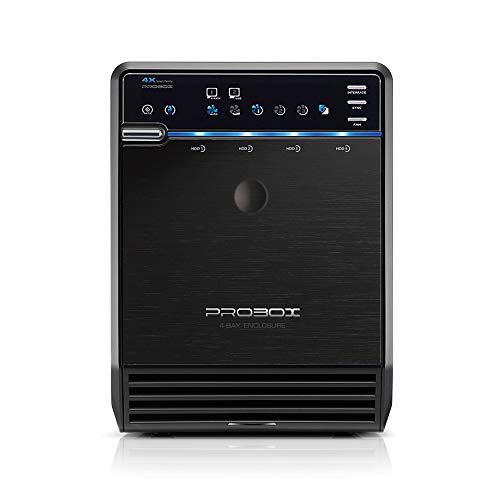
Mediasonic PROBOX 4 Bay DAS 3.5” SATA Hard Drive Enclosure – USB 3.0 eSATA Support 30TB HDD (HF2-SU3S3)


Key features
- •2022 New Chipset, 2 Year Warranty from Mediasonic Store. Previous model ASIN: B003X26VV4
- •Support all brand of 3.5" SATA 1 / 2 / 3 hard disk drive up to 18TB per drive, and up to 4 x 18TB
- •Support SATA 3 6.0Gbps hard drive transfer rate.
- •Transfer rate up to 5.0Gbps via USB 3.0, Transfer rate up to 6.0Gbps via eSATA
- •Support 2.5" SATA SSD / HDD up to 12TB (Bracket Adapter required, not included in the package, sold separately)
- •Built-in temperature sensor, Smart Fan with Auto and Manual mode, and ONE Button interface selection to switch USB 3.0 or eSATA
BrandMediasonic
CategoryEnclosures
Size4 Bay USB 3.0
ColorBlack
Warranty1 Year Warranty from Mediasonic Store
Mediasonic PROBOX 4 Bay DAS 3.5” SATA Hard Drive Enclosure – USB 3.0 eSATA Support 30TB HDD (HF2-SU3S3)
List Price: $174.59$157.13DEALYou Save: $17.46 (10%)
Free shippingFree Returns – 30 daysFree Order CancellationSecure Payment2–3 Days DeliveryGet It October 24, 2026In Stock (1)No marketing spamNo account requiredFulfilment by FedEx / Amazon / UPS / ShipwirePayPal / Card Buyer Protection
Customer Reviews
Reviews sourced from verified Amazon purchasers4.1
out of 5
Based on 10 reviews
5★
70%
4★
30%
3★
0%
2★
0%
1★
0%
Installing the drive into the enclosure was pretty simple, just screw the handle onto the front ...
Arthur Senior✓ Verified Purchase•September 23, 2023
Mediasonic makes these in several different models. They have the NON-Raid version, and the Raid version of the 4 bay enclosure. The only difference is, the hardware Raid version allows you to create an array using the box itself. The NON-Raid version won't have the hardware to do it, however, if connected to a Windows or MAC, you can use software to create your raid array in the enclosure. I only mention this to be thorough, as I have no interest in Raid.
When my Western Digital Black 2TB 7200 RPM SATA III drive was in a Windows machine, I partitioned it into two, with each partition being 1TB each, actual size around 950GB. Installing the drive into the enclosure was pretty simple, just screw the handle onto the front of the drive, pop the bay doors open, luckily we didn't need HAL to do that for us. Remove the pressure plate, stick the drive in, replace pressure plate, close the bay doors. Plug in your USB cable or ESATA cable, plug in the power and go.
I feel the need to mention though however, if your planning to use ESATA, please understand that most onboard ESATA ports do not support port multiplier. If you fully populate the enclosure with 4 drives, in order to see 4 separate drives load in your OS, you will need to have port multiplier ability, which usually isn't found in motherboards, so you will have to purchase an ESATA card to put in your machine that does support it.
However, if your going to be using the USB connection, you don't have to worry about that. I have my drive enclosure plugged into my router via USB. This enclosure has a SYNC button and an INTERFACE button. The enclosure selects USB by default, but if you need ESATA, you will have to press and hold the SYNC button to make your choice. Also, the enclosure has a built in sleep features.
By holding down the Interface button, you can select which mode you want. When the interface indicator is blue, it means that when computer is powered off, the enclosure will power off in 15-seconds. And if you turn you computer back on, the enclosure won't come back on. If you want the enclosure to be in perfect sync with your computer, press and hold the INTERFACE button until the indicator is orange.
Since I am using this with my router, I need my files to be able to be accessed at all times by any computer on the network. So to make sure the enclosure stays on no matter what, I had to hold the INTERFACE button each time until I turned the indicator completely off, hence clear. This way it will stay on until I hit the power button to turn it off, or the power goes out. Another thing this enclosure has is a smart fan feature.
You are offered three levels of fan modes that you can either set manually, or set to smart auto. Fan speed 1 is very loud, like a freight train, but provides the most airflow. Fan speed 2 is a lot less noisy but is noticeable. And Fan speed 3 is silent. I keep my fan setting on Auto, and it never razes the fan speed beyond fan speed 3. So lets talk about file transfer speeds...
I have a Netgear N600 WND4500-V3 router. I did some research into Readyshare and learned that the software in the router has a speed limiting bug in them that limits the speed you will get in file transfers. In other words, don't expect 5GBPS on USB 3.0 cause thats not going to happen. Also, your going to loose some in the transfer link between the drive itself and the enclosure, before its sent to the router, then finally to your computer on your gigabit network.
For a speed reference, when I plug my Cannon A2300 camera into my notebook computer using USB 3.0, my file transfer speed is 10 megabytes per second. When reading from my new drive enclosure, copying a 4.1GB file to my notebook, I am getting 13.8 megabytes per second. However, when transferring that same 4.1GB file to my drive in the enclosure, I get around 14.5 megabytes per second.
Usually in most cases, read speeds will exceed writing speeds, at least it does with SSD drives and other based flash drive media. But with this 7200 RPM mechanical drive that has 64MB cash, it seems to like writing more then it does reading. I have got to believe that this is somehow related to the 64MB cash buffer, but I could be wrong. I also love the pretty blue lights on the drive, although they might be too bright if you have this placed in a bedroom or movie room.
So far I haven't had any trouble with it, and setting up Readyshare was super simple in my router configuration. Also the build quality of the box is pretty solid, it weighs a lot more then I thought it would. No doubt most of the weight is in the PSU and the metal casing of the enclosure. Very little plastic is on this thing and thats good. As long as you know how to set this up, it should work for you.
5 out of 5
UPDATE: Dec 2nd 2017
Since I have owned and have been running this box for a year now, I wanted to give an update on how its doing. I have still been using the same hard drive, in my enclosure, and have not added any new drives to it. This unit has been running strong the whole year, and I haven't had any problems with it. I am able to access my files whenever I want to without issue. We have had a few power outages since, and all one has to do is hit the power button to turn it back on and wait for the drive/drives to spin up.
I never did cover up the blue LED's that seem to bother most people. Again the box is located in my computer room, not my bedroom, so it doesn't matter to me. I do notice a slight build up of dust, around the exterior fan casing, I have not cleaned the box out with compressed air yet, but I probably should do that soon. I run an air filter machine in my computer room, which I hope, reduces the amount of dust that builds up, in my electronics.
Some have also talked about replacing their internal fan to something much quieter. You can do this, but please note that the box uses a 2-pin fan connection which is not standard. So, you would more then likely need a 2 to 3 pin fan adapter, in order to use a 3rd party fan. I still to this day highly recommend this enclosure, and I still keep it at a solid 5 out of 5 stars!
UPDATE: Dec 1st 2018
Here we are yet another year of use on this box. I have to say, putting aside speed limitations with my setup, I've been really happy with this unit. The most important aspect of something like this, is that its reliable, because you want your files to not only be safe, but you also want to be able to access them whenever you want. I am happy to report that after 2-years of use, this box has been very reliable, and I haven't had any issues with it.
I really like those Western Digital Black drives, they seem to be reliable as well for this use. I did end up blowing out the rear fan last year, only had to do that once. And its probably about time for me to clean out the fan again since its been another year, I'll get to it eventually lol. Oh and thats another thing, I've just proven with just some miner air filtration in the room, and some once per year maintenance, that fan has been lasting 2-years without fail.
Additionally, none of the lights on the box have failed yet that I can see. Sometimes when you get those cheap LED's they will fail quickly. I haven't had any problems with this box so honestly, 99 dollars still to this day, and 2-years of service with more on the way, I think that is a great deal. Someone asked me about RAID recently. Again, as I've stated in this review, you can't setup hardware RAID with this box. If you really need RAID, its best to get the RAID version of this box.
https://www.amazon.com/Mediasonic-ProRaid-HFR7-SU3S2-Drive-Enclosure/dp/B0757YTWS7/ref=sr_1_2?ie=UTF8&qid=1543555136&sr=8-2&keywords=mediasonic+probox+raid
When my Western Digital Black 2TB 7200 RPM SATA III drive was in a Windows machine, I partitioned it into two, with each partition being 1TB each, actual size around 950GB. Installing the drive into the enclosure was pretty simple, just screw the handle onto the front of the drive, pop the bay doors open, luckily we didn't need HAL to do that for us. Remove the pressure plate, stick the drive in, replace pressure plate, close the bay doors. Plug in your USB cable or ESATA cable, plug in the power and go.
I feel the need to mention though however, if your planning to use ESATA, please understand that most onboard ESATA ports do not support port multiplier. If you fully populate the enclosure with 4 drives, in order to see 4 separate drives load in your OS, you will need to have port multiplier ability, which usually isn't found in motherboards, so you will have to purchase an ESATA card to put in your machine that does support it.
However, if your going to be using the USB connection, you don't have to worry about that. I have my drive enclosure plugged into my router via USB. This enclosure has a SYNC button and an INTERFACE button. The enclosure selects USB by default, but if you need ESATA, you will have to press and hold the SYNC button to make your choice. Also, the enclosure has a built in sleep features.
By holding down the Interface button, you can select which mode you want. When the interface indicator is blue, it means that when computer is powered off, the enclosure will power off in 15-seconds. And if you turn you computer back on, the enclosure won't come back on. If you want the enclosure to be in perfect sync with your computer, press and hold the INTERFACE button until the indicator is orange.
Since I am using this with my router, I need my files to be able to be accessed at all times by any computer on the network. So to make sure the enclosure stays on no matter what, I had to hold the INTERFACE button each time until I turned the indicator completely off, hence clear. This way it will stay on until I hit the power button to turn it off, or the power goes out. Another thing this enclosure has is a smart fan feature.
You are offered three levels of fan modes that you can either set manually, or set to smart auto. Fan speed 1 is very loud, like a freight train, but provides the most airflow. Fan speed 2 is a lot less noisy but is noticeable. And Fan speed 3 is silent. I keep my fan setting on Auto, and it never razes the fan speed beyond fan speed 3. So lets talk about file transfer speeds...
I have a Netgear N600 WND4500-V3 router. I did some research into Readyshare and learned that the software in the router has a speed limiting bug in them that limits the speed you will get in file transfers. In other words, don't expect 5GBPS on USB 3.0 cause thats not going to happen. Also, your going to loose some in the transfer link between the drive itself and the enclosure, before its sent to the router, then finally to your computer on your gigabit network.
For a speed reference, when I plug my Cannon A2300 camera into my notebook computer using USB 3.0, my file transfer speed is 10 megabytes per second. When reading from my new drive enclosure, copying a 4.1GB file to my notebook, I am getting 13.8 megabytes per second. However, when transferring that same 4.1GB file to my drive in the enclosure, I get around 14.5 megabytes per second.
Usually in most cases, read speeds will exceed writing speeds, at least it does with SSD drives and other based flash drive media. But with this 7200 RPM mechanical drive that has 64MB cash, it seems to like writing more then it does reading. I have got to believe that this is somehow related to the 64MB cash buffer, but I could be wrong. I also love the pretty blue lights on the drive, although they might be too bright if you have this placed in a bedroom or movie room.
So far I haven't had any trouble with it, and setting up Readyshare was super simple in my router configuration. Also the build quality of the box is pretty solid, it weighs a lot more then I thought it would. No doubt most of the weight is in the PSU and the metal casing of the enclosure. Very little plastic is on this thing and thats good. As long as you know how to set this up, it should work for you.
5 out of 5
UPDATE: Dec 2nd 2017
Since I have owned and have been running this box for a year now, I wanted to give an update on how its doing. I have still been using the same hard drive, in my enclosure, and have not added any new drives to it. This unit has been running strong the whole year, and I haven't had any problems with it. I am able to access my files whenever I want to without issue. We have had a few power outages since, and all one has to do is hit the power button to turn it back on and wait for the drive/drives to spin up.
I never did cover up the blue LED's that seem to bother most people. Again the box is located in my computer room, not my bedroom, so it doesn't matter to me. I do notice a slight build up of dust, around the exterior fan casing, I have not cleaned the box out with compressed air yet, but I probably should do that soon. I run an air filter machine in my computer room, which I hope, reduces the amount of dust that builds up, in my electronics.
Some have also talked about replacing their internal fan to something much quieter. You can do this, but please note that the box uses a 2-pin fan connection which is not standard. So, you would more then likely need a 2 to 3 pin fan adapter, in order to use a 3rd party fan. I still to this day highly recommend this enclosure, and I still keep it at a solid 5 out of 5 stars!
UPDATE: Dec 1st 2018
Here we are yet another year of use on this box. I have to say, putting aside speed limitations with my setup, I've been really happy with this unit. The most important aspect of something like this, is that its reliable, because you want your files to not only be safe, but you also want to be able to access them whenever you want. I am happy to report that after 2-years of use, this box has been very reliable, and I haven't had any issues with it.
I really like those Western Digital Black drives, they seem to be reliable as well for this use. I did end up blowing out the rear fan last year, only had to do that once. And its probably about time for me to clean out the fan again since its been another year, I'll get to it eventually lol. Oh and thats another thing, I've just proven with just some miner air filtration in the room, and some once per year maintenance, that fan has been lasting 2-years without fail.
Additionally, none of the lights on the box have failed yet that I can see. Sometimes when you get those cheap LED's they will fail quickly. I haven't had any problems with this box so honestly, 99 dollars still to this day, and 2-years of service with more on the way, I think that is a great deal. Someone asked me about RAID recently. Again, as I've stated in this review, you can't setup hardware RAID with this box. If you really need RAID, its best to get the RAID version of this box.
https://www.amazon.com/Mediasonic-ProRaid-HFR7-SU3S2-Drive-Enclosure/dp/B0757YTWS7/ref=sr_1_2?ie=UTF8&qid=1543555136&sr=8-2&keywords=mediasonic+probox+raid
Mediasonic 4 Bay USB 3.1 Gen-II/Type-C Review
RTPV✓ Verified Purchase•September 16, 2023
Conclusions: Discussions of details and expansion of the conclusions follow, but it does get long.
1. The drives do spin down as expected.
2. The automatic functions (Power Sync and Auto Fan) do work, just not as well as they could.
3. The Auto Fan function did not shift into level 2 or level 3 soon enough to keep my drives from reaching undesirable temperatures (it didn't shift to level 3 at all while in auto during my tests). The temps were kept within the drive manufacturer's specs, but they were too hot for maximum drive life, IMO.
4. Leaving the fan on Level 3 rather than Auto did keep the drives within reasonable temperatures during my simple test.
5. Fan Levels 1 and 2 are quite quiet (Level 1 nearly silent) and Level 3, while louder than 2, is not intrusively loud (my unit is sitting next to me below my desk.)
All of the above is based on my setup and my simple-to-do testing. I did NOT attempt a max load test, so do not overinterpret these results.
Final Summary: I rated this device 4 out of 5, but with the caveat that the Auto Fan mode is NOT used, but rather keeping the fan set to manual at Level 3. Fan Auto might be useful for drives only accessed occasionally, such as backups or archives, but it is not useful for drives being actively used.
My device is loaded as shown in photo #1.
A total of 33TB and all bays occupied with 4 Western Digital drives of varying ages.
My test technique was simple: I used the Auto Refresh function of CrystalDiskInfo 9.1.1 (CDI) to create activity on the drives and to report the individual drive temperatures. I recorded the temperature(s) every 10 minutes.
All tests were run with the Power Sync On for the Mediasonic, which causes the device to shut down after inactivity as determined by the manufacturer.
Test 1: Fan set to High. CDI set to auto refresh every 5 minutes while targeting a single drive (the one in Bay #2). I ran this test for one hour. More than adequate cooling for accessing one drive occasionally. See photo #2.
Test 2: Fan set to Auto, otherwise the same as Test 1. In Auto mode, the fan remained at Level 1 for the entire test. Note that under the identical drive use scenario, this resulted in the drive temperature increasing by 2°C, but still more than adequate for accessing one drive occasionally. See photo #3.
For Tests 3 and 4, I increased the drive activity by setting the CDI Auto Refresh to every 1 minute and to access all four drives at each refresh. This resulted in a significant increase in drive temperatures. Since temperatures were still rising after 1 hour, I ran these tests for 2 hours to determine where they would plateau.
Test 3: Fan set to Auto, all drives refreshed every minute. The WD Red drives are spec'ed to have an operating temperature of up to 65°C, and the drives did stay well below that, but OTOH, I consider anything above 45° to be undesirable and at 50° or higher to be VERY undesirable. Therefore, I do not consider the cooling capability of this device with the fan set to auto to be adequate. Note that it never did shift to Level 3 fan speed. See photo #4.
My final test was identical to Test 3, except the fan was taken off of auto and placed at Level 3.
Test 4: Fan set to Level 3, all drives refreshed every minute. This test resulted in acceptable drive temperature control.
Caveat: CDI Refresh every minute is hardly a drive stress test. See photo #5.
I rated this device 4 out of 5, but with the caveat that the Auto Fan mode is NOT used, but rather kept set to manual at Level 3. Fan Auto might be useful for drives only accessed occasionally, such as backups or archives, but it is not useful for drives being actively used.
1. The drives do spin down as expected.
2. The automatic functions (Power Sync and Auto Fan) do work, just not as well as they could.
3. The Auto Fan function did not shift into level 2 or level 3 soon enough to keep my drives from reaching undesirable temperatures (it didn't shift to level 3 at all while in auto during my tests). The temps were kept within the drive manufacturer's specs, but they were too hot for maximum drive life, IMO.
4. Leaving the fan on Level 3 rather than Auto did keep the drives within reasonable temperatures during my simple test.
5. Fan Levels 1 and 2 are quite quiet (Level 1 nearly silent) and Level 3, while louder than 2, is not intrusively loud (my unit is sitting next to me below my desk.)
All of the above is based on my setup and my simple-to-do testing. I did NOT attempt a max load test, so do not overinterpret these results.
Final Summary: I rated this device 4 out of 5, but with the caveat that the Auto Fan mode is NOT used, but rather keeping the fan set to manual at Level 3. Fan Auto might be useful for drives only accessed occasionally, such as backups or archives, but it is not useful for drives being actively used.
My device is loaded as shown in photo #1.
A total of 33TB and all bays occupied with 4 Western Digital drives of varying ages.
My test technique was simple: I used the Auto Refresh function of CrystalDiskInfo 9.1.1 (CDI) to create activity on the drives and to report the individual drive temperatures. I recorded the temperature(s) every 10 minutes.
All tests were run with the Power Sync On for the Mediasonic, which causes the device to shut down after inactivity as determined by the manufacturer.
Test 1: Fan set to High. CDI set to auto refresh every 5 minutes while targeting a single drive (the one in Bay #2). I ran this test for one hour. More than adequate cooling for accessing one drive occasionally. See photo #2.
Test 2: Fan set to Auto, otherwise the same as Test 1. In Auto mode, the fan remained at Level 1 for the entire test. Note that under the identical drive use scenario, this resulted in the drive temperature increasing by 2°C, but still more than adequate for accessing one drive occasionally. See photo #3.
For Tests 3 and 4, I increased the drive activity by setting the CDI Auto Refresh to every 1 minute and to access all four drives at each refresh. This resulted in a significant increase in drive temperatures. Since temperatures were still rising after 1 hour, I ran these tests for 2 hours to determine where they would plateau.
Test 3: Fan set to Auto, all drives refreshed every minute. The WD Red drives are spec'ed to have an operating temperature of up to 65°C, and the drives did stay well below that, but OTOH, I consider anything above 45° to be undesirable and at 50° or higher to be VERY undesirable. Therefore, I do not consider the cooling capability of this device with the fan set to auto to be adequate. Note that it never did shift to Level 3 fan speed. See photo #4.
My final test was identical to Test 3, except the fan was taken off of auto and placed at Level 3.
Test 4: Fan set to Level 3, all drives refreshed every minute. This test resulted in acceptable drive temperature control.
Caveat: CDI Refresh every minute is hardly a drive stress test. See photo #5.
I rated this device 4 out of 5, but with the caveat that the Auto Fan mode is NOT used, but rather kept set to manual at Level 3. Fan Auto might be useful for drives only accessed occasionally, such as backups or archives, but it is not useful for drives being actively used.
I'm impressed
Matt O✓ Verified Purchase•September 9, 2023
I'm running a NAS with one 16TB drive and three 12TB drives in a hybrid RAID 5. I needed a better backup system and didn't see adding another NAS as being cost effective. I've attached this via USB 3.0 to a Windows PC. Without a raid, Windows will see the each drive in the closure as a separate drive. You cannot expand a volume in Windows across multiple USB attached drives. You can purchase software to run in Windows that will do this, but none of the free applications do this function. I've got two 6TB drives and one 12TB drive installed in the 4 bay RAID version of these Mediasonic enclosures. RAID 0 (spanning) is setup in the enclosure so Windows sees a single 24TB volume. Worth noting, RAID 0 in any device will not have drive fault tolerance (plenty of other RAID options in this enclosure). Since it's a backup to a fault tolerant NAS, I didn't need redundant redundancy ;). I've completed the backups to this enclosure which moved a bit over 14TB and it took about 30 hours (normal). When the PC is powered off, the enclosure goes into standby. As far as sleep, maybe this is what they're talking about, maybe it's not. While I'm using it as a backup in RAID 0, I could easily see using this as budget server storage in RAID 5 attached to a decently powerful PC.
As the headline states, I'm impressed. I've attached an image of my home system as a resume of sorts, so you know this isn't my first rodeo. This Mediasonic 4 bay RAID enclosure performs the functions I needed and does it very well. Most notably is how quiet the fan runs. I actually bought the Cenmate 4 Bay RAID Hard Drive Enclosure first. Hours after I finished the backup, I was hoping the fan would slow and quiet down since the drives weren't spinning. They didn't and I repacked the enclosure to return it. The fan on that box is unnerving. I'm not a fussy guy, but the fan in the Cenmate was just too much for me.
As the headline states, I'm impressed. I've attached an image of my home system as a resume of sorts, so you know this isn't my first rodeo. This Mediasonic 4 bay RAID enclosure performs the functions I needed and does it very well. Most notably is how quiet the fan runs. I actually bought the Cenmate 4 Bay RAID Hard Drive Enclosure first. Hours after I finished the backup, I was hoping the fan would slow and quiet down since the drives weren't spinning. They didn't and I repacked the enclosure to return it. The fan on that box is unnerving. I'm not a fussy guy, but the fan in the Cenmate was just too much for me.
Good Value -- Solid Performance and Plug-and-Play Simplicity
Rick C.✓ Verified Purchase•September 8, 2023
I have two of these boxes; both are configured as RAID boxes and have been in continuous use for years -- one of them since 2013. (One is RAID 10, the other RAID 5.) In that time I have had to replace three hard drives in the in-use units. At various times each box have been moved between USB and eSATA connection to the host PC. Both have always been consistent, solid performers. Neither has ever given me any trouble.
WHAT IT IS: This is a simple and cost-effective external device. It functions well in either USB or eSATA mode. The box is self-contained and plug-and-play; it requires no drivers and adds little or no extra load to the host PC. I have never had a PC or Mac (with appropriate configuration) fail to recognize the box and "talk" to it as expected. In any RAID configuration, it appears and behaves just like any external hard drive. As JBOD, it shows up as multiple separate external devices. Within the limits of what it is and how it works with the connected computer (discussed more below), it just works and has always been extremely reliable. But you should think through what you are getting at this very economical price point (economical for a RAID box, that is).
The device detects the power state of its connection to your computer; it will turn off automatically when you power down your computer and will power back up when you turn the computer back on. This is a FEATURE and is the intended operation. You do NOT have to turn it off and on manually. For many this is a great convenience. It is also a good thing for power and heat saving (as well as hard drive life span and reducing noise when the computer is not on). But it can also be a negative depending on your use case (more on this below).
In either SATA or JBOD or using eSATA or USB, I have never had a lick of trouble; the box just works. Lights on the box correctly indicate drive use and will tell you when a drive has failed. Power down and replace the failed drive; when you power back up in RAID mode the box will proceed to rebuild the array with no further action from you. (In JBOD mode, the new drive shows up in your operating system -- though of course you may need to go into disk manager to partition and format it before Windows can use it.)
In terms of value for money, the performance is great for this price.
WHAT IT IS NOT: You do get what you pay for. This is a very economical / cost-effective unit (for a multi-interface RAID unit).
The device talks via eSATA OR USB. Most home-user class computers will not let you use both interfaces at the same time. For example: If you connect both at the same time, a Windows PC will only recognize the device on the eSATA connection (since the SATA bus is usually initialized before USB).
Though the device does accept SATA III hard drives and works internally at 6Gb/sec speeds, it can only sustain those speeds to your computer when configured as JBOD. When configured for RAID it can only support 3 Gb/sec speeds (equivalent of SATA II, closer to USB 2 than 3 speed). That makes it great for backup and fine for accessing files one at a time (even playing music), but maybe not really solid for video streaming or disk-intensive gaming applications.
The ventilation system is less than spectacular and needs to be kept clean or else lint buildup will make airflow a drive-killing problem over time. When closed up properly, the automatic fan settings on this box will make the drives inside tend to run hot (using HD Sentinel to monitor individual drive SMART temp reporting). That said, I have run these units for years on end without encountering unexpected / premature drive failure. I have also found the manual "high" fan setting works pretty well and is still pretty quiet -- not really noticeable if sitting under the desk. The unit will also run just fine with the front door down (open), which will cool everything down and keep it at more "normal" HD operating temps. The box front can be opened and closed without disturbing the drives inside while the unit is running (just be careful not to jiggle or move the box itself or drives inside while running). All box functions work just fine when the front is not closed, if you want increased cooling. (Just don't forget you left the box open when you are working around it or go to move it!)
This box will NOT magically transform all the vagaries of PC external connectivity into the reliability of permanently connected internal drives. It is NOT a high-end NAS or internal RAID system powered by an expensive and high-capacity controller. All bets are off if you move the unit and/or accidentally jar or disconnect the cable when the unit is running -- or if your computer's power saving settings turn off the connection to this unit. I have found the system works consistently as designed as a solid SATA II drive when connected via eSATA or USB (assuming the cable isn't accidentally jolted loose).
You can use this box and it will be reliable attached to an always-on computer -- but first you need to expect to spend configuration time and might encounter some frustrations along the way. To get reliable, always-on connectivity with no unexpected disconnects, you are going to need to spend some time checking your computer BIOS and several settings in the operating system. Power saving settings that shut down your hard drives (SATA) or dormant devices (USB) will work just fine with internal and some external devices, but I hope it is obvious that they will cause this box to turn itself off. When the connection gets powered down, the device will see that as your PC turning off and in response it will turn itself off (which is exactly what it is supposed to do, as mentioned above). Since the device is driverless, there is no software to keep it alive or magically reconnect it when/if you return and want to use it. When that happens, the only recourse is to power down your PC, then restart. It took me several tries to find and disable the various PC and operating system power-saving features; once I did that -- ensuring the PC / operating system did not time out / turn off its USB or eSATA connections -- the Mediasonic box became absolutely solid and reliable, working predictably in harmony with the PC to which it is connected. Once everything was configured, it became another always-there drive that just.plain.works.
As noted, this device does not come with external monitoring/control software. Out of the box, you need to look at the lights on the front to affirm it is configured and operating properly. There is no software pop-up or alert on your computer desktop if your RAID array is degraded -- you have to actually look at the box. If you forget to look at the box, you might not notice a drive has failed until it's too late to rebuild the RAID array. On the flip side, those lights on the box do correctly indicate hard drive activity inside the box and do indicate if a drive has failed (or, once you replace the failed drive, when a RAID array is rebuilding). The lights are accurate but do not give you much of an indication as to progress of built-in functions; you're not going to get much of a clue as to how much longer that RAID rebuild is going to take.
However and FWIW. I have found this device does correctly pass all needed information through for most disk diagnostic applications. HD Sentinel works well and accurately to report the status of every constituent disk drive (even when configured in RAID mode so that Windows thinks its just one big drive). I have also found by trial and error that several software distributions that come with other external RAID systems will also correctly read and report status of these boxes -- thought they still won't let you remotely configure or adjust what the RAID controller is doing. (For example, the software that comes with Sans Digital units will read and report on these Mediasonic boxes when configured as RAID units.) Your mileage may vary.
Overall, this box is everything I had hoped and I have found it completely reliable. A bargain at a $150 price tag.
WHAT IT IS: This is a simple and cost-effective external device. It functions well in either USB or eSATA mode. The box is self-contained and plug-and-play; it requires no drivers and adds little or no extra load to the host PC. I have never had a PC or Mac (with appropriate configuration) fail to recognize the box and "talk" to it as expected. In any RAID configuration, it appears and behaves just like any external hard drive. As JBOD, it shows up as multiple separate external devices. Within the limits of what it is and how it works with the connected computer (discussed more below), it just works and has always been extremely reliable. But you should think through what you are getting at this very economical price point (economical for a RAID box, that is).
The device detects the power state of its connection to your computer; it will turn off automatically when you power down your computer and will power back up when you turn the computer back on. This is a FEATURE and is the intended operation. You do NOT have to turn it off and on manually. For many this is a great convenience. It is also a good thing for power and heat saving (as well as hard drive life span and reducing noise when the computer is not on). But it can also be a negative depending on your use case (more on this below).
In either SATA or JBOD or using eSATA or USB, I have never had a lick of trouble; the box just works. Lights on the box correctly indicate drive use and will tell you when a drive has failed. Power down and replace the failed drive; when you power back up in RAID mode the box will proceed to rebuild the array with no further action from you. (In JBOD mode, the new drive shows up in your operating system -- though of course you may need to go into disk manager to partition and format it before Windows can use it.)
In terms of value for money, the performance is great for this price.
WHAT IT IS NOT: You do get what you pay for. This is a very economical / cost-effective unit (for a multi-interface RAID unit).
The device talks via eSATA OR USB. Most home-user class computers will not let you use both interfaces at the same time. For example: If you connect both at the same time, a Windows PC will only recognize the device on the eSATA connection (since the SATA bus is usually initialized before USB).
Though the device does accept SATA III hard drives and works internally at 6Gb/sec speeds, it can only sustain those speeds to your computer when configured as JBOD. When configured for RAID it can only support 3 Gb/sec speeds (equivalent of SATA II, closer to USB 2 than 3 speed). That makes it great for backup and fine for accessing files one at a time (even playing music), but maybe not really solid for video streaming or disk-intensive gaming applications.
The ventilation system is less than spectacular and needs to be kept clean or else lint buildup will make airflow a drive-killing problem over time. When closed up properly, the automatic fan settings on this box will make the drives inside tend to run hot (using HD Sentinel to monitor individual drive SMART temp reporting). That said, I have run these units for years on end without encountering unexpected / premature drive failure. I have also found the manual "high" fan setting works pretty well and is still pretty quiet -- not really noticeable if sitting under the desk. The unit will also run just fine with the front door down (open), which will cool everything down and keep it at more "normal" HD operating temps. The box front can be opened and closed without disturbing the drives inside while the unit is running (just be careful not to jiggle or move the box itself or drives inside while running). All box functions work just fine when the front is not closed, if you want increased cooling. (Just don't forget you left the box open when you are working around it or go to move it!)
This box will NOT magically transform all the vagaries of PC external connectivity into the reliability of permanently connected internal drives. It is NOT a high-end NAS or internal RAID system powered by an expensive and high-capacity controller. All bets are off if you move the unit and/or accidentally jar or disconnect the cable when the unit is running -- or if your computer's power saving settings turn off the connection to this unit. I have found the system works consistently as designed as a solid SATA II drive when connected via eSATA or USB (assuming the cable isn't accidentally jolted loose).
You can use this box and it will be reliable attached to an always-on computer -- but first you need to expect to spend configuration time and might encounter some frustrations along the way. To get reliable, always-on connectivity with no unexpected disconnects, you are going to need to spend some time checking your computer BIOS and several settings in the operating system. Power saving settings that shut down your hard drives (SATA) or dormant devices (USB) will work just fine with internal and some external devices, but I hope it is obvious that they will cause this box to turn itself off. When the connection gets powered down, the device will see that as your PC turning off and in response it will turn itself off (which is exactly what it is supposed to do, as mentioned above). Since the device is driverless, there is no software to keep it alive or magically reconnect it when/if you return and want to use it. When that happens, the only recourse is to power down your PC, then restart. It took me several tries to find and disable the various PC and operating system power-saving features; once I did that -- ensuring the PC / operating system did not time out / turn off its USB or eSATA connections -- the Mediasonic box became absolutely solid and reliable, working predictably in harmony with the PC to which it is connected. Once everything was configured, it became another always-there drive that just.plain.works.
As noted, this device does not come with external monitoring/control software. Out of the box, you need to look at the lights on the front to affirm it is configured and operating properly. There is no software pop-up or alert on your computer desktop if your RAID array is degraded -- you have to actually look at the box. If you forget to look at the box, you might not notice a drive has failed until it's too late to rebuild the RAID array. On the flip side, those lights on the box do correctly indicate hard drive activity inside the box and do indicate if a drive has failed (or, once you replace the failed drive, when a RAID array is rebuilding). The lights are accurate but do not give you much of an indication as to progress of built-in functions; you're not going to get much of a clue as to how much longer that RAID rebuild is going to take.
However and FWIW. I have found this device does correctly pass all needed information through for most disk diagnostic applications. HD Sentinel works well and accurately to report the status of every constituent disk drive (even when configured in RAID mode so that Windows thinks its just one big drive). I have also found by trial and error that several software distributions that come with other external RAID systems will also correctly read and report status of these boxes -- thought they still won't let you remotely configure or adjust what the RAID controller is doing. (For example, the software that comes with Sans Digital units will read and report on these Mediasonic boxes when configured as RAID units.) Your mileage may vary.
Overall, this box is everything I had hoped and I have found it completely reliable. A bargain at a $150 price tag.
Easy Setup and Solid Value
Doug Bowker✓ Verified Purchase•August 31, 2023
I've been very happy with this drive cabinet, which I used to create a three-disk RAID (parity) array for weekly backups, with the remaining slot as a seperate drive for additional storage.
Pros:
Quiet fan even on High.
Extremely simple disk installation
The choice of USB 3 or eSATA (I used eSATA)
Configuration on the front panel for Power, Fan and other Modes is simple to use and handy to have for setting things up
Throughput has been very good and I have no reason to believe that will change
It's pretty quiet, though to be fair it's not on my actual desk but in a server closet and as I said set up for backups.
Entirely reasonable price
It "looks" nice though... (see below)
Cons:
It does look nice but it feels a lot lighter than I'd have preferred. The front panel especially is kind of cheap feeling, but then again: For what this thing is, it IS pretty cheap, right?
But setting aside the weight of the front panel, what I really would prefer is just better ventilation! You've got a nice sized fan on the back, but only a little slot up front. I may take the front panel and machine some ventilation holes or slots into it (I have a shop). I don't want to remove the panel completely though because it seems like the drives are a little too exposed at that point because...
No real "locking" mechanism for the drives. I mean sure, they won't just slide out, but they still feel like they should be a bit more secure than they are.
Anyway: again for the price, you're getting some serious value here, and none of the Cons are enough to not reccomend it, which I most definitely do.
Pros:
Quiet fan even on High.
Extremely simple disk installation
The choice of USB 3 or eSATA (I used eSATA)
Configuration on the front panel for Power, Fan and other Modes is simple to use and handy to have for setting things up
Throughput has been very good and I have no reason to believe that will change
It's pretty quiet, though to be fair it's not on my actual desk but in a server closet and as I said set up for backups.
Entirely reasonable price
It "looks" nice though... (see below)
Cons:
It does look nice but it feels a lot lighter than I'd have preferred. The front panel especially is kind of cheap feeling, but then again: For what this thing is, it IS pretty cheap, right?
But setting aside the weight of the front panel, what I really would prefer is just better ventilation! You've got a nice sized fan on the back, but only a little slot up front. I may take the front panel and machine some ventilation holes or slots into it (I have a shop). I don't want to remove the panel completely though because it seems like the drives are a little too exposed at that point because...
No real "locking" mechanism for the drives. I mean sure, they won't just slide out, but they still feel like they should be a bit more secure than they are.
Anyway: again for the price, you're getting some serious value here, and none of the Cons are enough to not reccomend it, which I most definitely do.
Page 1 of 2