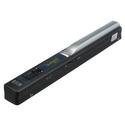
VuPoint Solutions Magic Wand Portable Scanner
Key features
- •CONVERT YOUR OLD PHOTOS INTO DIGITAL FILES - Scan documents and photos in color or black and white as PDF or JPEG files
- •ARCHIVE AND ORGANIZE YOUR SCANS - Connect your scanner to a computer (Windows or Mac OS) using the included USB cable and a microSD card up to 32GB (SD card required, NOT included) to view and transfer your files
- •INCLUDES BONUS OCR SOFTWARE - Optical Character Recognition software allows you to convert saved documents into text editable and searchable files compatible with popular word processing and spreadsheet software (software is Windows only; not compatible with Mac OS
- •SCANNING SPECS - Plug-and-play device scans documents 8.27 inches wide and up to 98 inches long in as little as 3 seconds, with resolution choices of 300DPI, 600DPI, or 900DPI
VuPoint Solutions Magic Wand Portable Scanner
List Price: $115.00$103.50DEALYou Save: $11.50 (10%)
Free shippingFree Returns – 30 daysFree Order CancellationSecure Payment2–3 Days DeliveryGet It October 25, 2026In Stock (1)No marketing spamNo account requiredFulfilment by FedEx / Amazon / UPS / ShipwirePayPal / Card Buyer Protection
Customer Reviews
Reviews sourced from verified Amazon purchasers3.9
out of 5
Based on 10 reviews
5★
30%
4★
50%
3★
10%
2★
10%
1★
0%
At the lowest setting the quality is still good. I can scan each page in less than ...
Yuki H.•August 29, 2017
Scans pages really fast. At the lowest setting the quality is still good. I can scan each page in less than 2 seconds. Only problem is it still cuts off some of the page near the binding. The scanner head is too far from the edge to reach close to the book binding, I still have to tear apart the book to scan it but other than that it is good quality product.
Compact linux-compatible scanner
R•December 1, 2016
It was easy to set up and calibrate. I mostly use it to scan receipts, and the scanning process is smooth and quick.
I run linux, and it showed up under /dev as soon as I connected it. It acts like a usb storage device, just mount it and copy the images to your PC.
However, it seems silly to run on non-rechargable batteries, considering it is something you expect to connect over USB regularly.
I'm hoping it consumes little enough power that I don't have to change them ofter.
I run linux, and it showed up under /dev as soon as I connected it. It acts like a usb storage device, just mount it and copy the images to your PC.
However, it seems silly to run on non-rechargable batteries, considering it is something you expect to connect over USB regularly.
I'm hoping it consumes little enough power that I don't have to change them ofter.
Not turnkey product
Kimberly•April 16, 2014
The reviews were great, hence my purchase. It arrived in great time, packaged nicely. However, when setting it up, it took me more than an hour (that I don't have to work on stuff), and it still wasn't up and running. I went to Office Max and bought the same manufactures portable scanner for 64.00. That is not the wand as I purchased here, but it was up and running first time set up - turnkey. The quality isn't bad either. I hate having to return things to Amazon, and fortunately it's a rare occurrence. However, even with that the rep that assisted me was very professional, understanding and sent my return label immediately. I said it to her, and I'll say it here....Thank you Amazon, the best money I've spent to be a member of something in a long time. Money well spent. Sorry about the scanner folks, can't give it a thumbs up, but the one I did purchase, the VuPoint Magic InstaScan, where you actually place the document through the device is AWESOME!!!!
Great portable scanner
Peter•November 20, 2013
I have used this to scan news paper clippings, my id card and passport and mostly to scan texts from library books for my studies. This Magic wand does give great quality results that are easy to read and easy to transfer.
Why 4 stars- It is tricky at times to know if you got a proper scan as there is no preview LCD. Sometimes I get 3/4 of a page if not properly scanned. This is more of an art to learn how to scan properly. 95% of the time I get what I need. The image blows up nicely to fit reading on a computer screen. I am not sure what the maximum Memory card support is.
Batteries do run down rather quickly but I do a fair amount of scanning. One might want to consider investing in rechargeable batteries if you plan on using this scanner often.
Why 4 stars- It is tricky at times to know if you got a proper scan as there is no preview LCD. Sometimes I get 3/4 of a page if not properly scanned. This is more of an art to learn how to scan properly. 95% of the time I get what I need. The image blows up nicely to fit reading on a computer screen. I am not sure what the maximum Memory card support is.
Batteries do run down rather quickly but I do a fair amount of scanning. One might want to consider investing in rechargeable batteries if you plan on using this scanner often.
So far, so good, but I almost sent it back till I read the website instructions versus the package instructions
K. Land•February 6, 2013
So far I like this little scanner. I was looking for something low cost, simple to use. My main usage is for scanning documents to a laptop.
Overall the scanning can be done so quickly with this device that it's not a big deal if I have to repeat one because I did a poor job moving the scanner over the document.
My only negative so far is the instructions that came with the scanner. I didn't get that I had to purchase or already have a microSD card--I thought that was an optional thing if using the USB cable to scan to a computer. (Plus, I had read a few customer feedbacks indicating their computers would not recognize the device, so since my computer wasn't recognizing the device, I was already thinking maybe mine was defective too.)
Anyway, when I went to send it back, the seller asked me to contact the manufacturer first for support, and when I went to the website to try and do that, I found the manufacturer had better user instructions on their website, instructions that completely resolved my issue. All I had needed to do was buy a microSD card, put it in the scanner, and not plug in the USB cable to the computer till I was done scanning.
Here's the procedure that works for me when scanning (I choose to use the USB port rather than transfer the microSD back and forth from scanner to laptop):
1. Make sure good batteries are in the scanner.
2. Connect USB cable to scanner but not to the computer yet.
3. Make sure MicroSD card is in scanner. (In my case, I bought a new one and I chose to NOT format it.)
4. Turn on scanner with button (hold till it's on).
5. Push button to scan (once) and observe the scan light is now on.
6. Scan document.
7. Push button again to stop the scanning.
8. Plug other end of USB cable into computer and observe that the computer recognizes the device (sometimes this takes a few seconds).
9. That's it -- the scanned files are now under the DCIM folder of the device folder of my laptop.
Overall the scanning can be done so quickly with this device that it's not a big deal if I have to repeat one because I did a poor job moving the scanner over the document.
My only negative so far is the instructions that came with the scanner. I didn't get that I had to purchase or already have a microSD card--I thought that was an optional thing if using the USB cable to scan to a computer. (Plus, I had read a few customer feedbacks indicating their computers would not recognize the device, so since my computer wasn't recognizing the device, I was already thinking maybe mine was defective too.)
Anyway, when I went to send it back, the seller asked me to contact the manufacturer first for support, and when I went to the website to try and do that, I found the manufacturer had better user instructions on their website, instructions that completely resolved my issue. All I had needed to do was buy a microSD card, put it in the scanner, and not plug in the USB cable to the computer till I was done scanning.
Here's the procedure that works for me when scanning (I choose to use the USB port rather than transfer the microSD back and forth from scanner to laptop):
1. Make sure good batteries are in the scanner.
2. Connect USB cable to scanner but not to the computer yet.
3. Make sure MicroSD card is in scanner. (In my case, I bought a new one and I chose to NOT format it.)
4. Turn on scanner with button (hold till it's on).
5. Push button to scan (once) and observe the scan light is now on.
6. Scan document.
7. Push button again to stop the scanning.
8. Plug other end of USB cable into computer and observe that the computer recognizes the device (sometimes this takes a few seconds).
9. That's it -- the scanned files are now under the DCIM folder of the device folder of my laptop.
Page 1 of 2
Related products

Card Scanning Solutions ScanShell 800NR Card Scanner - Hardware only SS800NR
List: $314.12$282.71DEAL