AVerMedia EZMaker 7, USB Video Capture Card , Analog to Digital Recorder, RCA Composite, VHS to DVD, S-Video, Support Windows 11, Mac 10.11/10.12 (C039), Black,3.2 x 1.1 x 0.5 in (82 x 28.5 x 14 mm)
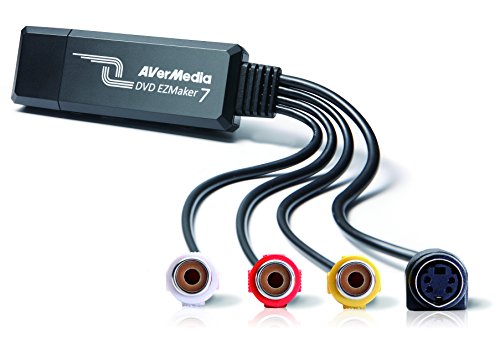
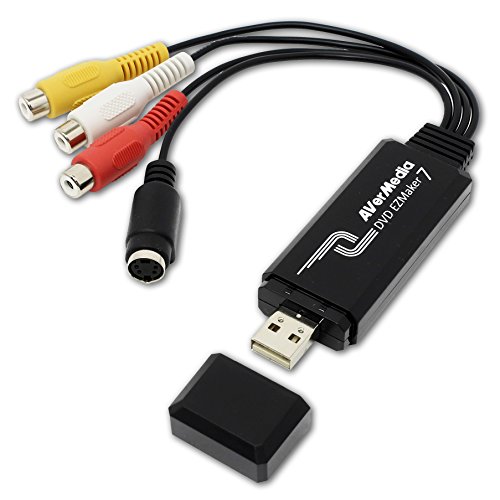


Key features
- •Capture analog signals to digitize VHS tapes to DVD / VCD
- •Multiple media format support. Various A/V devices support
- •Edit, organize and highlight video clips on Storyboard with bundled CyberLink PowerDirector 10 & PowerProducer 5 DVD
- •System Requirements:Windows10 / Windows 8.1 / Windows 7 / Windows Vista / Windows XP. For basic DVD authoring: Intel Pentium 4 2.4 GHz / AMD Atholon XP 2400+ / Intel Pentium M 2.0 GHz.
- •For HD authoring and direct DV/HDV recording: Intel Pentium 4 3.0 GHz / AMD Athlon XP 3000+ Mac OS X 10.8 or later. Intel Core 2 Duo 2.0 GHz
AVerMedia EZMaker 7, USB Video Capture Card , Analog to Digital Recorder, RCA Composite, VHS to DVD, S-Video, Support Windows 11, Mac 10.11/10.12 (C039), Black,3.2 x 1.1 x 0.5 in (82 x 28.5 x 14 mm)
List Price: $72.41$65.17DEALYou Save: $7.24 (10%)
Free shippingFree Returns – 30 daysFree Order CancellationSecure Payment2–3 Days DeliveryGet It October 26, 2026In Stock (2)No marketing spamNo account requiredFulfilment by FedEx / Amazon / UPS / ShipwirePayPal / Card Buyer Protection
Customer Reviews
Reviews sourced from verified Amazon purchasers3.3
out of 5
Based on 10 reviews
5★
30%
4★
50%
3★
0%
2★
0%
1★
20%
Works well on the Mac, but with some rough edges
Robert Spofford✓ Verified Purchase•February 4, 2018
It really does work as advertised on a Mac, and the video quality of the finished transfer was no worse than the original VHS tape. It also has software specifically for making transfers to a Mac. This isn't as necessary as it is on Windows, because you could do this with just the transfer hardware and various apps that are already widely used in the Mac video world. However the included "Aver Studio" app makes it easy enough that a non-gearhead could do it. You walk through a couple of basic choices on what format you want the transfer to be and then when you start the transfer, it gives you a video and audio monitor so you can see where you are, plus some tools for trimming the head and tail of the clip right in the app before you finally save it.
The reason for 4 stars rather than 5 is that the software, while it looks quite elegant on the screen, has a sort of not-ready-for-prime-time feel with odd command logic and very limited documentation. I suspect it would take anyone 2 or 3 tries before you get everything right. There were also 2 specific problems:
a) The Mac software in the box won't install with any Mac OS after 10.8 or 10.9 which means it's at least 3 or 4 years out of date. After some hunting on their website, I found a download that works with El Capitan (10.11) and Sierra (10.12) but I was pretty much on my own in working through this.
b) When I was transferring clips from a VHS tape, I experienced a bug where after about 15 minutes or so the sound I was monitoring started getting distorted with noise bursts that got worse and worse to the point that after about 25 minutes the sound was unintelligible. Much to my surprise, the bug did NOT affect the quality of the sound in the finished transfer (which was fine) so it was only an inconvenience in monitoring the transfer rather than a fatal flaw. Still, it was pretty alarming. (One caveat: I didn't test this with any other tapes or tape players, so it might possibly have been an oddball bug with the tape I was transferring.)
Overall, looking at the many options for doing this kind of transfer, I think this was the best choice for someone using a Mac.
The reason for 4 stars rather than 5 is that the software, while it looks quite elegant on the screen, has a sort of not-ready-for-prime-time feel with odd command logic and very limited documentation. I suspect it would take anyone 2 or 3 tries before you get everything right. There were also 2 specific problems:
a) The Mac software in the box won't install with any Mac OS after 10.8 or 10.9 which means it's at least 3 or 4 years out of date. After some hunting on their website, I found a download that works with El Capitan (10.11) and Sierra (10.12) but I was pretty much on my own in working through this.
b) When I was transferring clips from a VHS tape, I experienced a bug where after about 15 minutes or so the sound I was monitoring started getting distorted with noise bursts that got worse and worse to the point that after about 25 minutes the sound was unintelligible. Much to my surprise, the bug did NOT affect the quality of the sound in the finished transfer (which was fine) so it was only an inconvenience in monitoring the transfer rather than a fatal flaw. Still, it was pretty alarming. (One caveat: I didn't test this with any other tapes or tape players, so it might possibly have been an oddball bug with the tape I was transferring.)
Overall, looking at the many options for doing this kind of transfer, I think this was the best choice for someone using a Mac.
Works great with a MAC OS Sierra 10.12.2!
Maureen C✓ Verified Purchase•December 26, 2016
Works perfectly with MAC OS Sierra using composite output from a Sany Handycam 8MM circa 1995. Just download the avermedia software and plug in the camera. Then save it as an MP4 and edit it in iMovie (don't use the included editing software). From there you can trim the clips and make a DVD if you want.
Works Well, not for TV
Speed Daemon✓ Verified Purchase•October 11, 2016
This is a gamer's capture device. It does not do television frame rates. So if you need to comply with North American broadcast frame rates of 29.97 or 59.94 fps, look for another unit. It'll do 30 and 60, but forget about NTSC frame rates. This wan't a show-stopper for me, as I've been using it to stream to computers that use the nice round-number frame rates. In that capacity the unit has worked unremarkably, which is exactly what you want with a live audience. No drama, no hiccups. Just a steady stream.
For the record, I capture at 720p and downscale to an exact quarter frame of 640x360. Hardly a torture test of the device or my whole system.
For the record, I capture at 720p and downscale to an exact quarter frame of 640x360. Hardly a torture test of the device or my whole system.
Buyer Beware...
K Bush✓ Verified Purchase•October 14, 2015
This device worked well for a few months until the volume started dropping out. For no reason that I can put my finger on, the volume just stopped working through the computer (non-capture) speakers. At first I thought it was a Windows OS issue and tried to go through the help forums. I quickly found out this is a Avermedia problem that has been on-going but they have yet to fix. I reached out to their almost non-existent support via their website and I got a poorly written response two days later with a link to a Youtube video that had nothing to do with my problem. Seems their support is based overseas and that would explain the two delay (maybe). But, they didn't even read the support request (or, didn't understand it).
Everything is great until there is a problem! That is when you find out if your money was well spent... Not sure of competitor devices but I would implore you to look into them before buying this unit...
Everything is great until there is a problem! That is when you find out if your money was well spent... Not sure of competitor devices but I would implore you to look into them before buying this unit...
Here's the nuts and bolts to make this card sing!!
Howard L. Gault✓ Verified Purchase•May 31, 2015
Be sure and download the latest driver/capture software and manuals from the Aver site. I didn't even take the cd out of the package, as the material was dated. Here's the files you'll need:
C027_MCS.1.7.9.91.15030401_Drv_1.54.x.82_150317.exe
QuickGuide.pdf
UM_EN_C027_AVerMediaDarkCrystal HD Capture Pro_MCS1.7.9_121204_ww.pdf
Also, know that you'll need to reboot after running the .exe to install the driver and etc.
Once you've got it installed, it works really well on non-capture protected (hdcp) hdmi input, and all the non-hdmi modes work as well. If you are trying to capture any hdcp hdmi, you'll need a splitter/stripper, since the software WILL NOT record such material for time shifted viewing. A device such as the 'CKITZE BG-520 HDMI 1x2 3D splitter v1.3 HDCP 2 ports switcher' will solve the problem. That is available on Amazon, and is very useful.
Another job that you'll have to do is to segregate and mark the 9 wire bundle--ie. composite/S video bundle (4 leads with 2 channel sound), the 2 audio leads (also used with component recordings), and the component video RGB leads (3 leads). Trying to do it standing on your head and working behind the computer is not so fun, so get them all split out before you install them. Further, be sure that you get the multi-lead DONGLE into the proper hdmi slot on the card!! The HDMI plug closest to the motherboard is the one for the dongle ONLY!!
The capture software is really well done, but remains less GUI like than some will appreciate. It does, however, work like a charm! Read the manual if you hit any road blocks, and you'll be fine. The unattended/scheduled mode is really useful for a set it and forget it job. Such things as digitizing old Hi8 tapes takes 2 hours per tape in real time. You are able to set up the 2 hour time blocks and walk away. Cool!
Finally, as to settings. H 264, which is MP4, is a universal recording format, but that is something one needs to research and select. 480 by 720 is fine for Hi8 S video, while component settings will vary depending on quality of input from your device. Just know that high quality video there will provide all the card is able to do in terms of quality. Of course, most of us will select the very highest quality for all our hdmi recordings. Be sure that you use your largest disc for the working space/video storage, unless your default C: drive is a monster. These are really large files! Just be sure that you do this piece of work before your first recording.
C027_MCS.1.7.9.91.15030401_Drv_1.54.x.82_150317.exe
QuickGuide.pdf
UM_EN_C027_AVerMediaDarkCrystal HD Capture Pro_MCS1.7.9_121204_ww.pdf
Also, know that you'll need to reboot after running the .exe to install the driver and etc.
Once you've got it installed, it works really well on non-capture protected (hdcp) hdmi input, and all the non-hdmi modes work as well. If you are trying to capture any hdcp hdmi, you'll need a splitter/stripper, since the software WILL NOT record such material for time shifted viewing. A device such as the 'CKITZE BG-520 HDMI 1x2 3D splitter v1.3 HDCP 2 ports switcher' will solve the problem. That is available on Amazon, and is very useful.
Another job that you'll have to do is to segregate and mark the 9 wire bundle--ie. composite/S video bundle (4 leads with 2 channel sound), the 2 audio leads (also used with component recordings), and the component video RGB leads (3 leads). Trying to do it standing on your head and working behind the computer is not so fun, so get them all split out before you install them. Further, be sure that you get the multi-lead DONGLE into the proper hdmi slot on the card!! The HDMI plug closest to the motherboard is the one for the dongle ONLY!!
The capture software is really well done, but remains less GUI like than some will appreciate. It does, however, work like a charm! Read the manual if you hit any road blocks, and you'll be fine. The unattended/scheduled mode is really useful for a set it and forget it job. Such things as digitizing old Hi8 tapes takes 2 hours per tape in real time. You are able to set up the 2 hour time blocks and walk away. Cool!
Finally, as to settings. H 264, which is MP4, is a universal recording format, but that is something one needs to research and select. 480 by 720 is fine for Hi8 S video, while component settings will vary depending on quality of input from your device. Just know that high quality video there will provide all the card is able to do in terms of quality. Of course, most of us will select the very highest quality for all our hdmi recordings. Be sure that you use your largest disc for the working space/video storage, unless your default C: drive is a monster. These are really large files! Just be sure that you do this piece of work before your first recording.
Page 1 of 2