Fantom Drives 2TB Hard Drive Upgrade Kit for Sony PlayStation 4, PS4 Slim, and PS4 Pro (PS4-2TB-KIT)

Key features
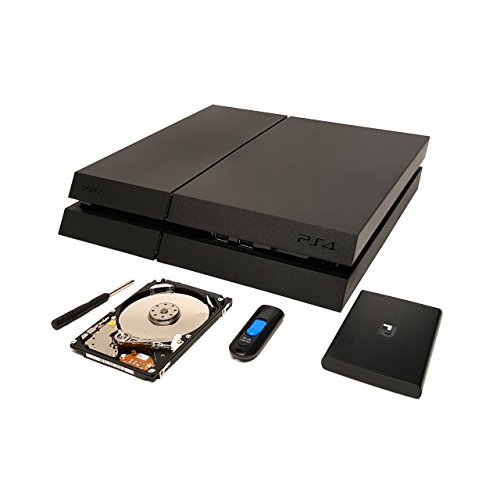
- •Includes 2TB Seagate/Samsung Hard Drive, 8GB Flash Drive, Quick Start Installation Guide, Screwdriver to upgrade your PS4
- •Everything you need to replace / upgrade your Playstation 4 hard drive to a bigger capacity
- •Also includes Fantom Drives G-Force portable USB 3.0 aluminum External Enclosure, Carrying Pouch and Micro USB 3.0 Cable to convert your original PS4 drive to an external hard drive
- •Also works with Playstation 3
BrandFantom Drives
CategoryExternal Hard Drives
Size2TB + 8GB
ColorBlack
Warranty1 Year Manufacturer Warranty
Fantom Drives 2TB Hard Drive Upgrade Kit for Sony PlayStation 4, PS4 Slim, and PS4 Pro (PS4-2TB-KIT)
List Price: $152.70$137.43DEALYou Save: $15.27 (10%)
Free shippingFree Returns – 30 daysFree Order CancellationSecure Payment2–3 Days DeliveryGet It October 26, 2026In Stock (1)No marketing spamNo account requiredFulfilment by FedEx / Amazon / UPS / ShipwirePayPal / Card Buyer Protection
Customer Reviews
Reviews sourced from verified Amazon purchasers4.3
out of 5
Based on 10 reviews
5★
70%
4★
20%
3★
0%
2★
0%
1★
10%
Git MOAR space <(*-*<)
Sniper Tyler✓ Verified Purchase•July 12, 2017
Great Product and packaging. Beyond easy to install (even comes with a instruction manual for those less tech-savvy). I even chose to backup the entire PS4 and Restore it to the new hard drive (takes a second external drive, i borrowed one) to avoid re-installing all my games and dlc. The backup and restore process only took about 5 hours versus the insane amount of time it would take to re-install all the games and dlc. The external casing for the spare 500gb PS4 hard drive is simple to put together and use. May have to lookup how to format PS4 hard drive back to ntfs so you can use it with your PC, thats the only thing not explained in the instructions
Great approach for upgrading your PS4
Trinaself✓ Verified Purchase•May 20, 2017
Great approach for upgrading your PS4. Several lessons learned here btw like the install file on Sony Playstation version 4.55 is not a complete file and had to download from a 3rd party which meant I had to google any 3rd party vendors that contained a recent copy of the update. I have PS4 Slim and it required I search for it.
Great product they provide everything you need to upgrade your hard drive.
Great product they provide everything you need to upgrade your hard drive.
PS4 2TB Upgrade Kit
D. S.✓ Verified Purchase•April 1, 2017
I bought this because I was running out of room on the PS4 to save or load games. This kit has everything you need to upgrade your PS4. Directions are clear. Ensure you check the file size you download from PlayStation web site. The PS4UPDATE.PUP file is titled the same no matter if it is the 300MB or 900MB size. I accidently started with the 300MB size and the PS4 would not load it. Once I had the correct file, there were no issues. I bought this kit because it added the External Drive holder that allowed me to turn my old 500GB drive into external storage for the PS4. Now I went from 500GB to 2.5TB. The longest part is reloading your games manually and having the latest updates downloaded. I recommend!
Works great, easy to set up and very nice to ...
omcmr✓ Verified Purchase•March 30, 2017
Works great, easy to set up and very nice to have the extra storage (thanks for nothing, Sony!) I can't say yet whether it's loading games faster, but I haven't had any issues so far. The installation instructions are straight-forward, if you follow them, you will have no problems. However, the one thing I didn't like is that I would need to reinstall all of my games, which will take hours and hours, especially if you have a lot of downloaded content. So, after some trial and error and some tips from those that have gone before me, here is what I did.
1. Back-up your PS4. If you go to Settings>System>Back-up and Restore, you can back-up your entire PS4 hard drive. This will require another external hard drive, of course. But, the hard drive has to be formatted properly, or the PS4 won't recognize it.
a. Formatting your external hard drive. If your hard drive is blank, no problem. Plug it in to your computer (sorry Mac users, I'm a Windows guy, so it's all I know). Open up My Computer, right click on your hard drive, go to the File System drop down and choose exFAT. This will wipe any files you have on it, so if it came with some software installed, you have to decide if you want it. If you don't, move forward. If you do, then go to the next step.
b. Using your new Fantom hard drive. Set up the new drive in the case provided, plug it in and follow the instructions above to format. If it doesn't show up, then you will need to go to Disk Management first.
1) Click on Start button, type in "Disk Management" in the Search block, and it will open up Disk Management. You will see a list of available drives, along with a graphic representation below. Right click on the graph that represents your external hardrive and format it. Close everything and make sure your hard drive shows up in My Computer. If it does, you were successful.
c. Backing up your PS4. Plug your formatted hard drive into the PS4 and follow the instructions to back up your PS4.
2. Two quick tips to save you grief later on
a. Back up your save files anyway on the thumb drive, just in case. Never hurts to have multiple backups.
b. Deactivate your PS4. Go to Settings>PlayStation Network/Account Management>Activate your PS4. Deactivate your PS4 so you won't have any problems when you install the new hard drive.
3. If you used your Fantom hard drive to back up the PS4, you will need to save the back up file (it's in a folder labeled "PS4"). If you have room on your computer, copy it there. If not, then you will need to use another hard drive. Luckily I had another hard drive (WD Passport) and I copied it there.
4. Install your Fantom drive and restore your PS4. Install the new drive as per the instructions, then use whatever external hard drive you have with the restore file to restore your PS4. I used the Fantom drive to backup because I didn't want to reformat my Passport, so after setting up the Fantom drive in the PS4, I took the old PS4 drive, followed the steps above to reformat it to exFAT, and then copied the restore file from my Passport to the old PS4 drive.
Even though this looks like a complicated way to do this, it saved me from having to download a ton of data and reinstall my games. The Restore worked like a charm, and I now have a 2TB hard drive in my PS4.
1. Back-up your PS4. If you go to Settings>System>Back-up and Restore, you can back-up your entire PS4 hard drive. This will require another external hard drive, of course. But, the hard drive has to be formatted properly, or the PS4 won't recognize it.
a. Formatting your external hard drive. If your hard drive is blank, no problem. Plug it in to your computer (sorry Mac users, I'm a Windows guy, so it's all I know). Open up My Computer, right click on your hard drive, go to the File System drop down and choose exFAT. This will wipe any files you have on it, so if it came with some software installed, you have to decide if you want it. If you don't, move forward. If you do, then go to the next step.
b. Using your new Fantom hard drive. Set up the new drive in the case provided, plug it in and follow the instructions above to format. If it doesn't show up, then you will need to go to Disk Management first.
1) Click on Start button, type in "Disk Management" in the Search block, and it will open up Disk Management. You will see a list of available drives, along with a graphic representation below. Right click on the graph that represents your external hardrive and format it. Close everything and make sure your hard drive shows up in My Computer. If it does, you were successful.
c. Backing up your PS4. Plug your formatted hard drive into the PS4 and follow the instructions to back up your PS4.
2. Two quick tips to save you grief later on
a. Back up your save files anyway on the thumb drive, just in case. Never hurts to have multiple backups.
b. Deactivate your PS4. Go to Settings>PlayStation Network/Account Management>Activate your PS4. Deactivate your PS4 so you won't have any problems when you install the new hard drive.
3. If you used your Fantom hard drive to back up the PS4, you will need to save the back up file (it's in a folder labeled "PS4"). If you have room on your computer, copy it there. If not, then you will need to use another hard drive. Luckily I had another hard drive (WD Passport) and I copied it there.
4. Install your Fantom drive and restore your PS4. Install the new drive as per the instructions, then use whatever external hard drive you have with the restore file to restore your PS4. I used the Fantom drive to backup because I didn't want to reformat my Passport, so after setting up the Fantom drive in the PS4, I took the old PS4 drive, followed the steps above to reformat it to exFAT, and then copied the restore file from my Passport to the old PS4 drive.
Even though this looks like a complicated way to do this, it saved me from having to download a ton of data and reinstall my games. The Restore worked like a charm, and I now have a 2TB hard drive in my PS4.
*** BE CAREFUL! PS4 BRICKS ARE BAD!! DON'T DELETE YOU OLD HARD DRIVE ***
Robert Thomas Jr✓ Verified Purchase•February 20, 2017
Well, I tried this out to replace a 500GB drive in my PS4. Installed easy enough and followed the instructions exactly. Installed the OS from PS4 and everything appeared good. Loaded my 9 games and while loading the saved data, the PS4 locked up and powered down. Wouldn't come back for me. It kept reading "Checking system storage 23%" but would not go beyond that. I read on this and everything pointed to reinstalling the OS. Tried that again and it looked good. This time, loaded one game and tried it. It locked up again and powered itself off. Upon power up, same status "Checking system storage 23%."
Unfortunately, I already wiped my old HD. **** IF you try this, DO NOT WIPE YOUR OLD HARD DRIVE! YOU MAY NEED IT!! ****
Now, trying to get in touch with customer service at Fantom Drives to see what the heck I do now! I now own a 5 month old PS4 brick. Ugh
Be weary of this setup!
Unfortunately, I already wiped my old HD. **** IF you try this, DO NOT WIPE YOUR OLD HARD DRIVE! YOU MAY NEED IT!! ****
Now, trying to get in touch with customer service at Fantom Drives to see what the heck I do now! I now own a 5 month old PS4 brick. Ugh
Be weary of this setup!
Page 1 of 2