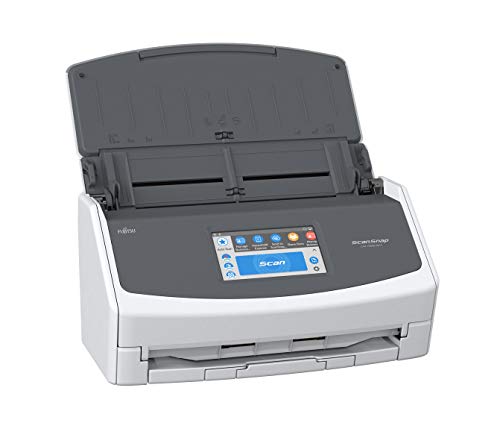
ScanSnap Fujitsu iX1500 Color Duplex Document Scanner with Touch Screen for Mac or PC, White (2018 Release)


Key features
- •Double-sided scanning with advanced paper feeding system. Scan your documents, business cards, receipts, and photos.
- •Large, easy to use 4.3 inch touch screen allows you to easily scan to your preferred destinations. Scan to Google Drive, Dropbox, your desktop folder, and more!
- •Connects via USB cable or Wi-Fi (2.4 and 5 GHz). You can scan via wifi to your laptop, tablet, or smartphone device.
- •Built in software organizes and cleans up your documents with automatic cropping, blank page deletion, and more
- •Scanning speed of up to 30 ppm, with 50 page automatic document feeder (ADF). Optical resolution of up to 600 dpi.
ScanSnap Fujitsu iX1500 Color Duplex Document Scanner with Touch Screen for Mac or PC, White (2018 Release)
List Price: $800.37$720.33DEALYou Save: $80.04 (10%)
Free shippingFree Returns – 30 daysFree Order CancellationSecure Payment2–3 Days DeliveryGet It October 25, 2026In Stock (2)No marketing spamNo account requiredFulfilment by FedEx / Amazon / UPS / ShipwirePayPal / Card Buyer Protection
Customer Reviews
Reviews sourced from verified Amazon purchasers4.4
out of 5
Based on 10 reviews
5★
40%
4★
60%
3★
0%
2★
0%
1★
0%
Nice Upgrade but inflexible options for some functions
Koshka✓ Verified Purchase•October 29, 2023
I upgraded from the ix500 which I have used for several years. In many ways, the iX1500 is a nice upgrade. I like the touchscreen and find it useful. This scanner feeds documents much better with less jamming on things like receipts. I like the receipt guide. The output tray is a huge upgrade and I no longer end up with papers flying across the room. The ability to define and modify profiles is nice. To order your profiles on the touchscreen so that more frequently used ones are listed first you delete the other profiles and put them back on in your preferred order. Not ideal, but fine.
And, yet, I am giving this a 4 star review. Why? There are some maddening things where you can't do certain things with certain types of documents. For example, if you are defining a profile for a receipt you can choose to automatically name the document and can order the title before or after the date. But, if you are defining a profile for a document, you can't do that. The date must come before the title. You can't change the order. Why? No clue.
On the other hand, you can't choose to scan a receipt to a searchable PDF. The default is to scan receipts to jpeg. You can change that to default to PDF. Fine. But, you can't make it a searchable PDF! Well, you can but that is flawed also. If I scan to the cloud (say to Evernote) I can make it a searchable PDF but if I want to scan to my computer I can't. Well, I can lie to the Scansnap software and can tell it to treat all receipts like documents. Great! I can then scan to a searchable PDF. But, wait! When you do that for some odd reason the automatic naming for a receipt no longer works. It defaults to naming the receipt based upon the date scanned. Why? No clue.
There just seems to be a rigidity in what "they" think you will want to do. So, if you have a receipt they don't think you want it to be a searchable PDF. I like to scan everything to one file and make it all searchable. It is useless to me to have my "documents" be scanned searchable while the receipts aren't searchable. So, I have defaulted to just scanning everything to PDF (not searchable) and then I will mass OCR it all.
Just annoying to have the software assume I don't want to OCR my receipts or to assume that I only want to put the date first in the name of my documents. It would take so little to make this worthy of a 5 star review. But, alas, not yet.
Oh -- I read a review where someone commented it is harder to scan long receipts than it was with the iX500. What I did was create a long receipt profile so it is one step to choose that option and then for the next document I just choose my usual option (which is mostly scan to folder). Very easy.
And, yet, I am giving this a 4 star review. Why? There are some maddening things where you can't do certain things with certain types of documents. For example, if you are defining a profile for a receipt you can choose to automatically name the document and can order the title before or after the date. But, if you are defining a profile for a document, you can't do that. The date must come before the title. You can't change the order. Why? No clue.
On the other hand, you can't choose to scan a receipt to a searchable PDF. The default is to scan receipts to jpeg. You can change that to default to PDF. Fine. But, you can't make it a searchable PDF! Well, you can but that is flawed also. If I scan to the cloud (say to Evernote) I can make it a searchable PDF but if I want to scan to my computer I can't. Well, I can lie to the Scansnap software and can tell it to treat all receipts like documents. Great! I can then scan to a searchable PDF. But, wait! When you do that for some odd reason the automatic naming for a receipt no longer works. It defaults to naming the receipt based upon the date scanned. Why? No clue.
There just seems to be a rigidity in what "they" think you will want to do. So, if you have a receipt they don't think you want it to be a searchable PDF. I like to scan everything to one file and make it all searchable. It is useless to me to have my "documents" be scanned searchable while the receipts aren't searchable. So, I have defaulted to just scanning everything to PDF (not searchable) and then I will mass OCR it all.
Just annoying to have the software assume I don't want to OCR my receipts or to assume that I only want to put the date first in the name of my documents. It would take so little to make this worthy of a 5 star review. But, alas, not yet.
Oh -- I read a review where someone commented it is harder to scan long receipts than it was with the iX500. What I did was create a long receipt profile so it is one step to choose that option and then for the next document I just choose my usual option (which is mostly scan to folder). Very easy.
Good Machine, But I Sorely Miss The Simplicity of My S510!
Cookie✓ Verified Purchase•October 19, 2023
I had the S510 for 12 years, and I loved it. As best as I could tell, something on the mother board stopped working. For people who are new to this product, you will probably be ecstatic. But if you owned the S510, you will find this upgraded machine eliminated some features, created more steps to accomplish the same, thing, and created new features I could care less about. My biggest disappointment is that the "Scan To Print" feature has been eliminated. I now have to scan, save, find the document, pull it up, print the document, and then delete it. I would like to give it 1 star just to express my level of unhappiness about losing this important feature, but that would not be fair to the manufacturer and all that the machine has to offer. The setup was so unclear and complex that I had to hire my IT guy to fine-tune the setup so I could access the desired features. I didn't feel too badly once my friend told me she hired someone to help with the setup, and said it took her most of a day and multiple phone calls to support to be up and running. My friend also indicated that the wireless connection regularly fails, and that support is unable to resolve the issue. I knew better from the start, and opted for a direct cable connection.
Its Ok to good - needs improvements with interface
stargazer✓ Verified Purchase•September 29, 2023
Overall I'm happy with this scanner. Upgraded from the 1300. After a few months, I was finally able to use the print to scan function - but I think that is because it's an old app (32 bit) from my previous ScanSnap. For whatever reason, it still works despite using a Mac running 10.14.6 Mojave. Not sure how long it will continue working and there is one extra step - pressing return to print.
For other who have the old print to scan application on their computer, the way I added it is when creating a new profile, scroll to the bottom where it has an Applications Send To drop down menu (on Mac anyhow) and select Scan to Print if it is there. If it isn't there select add/remove, browse your computer for the application to add. Once it is listed, select it from the drop down menu and save profile. When I scan using this profile I get a pop up window where I hit return to print - it also saves the document in whatever file you have specified. I have mine go to Downloads in a Print folder that I have Hazel auto delete.
The scanner itself works well for me - fast and efficient. I just am just not a fan of the ScanSnap interface and they really should have a scan to print option that is 64 bit and built into their standard configurations.
For other who have the old print to scan application on their computer, the way I added it is when creating a new profile, scroll to the bottom where it has an Applications Send To drop down menu (on Mac anyhow) and select Scan to Print if it is there. If it isn't there select add/remove, browse your computer for the application to add. Once it is listed, select it from the drop down menu and save profile. When I scan using this profile I get a pop up window where I hit return to print - it also saves the document in whatever file you have specified. I have mine go to Downloads in a Print folder that I have Hazel auto delete.
The scanner itself works well for me - fast and efficient. I just am just not a fan of the ScanSnap interface and they really should have a scan to print option that is 64 bit and built into their standard configurations.
Scanning is now almost fun!
Matt✓ Verified Purchase•September 22, 2023
I've been using this for about an hour now, upgrading from an old Dell multi function printer/scanner. Wow is this thing fast! At this point I've probably only put about 100 pages through it, but so far the sheet feeder seems to work quite well. The scan quality is very nice and OCR works quite well. I sent through a stack of documents with envelopes in-between, and it automatically rotated the envelopes so the text was oriented horizontally in the resulting scan. The initial setup took a bit as there was a new firmware that took 15 minutes to install, but once setup operation is so far seamless (connected via USB). I even scanned a doc that was a couple of feet long and it went through just fine (switch to manual mode which is 2 screen touches). After OCR on the scanned docs, you can search them using the ScanSnap Home software (or using Adobe Acrobat reader if you wish). Overall my first impression is that the software seems to be well thought out and functional, and as a package it operates very smoothly, a very welcome upgrade to the clunky old Dell MFP.
Edit --> Quick follow up after having it installed for a little while, deducting one star for this. I changed the home directory to a directory tree with roughly 5000 documents in it (scanned by my previous scanner), and that drastically slows down the opening of the app. It's 30 seconds or a minute before you can scan. I'm on a 12 core processor with 32GB RAM and SSD drives, and the unit is plugged to a USB 3 port so it's not a processing power or bus speed issue. Changing the home directory to an empty subdirectory makes it fast again, but now your scans go into a subdirectory.
Edit --> Quick follow up after having it installed for a little while, deducting one star for this. I changed the home directory to a directory tree with roughly 5000 documents in it (scanned by my previous scanner), and that drastically slows down the opening of the app. It's 30 seconds or a minute before you can scan. I'm on a 12 core processor with 32GB RAM and SSD drives, and the unit is plugged to a USB 3 port so it's not a processing power or bus speed issue. Changing the home directory to an empty subdirectory makes it fast again, but now your scans go into a subdirectory.
If you are upgrading from an earlier ScanSnap, this is a great alternative
H. T. Johnson✓ Verified Purchase•August 12, 2023
I basically went paperless about 8 years ago sith the Scansnap S1500M. With Catalina, I had to upgrade. I read the horror stories about this new model, and how it would not save documents directly to the cloud very well. But then it occurred to me that in my workflow, I don't want to go straight to the cloud. I want to name it, upload to evernote, and then run it through Hazel to put it in the right folder. This model does that very well. The touch screen on the front makes it easy to switch from receipts to regular multipage documents and even to documents that contain pages of unequal sizes that you have to put through a few at a time. (This one requires you to tweak some settings.) It is much faster than the S1500M. It rarely jams.
The negatives: the installation process appears to be written by a non-native speaker of English. The instructions took me a long time to figure out. For example, do you want to connect through a wireless access point? Or directly to your computer? Well, I want to connect through my wireless Lan directly to my computer. So which is it? After searching google for a half hour, it turns out that I should select wireless access point. You have to make this decision on the spot. You cannot defer it until later.
Another caveat: The new software works fine and will do what the prior software did. But the defaults are different. So you have to play with them until it behaves the way you need.
One more thing: The ScanSnap Home software will try to be the manager of your documents. In a sense, this is a good thing because you can edit the document right there and give it a name and view the metadata. (You can see the text recognition, for example.)
But if you use another app in your workflow like Adobe acrobat or PDF Expert, then when you finish using the app, the ScanSnap gets confused and will not scan until you shut down ScanSnap Home and restart it. Fortunately, you can turn off the feature where ScanSnap Home manages your documents, and then you don't have to worry about the scanning errors.
So, you will go through some pain in the initial set-up. But once you have it tamed, it is a great experience.
The negatives: the installation process appears to be written by a non-native speaker of English. The instructions took me a long time to figure out. For example, do you want to connect through a wireless access point? Or directly to your computer? Well, I want to connect through my wireless Lan directly to my computer. So which is it? After searching google for a half hour, it turns out that I should select wireless access point. You have to make this decision on the spot. You cannot defer it until later.
Another caveat: The new software works fine and will do what the prior software did. But the defaults are different. So you have to play with them until it behaves the way you need.
One more thing: The ScanSnap Home software will try to be the manager of your documents. In a sense, this is a good thing because you can edit the document right there and give it a name and view the metadata. (You can see the text recognition, for example.)
But if you use another app in your workflow like Adobe acrobat or PDF Expert, then when you finish using the app, the ScanSnap gets confused and will not scan until you shut down ScanSnap Home and restart it. Fortunately, you can turn off the feature where ScanSnap Home manages your documents, and then you don't have to worry about the scanning errors.
So, you will go through some pain in the initial set-up. But once you have it tamed, it is a great experience.
Page 1 of 2


![Nero 11 Platinum [Old Version]](https://m.media-amazon.com/images/I/51FN826rLTL._SL500_.jpg)