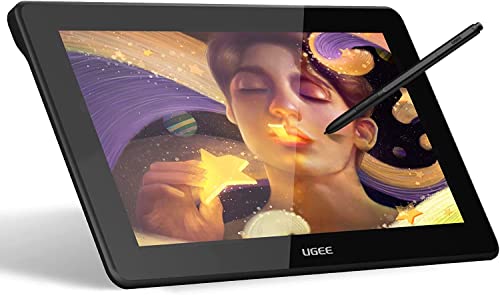
XPPen 21.5 Inch Drawing Tablet with Screen 122% sRGB, Artist 22 2nd IPS Graphics Tablet with 8192 Levels Battery-Free Stylus, Pen Display with Adjustable Stand, AG Film for Windows, Mac, Chrome, Linux


Key features
- •XP-PEN Artist22 Pro meets the needs of all types of digital artists at any skill level. The potential applications for the XP-Pen Artist 22 Pro are limitless! Functions such as drawing, sketching, painting, CAD and 3D sculpting, illustration, design, and editing can now be performed directly on the surface of your monitor. Expand your creativity and work naturally and intuitively
- •Artist22 Pro Pen Display features 1080p resolution with Adobe Color Gamut Coverage:77%-82%(100%SRGB) and an extra-wide 178° viewing angle. 8192 pressure sensitivity provides unprecedented accuracy and precision in your work. The Max Report Rate of the Artist 22 Pro has increased to 266 RPS, to make lines flow smoother and perform better, working faster and efficiently
- •The latest stylus design! Our P02S stylus technology provides 8192 levels of instant pen pressure sensitivity_Providing you with groundbreaking control and fluidity to expand your creative output. [Special offer for XP-Pen customers: Come to contact us with your order ID to apply for the latest openCanvas 7 drawing software for free]
- •XP-PEN Artist 22 Pro driver can support 4k displays. Now you can enjoy every sharp detail. Sturdy, adjustable, ergonomically designed stand prevents shaking and sliding, providing a comfortable drawing experience. It can also be attached to a 75x75 mm vesa mount
- •Supports Windows 7/8/10 and Mac Os x 10.10.x or later. Compatible with popular digital art software such as Adobe Photoshop, Corel Painter, Comic Studio, SAI, Zbrush, Medibang Paint, Toonboom Harmony etc. Compatibility is always being steadily improved through driver updates. XP-Pen provides one-year warranty and lifetime technical support for all our pen tablets/displays
XPPen 21.5 Inch Drawing Tablet with Screen 122% sRGB, Artist 22 2nd IPS Graphics Tablet with 8192 Levels Battery-Free Stylus, Pen Display with Adjustable Stand, AG Film for Windows, Mac, Chrome, Linux
List Price: $538.34$484.51DEALYou Save: $53.83 (10%)
Free shippingFree Returns – 30 daysFree Order CancellationSecure Payment2–3 Days DeliveryGet It October 27, 2026In Stock (28)No marketing spamNo account requiredFulfilment by FedEx / Amazon / UPS / ShipwirePayPal / Card Buyer Protection
Customer Reviews
Reviews sourced from verified Amazon purchasers4.4
out of 5
Based on 10 reviews
5★
70%
4★
30%
3★
0%
2★
0%
1★
0%
Wonderful, the only problem is a personal one.
Randy H.✓ Verified Purchase•September 11, 2023
This is a great graphics tablet for anyone getting into media art of any kind, unfortunately for me the screen is a little small and I have some pretty crappy eyesight. Like I said it was a personal problem.
amazing value! amazing performance. better than surface pro products
J9✓ Verified Purchase•September 4, 2023
i tend to research for hours before making bigger purchases. i find it kind of fun. so to pay back all the reviews that have helped me along the way, im writing this review, for a product i truly love, and am in no way shape or form been compensated for this review, or received any free items from the maker. i paid for my xp pen artist 15.6, and heres my to the point review. 5 stars. all day. I have used microsoft surface pro 3's and tried the surface studio at the microsoft store. this tablet is every bit as responsive, and fluid as those tablets. there is, one slight con to this tablet. well two.. first there is a slight difference in what you see, and what you touch. now wait!!! its not all that bad. truly. in fact, you're only going to notice it if you work flat with the tablet, on a table, without a stand, and with some distance due to sitting at a desk. in that case, the two furthest corners are gonna have a slight water effect, like seeing the fish in the water, and grabbing with your hand. the fish isnt where it looks like it is. thats what i mean. the two furthest corners, when laid flat will have this effect. even after calibrating, it still seems slightly off. now, easy fix!!! just buy a stand, and slightly tilt the tablet up, and this effect seems to be gone. or buy a two dollar three binder, and use it to slightly prop your tablet. i personally splurged for the stand right from xp pen, after i bought the tablet. and chose to buy there product for the stand, because i feel like for what they charge for the tablet, id happily spend another 50 for a perfect stand. it never shakes, and holds in place. im 300 lbs and push with a decent amount of pressure, and it doesnt budge. but back to the tablet. this tablet is every bit as good as a surface pro3 and up, and way bigger. ive never used wacom, but ive researched that microsoft surface used the same technology as wacom, and even had some of their old people. so as far as i know, they are very close in performance. when my surface pro 3 died, microsoft wouldnt even work on my tablet!!!!!! instead, my only choice is pay 799 before tax, to upgrade to surface pro 4. but, it had same exact specs as my now dead surface pro 3. that tablet lasted 2 years before it died, and cost me 1000 dollars, and if bought at best buy 1400. this tablet was 350 plus tax. stand another 50. i bought a rebuilt computer that blows away the surface pro 3 specs i had, for 400. so i spent less than my cheapest opition to replace my piece of junk microsoft product, with new crucial memmory of 32 gb, a i5 newer generation than sp3, and all around better specs including ssd. and external 2gb hdd. so, dont be a microsoft fan boy, like i was, to be their whipping boy when their crappy products fail. but this. and dont be a fool and spend a thousand more dollars, or 4x the cost of this tablet for a wacom. and still need a computer. any one looking to buy a surface pro 3 or wacom, come here instead. i love this thing. and have no reason or anything to gain, by my honest review. one last thing, this has a matte finish. i removed the plastic on the screen, ive read people sometimes leave it on, for more of a matte finish, but i find its plenty matte enough without the plastic. really feels like writing on paper, where as the surface pro 3 felt like writing on glass, and super glossy
Amazing tablet, just needs more time to fix bugs
Emanuel✓ Verified Purchase•August 17, 2023
Starting off, I'm coming from using an XP-Pen Artist Pro 15.6" for a few years, and it was my only experience with a display tablet prior to trying out the Artist 24. I absolutely love my Artist Pro 15.6" and never had any major issues with it, just a couple minor hiccups that I'll state later. Over time, my workflow became cramped, and I needed more room, so when I saw an XP-Pen tablet available, I decided it was finally time to upgrade.
Set-up:
I prefer my tablet to be on a VESA mount, so we started by putting the tablet on the one I already had. Overall, the process was fine. I would say that it was best as a two-person job, though. One person held the tablet while the other screwed the tablet to the mount and when adjusting tension in the arm to hold up the hefty tablet. The only real issue I had was with the screws that came with the tablet. When we used them, the tablet didn't feel secure in the mount, so we used our own screws, and it felt a lot more secure. The screws seemed to be more for the stand that comes with it instead of a VESA mount, so if you want to mount it, make sure you have other screws just in case.
Honestly, I didn't need to do much calibration at first. The pen worked perfectly fine out of the box, so I didn't need to touch the pen calibration yet, though later I had to do this multiple times"“ that which I'll get into. The most I had to calibrate was adjusting the colors on the screen. No matter how much I adjusted the settings on the tablet and my computer, the color was always way too bright; light colors that I previously could tell apart were now blended together. This was something I didn't have an issue with my old tablet. I had to go into my computer's graphic card settings to adjust further, and after that it was fine.
First impressions:
- Having such a large workspace is weird at first after coming from a small tablet in comparison, but I quickly got comfortable with it and I love how much room I have now.
- With that being said, the offset of the pen is something that still bothers me to this day. It always seems to be at least slightly off of where the pen nib is, and it's more noticeable when I'm working with a very small pen size in my drawing program. This was something I never had with my old tablet, so I'm not sure if this is normal with such large display tablets, since this is my first experience with one. I did contact XP-Pen support about it, and they said it was normal. If anything, I just need to adapt to it.
- The buttons on the top press easily with no issue. One thing I had an issue with my old tablet since the beginning was the buttons wouldn't always work on the first press, but these work just fine.
- The screen feels similar to the Artist Pro 15.6" with that smooth but ever so slightly textured feel.
- The anti-glare layer on the screen works as expected.
- There's no input lag as well.
First week:
The first issue I had was on the second day with the USB-C to USB-C cable that comes with the tablet. I went to adjust the cords to be more pushed down the hole in my table, but in doing so made the USB-C/C become slightly unplugged in my computer for some reason. After plugging it back in, I got a Windows pop up saying there was a malfunction in the USB. Restarting the computer did nothing to help, so I changed it out with the USB-C to USB-A cable that also comes with the tablet, and then it was fine.
Throughout the next few days, the tablet overall performed as expected. The only issue I had that continuously happened, as I mentioned earlier, was the pen calibration. After the first day, suddenly any tool I use was majorly offset to be comfortable with. I'll go through the calibration process, it looks decent for a while (or at least as close to the center of the pen nib that won't drive me crazy), until it's either suddenly offset again a day or two later, or it gradually becomes offset, and I have to calibrate it all over again. In the tablet settings, I disabled the Tilt setting to see if that helps reduce the offset, but I'm not sure if it did much.
Continuing with the pen itself, the buttons on the pen and the settings don't always work with me. I set up the buttons to be an eyedropper and a pen/eraser in my drawing program, and it works"¦ okay. The eyedropper seemed to act picky for when it wanted to actually work, and the pen/eraser even now still doesn't work the way I want too. It switches to the eraser just fine, but even though the pen is set to P like it is in Clip Studio Paint, it just switches back to whatever tool I used previously. Sometimes nothing at all would happen with both buttons, but the screen would still show the keys that were "being used". The tablet settings are kinda finicky too, as even though I saved the pen settings I want in my drawing program, it completely deleted the setting.
Second week:
Here's where suddenly I had the most issues in one day. My pen loses all pressure right from the beginning, and restarting Clip Studio and even restarting the computer did nothing at all. I had to go into the tablet settings and turn on Windows Ink, and it went back to normal, which I don't remember if I had it on or off to begin with. I occasionally had pen pressure issues with my previous tablet, but it would either quickly resolve on its own or it would be fine after closing and reopening the drawing program.
Later on, I go to change the canvas size in my drawing program, and suddenly the cursor goes absolutely crazy; jerking down to the bottom corners of the tablet when I tried to move, doing right-clicks (mostly on the task bar, making the context menus pop up repeatedly) even though I'm not touching my pen nor my mouse. Trying to move the mouse to close out of the canvas setting was extremely difficult because of how it was acting. I had to unplug the tablet entirely from the computer to make it stop so I could close the pop-up. It seemed back to normal after plugging it back in"¦ until I needed to change the canvas size, and it started all over. If I move my drawing program to my computer monitor and go to change the canvas size it works perfectly fine, only when I do it on the tablet is when it goes crazy. The thing that confused me is that I did the exact same thing a few days prior and it worked perfectly fine. I made sure everything was updated"“ graphics card, tablet driver"“ and it continued to act up. I contacted XP-Pen support about this and they've been super helpful with trying to figure out the cause. As of posting this review, they don't think it's a driver issue but a hardware issue with this specific tablet. I'm going to be switching it out and get another one to see if that is the case. I'll see if I need to update this review after I try out the replacement.
Third week:
Nothing new happened since getting a couple driver updates after communicating with XP-Pen. I haven't had many issues with offset as long as I calibrate it *just* right (taking a couple tries at times), and there's been no problem with the pen sensitivity, so I'm able to go about my work just fine. Whenever I need to change the canvas setting, I just move my drawing program over to my computer monitor so I don't have to deal with what happens when I do it on my tablet.
Overall, this is a great tablet and I've been enjoying the upgrade from my older and smaller one. Just keep in mind with this being a new product, it needs more time to get the drivers updated to fix any major issue or common bugs. The technical issues I've had have been annoying at best, but has occasionally affected my workflow. It's very possible that I just got a tablet that has more issues than others. If you don't want to deal with any issues and want a tablet that works perfect right out of the box, I would wait a while before purchasing this tablet to give it time to reach that point. I am very optimistic for this product and think it's a great tablet for this size and quality for this price.
Set-up:
I prefer my tablet to be on a VESA mount, so we started by putting the tablet on the one I already had. Overall, the process was fine. I would say that it was best as a two-person job, though. One person held the tablet while the other screwed the tablet to the mount and when adjusting tension in the arm to hold up the hefty tablet. The only real issue I had was with the screws that came with the tablet. When we used them, the tablet didn't feel secure in the mount, so we used our own screws, and it felt a lot more secure. The screws seemed to be more for the stand that comes with it instead of a VESA mount, so if you want to mount it, make sure you have other screws just in case.
Honestly, I didn't need to do much calibration at first. The pen worked perfectly fine out of the box, so I didn't need to touch the pen calibration yet, though later I had to do this multiple times"“ that which I'll get into. The most I had to calibrate was adjusting the colors on the screen. No matter how much I adjusted the settings on the tablet and my computer, the color was always way too bright; light colors that I previously could tell apart were now blended together. This was something I didn't have an issue with my old tablet. I had to go into my computer's graphic card settings to adjust further, and after that it was fine.
First impressions:
- Having such a large workspace is weird at first after coming from a small tablet in comparison, but I quickly got comfortable with it and I love how much room I have now.
- With that being said, the offset of the pen is something that still bothers me to this day. It always seems to be at least slightly off of where the pen nib is, and it's more noticeable when I'm working with a very small pen size in my drawing program. This was something I never had with my old tablet, so I'm not sure if this is normal with such large display tablets, since this is my first experience with one. I did contact XP-Pen support about it, and they said it was normal. If anything, I just need to adapt to it.
- The buttons on the top press easily with no issue. One thing I had an issue with my old tablet since the beginning was the buttons wouldn't always work on the first press, but these work just fine.
- The screen feels similar to the Artist Pro 15.6" with that smooth but ever so slightly textured feel.
- The anti-glare layer on the screen works as expected.
- There's no input lag as well.
First week:
The first issue I had was on the second day with the USB-C to USB-C cable that comes with the tablet. I went to adjust the cords to be more pushed down the hole in my table, but in doing so made the USB-C/C become slightly unplugged in my computer for some reason. After plugging it back in, I got a Windows pop up saying there was a malfunction in the USB. Restarting the computer did nothing to help, so I changed it out with the USB-C to USB-A cable that also comes with the tablet, and then it was fine.
Throughout the next few days, the tablet overall performed as expected. The only issue I had that continuously happened, as I mentioned earlier, was the pen calibration. After the first day, suddenly any tool I use was majorly offset to be comfortable with. I'll go through the calibration process, it looks decent for a while (or at least as close to the center of the pen nib that won't drive me crazy), until it's either suddenly offset again a day or two later, or it gradually becomes offset, and I have to calibrate it all over again. In the tablet settings, I disabled the Tilt setting to see if that helps reduce the offset, but I'm not sure if it did much.
Continuing with the pen itself, the buttons on the pen and the settings don't always work with me. I set up the buttons to be an eyedropper and a pen/eraser in my drawing program, and it works"¦ okay. The eyedropper seemed to act picky for when it wanted to actually work, and the pen/eraser even now still doesn't work the way I want too. It switches to the eraser just fine, but even though the pen is set to P like it is in Clip Studio Paint, it just switches back to whatever tool I used previously. Sometimes nothing at all would happen with both buttons, but the screen would still show the keys that were "being used". The tablet settings are kinda finicky too, as even though I saved the pen settings I want in my drawing program, it completely deleted the setting.
Second week:
Here's where suddenly I had the most issues in one day. My pen loses all pressure right from the beginning, and restarting Clip Studio and even restarting the computer did nothing at all. I had to go into the tablet settings and turn on Windows Ink, and it went back to normal, which I don't remember if I had it on or off to begin with. I occasionally had pen pressure issues with my previous tablet, but it would either quickly resolve on its own or it would be fine after closing and reopening the drawing program.
Later on, I go to change the canvas size in my drawing program, and suddenly the cursor goes absolutely crazy; jerking down to the bottom corners of the tablet when I tried to move, doing right-clicks (mostly on the task bar, making the context menus pop up repeatedly) even though I'm not touching my pen nor my mouse. Trying to move the mouse to close out of the canvas setting was extremely difficult because of how it was acting. I had to unplug the tablet entirely from the computer to make it stop so I could close the pop-up. It seemed back to normal after plugging it back in"¦ until I needed to change the canvas size, and it started all over. If I move my drawing program to my computer monitor and go to change the canvas size it works perfectly fine, only when I do it on the tablet is when it goes crazy. The thing that confused me is that I did the exact same thing a few days prior and it worked perfectly fine. I made sure everything was updated"“ graphics card, tablet driver"“ and it continued to act up. I contacted XP-Pen support about this and they've been super helpful with trying to figure out the cause. As of posting this review, they don't think it's a driver issue but a hardware issue with this specific tablet. I'm going to be switching it out and get another one to see if that is the case. I'll see if I need to update this review after I try out the replacement.
Third week:
Nothing new happened since getting a couple driver updates after communicating with XP-Pen. I haven't had many issues with offset as long as I calibrate it *just* right (taking a couple tries at times), and there's been no problem with the pen sensitivity, so I'm able to go about my work just fine. Whenever I need to change the canvas setting, I just move my drawing program over to my computer monitor so I don't have to deal with what happens when I do it on my tablet.
Overall, this is a great tablet and I've been enjoying the upgrade from my older and smaller one. Just keep in mind with this being a new product, it needs more time to get the drivers updated to fix any major issue or common bugs. The technical issues I've had have been annoying at best, but has occasionally affected my workflow. It's very possible that I just got a tablet that has more issues than others. If you don't want to deal with any issues and want a tablet that works perfect right out of the box, I would wait a while before purchasing this tablet to give it time to reach that point. I am very optimistic for this product and think it's a great tablet for this size and quality for this price.
Not good without iGPU/USB-C as connection
S. H.✓ Verified Purchase•August 4, 2023
I like this tablet and I decided to keep it, but there are a few things everyone should know:
1. Per my emails with support, windows scaling is not supported and there are no plans to. That means you are stuck at 100% which is tiny tiny tiny. Most apps have UI scaling though, but windows is a no-go.
EDIT: through testing it does scale over USB-C vs USB-A/HDMI splitter cable. Not sure why support wouldn't tell me that.
2. The cables are short and they don't sell longer ones. My extensions won't supply power properly or let the pen work without hiccupping.
3. The power button only turns the screen off. It remains connected to windows. Your cursor or windows can still move to tablet. The only way to disconnect it from windows is to unplug it from USB.
4. If touch won't work make sure you enter PC Tablet Settings in Control Panel to enable the screen.
5. It doesn't draw dots well. It doesn't detect pressure sensitivity (under those circumstances) and they come out tiny or large and few in between. You have to set a brush to a size and adjust as needed.
EDIT: again over USB-C it drew dots fine. Not sure why the performance is so much poorer through the other cable.
6. It doesn't always draw when you expect it to.
I decided to keep it because:
1. I like the semi-matte surface. I don't like the sound of the scratchy pen tablets with matte surfaces. I came from an HP Spectre and Surface Pro 4 which both have glossy screens and it's definitely more matte than that. It's right between which is really comfortable for me.
2. The pen is very good and the drawing experience is great.
3. It's cost effective.
EDIT: If using over USB-C connection the experience is much better. This requires that you have an integrated iGPU/APU on your desktop processor and a USB-C port on your motherboard or laptop. Without that you are stuck with poor options. I'm upping my rating to 4 stars, but I think the manufacturer and their support can be much more communicative about these requirements and limitations.
UPDATE: I decided to return it after all. Not being able to draw dots just doesn't work for my art style and things became very deliberate. If it did that one thing well, I'd keep it for sure but for now it's a deal breaker.
1. Per my emails with support, windows scaling is not supported and there are no plans to. That means you are stuck at 100% which is tiny tiny tiny. Most apps have UI scaling though, but windows is a no-go.
EDIT: through testing it does scale over USB-C vs USB-A/HDMI splitter cable. Not sure why support wouldn't tell me that.
2. The cables are short and they don't sell longer ones. My extensions won't supply power properly or let the pen work without hiccupping.
3. The power button only turns the screen off. It remains connected to windows. Your cursor or windows can still move to tablet. The only way to disconnect it from windows is to unplug it from USB.
4. If touch won't work make sure you enter PC Tablet Settings in Control Panel to enable the screen.
5. It doesn't draw dots well. It doesn't detect pressure sensitivity (under those circumstances) and they come out tiny or large and few in between. You have to set a brush to a size and adjust as needed.
EDIT: again over USB-C it drew dots fine. Not sure why the performance is so much poorer through the other cable.
6. It doesn't always draw when you expect it to.
I decided to keep it because:
1. I like the semi-matte surface. I don't like the sound of the scratchy pen tablets with matte surfaces. I came from an HP Spectre and Surface Pro 4 which both have glossy screens and it's definitely more matte than that. It's right between which is really comfortable for me.
2. The pen is very good and the drawing experience is great.
3. It's cost effective.
EDIT: If using over USB-C connection the experience is much better. This requires that you have an integrated iGPU/APU on your desktop processor and a USB-C port on your motherboard or laptop. Without that you are stuck with poor options. I'm upping my rating to 4 stars, but I think the manufacturer and their support can be much more communicative about these requirements and limitations.
UPDATE: I decided to return it after all. Not being able to draw dots just doesn't work for my art style and things became very deliberate. If it did that one thing well, I'd keep it for sure but for now it's a deal breaker.
Very clear screen.
Charlotte Antaki✓ Verified Purchase•August 2, 2023
We planned to use this for business. It was just a bit too large to carry on business trips, so we'll look for a smaller one. One thing that I forgot to mention in my reason to return, was that this box was missing the extra plugs (international plug, etc.) Being used, I still expected it to have all the parts.
Page 1 of 2



![Drawing Glove for Tablet,[Pink 2Pack] Palm Rejection Artist Right Hand Glove Digital Art Accessories](https://m.media-amazon.com/images/I/41Jvp6-d4oL._SL500_.jpg)