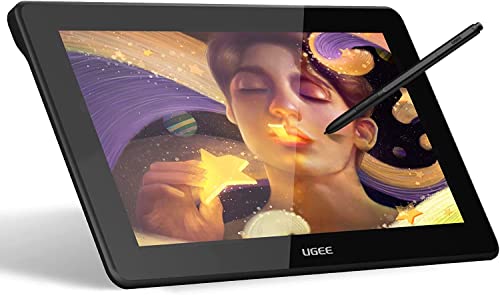
15.6" Drawing Tablet with Screen XPPen Artist 15.6 Pro Tilt Support Graphics Tablet Full-Laminated Red Dial (120% sRGB) Drawing Monitor Display 8192 Levels Pressure Sensitive & 8 Shortcut Keys



Key features
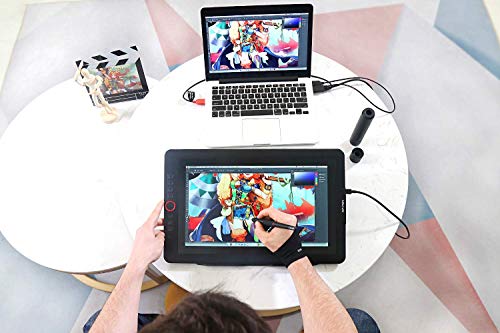
- •XP-Pen Artist15.6 Pro adopting full-laminated technology, seamlessly combines the glass and the screen, to create a distraction-free working environment that's also easy on the eyes. Artist15.6 Pro pairs a superb color accuracy of 120% sRGB with 178 degrees of visual angle and delivers rich colors, vivid images, and dazzling details in a wider view. Simply connect the Artist 15.6 Pro to your computer with the included HDMI and two USB cables to start drawing without plugging into any wall plug
- •Artist 15.6 Pro supports 60 degrees of tilt function, allowing it to easily and quickly sense the gesture movement of the stylus to ensure accurate imitation of a real tilting brush effect, delivering smoother and more natural transition between lines and strokes. 8192 levels of pressure sensitivity_providing increased accuracy, control, and fluidity to effortlessly for the finest sketches and lines. And enjoy smooth, enhanced performance with our P05R Battery-free Stylus
- •The innovative Red Dial interface breaks through the traditional pen display design for optimal efficiency. It fits comfortably in your hand and can be programmed to zoom in and out on your canvas, scroll up and down, and more, giving you the power to create more. Artist 15.6 Pro features 8 fully customizable shortcut keys, puts more customization options at your fingertips, and allows you to optimize your workflow to capture and express your ideas faster and more easily
- •XP-Pen Artist 15.6 Pro features a slim 11mm profile and easily accessible brightness adjustment buttons, so you can easily adjust it to your preferred brightness for comfortable drawing. Included with the Artist 15.6Pro, the AC 41 easy-to-use stand is built to prevent shaking or sliding and relieve eye fatigue and hand stiffness. Artist 15.6 Pro comes with an anti-reflective coating and helps reduce glare to protect your eyes, so your screen continues to stay crisp and clear even in bright light
- •Compatible with Windows 10/8/7(32/64bit), Mac OS X version 10.10 or later, and major graphics software such as Photoshop, Painter, Illustrator, Clip Studio, and many more. Sketch, paint. XP-Pen provides a one-year warranty [warranty only valid under the situation that damage is not caused by man-made] and lifetime technical support for all our pen tablets/displays. [Warm Reminder: Artist15.6 Pro drawing pen display must be used with a computer]
15.6" Drawing Tablet with Screen XPPen Artist 15.6 Pro Tilt Support Graphics Tablet Full-Laminated Red Dial (120% sRGB) Drawing Monitor Display 8192 Levels Pressure Sensitive & 8 Shortcut Keys
List Price: $523.79$471.41DEALYou Save: $52.38 (10%)
Free shippingFree Returns – 30 daysFree Order CancellationSecure Payment2–3 Days DeliveryGet It October 28, 2026In Stock (1)No marketing spamNo account requiredFulfilment by FedEx / Amazon / UPS / ShipwirePayPal / Card Buyer Protection
Customer Reviews
Reviews sourced from verified Amazon purchasers4.6
out of 5
Based on 10 reviews
5★
90%
4★
10%
3★
0%
2★
0%
1★
0%
Former Wacom & Surface Pro Illustrator - I made the switch and I'm very happy!
Jennifer✓ Verified Purchase•September 4, 2023
TLDR: This is working out better than my prior Wacom tablets and my Surface Pro 6 /7. Give it a shot but make sure to check EVERY detail first. There is no touch zoom (but maybe that's for the best...)
This is going to be long.
First, I'm a freelance professional illustrator. I draw anime and manga style art and have been transitioning over the past 3 years to a more painterly style. I draw chibi, emotes for Twitch, and pin-up posters. I also illustrate my own manga. I spend over 40 hours per week drawing. I work in Clip Studio Paint EX. Vector lines and art that uses very large brushes is very important to my work. Color matching is important because most of my work is printed on charms, t-shirts, and paper and then sold. I stream my work on Twitch, so I also need a drawing monitor/tablet that enables me to be comfortable in one spot for a long time.
In the past, I have used a very small 5x5" Wacom Bamboo tablet, a 7x9" Samsung Note Tablet, an 8.5x11" Wacom Bamboo Create Tablet, an 11x17" Wacom Intuos Pro Tablet, a Surface Pro 6 tablet, and a Surface Pro 7 tablet - in that order over the past 15 years. The XP-PEN Artist24 is the first drawing monitor I have purchased. All the Wacom products were drawing surfaces, but you still needed a monitor. Since working on the Surface Pros, I have been using the TabMate by Clip Studio for quick tool access. It is amazing!
The issues I had with the Wacom products included the nibs wearing out within one month, buttons resetting after every update, the touch-zoom features triggering from my hand motions when I draw, loose cable connections at the port on the Intuos Pro and Bamboo Create, random instances where it would produce the oddest pen and brush strokes you've ever seen (I never found a remedy for this), and driver issues that sometimes resulted in me needing to reinstall the software. I did not care for the size of any of my Wacom tablets but the Intuos was my favorite of them. It had exceptionally high pressure and touch sensitivity and I loved that. I hated that I had to keep calibrating it but I was always told "it's Wacom. It's the best. So we just have to deal with that."
Why though?
I switched to the Surface Pro 6 after my ankle injury left me unable to sit at my desk for long hours. It enabled me to work from bed. I did not like the screen size but it enabled me to get work done. I got used to the Surface Pro 6 and, eventually, the 7 after I accidentally dropped my 6 on the tile floor and it shattered (even with the case on it...). The Surfaces both were difficult to capture for streaming on Twitch. I had to set up a crazy VLC local stream and then capture from my pc. This resulted in some very awkward camera angles, back pain, and discomfort because I could never set those tiny tablets up just right to work. The battery life was a significant issue. The touch and pressure sensitivity rivaled my Intuos, so I was happy with that. But I still had issues with random zooming but less of it. I used a different drawing pen than what came with the Surfaces. It enabled me to have more pressure sensitivity. If you're going the route of the Surface, I recommend buying a different pen, one that run smoothly across the screen, has long battery life, and can increase the sensitivity for you. The default pen is awful for drawing and very uncomfortable. This is when I started using the ClipStudio TabMate because I no longer had the buttons that Wacom tablets offered. I loved it more than the Wacom buttons! It was far more comfortable and I cannot look back. I love this thing and will take it to my grave. It was important for it to work with whatever new tablet or monitor set up I went to.
I decided to transition away from the Surface Pro 7 after I noticed a gradual quality loss over the past 4 months (I'd had it over a year and a half). My lines did not look as slick and I was having issues with weird tapers on my lines or the line or brush stroke extending farther than necessary. I tried a different pen but that didn't help. I tried a different program - that didn't help either. I was already frustrated with the screen size and awkward streaming experience so I started looking for something larger.
I decided that it was time to invest in a Wacom. I arrived at this decision not because of any research I'd done or any test drives but because "Wacom is the best". I almost purchased a Cintiq until I read a ton of negative reviews - more reviews than I could find of positive ones. Most of the positive reviews shared that same thought that "Wacom is the best so we deal with the inconveniences". But, in the time between when I had a Wacom and the day I went shopping, a lot had changed about the drawing monitor market and Wacom actually had serious competitors. Competitors charging far less for comparable products.
Most of the reviews I found online recommended either a Huion or the XP-PEN Artist24. I knew someone who had used a Huion and hated it, so I went with the XP-PEN Artist24 because of the size, resolution, pressure sensitivity, price, and ability to mount it to an Ergotron monitor arm so that I could draw more comfortably on stream. I did not care about the buttons (at first).
I have had the XP-PEN Artist24 for nearly three months now.
When I used its stand, it was absolutely perfect. The monitor did not budge when I drew on it. I could sit upright at my desk and I didn't have any more awkward camera angles on Twitch. No more weird VLC capture nonsense. Absolutely perfect for desk work and streaming.
It works perfectly with the Ergotron arm that can support over 25 pounds. This is important! If you want to mount it - this is a HEAVY monitor. Make sure you get an arm that can support it. And you will be tightening the joints of the arm frequently, so keep the tool in a desk drawer.
It's quiet. No loud fan sounds (like the Wacom reviews cited of the Cintiq).
No heat. I've yet to notice it getting hot - even during 14+ hour drawing sessions while I stream on Twitch. This is in stark contrast to the Surface Pros, which heated up after only an hour.
The drawing space is large, but not too large. I still feel like I get a bit of a workout going from one side to the other but I have small arms. I had been considering larger drawing monitors but I am glad I purchased this one. Anything larger would have been too big.
The image quality and resolution are excellent. No weird fuzzy pixels or color noise. (I read this was also a problem with the Cintiqs.) The monitor feels like it has less glare than my Surface Pros did. I'm enjoying looking at the monitor itself. Other monitors have made my eyes feel tired and, as an artist, blue light filter glasses and settings aren't preferable when doing work.
The pen. The box came with 2 pens (one as a bonus gift) and several nibs. I have a love-hate relationship with pen nibs. I always think the plastic ones are too thick and wear out too quickly (getting sharp and potentially ruining the tablet) and that the rubber ones are too slow. I used to use a felt nib with my Wacom Intuos because it felt like I was drawing on paper and wouldn't cut my tablet if it wore down quickly before I took a break. I had real issues with Wacom's plastic nibs wearing down too quickly. I used their rubber nibs for a while and those, too, had issues with wear. I'd wear them out in 1 - 2 weeks. I spent a lot on nibs with Wacom. I have not had that experience with the XP-PEN Artist24 pen. It requires no charging but you have to make sure that the cords are plugged in very snugly - especially if you use an ergonomic arm or are constantly readjusting the monitor. I pull and push and turn and swivel my monitor all day so the wire sometimes comes a little loose. It's not a big issue. I just need to get a longer cord and give it more slack. I do not like the buttons on the pen. They were awkward for me, positioned too close to where I put my thumb. I kept accidentally pressing them so I disabled this feature. That being said, if you like that sort of thing, they are very responsive and worked more easily than Wacom's and the Microsoft pens I've used. The pen feels nice to hold. I like it better than the Wacom pens in terms of weight, feel, and balance.
The buttons on either side are ok. I don't really use them. Again - I still have my ClipStudio Tabmate that I worship. If I were trying to use these buttons with how I have my monitor on the Ergotron arm, it would be very uncomfortable. Even if it were on my desk, the buttons would be awful to use. But that's because I'm used to relaxing with that Tabmate. LOL Maybe that's just the norm for drawing monitors, but I don't like it!
However, because the XP-PEN Artist24 does not have touch capabilities, I do have to use the left wheel to zoom in and out. Sometimes I zoom in too much but I think this is a Clip Studio EX problem and not the fault of the XP-PEN Artist24.
I did not realize that the XP-PEN Artist24 did not have touch capabilities. I rather like being able to move my canvas around with my fingers despite always having issues with the touch zoom randomly going off and making me angry. That being said, this monitor is so large that I can work well on my 11x17" prints without much movement. I maybe zoom in and out for a total of one hour a day and that's only when I'm working on touching up the finished art. Though I was originally upset about this and it almost made me send the monitor back, I'm glad I gave it a shot. This has been a blessing in disguise. If you're addicted to your touch zoom and touch features, in general, you'll be irritated that this doesn't have that. However, give it a shot - especially if you are used to working on smaller monitors.
Mounting it to the Ergotron arm was easy. The screws were a normal size, removed effortlessly, and the Ergotron fit perfectly against it. Have had zero issues. The Ergotron plus this monitor are gamechangers!
However, it is important to purchase the Ergotron arms that can support over 25 pounds. Don't try to push it just because the product weighs just under 25 pounds. Remember - you'll be pushing against it with your arm or resting your arm on it, adding to the weight. Err on the side of safety. You don't want to drop a bunch of money on an expensive drawing monitor only to have the arm fail because of the weight or the quality of the product.
Driver installation. I hate installing drivers. I hate it. I hate updating them. I hate dealing with adding monitors and installations. I just want plug-and-play. Every minute I spend doing stuff with drivers and having to troubleshoot my programs and equipment is time that I'm not making money to pay my bills.
The XP-PEN Artist24 is plug-and-play after you install the software. I have had zero issues with it after doing that. None. This is huge for me because I frequently had to fight with my Wacom tablets to get the drivers installed and working or I had to reinstall everything. I have had not a single issue like that with the XP-PEN Artist24. Very happy. No time wasted.
ClipStudio compatibility. If your PC is compatible with ClipStudio, the XP-PEN Artist24 will work beautifully. You'll get smooth vector lines too. The tilt functionality is a Godsend after working on the Surface Pros that don't have it. I can be far more expressive with my brush tools and I'm now producing significantly higher quality digital paints as a result. I love it. I've even given Paint Tool Sai a spin and I loved that too. I'm very impressed. The responsiveness in my art programs and the responsiveness with the brushes makes me super happy. For the first time in several years, I feel like my drawing monitor/tablet can keep up with me.
Pen point/circle and actual line on screen. Some people complain about the Surface Pros and how the dot that appears on the screen to indicate the pen's location is slightly off and can cause some accuracy issues. I can attest to this. I've had this issue for years on both the Pro 6 and Pro 7 tablets. I had this issue regardless of the program I was using or if I was just browsing the internet and using my pen for clicking. It's something I had to "get used to". The XP-PEN Artist24 does not do this. When you place your pen, it's where you think it is placed. And it keeps up! No more lagging lines, no more delayed inputs. Just make sure your PC has enough RAM to support your programs. I have 64 GB RAM, and Intel Core 7 processor, and... for the moment... no video card because of the market. That's an issue but it is not preventing me from creating stellar art with the XP-PEN Artist24.
The only issue I've had with the XP-PEN Artist24 is that I cannot seem to extend my monitors after I built my new PC. When I try to, I have issues with the pen recognition. I'm trying to work through this and I think it could be because I don't have a video card right now. So I have, basically, a single monitor but two screens and that's frustrating. What I need are 3 monitors with one being the XP-PEN Artist24. But I need to wait for the video card market to improve. After I get one, I'll update this review.
The cords. Cord management is great. The cords that came with the monitor were a bit short for my use so I have cable extenders and purchased longer cords. If you're using an arm or your PC is farther away from the monitor, I'd recommend getting some longer cables.
So far, I'm a very happy customer and am so glad that I went with the XP-PEN Artist24. It was a huge gamble for me during a time that I did not have a lot of money to invest because of COVID and how it has ruined my business. The XP-PEN Artist24 is worth every cent and should definitely be tried before considering purchasing anything more expensive - even if you are loyal to your brands like I can tend to be. I'm glad that I stopped making excuses for Wacom products and tried a competing brand. Very glad.
This is going to be long.
First, I'm a freelance professional illustrator. I draw anime and manga style art and have been transitioning over the past 3 years to a more painterly style. I draw chibi, emotes for Twitch, and pin-up posters. I also illustrate my own manga. I spend over 40 hours per week drawing. I work in Clip Studio Paint EX. Vector lines and art that uses very large brushes is very important to my work. Color matching is important because most of my work is printed on charms, t-shirts, and paper and then sold. I stream my work on Twitch, so I also need a drawing monitor/tablet that enables me to be comfortable in one spot for a long time.
In the past, I have used a very small 5x5" Wacom Bamboo tablet, a 7x9" Samsung Note Tablet, an 8.5x11" Wacom Bamboo Create Tablet, an 11x17" Wacom Intuos Pro Tablet, a Surface Pro 6 tablet, and a Surface Pro 7 tablet - in that order over the past 15 years. The XP-PEN Artist24 is the first drawing monitor I have purchased. All the Wacom products were drawing surfaces, but you still needed a monitor. Since working on the Surface Pros, I have been using the TabMate by Clip Studio for quick tool access. It is amazing!
The issues I had with the Wacom products included the nibs wearing out within one month, buttons resetting after every update, the touch-zoom features triggering from my hand motions when I draw, loose cable connections at the port on the Intuos Pro and Bamboo Create, random instances where it would produce the oddest pen and brush strokes you've ever seen (I never found a remedy for this), and driver issues that sometimes resulted in me needing to reinstall the software. I did not care for the size of any of my Wacom tablets but the Intuos was my favorite of them. It had exceptionally high pressure and touch sensitivity and I loved that. I hated that I had to keep calibrating it but I was always told "it's Wacom. It's the best. So we just have to deal with that."
Why though?
I switched to the Surface Pro 6 after my ankle injury left me unable to sit at my desk for long hours. It enabled me to work from bed. I did not like the screen size but it enabled me to get work done. I got used to the Surface Pro 6 and, eventually, the 7 after I accidentally dropped my 6 on the tile floor and it shattered (even with the case on it...). The Surfaces both were difficult to capture for streaming on Twitch. I had to set up a crazy VLC local stream and then capture from my pc. This resulted in some very awkward camera angles, back pain, and discomfort because I could never set those tiny tablets up just right to work. The battery life was a significant issue. The touch and pressure sensitivity rivaled my Intuos, so I was happy with that. But I still had issues with random zooming but less of it. I used a different drawing pen than what came with the Surfaces. It enabled me to have more pressure sensitivity. If you're going the route of the Surface, I recommend buying a different pen, one that run smoothly across the screen, has long battery life, and can increase the sensitivity for you. The default pen is awful for drawing and very uncomfortable. This is when I started using the ClipStudio TabMate because I no longer had the buttons that Wacom tablets offered. I loved it more than the Wacom buttons! It was far more comfortable and I cannot look back. I love this thing and will take it to my grave. It was important for it to work with whatever new tablet or monitor set up I went to.
I decided to transition away from the Surface Pro 7 after I noticed a gradual quality loss over the past 4 months (I'd had it over a year and a half). My lines did not look as slick and I was having issues with weird tapers on my lines or the line or brush stroke extending farther than necessary. I tried a different pen but that didn't help. I tried a different program - that didn't help either. I was already frustrated with the screen size and awkward streaming experience so I started looking for something larger.
I decided that it was time to invest in a Wacom. I arrived at this decision not because of any research I'd done or any test drives but because "Wacom is the best". I almost purchased a Cintiq until I read a ton of negative reviews - more reviews than I could find of positive ones. Most of the positive reviews shared that same thought that "Wacom is the best so we deal with the inconveniences". But, in the time between when I had a Wacom and the day I went shopping, a lot had changed about the drawing monitor market and Wacom actually had serious competitors. Competitors charging far less for comparable products.
Most of the reviews I found online recommended either a Huion or the XP-PEN Artist24. I knew someone who had used a Huion and hated it, so I went with the XP-PEN Artist24 because of the size, resolution, pressure sensitivity, price, and ability to mount it to an Ergotron monitor arm so that I could draw more comfortably on stream. I did not care about the buttons (at first).
I have had the XP-PEN Artist24 for nearly three months now.
When I used its stand, it was absolutely perfect. The monitor did not budge when I drew on it. I could sit upright at my desk and I didn't have any more awkward camera angles on Twitch. No more weird VLC capture nonsense. Absolutely perfect for desk work and streaming.
It works perfectly with the Ergotron arm that can support over 25 pounds. This is important! If you want to mount it - this is a HEAVY monitor. Make sure you get an arm that can support it. And you will be tightening the joints of the arm frequently, so keep the tool in a desk drawer.
It's quiet. No loud fan sounds (like the Wacom reviews cited of the Cintiq).
No heat. I've yet to notice it getting hot - even during 14+ hour drawing sessions while I stream on Twitch. This is in stark contrast to the Surface Pros, which heated up after only an hour.
The drawing space is large, but not too large. I still feel like I get a bit of a workout going from one side to the other but I have small arms. I had been considering larger drawing monitors but I am glad I purchased this one. Anything larger would have been too big.
The image quality and resolution are excellent. No weird fuzzy pixels or color noise. (I read this was also a problem with the Cintiqs.) The monitor feels like it has less glare than my Surface Pros did. I'm enjoying looking at the monitor itself. Other monitors have made my eyes feel tired and, as an artist, blue light filter glasses and settings aren't preferable when doing work.
The pen. The box came with 2 pens (one as a bonus gift) and several nibs. I have a love-hate relationship with pen nibs. I always think the plastic ones are too thick and wear out too quickly (getting sharp and potentially ruining the tablet) and that the rubber ones are too slow. I used to use a felt nib with my Wacom Intuos because it felt like I was drawing on paper and wouldn't cut my tablet if it wore down quickly before I took a break. I had real issues with Wacom's plastic nibs wearing down too quickly. I used their rubber nibs for a while and those, too, had issues with wear. I'd wear them out in 1 - 2 weeks. I spent a lot on nibs with Wacom. I have not had that experience with the XP-PEN Artist24 pen. It requires no charging but you have to make sure that the cords are plugged in very snugly - especially if you use an ergonomic arm or are constantly readjusting the monitor. I pull and push and turn and swivel my monitor all day so the wire sometimes comes a little loose. It's not a big issue. I just need to get a longer cord and give it more slack. I do not like the buttons on the pen. They were awkward for me, positioned too close to where I put my thumb. I kept accidentally pressing them so I disabled this feature. That being said, if you like that sort of thing, they are very responsive and worked more easily than Wacom's and the Microsoft pens I've used. The pen feels nice to hold. I like it better than the Wacom pens in terms of weight, feel, and balance.
The buttons on either side are ok. I don't really use them. Again - I still have my ClipStudio Tabmate that I worship. If I were trying to use these buttons with how I have my monitor on the Ergotron arm, it would be very uncomfortable. Even if it were on my desk, the buttons would be awful to use. But that's because I'm used to relaxing with that Tabmate. LOL Maybe that's just the norm for drawing monitors, but I don't like it!
However, because the XP-PEN Artist24 does not have touch capabilities, I do have to use the left wheel to zoom in and out. Sometimes I zoom in too much but I think this is a Clip Studio EX problem and not the fault of the XP-PEN Artist24.
I did not realize that the XP-PEN Artist24 did not have touch capabilities. I rather like being able to move my canvas around with my fingers despite always having issues with the touch zoom randomly going off and making me angry. That being said, this monitor is so large that I can work well on my 11x17" prints without much movement. I maybe zoom in and out for a total of one hour a day and that's only when I'm working on touching up the finished art. Though I was originally upset about this and it almost made me send the monitor back, I'm glad I gave it a shot. This has been a blessing in disguise. If you're addicted to your touch zoom and touch features, in general, you'll be irritated that this doesn't have that. However, give it a shot - especially if you are used to working on smaller monitors.
Mounting it to the Ergotron arm was easy. The screws were a normal size, removed effortlessly, and the Ergotron fit perfectly against it. Have had zero issues. The Ergotron plus this monitor are gamechangers!
However, it is important to purchase the Ergotron arms that can support over 25 pounds. Don't try to push it just because the product weighs just under 25 pounds. Remember - you'll be pushing against it with your arm or resting your arm on it, adding to the weight. Err on the side of safety. You don't want to drop a bunch of money on an expensive drawing monitor only to have the arm fail because of the weight or the quality of the product.
Driver installation. I hate installing drivers. I hate it. I hate updating them. I hate dealing with adding monitors and installations. I just want plug-and-play. Every minute I spend doing stuff with drivers and having to troubleshoot my programs and equipment is time that I'm not making money to pay my bills.
The XP-PEN Artist24 is plug-and-play after you install the software. I have had zero issues with it after doing that. None. This is huge for me because I frequently had to fight with my Wacom tablets to get the drivers installed and working or I had to reinstall everything. I have had not a single issue like that with the XP-PEN Artist24. Very happy. No time wasted.
ClipStudio compatibility. If your PC is compatible with ClipStudio, the XP-PEN Artist24 will work beautifully. You'll get smooth vector lines too. The tilt functionality is a Godsend after working on the Surface Pros that don't have it. I can be far more expressive with my brush tools and I'm now producing significantly higher quality digital paints as a result. I love it. I've even given Paint Tool Sai a spin and I loved that too. I'm very impressed. The responsiveness in my art programs and the responsiveness with the brushes makes me super happy. For the first time in several years, I feel like my drawing monitor/tablet can keep up with me.
Pen point/circle and actual line on screen. Some people complain about the Surface Pros and how the dot that appears on the screen to indicate the pen's location is slightly off and can cause some accuracy issues. I can attest to this. I've had this issue for years on both the Pro 6 and Pro 7 tablets. I had this issue regardless of the program I was using or if I was just browsing the internet and using my pen for clicking. It's something I had to "get used to". The XP-PEN Artist24 does not do this. When you place your pen, it's where you think it is placed. And it keeps up! No more lagging lines, no more delayed inputs. Just make sure your PC has enough RAM to support your programs. I have 64 GB RAM, and Intel Core 7 processor, and... for the moment... no video card because of the market. That's an issue but it is not preventing me from creating stellar art with the XP-PEN Artist24.
The only issue I've had with the XP-PEN Artist24 is that I cannot seem to extend my monitors after I built my new PC. When I try to, I have issues with the pen recognition. I'm trying to work through this and I think it could be because I don't have a video card right now. So I have, basically, a single monitor but two screens and that's frustrating. What I need are 3 monitors with one being the XP-PEN Artist24. But I need to wait for the video card market to improve. After I get one, I'll update this review.
The cords. Cord management is great. The cords that came with the monitor were a bit short for my use so I have cable extenders and purchased longer cords. If you're using an arm or your PC is farther away from the monitor, I'd recommend getting some longer cables.
So far, I'm a very happy customer and am so glad that I went with the XP-PEN Artist24. It was a huge gamble for me during a time that I did not have a lot of money to invest because of COVID and how it has ruined my business. The XP-PEN Artist24 is worth every cent and should definitely be tried before considering purchasing anything more expensive - even if you are loyal to your brands like I can tend to be. I'm glad that I stopped making excuses for Wacom products and tried a competing brand. Very glad.
13.3" semi-comprehensive review
al✓ Verified Purchase•August 17, 2023
so, after using the same no-screen drawing tablet (Gaomon M10K Pro) for YEARS, i eventually outgrew it; i decided to look into a screen tablet, and i landed on this. i'm only half a week into using this thing, but i've used it enough to write a semi-comprehensive review and list the pros/cons as honestly as i can. this review will also be edited as i use the tablet more or if i run into any problems
as i was researching, these were my must-haves for a screen tablet:
✓ left-handed friendly
✓ around the same working area as my previous tablet (M10k is 10" x 6.25", this tablet is around 11.5" by 6.5", pictured below). also because i have limited desk space
✓ price-friendly, preferably ≤$400 (I got this thing for like $200, it was on sale + used coupon)
✓ scrolling wheel (M10k put me on it, I use it SO often so there's no way I could do without it)
✓ battery-free pen
✓ more than like 4 shortcut buttons (again, M10k put me on it)
âš ï¸ i would like to preface this by saying this is my first SCREEN tablet and therefore have nothing to compare it to. however, Brad Colbow on YouTube has a great review on the 13.3" and 12"; i recommend watching that for a more physical demonstration of the tablet's features/capabilities, as well as a fair comparison to its competitors.
pros:
➤ 1 ) price
i got this for around $200 (sale + Amazon coupon); this is an amazing price for something of this size and performance level. this tablet's working area is around 11.5" x 6.5" (13.3" diagonally), while name-brand screen tablets of smaller sizes run twice, thrice the price of this.
i'm very happy that i got something in this price range for this size, it fits nicely on my desk (pictured below) while also not breaking the bank
➤ 2) easy transition from a non-screen tablet, beginner-friendly
as described above, i purposely picked a tablet close to the size of my old one to make this transition as easy as possible. if this is your first tablet in general, this is a completely reasonable pick as even name-brand, non-screen tablets run upwards of >$50-200 nowadays.
if you are considering another size: i would say anything between 12"-16" is reasonable if you don't want something massive (i also have limited desk space so i decided not to opt for the 15.6").
➤ 3) easy setup + adaptability
within ten or so minutes, i was able to quickly transfer all my shortcut keys & get started pretty much right away. i took the advice of another review & used the power adapter since i wanted this thing on 100% brightness. if you already have 2 monitors, i would also recommend using the power adapter as to not overwhelm your PC (my GPU doesn't have integrated graphics, so i can only use the HDMI on my motherboard"” i only have 1 HDMI, 1 DisplayPort, and 1 DVI-D port.)
SPEAKING OF ADAPTERS: IF you only have one HDMI port and can't use it for this tablet, this tablet MIGHT work with a 4K Displayport (Male) to HDMI (Female) adapter; please check your PC's specifications, you wouldn't want to buy this tablet only for it to not work with an adapter. DVI-D to HDMI adapters probably won't work (i think DVI-D doesn't transmit information the same way DVI-I or DisplayPort can). i would honestly recommend just reconfiguring your setup so that the tablet can go into the HDMI port, and plug in any extra monitors with Displayport/DVI-D adapters; any extra adapters between the tablet and your PC might result in lower quality/calibration issues (which I get into with the cons below).
IF YOUR LAPTOP/PC DOES NOT HAVE HDMI OR DISPLAYPORT, I WOULD NOT RECOMMEND BUYING THIS TABLET. a USB to HDMI adapter might not even work at all, it'll just be a hassle to return this thing once you find that out.
➤ 4) screen responsiveness
the responsiveness of the screen is awesome! my artstyle includes very quick hatching/precise lines so i needed something with little lag and great precision. this fits the bill! the pen pressure levels and responsiveness are standard for its competitors, but it's definitely impressive at this price
➤ 5) extra items
again, for the price i purchased this for, the extra items are very much appreciated and bumped up my satisfaction points. the 3-in-1 adapter is awesome for cable management and not having a million wires coming from the tablet. the extra pen nibs are awesome; however, upon reading the reviews, it seems that other people's nibs are running out quite quickly because of the friction with the screen protector. i ended up adjusting my settings so that i don't have to press as hard on the screen to preserve both the nib and the protector. i have a heavy hand while drawing, so i'm gonna stay conscious of that per the other reviews
meh:
➤ 1) non-adjustable stand
despite there being a ton of extra items included, the stand is probably the least impressive of the bunch. it only has one setting and isn't at the angle i'd prefer it to be. i ended up putting a notepad underneath it (pictured below) so that it can be more comfortable, and i'd recommend that others do the same if you're uncomfortable. also, make sure the stand clicks into place before setting the tablet on it... i'm a dummy and i didn't properly click it into place, and the thing collapsed after i set the tablet on top
➤ 2) calibration confusion/tilt
as stated above, if a DisplayPort adapter ends up working with this thing, you might end up running into a few calibration issues. furthermore, if you're unplugging the HDMI often, you might run into the same issue.
while i was reconfiguring my setup, i felt that i had to recalibrate this thing every time i unplugged it or changed it to a different port. i ended up configuring my setup so that it can stay plugged in 24/7, but ik many artists only plug in their tablets when they intend to use it. if that's the case for you, i would be cautious"” if your calibration messes up each time you replug, it's gonna get annoying. i saw a couple other reviews saying something along the same lines but i guess it depends on whether you're patient enough for it. recalibration takes like 30 seconds but i quickly got annoyed even doing it a couple of times.
as for the pen tilt problems: if you're using the stand and you often have your pen tilted, i would recommend calibrating the tablet with a tilted penhold instead of doing it straight-on (if that makes sense). idk it might just take some getting used to but it threw me off before i realized the problem
➤ 3) wheel click (subjective)
the wheel makes a clicking noise when you spin it. i personally like the noise (its kinda ASMR lol) but i can see why someone would quickly get annoyed. if you're going to be using the wheel often and you hate that type of noise, don't drive yourself crazy"” there are other screen tablets with wheels out there at a similar price.
OVERALL:
i'm impressed! despite having this thing for under a week, i've been using it every day and have collected a fair list of pros and cons thus far. i'm going to keep the packaging for the off-chance I'll return it by the end of the month but i doubt that'll happen since i'm pretty satisfied.
i'm super anxious when it comes to buying new and expensive things; i researched like a dozen other tablets and I think this was the best choice for me! beginner or not, if you are looking for a screen tablet in this price range (with these specific features) i'd recommend giving this thing a chance
last updated 11/2/2023
as i was researching, these were my must-haves for a screen tablet:
✓ left-handed friendly
✓ around the same working area as my previous tablet (M10k is 10" x 6.25", this tablet is around 11.5" by 6.5", pictured below). also because i have limited desk space
✓ price-friendly, preferably ≤$400 (I got this thing for like $200, it was on sale + used coupon)
✓ scrolling wheel (M10k put me on it, I use it SO often so there's no way I could do without it)
✓ battery-free pen
✓ more than like 4 shortcut buttons (again, M10k put me on it)
âš ï¸ i would like to preface this by saying this is my first SCREEN tablet and therefore have nothing to compare it to. however, Brad Colbow on YouTube has a great review on the 13.3" and 12"; i recommend watching that for a more physical demonstration of the tablet's features/capabilities, as well as a fair comparison to its competitors.
pros:
➤ 1 ) price
i got this for around $200 (sale + Amazon coupon); this is an amazing price for something of this size and performance level. this tablet's working area is around 11.5" x 6.5" (13.3" diagonally), while name-brand screen tablets of smaller sizes run twice, thrice the price of this.
i'm very happy that i got something in this price range for this size, it fits nicely on my desk (pictured below) while also not breaking the bank
➤ 2) easy transition from a non-screen tablet, beginner-friendly
as described above, i purposely picked a tablet close to the size of my old one to make this transition as easy as possible. if this is your first tablet in general, this is a completely reasonable pick as even name-brand, non-screen tablets run upwards of >$50-200 nowadays.
if you are considering another size: i would say anything between 12"-16" is reasonable if you don't want something massive (i also have limited desk space so i decided not to opt for the 15.6").
➤ 3) easy setup + adaptability
within ten or so minutes, i was able to quickly transfer all my shortcut keys & get started pretty much right away. i took the advice of another review & used the power adapter since i wanted this thing on 100% brightness. if you already have 2 monitors, i would also recommend using the power adapter as to not overwhelm your PC (my GPU doesn't have integrated graphics, so i can only use the HDMI on my motherboard"” i only have 1 HDMI, 1 DisplayPort, and 1 DVI-D port.)
SPEAKING OF ADAPTERS: IF you only have one HDMI port and can't use it for this tablet, this tablet MIGHT work with a 4K Displayport (Male) to HDMI (Female) adapter; please check your PC's specifications, you wouldn't want to buy this tablet only for it to not work with an adapter. DVI-D to HDMI adapters probably won't work (i think DVI-D doesn't transmit information the same way DVI-I or DisplayPort can). i would honestly recommend just reconfiguring your setup so that the tablet can go into the HDMI port, and plug in any extra monitors with Displayport/DVI-D adapters; any extra adapters between the tablet and your PC might result in lower quality/calibration issues (which I get into with the cons below).
IF YOUR LAPTOP/PC DOES NOT HAVE HDMI OR DISPLAYPORT, I WOULD NOT RECOMMEND BUYING THIS TABLET. a USB to HDMI adapter might not even work at all, it'll just be a hassle to return this thing once you find that out.
➤ 4) screen responsiveness
the responsiveness of the screen is awesome! my artstyle includes very quick hatching/precise lines so i needed something with little lag and great precision. this fits the bill! the pen pressure levels and responsiveness are standard for its competitors, but it's definitely impressive at this price
➤ 5) extra items
again, for the price i purchased this for, the extra items are very much appreciated and bumped up my satisfaction points. the 3-in-1 adapter is awesome for cable management and not having a million wires coming from the tablet. the extra pen nibs are awesome; however, upon reading the reviews, it seems that other people's nibs are running out quite quickly because of the friction with the screen protector. i ended up adjusting my settings so that i don't have to press as hard on the screen to preserve both the nib and the protector. i have a heavy hand while drawing, so i'm gonna stay conscious of that per the other reviews
meh:
➤ 1) non-adjustable stand
despite there being a ton of extra items included, the stand is probably the least impressive of the bunch. it only has one setting and isn't at the angle i'd prefer it to be. i ended up putting a notepad underneath it (pictured below) so that it can be more comfortable, and i'd recommend that others do the same if you're uncomfortable. also, make sure the stand clicks into place before setting the tablet on it... i'm a dummy and i didn't properly click it into place, and the thing collapsed after i set the tablet on top
➤ 2) calibration confusion/tilt
as stated above, if a DisplayPort adapter ends up working with this thing, you might end up running into a few calibration issues. furthermore, if you're unplugging the HDMI often, you might run into the same issue.
while i was reconfiguring my setup, i felt that i had to recalibrate this thing every time i unplugged it or changed it to a different port. i ended up configuring my setup so that it can stay plugged in 24/7, but ik many artists only plug in their tablets when they intend to use it. if that's the case for you, i would be cautious"” if your calibration messes up each time you replug, it's gonna get annoying. i saw a couple other reviews saying something along the same lines but i guess it depends on whether you're patient enough for it. recalibration takes like 30 seconds but i quickly got annoyed even doing it a couple of times.
as for the pen tilt problems: if you're using the stand and you often have your pen tilted, i would recommend calibrating the tablet with a tilted penhold instead of doing it straight-on (if that makes sense). idk it might just take some getting used to but it threw me off before i realized the problem
➤ 3) wheel click (subjective)
the wheel makes a clicking noise when you spin it. i personally like the noise (its kinda ASMR lol) but i can see why someone would quickly get annoyed. if you're going to be using the wheel often and you hate that type of noise, don't drive yourself crazy"” there are other screen tablets with wheels out there at a similar price.
OVERALL:
i'm impressed! despite having this thing for under a week, i've been using it every day and have collected a fair list of pros and cons thus far. i'm going to keep the packaging for the off-chance I'll return it by the end of the month but i doubt that'll happen since i'm pretty satisfied.
i'm super anxious when it comes to buying new and expensive things; i researched like a dozen other tablets and I think this was the best choice for me! beginner or not, if you are looking for a screen tablet in this price range (with these specific features) i'd recommend giving this thing a chance
last updated 11/2/2023
I love this drawing tablet
IllusiveStudios✓ Verified Purchase•August 15, 2023
I was worried about picking up a new drawing tablet, but I'm so glad I went with this one! It comes with everything and it all feels high quality and premium. I do recommend purchasing a metal stand for this if it's in your budget! The drawing is a breeze and it's fun to play around with especially when taking notes or planning something on a whiteboard! The shortcut buttons on the side are very nice to have and the wheel also feels tactile. Super easy to hookup and get running. I even use this as a 3rd PC monitor and I LOVE it. It's so high resolution and sharp and the colors are accurate even compared to my OLED tv. Highly recommend !!
Perfect for starting with displays
Rick Angel Black✓ Verified Purchase•August 9, 2023
While the color and contrast is very different than my main monitor, it still does what is intended and I can work around the high contrast issue no problem. Got the screen protector for it so I don't scratch the screen up and it draws like a charm. The pen pressure is good and I can adjust it to be as sensitive as I'd want it to be and it's very accurate!
I am satisfied with the size of it as I don't have a lot of space on my desk to place a big tablet on, easy to hold however I'm comfortable holding it and I barely use the stand it came with. Draws well, it's sleek and not too heavy and connects to my set up well.
Would recommend for those that are new to tablet displays if they can get used to the high contrast colors.
I am satisfied with the size of it as I don't have a lot of space on my desk to place a big tablet on, easy to hold however I'm comfortable holding it and I barely use the stand it came with. Draws well, it's sleek and not too heavy and connects to my set up well.
Would recommend for those that are new to tablet displays if they can get used to the high contrast colors.
Linux Mint 19 worked no problem OOTB with 3 other monitors
cornerExit✓ Verified Purchase•August 5, 2023
Dual boot machine with Win 10 / Linux Mint 19.1. I was kind of nervous because it looked like Linux support was new. I hooked it up, turned it on, and it started working with no problems!! It got added as a 4th monitor, and took pen input to it and my other 3 monitors. Then I got the driver software. It allowed me to limit the pen input to just one screen (any of my 3 monitors or the tablet). This was useful otherwise the pen input could go all over the place.
If I set to the tablet, I could open Blender and move it on to the tablet (it thinks of it as 'just another monitor'), and draw directly on the tablet in Blender. I think this is the main way intended to use it. But 2 of my monitors are 4K. So I opened Blender on second monitor, used driver to point pen input to that monitor, and worked great. I was worried at first because one of their instructions said "set the monitor and tablet to the same resolution" and would reduce my 4K to its 1920x1080 resolution, but that was not necessary.
Set up on Windows was just as easy.
What I don't like is the driver software sets itself to start on Start Up. Not good to have popups when starting machine. Also on Linux the feature to apply differently to different applications does not work. But maybe in a later release. I saw it on Windows.
What I like about the driver software is you can change from using the whole tablet as input to a smaller section. So you can make a small section and pen moves a lot faster.
I'm not an artist and mostly intend to use it for simple art work. I tried Blender sculpting with the mouse and got wrist pain in an hour. I also just hate clicking and found with Muse4 (music writing software) its easier to pen-click than mouse click. I've heard these tablets help prevent wrist pain. It will take some getting used to, but it works so well and so well integrated with keyboard / mouse / monitors that I'm really excited. Since I use the tablet but look at my larger 4K monitor, in hindsight I should have got a tablet without a display. I got the display because one thing I didn't know is that it shows you the pen position if you hold it like 1 - 2 inches away, I was worried I wouldn't be able to figure out where the pen would go down on screen but that's not a problem. It works fine out of the box with their defaults, but there a lot of configuration options and it will take some time and practice getting used to it, and adjusting the settings to find what I like best.
Wow, that was a long first impression -- but I haven't been this impressed by a peripheral in a long time !!
UPDATE: Just found that software allows "Mouse Mode". With it off, cursor position matches exactly with pen representation. I read artists get used to this by moving their whole forearm. But with "Mouse Mode" on, it moves the cursor relative to last down position -- more like a scratch pad where it moves the mouse when your finger is down. The tablet is a little different -- it will track the pen slightly over the screen, so I have to left the pen higher. I like mouse mode better, jsut a preference that I don't want to move my hand over a large area; just move the pen by fingers and can keep my hand mostly in the same place (with a slight raise for 'finger up' to not move the cursor).
If I set to the tablet, I could open Blender and move it on to the tablet (it thinks of it as 'just another monitor'), and draw directly on the tablet in Blender. I think this is the main way intended to use it. But 2 of my monitors are 4K. So I opened Blender on second monitor, used driver to point pen input to that monitor, and worked great. I was worried at first because one of their instructions said "set the monitor and tablet to the same resolution" and would reduce my 4K to its 1920x1080 resolution, but that was not necessary.
Set up on Windows was just as easy.
What I don't like is the driver software sets itself to start on Start Up. Not good to have popups when starting machine. Also on Linux the feature to apply differently to different applications does not work. But maybe in a later release. I saw it on Windows.
What I like about the driver software is you can change from using the whole tablet as input to a smaller section. So you can make a small section and pen moves a lot faster.
I'm not an artist and mostly intend to use it for simple art work. I tried Blender sculpting with the mouse and got wrist pain in an hour. I also just hate clicking and found with Muse4 (music writing software) its easier to pen-click than mouse click. I've heard these tablets help prevent wrist pain. It will take some getting used to, but it works so well and so well integrated with keyboard / mouse / monitors that I'm really excited. Since I use the tablet but look at my larger 4K monitor, in hindsight I should have got a tablet without a display. I got the display because one thing I didn't know is that it shows you the pen position if you hold it like 1 - 2 inches away, I was worried I wouldn't be able to figure out where the pen would go down on screen but that's not a problem. It works fine out of the box with their defaults, but there a lot of configuration options and it will take some time and practice getting used to it, and adjusting the settings to find what I like best.
Wow, that was a long first impression -- but I haven't been this impressed by a peripheral in a long time !!
UPDATE: Just found that software allows "Mouse Mode". With it off, cursor position matches exactly with pen representation. I read artists get used to this by moving their whole forearm. But with "Mouse Mode" on, it moves the cursor relative to last down position -- more like a scratch pad where it moves the mouse when your finger is down. The tablet is a little different -- it will track the pen slightly over the screen, so I have to left the pen higher. I like mouse mode better, jsut a preference that I don't want to move my hand over a large area; just move the pen by fingers and can keep my hand mostly in the same place (with a slight raise for 'finger up' to not move the cursor).
Page 1 of 2



![Drawing Glove for Tablet,[Pink 2Pack] Palm Rejection Artist Right Hand Glove Digital Art Accessories](https://m.media-amazon.com/images/I/41Jvp6-d4oL._SL500_.jpg)