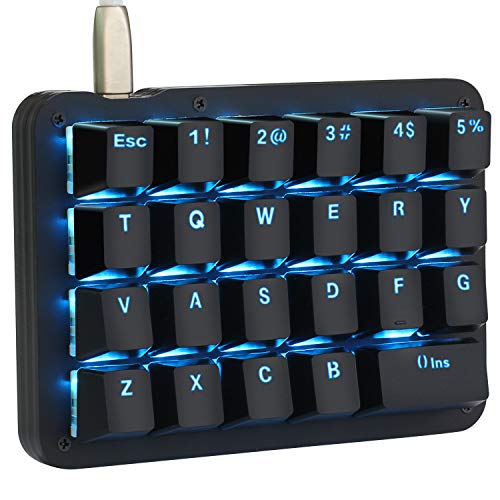
Koolertron One Handed Macro Mechanical Keyboard, Blue LED Backlit Portable Mini One-Handed Mechanical Gaming Keypad 23 Fully Programmable Keys Red Switches (Blue Backlit/Red switches)


Key features
- •【All 23 Keys Programmable】All keys can be programmable. The custom programmable key functions include regular 104 buttons, 8 web navigation buttons, 8 multimedia shortcuts, keyboard locks, Windows locks, etc. Each button can be set to any of these buttons.
- •【4-Layer Custom Configurations】 Built-in MCU, after keyboard keys be set up, it can be stored in keyboard's MCU, and no need reset the keyboard even replace the computer. Can save 4-layer of configurations to handle multiple usage scenarios. Perfect not only for gamers but also for so many other types of users including designers and video editors
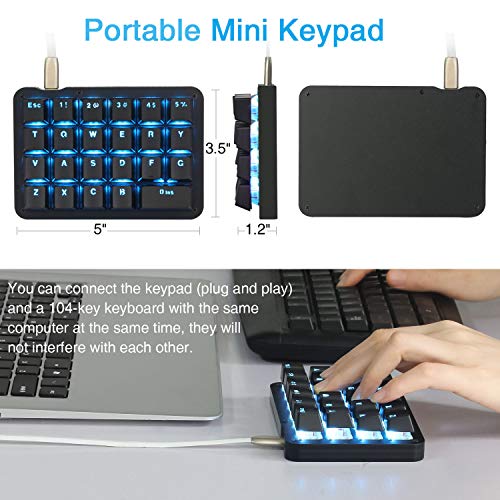
- •【Portable Mini Keypad】Portable Mini keypad,5"x 3.5" x 1.2" ultra-small size, effectively saves desktop space. Detachable USB cable. You can connect the keypad (plug and play) and a 104-key keyboard with the same computer at the same time, they will not interfere with each other.
- •【Blue LED Backlight】The backlight brightness can be adjusted/turned off. Very clear and bright buttons, you can enjoy yourself in the dark night without the lamp
- •【All Macro Keys】There are 24 macro function buttons, 12 of which are advanced macros, 12 are quick macros. Macro functions can be used in series and can support up to 792 key commands, which can meet various complex usage scenarios, Such as: office/wps and other office software shortcuts, CAD/Ae/Pr/Ps shortcuts, various user accounts and passwords, game quick tricks, basic code for programmers. For example, setting a button triggers "ctrl+a 0.5s ctrl+c 0.5s ctrl+v" etc a series of operations
Koolertron One Handed Macro Mechanical Keyboard, Blue LED Backlit Portable Mini One-Handed Mechanical Gaming Keypad 23 Fully Programmable Keys Red Switches (Blue Backlit/Red switches)
List Price: $105.91$95.32DEALYou Save: $10.59 (10%)
Free shippingFree Returns – 30 daysFree Order CancellationSecure Payment2–3 Days DeliveryGet It October 25, 2026In Stock (1)No marketing spamNo account requiredFulfilment by FedEx / Amazon / UPS / ShipwirePayPal / Card Buyer Protection
Customer Reviews
Reviews sourced from verified Amazon purchasers4.1
out of 5
Based on 10 reviews
5★
20%
4★
80%
3★
0%
2★
0%
1★
0%
Potentially The Best
Amazon Customer✓ Verified Purchase•September 3, 2023
Bought this to replace my Razer Tartarus v2, because honestly I dislike Razer peripherals, but they absolutely own the "Gaming Keypad" market.
The device itself: A+, 5 stars. It is great quality, feels great, looks great, durable, great keys, and the number of keys just feels perfect for my hand. Everything about the device is perfect in my opinion.
The software: This is where this thing loses a star for me. The software is just an executable, that modifies onboard settings for the device, which has it's own perks. Moving between computers is effortless. Plug and play. The downside to this though, is there's hard limitations on the customizability of the device. If you just want a standard layout, where you can remap your keys, do a couple macros possibly, then great, this is for you. HOWEVER, if you're looking for the ability to have a bunch of profiles that you can switch between, so every game can have different keybinds, then this thing is not for you. You can do a workaround so that you can KIND OF have 3 profiles, and switch between them using a key, but it feels real funky. My Razer Tartarus has 10 different profiles for different games, that all have different key mapping, so now only having 3 is doable, but not ideal.
TL:DR; If they ever make software for this device that lets you manage multiple profiles and vastly increase the amount of macros, then this will be the best gaming keypad on the market by a decent margin, but until then it has limitations for anyone that wants to switch between more than 3 layouts.
The device itself: A+, 5 stars. It is great quality, feels great, looks great, durable, great keys, and the number of keys just feels perfect for my hand. Everything about the device is perfect in my opinion.
The software: This is where this thing loses a star for me. The software is just an executable, that modifies onboard settings for the device, which has it's own perks. Moving between computers is effortless. Plug and play. The downside to this though, is there's hard limitations on the customizability of the device. If you just want a standard layout, where you can remap your keys, do a couple macros possibly, then great, this is for you. HOWEVER, if you're looking for the ability to have a bunch of profiles that you can switch between, so every game can have different keybinds, then this thing is not for you. You can do a workaround so that you can KIND OF have 3 profiles, and switch between them using a key, but it feels real funky. My Razer Tartarus has 10 different profiles for different games, that all have different key mapping, so now only having 3 is doable, but not ideal.
TL:DR; If they ever make software for this device that lets you manage multiple profiles and vastly increase the amount of macros, then this will be the best gaming keypad on the market by a decent margin, but until then it has limitations for anyone that wants to switch between more than 3 layouts.
Upgrade has issues (update: improvements made)
Gregory J. Kramer✓ Verified Purchase•August 11, 2023
Update: Significantly improved since first review as described below.
Pros of new version (vs older version AMAG):
- Software easier to copy setup to multiple keypads (I suspect, but i haven't tried it. The old software would save hex file but didn't save the macros)
Cons of new software (MYKB):
- No instruction on how to use it (eg. set up macros,)
- More clicks to setup each macro.
- Fewer macros (very limiting)
- No change in light scheme between levels to indicate the level (makes changing levels awful, and makes it almost impossible to use more than one level)
- Toggling between levels more difficult (compounded by not easily knowing what level you are on, or if the level successfully changed.)
- You can cycle through lighting schemes (more than on prior version), but you have to just do it on the keypad, no list of options i could find or ability to pick in the programming software.
Ordered a second as a duplicate for another computer. Didn't know there was new software for programming. The box came with pamphlet for using old software. but I got an error when trying to use it. New programming software is easy enough to use once you know how, but I couldn't find any written or video instruction anywhere.
Unfortunately, within a few days one of the switches started having a lighting issue, and for a bit the keyboard was a little glitchy. I reached out to Koolerton directly (per their website), they asked for video or images which i supplied, but several days later they have not yet told me how they will help me.
Update: turns out there is an indicator light for number lock (top row thrid from left key "A") and caps lock (top row 3rd from right "-" ) that I misinterpreted as a malfunctioning switch light. I have not had any additional problems with glitching software.
Representatives respond to me by sending new firmware that disables the indicator lights. It took several attempts and required downloading software I didn't already have, but it ultimately worked.
Update :
Representative responded with updated firmware that now changes change lighting scheme based on level (default, red, green, blue for level 0,1,2,3 respectively). I would still like the option to make changes in the MYKB software (therefore 4 stars, not 5). In the mean time, reach out to koolertron and ask for updated firmware and directions on how to update.
Pros of new version (vs older version AMAG):
- Software easier to copy setup to multiple keypads (I suspect, but i haven't tried it. The old software would save hex file but didn't save the macros)
Cons of new software (MYKB):
- No instruction on how to use it (eg. set up macros,)
- More clicks to setup each macro.
- Fewer macros (very limiting)
- No change in light scheme between levels to indicate the level (makes changing levels awful, and makes it almost impossible to use more than one level)
- Toggling between levels more difficult (compounded by not easily knowing what level you are on, or if the level successfully changed.)
- You can cycle through lighting schemes (more than on prior version), but you have to just do it on the keypad, no list of options i could find or ability to pick in the programming software.
Ordered a second as a duplicate for another computer. Didn't know there was new software for programming. The box came with pamphlet for using old software. but I got an error when trying to use it. New programming software is easy enough to use once you know how, but I couldn't find any written or video instruction anywhere.
Unfortunately, within a few days one of the switches started having a lighting issue, and for a bit the keyboard was a little glitchy. I reached out to Koolerton directly (per their website), they asked for video or images which i supplied, but several days later they have not yet told me how they will help me.
Update: turns out there is an indicator light for number lock (top row thrid from left key "A") and caps lock (top row 3rd from right "-" ) that I misinterpreted as a malfunctioning switch light. I have not had any additional problems with glitching software.
Representatives respond to me by sending new firmware that disables the indicator lights. It took several attempts and required downloading software I didn't already have, but it ultimately worked.
Update :
Representative responded with updated firmware that now changes change lighting scheme based on level (default, red, green, blue for level 0,1,2,3 respectively). I would still like the option to make changes in the MYKB software (therefore 4 stars, not 5). In the mean time, reach out to koolertron and ask for updated firmware and directions on how to update.
Works With Windows Media Center and does a lot more
JK in CA✓ Verified Purchase•August 5, 2023
Believe it or not but I still have a machine that runs Windows 7 because I love to use Windows Media Center as my DVR for cable TV. The one downside to WMC is that it has inconvenient keyboard shortcuts so you can't go zipping around the interface very easily when watching videos. However, with the Koolertron keypad, you can program those awkward shortcuts so they can be executed with a single keystroke. Note that I programmed the keypad using a Windows 10 machine but the keypad still works on a Windows 7 machine, so it is truly portable.
I also use this for PowerDVD when watching Blu-Rays because it too requires multi-key shortcuts to do navigation.
I also use alternate character sets when typing documents. Nothing slows my typing down more than having to hold the Alt key down followed by typing 4 digits on the keyboard numpad to get an "a" with particular accent marker, or an "n" with a tilda. Now that I have the Koolertron, I can program these characters so they can be executed with a single keystroke. What a timesaver!
Just to clear up some confusion about the use of Layers on this keypad: this keypad does have 4 layers, meaning you can technically program 4 x 23 = 92 keys. However, since you need some keys to navigate between layers, you really only have 20 keys per layer. And lastly, one of the layers requires you to press an "FN" key along with another key to execute a command. So I never use that layer because my whole reason for buying this keypad was to avoid multi-key typing. So for me, I have 3 x 20 = 60 keys available for programming which is plenty considering you can only program 24 macros total.
I do wish Koolertron would produce a new version that had more than 24 total macros. I would be willing to pay double for a keypad that had 48 total macros. I get around this current limitation by saving different configurations to .hex files (this is a great feature of this keypad) and loading the one with the macros I need for the task at hand. But it would be nicer not having to keep track of what macro was on what configuration file.
I also use this for PowerDVD when watching Blu-Rays because it too requires multi-key shortcuts to do navigation.
I also use alternate character sets when typing documents. Nothing slows my typing down more than having to hold the Alt key down followed by typing 4 digits on the keyboard numpad to get an "a" with particular accent marker, or an "n" with a tilda. Now that I have the Koolertron, I can program these characters so they can be executed with a single keystroke. What a timesaver!
Just to clear up some confusion about the use of Layers on this keypad: this keypad does have 4 layers, meaning you can technically program 4 x 23 = 92 keys. However, since you need some keys to navigate between layers, you really only have 20 keys per layer. And lastly, one of the layers requires you to press an "FN" key along with another key to execute a command. So I never use that layer because my whole reason for buying this keypad was to avoid multi-key typing. So for me, I have 3 x 20 = 60 keys available for programming which is plenty considering you can only program 24 macros total.
I do wish Koolertron would produce a new version that had more than 24 total macros. I would be willing to pay double for a keypad that had 48 total macros. I get around this current limitation by saving different configurations to .hex files (this is a great feature of this keypad) and loading the one with the macros I need for the task at hand. But it would be nicer not having to keep track of what macro was on what configuration file.
Really awesome, but beware the Mac software
B. Torres✓ Verified Purchase•August 4, 2023
First off, this little keyboard is amazing! It's very snappy, springy and the LED are BRIGHT! Solid, sturdy and it come with a FULL set of key caps (pictured in the plastic bags), a puller and even a very nice cable.
BUT MAC USERS BEWARE: The Mac software is TRASH. I have the M1 Mac and the software just refused to run. Basically you have to install home-brew, then their Usb drivers, all via terminal commands, BUT, some of those commands don't work on M1 Macs yet. Even after I figured out how to run terminal in rosetta, in the end, the software just wouldn't run! Luckily, I hadn't sold my old MacBook yet, so I WAS able to get the software up and running that side BUT, I couldn't adjust the brightness of the LEDs! They're super bright any annoying and I considered returning it BUT I borrowed my daughter's PC (and she complained big time) and on PC, man, this thing is a easy to setup! Read the manual. figure out how to use the software. It just takes a moment. Then, get this, you can make the LEDs PULSE! EPIC! So I set the brightness to a more reasonable 20%, set up the keys just how I wanted, then unplugged it and plugged it into my Mac. PERFECTION!
So, if you have access to a PC, I highly recommend getting this for your Mac OS computer. If you have an M1 Mac, you will NOT be able to use software... AND the LEDs arrive at 100%, which you'll probably find annoyingly bright.
With better Mac support, this sweet little keyboard would be a home run. Still, if you're into this sort of things, I highly recommend it. It's worth the effort.
*UPDATE 1/10/21*
I got it working on my M1 Apple Mac mini!! Here's how I did it.
Instructions for M1 Macs:
1. Download the amag software.
2. Make a copy of your terminal app in the Utilities folder. Rename it Terminal Rosetta
3. Get info on terminal rosetta and click "run in rosetta."
4. Install homebrew by copying this command:
/usr/bin/ruby -e "$(curl -fsSL https://raw.githubusercontent.com/Homebrew/install/master/install)"
5. Follow the rest of the amag instructions in the PDF (skip the homebrew step on their PDF).
6. Move the Amag software to your apps folder.
7. Go back into Terminal Rosetta and type:
sudo chmod -R 777 /Applications/amag.app
8. In the Apps folder, right click on Amag app and choose open. You might have to do it twice.
The app should work now!
BUT MAC USERS BEWARE: The Mac software is TRASH. I have the M1 Mac and the software just refused to run. Basically you have to install home-brew, then their Usb drivers, all via terminal commands, BUT, some of those commands don't work on M1 Macs yet. Even after I figured out how to run terminal in rosetta, in the end, the software just wouldn't run! Luckily, I hadn't sold my old MacBook yet, so I WAS able to get the software up and running that side BUT, I couldn't adjust the brightness of the LEDs! They're super bright any annoying and I considered returning it BUT I borrowed my daughter's PC (and she complained big time) and on PC, man, this thing is a easy to setup! Read the manual. figure out how to use the software. It just takes a moment. Then, get this, you can make the LEDs PULSE! EPIC! So I set the brightness to a more reasonable 20%, set up the keys just how I wanted, then unplugged it and plugged it into my Mac. PERFECTION!
So, if you have access to a PC, I highly recommend getting this for your Mac OS computer. If you have an M1 Mac, you will NOT be able to use software... AND the LEDs arrive at 100%, which you'll probably find annoyingly bright.
With better Mac support, this sweet little keyboard would be a home run. Still, if you're into this sort of things, I highly recommend it. It's worth the effort.
*UPDATE 1/10/21*
I got it working on my M1 Apple Mac mini!! Here's how I did it.
Instructions for M1 Macs:
1. Download the amag software.
2. Make a copy of your terminal app in the Utilities folder. Rename it Terminal Rosetta
3. Get info on terminal rosetta and click "run in rosetta."
4. Install homebrew by copying this command:
/usr/bin/ruby -e "$(curl -fsSL https://raw.githubusercontent.com/Homebrew/install/master/install)"
5. Follow the rest of the amag instructions in the PDF (skip the homebrew step on their PDF).
6. Move the Amag software to your apps folder.
7. Go back into Terminal Rosetta and type:
sudo chmod -R 777 /Applications/amag.app
8. In the Apps folder, right click on Amag app and choose open. You might have to do it twice.
The app should work now!
Great if you’re patient and dedicated to getting it work on a mac
Hunter Bergbower✓ Verified Purchase•July 28, 2023
I got this product for my Mac since I am doing lots of statistical work and end up using tons of shortcuts and copy-pasting lots of code. I had seen all the warnings that this is not very compatible with macs and I have to agree- HOWEVER. One of the other reviewers on here gave absolutely necessary advice as to how to get the software piece sorted out.
I found that the link provided in the PDF directions gives an outdated link to download homebrew, but it's easy to find the new one online. After that, keep following the PDF then add these two steps (first suggested by B. Torres, another reviewer)
6. Move the Amag software to your apps folder.
7. Go back into Terminal Rosetta and type:
sudo chmod -R 777 /Applications/amag.app
8. In the Apps folder, right click on Amag app and choose open. You might have to do it twice.
Once I got the software up and running, I found it to be much easier and more intuitive than many of the other reviewers have said. If you can manage to get the software running- you should have no issues getting the macro keys coded.
My only gripes are that the RGB keyboard seemed to have customizable color, but it only gives you 4 options (rainbow, blue, green, and white which was a little disappointing since the software seems capable of supporting the full range of colors) and that the key caps they give you all are tilted to be configured for a normal keyboard (so some of the caps are uneven if you use them in different lines- as shown in my second picture).
Once I took the time to configure everything it seems great, it just took me a while to get it how I wanted. Seems to be a great product otherwise.
I found that the link provided in the PDF directions gives an outdated link to download homebrew, but it's easy to find the new one online. After that, keep following the PDF then add these two steps (first suggested by B. Torres, another reviewer)
6. Move the Amag software to your apps folder.
7. Go back into Terminal Rosetta and type:
sudo chmod -R 777 /Applications/amag.app
8. In the Apps folder, right click on Amag app and choose open. You might have to do it twice.
Once I got the software up and running, I found it to be much easier and more intuitive than many of the other reviewers have said. If you can manage to get the software running- you should have no issues getting the macro keys coded.
My only gripes are that the RGB keyboard seemed to have customizable color, but it only gives you 4 options (rainbow, blue, green, and white which was a little disappointing since the software seems capable of supporting the full range of colors) and that the key caps they give you all are tilted to be configured for a normal keyboard (so some of the caps are uneven if you use them in different lines- as shown in my second picture).
Once I took the time to configure everything it seems great, it just took me a while to get it how I wanted. Seems to be a great product otherwise.
Page 1 of 2