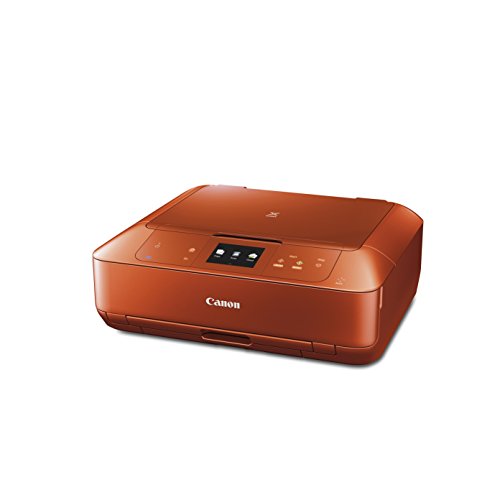
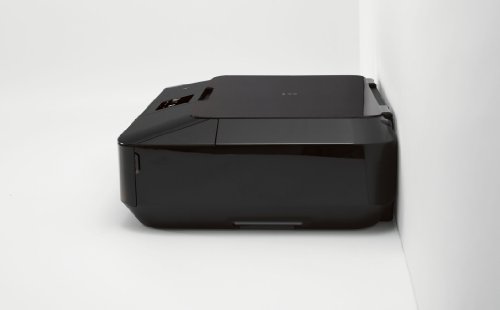
Canon PIXMA MG8220 Wireless Inkjet Photo All-In-One Printer (5293B002)


Key features
- •The Intelligent Touch System allows you to effortlessly operate your machine with gorgeous touch sensitive buttons
- •Superior optical scanning resolution of 4800 x 9600 dpi with included Film Adapter Unit to scan film and slides
- •Full HD Movie Print software turns your favorite HD movie clips captured with your compatible
- •Professional color adjustment feature with the included Easy-PhotoPrint Pro software
- •Built-in CD/DVD printing
- •Canon EOS Digital SLR or PowerShot cameras into beautiful prints
BrandCanon
CategoryInkjet Printers
ColorBlack
Warranty1-year limited warranty with instantexchange program. 1-year toll-free technical phone support
Canon PIXMA MG8220 Wireless Inkjet Photo All-In-One Printer (5293B002)
List Price: $1083.98$975.58DEALYou Save: $108.40 (10%)
Free shippingFree Returns – 30 daysFree Order CancellationSecure Payment2–3 Days DeliveryGet It October 25, 2026In Stock (3)No marketing spamNo account requiredFulfilment by FedEx / Amazon / UPS / ShipwirePayPal / Card Buyer Protection
Customer Reviews
Reviews sourced from verified Amazon purchasers4.0
out of 5
Based on 10 reviews
5★
30%
4★
30%
3★
10%
2★
20%
1★
10%
Great while it lasted.
ksmith•September 28, 2014
I own this printer. It was an awesome printer while it was still working. I did not have a problem with excessive ink consumption. I've had it for about two years. Very well taken care of, did not use it excessively, or let it sit for long periods. Kept it on a surge protector. I was sure that this printer would last for a long time. I was only on my second round of ink cartridges, still pretty much full. Went to turn it on a couple days ago, like any other day. While booting up, the scanner light flashes for a second and it abruptly stops and displays an error message, 5030. I do some research on the Internet and find it has something to do with the scanner. So I have a faulty scanner that is rendering the entire machine useless. I email Canon, I am out of warranty and they tell me that it is a generic error code and to follow some trouble shooting, which I do, but no luck. I am given the option to take advantage of Canons loyalty program for a discount on a replacement, or have it repaired at an authorized repair facility, and they give me the facilities contact info. I contact the repair place and they tell me it is indeed a scanner error, and cost wise, I would probably be better off replacing the unit rather than having it fixed. Which is what I figured, but I had to ask anyway.
These printers have been discontinued, they no longer make them. I had purchased mine for almost $100 less than what I see them listed for lately.
I mostly used mine for printing brochures, cards for my business, shipping labels, but also printed some occasional photos, which all turned out beautiful, and some art prints, also very nice. I was always amazed with the results.
I would not hesitate to purchase another Canon, especially after comparing their ratings with some of their competitors ratings. I do own a much older version of the Pixma, and it was a great printer and it still works. When I did decide to upgrade, I chose this one because of the scanner, the ability to print and scan wirelessly, and ability to print from my iPad. This time around, I will definetly be getting a seperate scanner.
These printers have been discontinued, they no longer make them. I had purchased mine for almost $100 less than what I see them listed for lately.
I mostly used mine for printing brochures, cards for my business, shipping labels, but also printed some occasional photos, which all turned out beautiful, and some art prints, also very nice. I was always amazed with the results.
I would not hesitate to purchase another Canon, especially after comparing their ratings with some of their competitors ratings. I do own a much older version of the Pixma, and it was a great printer and it still works. When I did decide to upgrade, I chose this one because of the scanner, the ability to print and scan wirelessly, and ability to print from my iPad. This time around, I will definetly be getting a seperate scanner.
Best Graphics and Home Use Printer
Howard Chambers•January 26, 2014
First of all I'd like to advise people to be careful what they're reading in these reviews. Take them with a grain of salt! Comments regarding lack of fax capability, can't connect to their home WiFi, and can't find the 35mm slide adapter are from people who either didn't bother to read the product description or didn't bother to read the instructions. This really makes it difficult for those of us who are trying to find an unbiased product review.
With that said, in my first three weeks of ownership, this printer has worked flawlessly. This product is designed specifically for either a graphic/photo artist or for home use. It is not an office printer, and was never designed to be as such. It is not the fastest printer in the world, but for home use I don't need 30 ppm.
I really like the ergonomics of the unit. The footprint is normal size, not overly big or small. The finish is kind of a matte black, so it does not show smudges or scratches. The pop-up screen and on-printer user touch interface is very easy to use. Most of the printer functions stay un lit until they are requested. When the screen is down and all the trays are closed it looks like a pieces of stereo equipment sitting on your desk. The design of the unit is rather perfect in my opinion.
It has two paper trays, one cassette in the front and the other is a straight path feed tray from the rear. The rear feed tray is really nice for photo paper, envelopes, or odd-sized stock that you would prefer a straight through feed path. The front cassette holds a smallish amount of paper, but again for home use its fine.
The scanner works really well and is fast. Your can either scan from the printer pop up screen or from your computer. There are many selections of resolution and format to choose from. Operating the printer or scanner from the PC software takes a little extra time to get the gist of the software, but in 10 minutes I had it all figured out.
The written instructions that come with the unit are really only sufficient for basic setup. They are not intended to be an all inclusive operators manual. You will have to load the setup programs from the disc, which took me all of 20 minutes from start to WiFi connection to completely done. The detailed owners instructions are on the disc. Welcome to the 21st century people, the instructions are not printed on paper they're in digital format. Go figure!
The graphic output is fabulous! Photos are sharp and clear and other graphics output is the best I've seen. The printer uses six inkjet cartridges. As for the price, they seem rather similar and normal to everyone else's prices. Can't yet comment on ink consumption, but so far I've printed out about 30 pieces of graphic art on rag paper, and all the cartridges still read full. Another comment that I've seen relates to the printer head cleaning itself and consuming ink. If you don't like the printer head cleaning itself routinely, then just power down the printer.
For comparison purposes I previously had an Epson XP-800 which did a nice job, and also featured a rear feed try. But it only lasted about six months before it would not print and needed a new printer head. Then I went to Sams Club and bought an HP Photosmart 7525. I really liked this printer for its advertised functionality. I still have an older HP Photosmart C7280 which works like its still new. Back to the 7525 - I got it all set up and after about 5 pages of print, it refused to print normal, legible text and all the advertised apps on the user panel didn't work. I Googled this printer model and drowned in a sea of user complaints about these very two failure modes. Something about versions of this printer produced in Thailand. The printer was returned to Sams the next day.
I'm sure all of you have run into the same problem I have, which is, you can no longer find a printer which does not have a significant population of poor reviews. There are none. My advice is to find the printer which has the functionality that you want. Then Google it to make sure it doesn't have a horrendous history. If the history doesn't look too awful, then go for it. If it doesn't work you can always return it.
In summary, I would highly recommend trying out the Canon MG-8220. For home and graphics/photo prints, it really can't be beat.
With that said, in my first three weeks of ownership, this printer has worked flawlessly. This product is designed specifically for either a graphic/photo artist or for home use. It is not an office printer, and was never designed to be as such. It is not the fastest printer in the world, but for home use I don't need 30 ppm.
I really like the ergonomics of the unit. The footprint is normal size, not overly big or small. The finish is kind of a matte black, so it does not show smudges or scratches. The pop-up screen and on-printer user touch interface is very easy to use. Most of the printer functions stay un lit until they are requested. When the screen is down and all the trays are closed it looks like a pieces of stereo equipment sitting on your desk. The design of the unit is rather perfect in my opinion.
It has two paper trays, one cassette in the front and the other is a straight path feed tray from the rear. The rear feed tray is really nice for photo paper, envelopes, or odd-sized stock that you would prefer a straight through feed path. The front cassette holds a smallish amount of paper, but again for home use its fine.
The scanner works really well and is fast. Your can either scan from the printer pop up screen or from your computer. There are many selections of resolution and format to choose from. Operating the printer or scanner from the PC software takes a little extra time to get the gist of the software, but in 10 minutes I had it all figured out.
The written instructions that come with the unit are really only sufficient for basic setup. They are not intended to be an all inclusive operators manual. You will have to load the setup programs from the disc, which took me all of 20 minutes from start to WiFi connection to completely done. The detailed owners instructions are on the disc. Welcome to the 21st century people, the instructions are not printed on paper they're in digital format. Go figure!
The graphic output is fabulous! Photos are sharp and clear and other graphics output is the best I've seen. The printer uses six inkjet cartridges. As for the price, they seem rather similar and normal to everyone else's prices. Can't yet comment on ink consumption, but so far I've printed out about 30 pieces of graphic art on rag paper, and all the cartridges still read full. Another comment that I've seen relates to the printer head cleaning itself and consuming ink. If you don't like the printer head cleaning itself routinely, then just power down the printer.
For comparison purposes I previously had an Epson XP-800 which did a nice job, and also featured a rear feed try. But it only lasted about six months before it would not print and needed a new printer head. Then I went to Sams Club and bought an HP Photosmart 7525. I really liked this printer for its advertised functionality. I still have an older HP Photosmart C7280 which works like its still new. Back to the 7525 - I got it all set up and after about 5 pages of print, it refused to print normal, legible text and all the advertised apps on the user panel didn't work. I Googled this printer model and drowned in a sea of user complaints about these very two failure modes. Something about versions of this printer produced in Thailand. The printer was returned to Sams the next day.
I'm sure all of you have run into the same problem I have, which is, you can no longer find a printer which does not have a significant population of poor reviews. There are none. My advice is to find the printer which has the functionality that you want. Then Google it to make sure it doesn't have a horrendous history. If the history doesn't look too awful, then go for it. If it doesn't work you can always return it.
In summary, I would highly recommend trying out the Canon MG-8220. For home and graphics/photo prints, it really can't be beat.
Repeatedly Fails at Printing 2-Sided Copies
NUMB3RS NUT•July 12, 2013
I have no problems with the text or photo quality of this printer. Both are great. However, as others have stated, the ink use on this printer is abnormally high. EXPECT TO SPEND FAR MORE than you have on other printers.
More important to me though is its INABILITY TO PRODUCE SIPLE 2-SIDED PRINTING. Here are my 2 major problems related to 2-sided printing.
First, once you've gone through the significant ordeal of finding the correct driver for Mac computers (you have to search on their website and its not immediately apparent which is the correct driver), you'll find that the printer does not support duplex (2-sided) printing on Macs. Of course, at this point you've already gone through the set-up and search for drivers. Okay, maybe you can deal with that inconvenience.
Second, it fails when you print on one side of paper, turn the sheets over, and print on the other side. In my experience, I lose about 40% of the first printed pages when I try to print on the second side. I wondered if it might be that the pages stick together in some way because the ink has not sufficiently dried. So, I've waited 15 minutes before printing the second side; I've waiting an hour before printing the second side. I've waiting overnight before printing the second side - all with the same significant failure.
So, what do I mean by failure? The pages stick together as they pass through the printer. As many as 3 stick together at a time. Although they are stuck together, they do not pass through the printer evenly. Because of this, 2 pages are ruined because they have portions of the second side printed (the third page is unusually left without any printing on the second side). As a result, I have to print far more of the first page than what are needed just to get the desired number of complete 2-sided documents.
When I consider the excessive ink usage on regular one-sided printing along with the requirement for overprinting of the first page required for 2-sided printing, the result is the most expense I've ever had for any printer by a factor of 2. And this does include the 40% extra paper I have to use in 2-sided printing because of having to overprint the first page.
Because of these problems, I urge all Mac users and those who do frequent 2-sided printing to run away from this machine.
More important to me though is its INABILITY TO PRODUCE SIPLE 2-SIDED PRINTING. Here are my 2 major problems related to 2-sided printing.
First, once you've gone through the significant ordeal of finding the correct driver for Mac computers (you have to search on their website and its not immediately apparent which is the correct driver), you'll find that the printer does not support duplex (2-sided) printing on Macs. Of course, at this point you've already gone through the set-up and search for drivers. Okay, maybe you can deal with that inconvenience.
Second, it fails when you print on one side of paper, turn the sheets over, and print on the other side. In my experience, I lose about 40% of the first printed pages when I try to print on the second side. I wondered if it might be that the pages stick together in some way because the ink has not sufficiently dried. So, I've waited 15 minutes before printing the second side; I've waiting an hour before printing the second side. I've waiting overnight before printing the second side - all with the same significant failure.
So, what do I mean by failure? The pages stick together as they pass through the printer. As many as 3 stick together at a time. Although they are stuck together, they do not pass through the printer evenly. Because of this, 2 pages are ruined because they have portions of the second side printed (the third page is unusually left without any printing on the second side). As a result, I have to print far more of the first page than what are needed just to get the desired number of complete 2-sided documents.
When I consider the excessive ink usage on regular one-sided printing along with the requirement for overprinting of the first page required for 2-sided printing, the result is the most expense I've ever had for any printer by a factor of 2. And this does include the 40% extra paper I have to use in 2-sided printing because of having to overprint the first page.
Because of these problems, I urge all Mac users and those who do frequent 2-sided printing to run away from this machine.
Nice AIO Printer, but holy cow does it suck through ink!
Eric i•July 8, 2013
Holy cow - has Dr.Evil taken over the ink market? Think he may be a printer engineer at Canon based on my experiences this past month using this printer!
SIMPLY RIDICULOUS INK USE: This thing uses wayyyyyyyyyyyyyy more ink and has many, MANY more cleaning cycles, seemingly randomly sometimes, than any other Canon printer I've ever owned. In less than a month, it has sucked through all but the one large black ink cart already. And that was after printing 98% general light home office use printing order emails, where very little ink would be needed to print. We did a couple small (5x7) test prints in color and b/w, then did some (mostly text) CD printing tests, as well as a couple copy tests. In all, nowhere near enough printing to blast through a set of $$$ ink carts in less than one month. OUCH!$!$!$! One Star is being generous for ink use.
(A little history - this is my 4th Canon printer, having switched about 10 years ago from the big "E" brand purely because endless head cleaning cycles were just killing me $$$ wise - we were doing inkjet sublimation then with dye sub ink sets costing over $500.00, so ink use and waste was a BIG issue then. Three previous Canons (old 9000, 2 Pixma 5000's (not ip-5k)) were all 5+ years old, but they were affordable for general office printing with ink use very reasonable. With a mod that allowed printing discs directly with the 5000's and as pro photographers, we used that feature for several hundred discs printed each year with ease and celebrated the low ink usage and low cost of operation. This new printer was purchased mainly to print cd covers and for general printing office use.)
WIFI: Installation was very easy and simple. I plugged it into our wifi router and within little time, was printing wireless from 2 desktops and all our laptops with ease. Setting that up was a whole lot easier than frustrating experiences with a couple other brands wireless printing in the past that we eventually just gave up on and used corded. BTW, having wireless printing ability from laptops all over the house is a WONDERFUL feature that I am liking even more than I anticipated. I give this printer a full Five Stars for easy, pretty much idiot proof steps to getting wifi setup working well.
PRINT QUALITY: I'm a full-time pro photographer, and have been for over 30 years. I've also worked in and managed pro labs that provided the ultimate custom printed photos to other pro photographers, so I am a bit old school biased toward traditional silver-halide photographic prints (ie; wet-processed traditional old school photo paper) and all of our portraits delivered to clients are still printed at pro labs in that manner to provide what IMHO is the best quality final images. We never use an inkjet for client prints, but I ran a couple quick test prints in color and b/w using some Ilford Gallerie paper with this printer and the results were indeed impressive. It did nice bright colors and the b/w images that had slight warm toning to them printed looking great - loads better than how they looked on our older printers! Did not see a massive quality difference between the standard and highest quality mode, other than it seemed to lay down a whole lot more ink. But text and graphics looked very good, so Image Quality gets Four Stars from me.
CD PRINTING: Like I said, we used the heck out of our 2 prior (modded) Pixma 5000 printers for direct printing on CD's for customers, so it's something I'm very experienced with. Our CD's are printed using Acoustica CD/DVD Label Maker software with pretty simple (ie; mostly white background) design w/3 colors of text. It was very easy to set quantity to 10 discs and pretty much brainlessly load/unload discs as they were printed by feel alone, and it was something I could do while working on something else. This new printer does high-quality direct printing on cd's, but the internal mechanical parts that draw the disc tray into the printer seem a lot less durable. Also, it is much more cumbersome and finicky to load and requires you to be in a well-lit room to see the feed area hidden several inches inside the dark paper output and get the tray fed right. I could do this without even looking with the old printers. This new one requires 100% full and careful attention to load tray correctly, AND it forces you to jump through the extra step of hitting "OK" button on the top of the printer for EACH AND EVERY disc being printed when running multiple copies of the same disc. Printing speed through the printer may be a tiny bit speedier that in the past, but that gets negated by having to mess with the loading tray door and having to hit that button with every disc printed. The switch from paper to cd printing also starts what seems to be a really long, annoying ink cleaning ($$$$), even right after switching the "on" and the usual l-o-n-g ($$$$) head cleaning cycle. Quality of printing was great in standard mode. We use a high quality printable cd and there is no ink run on them, even using the old "wet finger" test. Our cd's are Taiyo Yuden/JVC Water Shield White Inkjet Hub Printable 52X CD-R Media, and they work and look great. Hard to tell them from screen printed ones, which is why we use them for hundreds of portrait image cd's yearly. Four Stars for cd printing - quality is great, workflow is frustrating.
SCANNING/COPIER: I intend to test the slide/negative scanning feature when we get a slow time of year, but regular flatbed scans and photocopies done on it were equal to our Canonscan dedicated scanners. It has a big color display (great for old eyes!) on top and control wheel (sensitive!) that will walk you through about anything. One oddity I've had is although the printer is working fine printing from within Photoshop CS6, and the scanner worked fine in it when first installed, it seems to have since "disappeared" from the scanning/acquire menu in PS. I have not had time to investigate why yet. I'll update that later once I figure out the issue. Scanning that I have tried so far (when it worked w/ PS) would rate Four Stars at this point.
INTERFACE & DESIGN: This thing was like a Transformer with all the little doors and controls that pop out or up. My wife called it "Optimus Printer" as she watched me setting it up and finding all the often hidden pieces of tape used to protect it during shipping! The user interface is really straightforward and even my mom could figure out how to do most anything without my help using the on (printer) screen directions. The display and flush controls remind me of something Apple created. It is a sharp looking machine. The black absolutely attracts dust like a magnet though, and you need to be careful wiping it as you may activate something by brushing over the flush mounted controls. I am prone to piling papers on top of the printer, and often wake it up from sleep mode by just setting a paper down. Not a big deal, but do need to be a little cautious.
INK USAGE: Yeah, I know this is the second section about that, but it really is an ink HOG, and every time it drones on with yet another (frequent) cleaning cycle, my feelings about Canon get worse as it makes me think of a greedy company hiking profits by requiring more and more $$$ ink purchases. I do not do photo printing on my inkjets, so I am not against using third-party ink that costs so much less compared to OEM factory ink. The OEM carts are not see through, so you can't even see how much ink is actually left when it's telling you to change inks. These ink carts are also "chipped" to make them "smart" and more accurate supposedly, but it's also a way to discourage people from doing self-refills. Fortunately, there are many sellers here that have generic ink carts for this printer that are chipped, so should work fine. I've ordered a couple sets and will update after trying them for a bit. One star for extreme ink use. :-(
** UPDATE 7/23/13 - Have used a good portion of the $6.(!) generic ink set (Sold by Foreverlast Store here on Amazon) and the printer has worked fine with them for regular general office printing and printable CD's. Colors look okay, not much noticeably different the OEM in general uses. One thing I *LOVE* about this printer is when it does run out of an ink, when you open the top, the ink needing to be changed has the red LED light flashing to let you know which one needs changing. Really handy in a dark office or home!
OVERALL: For the price, this printer is loaded with some really great features, and it works with the modern OS's like Win 7 and Win 8. It's sharp looking, heavily (surprisingly) constructed, and easy to operate. Aside from the big INK PIG problem, I think this is a good AIO printer that would be at home in any home or home office, and do a good job in day to day printing. Overall, I give it Four Stars. Just wish it used less ink...
SIMPLY RIDICULOUS INK USE: This thing uses wayyyyyyyyyyyyyy more ink and has many, MANY more cleaning cycles, seemingly randomly sometimes, than any other Canon printer I've ever owned. In less than a month, it has sucked through all but the one large black ink cart already. And that was after printing 98% general light home office use printing order emails, where very little ink would be needed to print. We did a couple small (5x7) test prints in color and b/w, then did some (mostly text) CD printing tests, as well as a couple copy tests. In all, nowhere near enough printing to blast through a set of $$$ ink carts in less than one month. OUCH!$!$!$! One Star is being generous for ink use.
(A little history - this is my 4th Canon printer, having switched about 10 years ago from the big "E" brand purely because endless head cleaning cycles were just killing me $$$ wise - we were doing inkjet sublimation then with dye sub ink sets costing over $500.00, so ink use and waste was a BIG issue then. Three previous Canons (old 9000, 2 Pixma 5000's (not ip-5k)) were all 5+ years old, but they were affordable for general office printing with ink use very reasonable. With a mod that allowed printing discs directly with the 5000's and as pro photographers, we used that feature for several hundred discs printed each year with ease and celebrated the low ink usage and low cost of operation. This new printer was purchased mainly to print cd covers and for general printing office use.)
WIFI: Installation was very easy and simple. I plugged it into our wifi router and within little time, was printing wireless from 2 desktops and all our laptops with ease. Setting that up was a whole lot easier than frustrating experiences with a couple other brands wireless printing in the past that we eventually just gave up on and used corded. BTW, having wireless printing ability from laptops all over the house is a WONDERFUL feature that I am liking even more than I anticipated. I give this printer a full Five Stars for easy, pretty much idiot proof steps to getting wifi setup working well.
PRINT QUALITY: I'm a full-time pro photographer, and have been for over 30 years. I've also worked in and managed pro labs that provided the ultimate custom printed photos to other pro photographers, so I am a bit old school biased toward traditional silver-halide photographic prints (ie; wet-processed traditional old school photo paper) and all of our portraits delivered to clients are still printed at pro labs in that manner to provide what IMHO is the best quality final images. We never use an inkjet for client prints, but I ran a couple quick test prints in color and b/w using some Ilford Gallerie paper with this printer and the results were indeed impressive. It did nice bright colors and the b/w images that had slight warm toning to them printed looking great - loads better than how they looked on our older printers! Did not see a massive quality difference between the standard and highest quality mode, other than it seemed to lay down a whole lot more ink. But text and graphics looked very good, so Image Quality gets Four Stars from me.
CD PRINTING: Like I said, we used the heck out of our 2 prior (modded) Pixma 5000 printers for direct printing on CD's for customers, so it's something I'm very experienced with. Our CD's are printed using Acoustica CD/DVD Label Maker software with pretty simple (ie; mostly white background) design w/3 colors of text. It was very easy to set quantity to 10 discs and pretty much brainlessly load/unload discs as they were printed by feel alone, and it was something I could do while working on something else. This new printer does high-quality direct printing on cd's, but the internal mechanical parts that draw the disc tray into the printer seem a lot less durable. Also, it is much more cumbersome and finicky to load and requires you to be in a well-lit room to see the feed area hidden several inches inside the dark paper output and get the tray fed right. I could do this without even looking with the old printers. This new one requires 100% full and careful attention to load tray correctly, AND it forces you to jump through the extra step of hitting "OK" button on the top of the printer for EACH AND EVERY disc being printed when running multiple copies of the same disc. Printing speed through the printer may be a tiny bit speedier that in the past, but that gets negated by having to mess with the loading tray door and having to hit that button with every disc printed. The switch from paper to cd printing also starts what seems to be a really long, annoying ink cleaning ($$$$), even right after switching the "on" and the usual l-o-n-g ($$$$) head cleaning cycle. Quality of printing was great in standard mode. We use a high quality printable cd and there is no ink run on them, even using the old "wet finger" test. Our cd's are Taiyo Yuden/JVC Water Shield White Inkjet Hub Printable 52X CD-R Media, and they work and look great. Hard to tell them from screen printed ones, which is why we use them for hundreds of portrait image cd's yearly. Four Stars for cd printing - quality is great, workflow is frustrating.
SCANNING/COPIER: I intend to test the slide/negative scanning feature when we get a slow time of year, but regular flatbed scans and photocopies done on it were equal to our Canonscan dedicated scanners. It has a big color display (great for old eyes!) on top and control wheel (sensitive!) that will walk you through about anything. One oddity I've had is although the printer is working fine printing from within Photoshop CS6, and the scanner worked fine in it when first installed, it seems to have since "disappeared" from the scanning/acquire menu in PS. I have not had time to investigate why yet. I'll update that later once I figure out the issue. Scanning that I have tried so far (when it worked w/ PS) would rate Four Stars at this point.
INTERFACE & DESIGN: This thing was like a Transformer with all the little doors and controls that pop out or up. My wife called it "Optimus Printer" as she watched me setting it up and finding all the often hidden pieces of tape used to protect it during shipping! The user interface is really straightforward and even my mom could figure out how to do most anything without my help using the on (printer) screen directions. The display and flush controls remind me of something Apple created. It is a sharp looking machine. The black absolutely attracts dust like a magnet though, and you need to be careful wiping it as you may activate something by brushing over the flush mounted controls. I am prone to piling papers on top of the printer, and often wake it up from sleep mode by just setting a paper down. Not a big deal, but do need to be a little cautious.
INK USAGE: Yeah, I know this is the second section about that, but it really is an ink HOG, and every time it drones on with yet another (frequent) cleaning cycle, my feelings about Canon get worse as it makes me think of a greedy company hiking profits by requiring more and more $$$ ink purchases. I do not do photo printing on my inkjets, so I am not against using third-party ink that costs so much less compared to OEM factory ink. The OEM carts are not see through, so you can't even see how much ink is actually left when it's telling you to change inks. These ink carts are also "chipped" to make them "smart" and more accurate supposedly, but it's also a way to discourage people from doing self-refills. Fortunately, there are many sellers here that have generic ink carts for this printer that are chipped, so should work fine. I've ordered a couple sets and will update after trying them for a bit. One star for extreme ink use. :-(
** UPDATE 7/23/13 - Have used a good portion of the $6.(!) generic ink set (Sold by Foreverlast Store here on Amazon) and the printer has worked fine with them for regular general office printing and printable CD's. Colors look okay, not much noticeably different the OEM in general uses. One thing I *LOVE* about this printer is when it does run out of an ink, when you open the top, the ink needing to be changed has the red LED light flashing to let you know which one needs changing. Really handy in a dark office or home!
OVERALL: For the price, this printer is loaded with some really great features, and it works with the modern OS's like Win 7 and Win 8. It's sharp looking, heavily (surprisingly) constructed, and easy to operate. Aside from the big INK PIG problem, I think this is a good AIO printer that would be at home in any home or home office, and do a good job in day to day printing. Overall, I give it Four Stars. Just wish it used less ink...
Much Better Than the Epson Artisan I Sent Back
Jack Dallas•April 23, 2013
This Canon MG8220 was ordered to replace the Epson Artisan 837 I painlessly returned to Amazon. At this juncture I can only review the setup and print quality. Setup gets 5 stars, especially after the rigors of the Epson. There was none of the convoluted, now plug in the USB cable, then step through the software, then unplug the USB cable so you can now use your Ethernet cable, etc.
The Canon quick start guide had the whole thing out of the box, and working on my desk in under 45 minutes. Most of that time was just waiting on the software to fully install and the alignment procedure to finish. I did not need to set up a temporary USB link to put the Canon on my wired network.
PHOTO PRINTING
My first print was to 4x6 Epson Premium Photo Paper Glossy since there was no paper starter kit from Canon. The output matched my screen image as close as any print could possibly match an LCD monitor. This was good news that the boxes and boxes of Epson paper may all be put to good use.
My next set of prints was out of Adobe Lightroom to Epson Matte Paper Heavyweight. I had some recent shots from the Everglades that I had converted to black and white. Using the Canon printer to control the printing the resulting print was sharp but held a slight blue/gray cast. I switched to using Lightroom to control the entire print process. In the Canon Printer Properties menu I set the Main tab/Color Intensity to Manual and then clicked the Set button. In the resulting new window I clicked the Matching tab and selected Color Correction = None. In Lightroom I selected the profile labeled Canon MG8220 MP2. Note that MP2=matte paper. For glossy paper I would assume the GL2 or GL3 would work. The resulting prints were great. The black and gray inks seem to make a difference with BW printing.
I used Lightroom again for some matte color prints following the basic procedure above to Epson Matte paper. Great results. My wife had some Canon Matte Photo Paper so I was able to do a side by side comparison. My wife preferred the Canon output. Either one would be fine. The slight difference seemed to be that the Canon paper had a darker blue sky with a brighter yellow in the sunset illuminated clouds. The Epson paper had a lighter shade of blue in the sky and a deeper yellow in the sunset. Either print could be framed.
TEXT PRINTING
My text printing showed excellent results with sharp clear type. I use a quality paper (Staples Inkjet Bright White) to get these results. Much better than the Epson Artisan. In Epson's defense, it was having difficulty printing anything black. Eventually it gave up on printing black and was returned. My test print from the Canon MG8220 had black text, white text on a blue background, blue text and orange text inside a shaded box. Everything was crisp and clear.
I will update this review when I get around to scanning film and slides and printing labels on DVDs.
UPDATE
I have now scanned film and slides and printed directly to DVDs. The verdict is that the scanner performed admirably. The negative and slide results were good if a bit over-saturated. Since the film negatives were from the 1970's and the slides were from the 1980's I assumed they would need a bit of correction. A quick trip to Photoshop and all was right with the world. The prints made from both the slides and the negatives were excellent, given the age of the source material.
Setting up the film and slide scanner was not intuitive but the online manual was mostly helpful. You remove a plastic piece from the inside of the lid of the scanner and you either open the door on this piece for negatives or you remove another piece and use what remains to align your slides.
DVD printing was a bit of an effort. The software that comes with the printer is a bit child-like in that it seems to work only from the provided templates. At least after the hour or so that I spent with it I couldn't find a way to just use my own design for the entire DVD label. It wanted to force me to use its primitive artwork. Luckily I was able to locate an old copy of Discus 4 and it managed to work as required. I just selected a Canon printer that seemed close to the Canon Pixma. I did have to nudge the image up about 1 cm.
The actual task of printing a DVD was rather simple in that you send the job to the printer with the DVD selection from its software and the printer tells you to lower the inside plastic slot into which you slide the plastic carrier holding your disc. The inside slot is a bit difficult to find as you need to reach your hand into the front output opening to locate tray holes (center below the Canon name). You then pull down on the plastic piece and the drawer pulls down from the top. Put your printable DVD or CD on the flat plastic piece that comes with the printer and insert in the direction of the black arrow. Align the two white arrows (one on the flat carrier and one inside the printer) and follow the color screen instructions.
On the whole, most such tasks are assisted rather well by either the manual or the cleverly laid out color screen and well lit buttons on the scanner lid. You can complete several operations by just using the printer controls.
My goal was to acquire a photo printer that could handle my light regular printing needs. The slide/film scanner was a very nice addition. As a copier and regular print scanner the Pixma MG8220 works very well. I don't miss the fax since my wife's office next to mine has one and between the two of us we have needed to fax something only twice in the last five years. I don't miss the automatic document feeder as I am not running a business. Without the ADF the overall profile more nicely fits my rather crowded office. The photo print quality seems excellent. If I need something larger than 8 1/2 X 11" printed I will send it out.
The Canon quick start guide had the whole thing out of the box, and working on my desk in under 45 minutes. Most of that time was just waiting on the software to fully install and the alignment procedure to finish. I did not need to set up a temporary USB link to put the Canon on my wired network.
PHOTO PRINTING
My first print was to 4x6 Epson Premium Photo Paper Glossy since there was no paper starter kit from Canon. The output matched my screen image as close as any print could possibly match an LCD monitor. This was good news that the boxes and boxes of Epson paper may all be put to good use.
My next set of prints was out of Adobe Lightroom to Epson Matte Paper Heavyweight. I had some recent shots from the Everglades that I had converted to black and white. Using the Canon printer to control the printing the resulting print was sharp but held a slight blue/gray cast. I switched to using Lightroom to control the entire print process. In the Canon Printer Properties menu I set the Main tab/Color Intensity to Manual and then clicked the Set button. In the resulting new window I clicked the Matching tab and selected Color Correction = None. In Lightroom I selected the profile labeled Canon MG8220 MP2. Note that MP2=matte paper. For glossy paper I would assume the GL2 or GL3 would work. The resulting prints were great. The black and gray inks seem to make a difference with BW printing.
I used Lightroom again for some matte color prints following the basic procedure above to Epson Matte paper. Great results. My wife had some Canon Matte Photo Paper so I was able to do a side by side comparison. My wife preferred the Canon output. Either one would be fine. The slight difference seemed to be that the Canon paper had a darker blue sky with a brighter yellow in the sunset illuminated clouds. The Epson paper had a lighter shade of blue in the sky and a deeper yellow in the sunset. Either print could be framed.
TEXT PRINTING
My text printing showed excellent results with sharp clear type. I use a quality paper (Staples Inkjet Bright White) to get these results. Much better than the Epson Artisan. In Epson's defense, it was having difficulty printing anything black. Eventually it gave up on printing black and was returned. My test print from the Canon MG8220 had black text, white text on a blue background, blue text and orange text inside a shaded box. Everything was crisp and clear.
I will update this review when I get around to scanning film and slides and printing labels on DVDs.
UPDATE
I have now scanned film and slides and printed directly to DVDs. The verdict is that the scanner performed admirably. The negative and slide results were good if a bit over-saturated. Since the film negatives were from the 1970's and the slides were from the 1980's I assumed they would need a bit of correction. A quick trip to Photoshop and all was right with the world. The prints made from both the slides and the negatives were excellent, given the age of the source material.
Setting up the film and slide scanner was not intuitive but the online manual was mostly helpful. You remove a plastic piece from the inside of the lid of the scanner and you either open the door on this piece for negatives or you remove another piece and use what remains to align your slides.
DVD printing was a bit of an effort. The software that comes with the printer is a bit child-like in that it seems to work only from the provided templates. At least after the hour or so that I spent with it I couldn't find a way to just use my own design for the entire DVD label. It wanted to force me to use its primitive artwork. Luckily I was able to locate an old copy of Discus 4 and it managed to work as required. I just selected a Canon printer that seemed close to the Canon Pixma. I did have to nudge the image up about 1 cm.
The actual task of printing a DVD was rather simple in that you send the job to the printer with the DVD selection from its software and the printer tells you to lower the inside plastic slot into which you slide the plastic carrier holding your disc. The inside slot is a bit difficult to find as you need to reach your hand into the front output opening to locate tray holes (center below the Canon name). You then pull down on the plastic piece and the drawer pulls down from the top. Put your printable DVD or CD on the flat plastic piece that comes with the printer and insert in the direction of the black arrow. Align the two white arrows (one on the flat carrier and one inside the printer) and follow the color screen instructions.
On the whole, most such tasks are assisted rather well by either the manual or the cleverly laid out color screen and well lit buttons on the scanner lid. You can complete several operations by just using the printer controls.
My goal was to acquire a photo printer that could handle my light regular printing needs. The slide/film scanner was a very nice addition. As a copier and regular print scanner the Pixma MG8220 works very well. I don't miss the fax since my wife's office next to mine has one and between the two of us we have needed to fax something only twice in the last five years. I don't miss the automatic document feeder as I am not running a business. Without the ADF the overall profile more nicely fits my rather crowded office. The photo print quality seems excellent. If I need something larger than 8 1/2 X 11" printed I will send it out.
Page 1 of 2