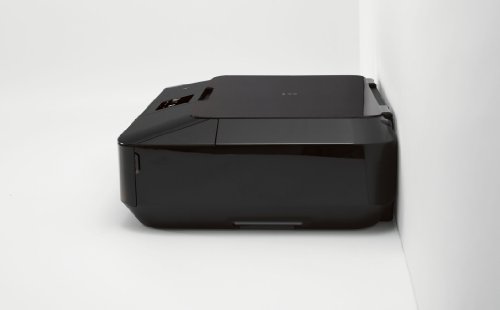
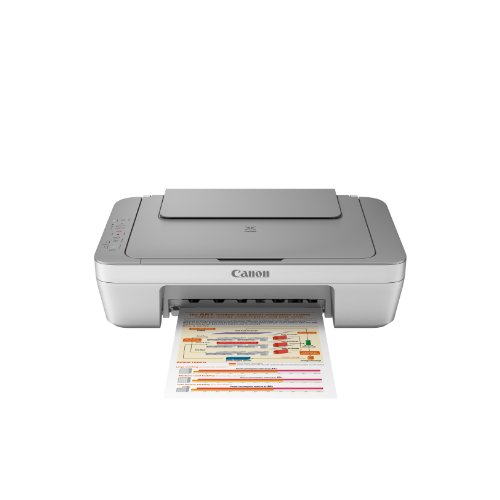
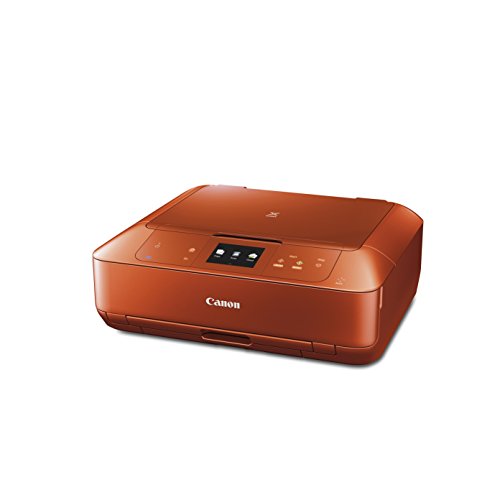
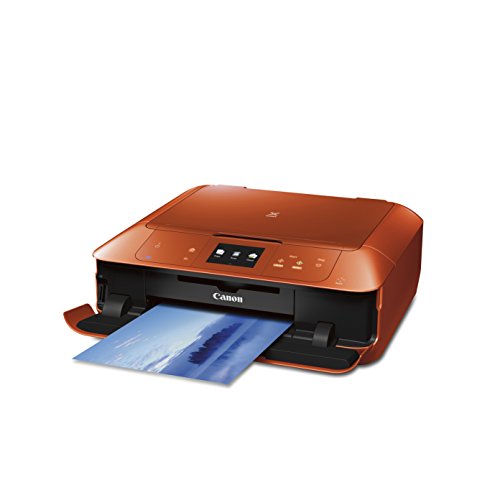
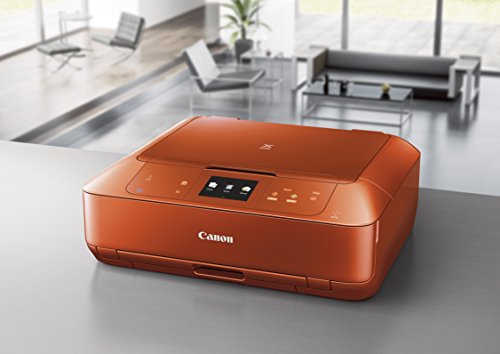
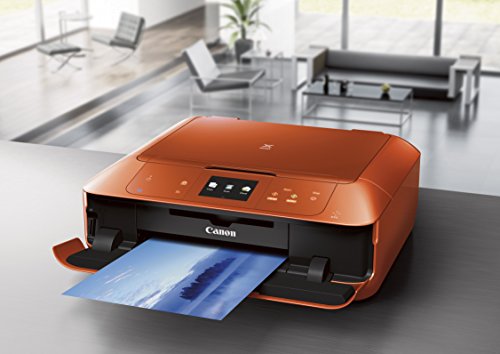
CANON MG7520 Wireless Color Cloud Printer with Scanner and Copier, Burnt Orange (Discontinued By Manufacturer)

Key features
- •Mobile, Smart Phone, Tablet Printer, and AirPrint (TM) Compatible. AirPrint (TM): Print wirelessly and effortlessly from your compatible iPhone, iPad, or iPod touch - no drivers needed.
- •PIXMA Touch & Print: Print a photo or document by simply opening Canon PRINT App and touching your NFC compatible Android device to the printer.
- •Easily print wirelessly from your Android, iPhone or tablet via Canon PRINT app and Google Cloud Print.
- •Compatible with Individual/Combo CLI-251 XL Ink Tanks (Cyan, Magenta, Yellow, Grey, Black) & PGI-250 XL Pigment Black Ink Tanks. Only replace the inks that run out!
- •9600 DPI produces exceptional printing detail for beautiful photos.
CANON MG7520 Wireless Color Cloud Printer with Scanner and Copier, Burnt Orange (Discontinued By Manufacturer)
List Price: $547.81$493.03DEALYou Save: $54.78 (10%)
Free shippingFree Returns – 30 daysFree Order CancellationSecure Payment2–3 Days DeliveryGet It October 25, 2026In Stock (4)No marketing spamNo account requiredFulfilment by FedEx / Amazon / UPS / ShipwirePayPal / Card Buyer Protection
Customer Reviews
Reviews sourced from verified Amazon purchasers3.9
out of 5
Based on 10 reviews
5★
40%
4★
20%
3★
20%
2★
20%
1★
0%
Awesome fast wireless printer with great quality for home/home-office use!
RadThink✓ Verified Purchase•August 8, 2015
After much deliberation, reading consumer reports and online reviews (PCMag, Tom's e.g. http://www.tomsguide.com/us/canon-pixma-mg7520-printer,review-2501.html etc) and reading of Amazon reviews (till I couldn't remember which review was about which printer)... I settled in on my choice - Canon Pixma MG 7520
A little background: What I had before was a direct wired (no wifi) USB printer from HP - all in one HP1610... It did OK in prints but the INK was expensive and often the cartridges would dry up on the print head causing problems etc... The thing that really got me to think new printer when it came time to buy new cartridges were two things... I could buy a new printer for a bit more and get cheaper ink going forward and more importantly I was tired of taking my laptop to the room where the printer sat and sitting there to connect it and wait for the printer to finish slowly printing the job before I can disconnect the laptop and continue doing what I was doing...
My environment and needs so you can see why I made the choices I did: Apple Macbook Pro, Apple MacMini, One Lenovo Windoze laptop (because wife won't give it up), Several iPhones, iPads, Apple Airport WIFI ROUTER (the tall squarish model). The Printer sits on a small table NEXT to the room in which the Router sits (up inside a closet). I don't print a lot... few pages a month may be mostly B&W sometimes color... more like printing tickets or pages for my son or papers to be signed etc... I consider myself a light user. I rarely print photos. I don't have a "computer desk" where we work... we just sit anywhere with our laptops or iPhone/iPads...
My search was not exhaustive and not scientific... but I used some simple criteria to narrow my decisions... I looked at a consumer reports issue October 10, 2014 which had a brief mention of the top choice printers. They included printers from Canon, Brother, Epson, HP etc...
I then researched some of the more recent models of these makes online (Amazon, PCMag, Toms etc) as well as briefly at a BestBuy store.
I ruled out the top rated HP models mainly because they are behemoths (what the heck was the HP product manager thinking??!!)... and while they have good speed, ink cost ratings, their graphics quality did not rate high. I ruled out Brother mainly because I kept seeing reports of "lower" text and graphics quality compared to other printers. I even did a test page print at BestBuy and it looked bad. I ruled out Epson because of high ink costs in the consumer reports review. Even though the consumer reports said Canon mx922/472 were the recommended models - I found that they printed quite slowly. I also looked at Amazon reviews of any printer in above brands which had a aggregate 4+ Star ratings - while all of the printers had many good reviews and enough bad ones to make you worried about getting a lemon... I decided to use the % ratios... I looked for printers that had 100's of reviews... and very low % of 1-star and 2-star reviews... If any of them had 10% or more 1-star reviews I rated them low on my list or even dropped them. The MX922 came close but it looked BIG and I had no need for a FAX machine (wtf??!! who uses these? I don't even have a land line). More importantly many reviews and ratings in Tom's mag said this printer was SLOW. The MG7520 on the other hand had only 8% 1-star reviews and 6% 2-star reviews and a total of 80% of 4 and 5 star reviews. Tom's gave it a good review for speed and quality too. Ink costs were decent - not the lowest... Finally it had a really cool burnt orange color. I am a sucker for nice designs (I like Apple). As I said not a scientific controlled process but was enough to make me click "BUY" on Amazon!
I opened the box. Followed with quick start fold out guide step by step. It was pretty simple. In short order I had my printer powered up with the ink cartridges (6 of them!) that came with the printer installed. I opted to set up the WIFI using the access point method (not the WPS push button?? what is that anyway???) and selected my WIFI SSID from the list, entered my passphrase and voila it said SUCCESS! I then also hit a test page print and it looked really nice (almost like a laser printer). This was impressive - fast printer and WIFI setup - without a hitch. The color screen is really nice and the prompts are very good... When it said wait a while it actually told you "about 6 minutes" so you are not wondering how long to wait!! (good design practice). Then I went on to setting up my laptop... It said go to canon.com/ijsetup in a browser.. which I did and followed the steps and voila!! in a matter of minutes it had added the printer to my laptop. I did the same setup from my iPhone too and installed the suggested Canon app from the Appstore but later discovered that I did not need to do it.
Anyhoooo... the moment of truth.. I selected some PDF documents and hit print... Now... you have to know that if its gone to sleep after the last print - it will take some 30 seconds of whirring and clicking and more whirring sounds to get ready to print.. but once it starts it does it quite fast... I printed a 3 page (two-sided) back and white document... It took 30 seconds to get started and then another 30 seconds to print the document in Standard quality which is good enough for me! I did some mixed docs with graphics and color too and same fast performance - draft is even faster. I love the quality!!! Honestly I think these are laser-like! I love the wifi print capability without any special software or cloud or anything.. Just open the document and print and walk over to the printer to pick it up!! Same with the iPhone/iPad - I printed PDF from iBook, printed emails from Mail and even a webpage from Safari all wirelessly from the iPhone and it did fantastic!! Only thing I did not try was Photos... Will get to it sometime!
I love this printer... I am now eagerly looking for things to print :)
A little background: What I had before was a direct wired (no wifi) USB printer from HP - all in one HP1610... It did OK in prints but the INK was expensive and often the cartridges would dry up on the print head causing problems etc... The thing that really got me to think new printer when it came time to buy new cartridges were two things... I could buy a new printer for a bit more and get cheaper ink going forward and more importantly I was tired of taking my laptop to the room where the printer sat and sitting there to connect it and wait for the printer to finish slowly printing the job before I can disconnect the laptop and continue doing what I was doing...
My environment and needs so you can see why I made the choices I did: Apple Macbook Pro, Apple MacMini, One Lenovo Windoze laptop (because wife won't give it up), Several iPhones, iPads, Apple Airport WIFI ROUTER (the tall squarish model). The Printer sits on a small table NEXT to the room in which the Router sits (up inside a closet). I don't print a lot... few pages a month may be mostly B&W sometimes color... more like printing tickets or pages for my son or papers to be signed etc... I consider myself a light user. I rarely print photos. I don't have a "computer desk" where we work... we just sit anywhere with our laptops or iPhone/iPads...
My search was not exhaustive and not scientific... but I used some simple criteria to narrow my decisions... I looked at a consumer reports issue October 10, 2014 which had a brief mention of the top choice printers. They included printers from Canon, Brother, Epson, HP etc...
I then researched some of the more recent models of these makes online (Amazon, PCMag, Toms etc) as well as briefly at a BestBuy store.
I ruled out the top rated HP models mainly because they are behemoths (what the heck was the HP product manager thinking??!!)... and while they have good speed, ink cost ratings, their graphics quality did not rate high. I ruled out Brother mainly because I kept seeing reports of "lower" text and graphics quality compared to other printers. I even did a test page print at BestBuy and it looked bad. I ruled out Epson because of high ink costs in the consumer reports review. Even though the consumer reports said Canon mx922/472 were the recommended models - I found that they printed quite slowly. I also looked at Amazon reviews of any printer in above brands which had a aggregate 4+ Star ratings - while all of the printers had many good reviews and enough bad ones to make you worried about getting a lemon... I decided to use the % ratios... I looked for printers that had 100's of reviews... and very low % of 1-star and 2-star reviews... If any of them had 10% or more 1-star reviews I rated them low on my list or even dropped them. The MX922 came close but it looked BIG and I had no need for a FAX machine (wtf??!! who uses these? I don't even have a land line). More importantly many reviews and ratings in Tom's mag said this printer was SLOW. The MG7520 on the other hand had only 8% 1-star reviews and 6% 2-star reviews and a total of 80% of 4 and 5 star reviews. Tom's gave it a good review for speed and quality too. Ink costs were decent - not the lowest... Finally it had a really cool burnt orange color. I am a sucker for nice designs (I like Apple). As I said not a scientific controlled process but was enough to make me click "BUY" on Amazon!
I opened the box. Followed with quick start fold out guide step by step. It was pretty simple. In short order I had my printer powered up with the ink cartridges (6 of them!) that came with the printer installed. I opted to set up the WIFI using the access point method (not the WPS push button?? what is that anyway???) and selected my WIFI SSID from the list, entered my passphrase and voila it said SUCCESS! I then also hit a test page print and it looked really nice (almost like a laser printer). This was impressive - fast printer and WIFI setup - without a hitch. The color screen is really nice and the prompts are very good... When it said wait a while it actually told you "about 6 minutes" so you are not wondering how long to wait!! (good design practice). Then I went on to setting up my laptop... It said go to canon.com/ijsetup in a browser.. which I did and followed the steps and voila!! in a matter of minutes it had added the printer to my laptop. I did the same setup from my iPhone too and installed the suggested Canon app from the Appstore but later discovered that I did not need to do it.
Anyhoooo... the moment of truth.. I selected some PDF documents and hit print... Now... you have to know that if its gone to sleep after the last print - it will take some 30 seconds of whirring and clicking and more whirring sounds to get ready to print.. but once it starts it does it quite fast... I printed a 3 page (two-sided) back and white document... It took 30 seconds to get started and then another 30 seconds to print the document in Standard quality which is good enough for me! I did some mixed docs with graphics and color too and same fast performance - draft is even faster. I love the quality!!! Honestly I think these are laser-like! I love the wifi print capability without any special software or cloud or anything.. Just open the document and print and walk over to the printer to pick it up!! Same with the iPhone/iPad - I printed PDF from iBook, printed emails from Mail and even a webpage from Safari all wirelessly from the iPhone and it did fantastic!! Only thing I did not try was Photos... Will get to it sometime!
I love this printer... I am now eagerly looking for things to print :)
Great Printer and High-Speed Scanner
Rich✓ Verified Purchase•March 27, 2015
I love this printer, having used Hewlett Packard printers in the past. It is an excellent printer and scanner. When I originally set up the printer, I tried to print everything wirelessly, and found that it was slow to scan and print. However, when using a direct USB cable connection to my MAC computer, scanning and printing speed was robust. I still use wireless for printing from tablets, so it is nice to have wireless capability. In my opinion, I think part of the reason for the slow wireless performance was that I am at the outer limit with respect to distance from my Router at approximately 55 feet. The scanner is much faster than other scanners I have used, even though it does not have an automatic feed. Some people have stated that the paper output cover door is flimsy. While it is on the delicate side, I don't see anything that will go wrong with it as long as I treat it as I would a water glass, for example. Finally, using this Canon printer has dropped my ink costs, because I can buy replacement ink from a third party vendor (I use Sophia Global comparable ink).
setup of MG7520 fails (updated)
Frank K.✓ Verified Purchase•February 26, 2015
Purchase MG7520 through Molly Mazen on Amazon. Only came with 3 ink cartridges. The Canon manual online says it won't print without all 5 cartridges and it doesn't even complete setup without these. The cartridge align step won't run and it keeps recycling back to the beginning of setup. So the printer is useless.
Wrote to Molly Mazen who punted. They referred me to "so-called" attached documentation from Canon which supposedly addresses what's included "in the box". Except it doesn't. So I'm stuck with a useless printer until I can go out and get additional cartridges.
For what it's worth the set up diagrams are very imprecise. It would be useful if they could take a few minutes and write directions along with the diagrams.
continued ... the next day. Went to Staples and brought a set of the six cartridges you need. The boxes the cartridges come in don't list the MG7520 model information nor does the book Staples has show this model number but the numbers (251 and 250 for the PGBK cartridge matched). inserted the new cartridges so I had a set of 6. Now the setup proceeded to completion with cleaning and alignment steps. And the computer could now recognize and print to the printer. Yeah!
Canon should modify the setup routine to show an error and stop if all 6 cartridges are not present. That, I suspect, would save people a lot of thrashing around.
Molly Mazen responded: not bad for a weekend, and said they had forwarded my note to someone who would take care of it. I wrote back listing the exact cartridges they had omitted to send. We'll see how that goes. A full set at Staples costs in the neighborhood of $95.
Also note that "in the box" does not contain either the USB or the Ethernet cable you would need if you wanted to use USB or wired Ethernet. I wanted to use wireless anyway so I'm okay. An old USB cable from a HP Photosmart printer also worked temporarily but the sales information should tell you what's in the box and what conceivably could be needed and give you the option to purchase if you need it.
After subsequent correspondence with Molly Mazen (the Amazon reseller) they basically said they shipped, unopened, whatever was in the box from Canon. So I had to call Canon. Dreaded that but a real person actually answered the phone at Canon. And transferred me to another real person. How unusual is that these days, no stupid automated answering machines asking for the last 4 of your social security number. A third transfer was required to their warranty department and a 15 minute wait. Then another real person who was helpful. Their system could not find the serial number of my printer, which I was reading direct to them but after some fumbling around they said they would mail the missing cartridges. All I could ask for, I guess.
At this point the printer works except for scanning from certain applications including Canon's own scan utility. Get: "Code:5,156,69 Cannot scan for these reasons: -Scanner is turned off.-USB cable is disconnected". That is discussed on Canon support forums and I'll need to try various solutions from there. Par for the course ... I suspect the fact that I connected by USB after the setup failed cause of lack of 6 cartridges (I'm now connected wireless) has set something in a registry setting or a profile that is not unset when you switch connections. The Canon software folks need to dig into this and test various setup scenarios, particularly switching between various connection settings.
Further update: emptied twain_32 directory per instructions on Canon support site. Deleted printer entirely using control panel (uninstalling everything). Went to Canon web site, found drivers for printer (model dependent), downloaded and reinstalled. This includes connecting to wireless LAN again. Now scanner works. Note: Canon seems to have HP envy with installing crapware. I'm talking "Image Garden" and "Creative Park Premium". I'm pretty sure Image Garden also installs itself in the startup group in order to load at boot time. I'll be getting rid of this. If the Canon engineers would concentrate on a bullet proof installation and give users the OPTION to install crapware (call it what they will), it would be a better allocation of resources.
Wrote to Molly Mazen who punted. They referred me to "so-called" attached documentation from Canon which supposedly addresses what's included "in the box". Except it doesn't. So I'm stuck with a useless printer until I can go out and get additional cartridges.
For what it's worth the set up diagrams are very imprecise. It would be useful if they could take a few minutes and write directions along with the diagrams.
continued ... the next day. Went to Staples and brought a set of the six cartridges you need. The boxes the cartridges come in don't list the MG7520 model information nor does the book Staples has show this model number but the numbers (251 and 250 for the PGBK cartridge matched). inserted the new cartridges so I had a set of 6. Now the setup proceeded to completion with cleaning and alignment steps. And the computer could now recognize and print to the printer. Yeah!
Canon should modify the setup routine to show an error and stop if all 6 cartridges are not present. That, I suspect, would save people a lot of thrashing around.
Molly Mazen responded: not bad for a weekend, and said they had forwarded my note to someone who would take care of it. I wrote back listing the exact cartridges they had omitted to send. We'll see how that goes. A full set at Staples costs in the neighborhood of $95.
Also note that "in the box" does not contain either the USB or the Ethernet cable you would need if you wanted to use USB or wired Ethernet. I wanted to use wireless anyway so I'm okay. An old USB cable from a HP Photosmart printer also worked temporarily but the sales information should tell you what's in the box and what conceivably could be needed and give you the option to purchase if you need it.
After subsequent correspondence with Molly Mazen (the Amazon reseller) they basically said they shipped, unopened, whatever was in the box from Canon. So I had to call Canon. Dreaded that but a real person actually answered the phone at Canon. And transferred me to another real person. How unusual is that these days, no stupid automated answering machines asking for the last 4 of your social security number. A third transfer was required to their warranty department and a 15 minute wait. Then another real person who was helpful. Their system could not find the serial number of my printer, which I was reading direct to them but after some fumbling around they said they would mail the missing cartridges. All I could ask for, I guess.
At this point the printer works except for scanning from certain applications including Canon's own scan utility. Get: "Code:5,156,69 Cannot scan for these reasons: -Scanner is turned off.-USB cable is disconnected". That is discussed on Canon support forums and I'll need to try various solutions from there. Par for the course ... I suspect the fact that I connected by USB after the setup failed cause of lack of 6 cartridges (I'm now connected wireless) has set something in a registry setting or a profile that is not unset when you switch connections. The Canon software folks need to dig into this and test various setup scenarios, particularly switching between various connection settings.
Further update: emptied twain_32 directory per instructions on Canon support site. Deleted printer entirely using control panel (uninstalling everything). Went to Canon web site, found drivers for printer (model dependent), downloaded and reinstalled. This includes connecting to wireless LAN again. Now scanner works. Note: Canon seems to have HP envy with installing crapware. I'm talking "Image Garden" and "Creative Park Premium". I'm pretty sure Image Garden also installs itself in the startup group in order to load at boot time. I'll be getting rid of this. If the Canon engineers would concentrate on a bullet proof installation and give users the OPTION to install crapware (call it what they will), it would be a better allocation of resources.
Paper handling is the pits
Jonathan M.✓ Verified Purchase•February 24, 2015
I like this printer, but it has two problems. One a big deal, the other a small deal.
The small problem is that it has no USB port for a thumb drive. This is not critical but it would be nice. For instance, sometimes someone wants me to scan a document and sneaker net the file to them. Can't do that.
The big problem is that paper handling is truly atrocious. Let me count the ways.
1) The paper trays are hidden away and not easy to get at.
2) The paper trays don't have much capacity.
3) There is no rear loading tray. (Put 1, 2 and 3 together, and it's a real pain.)
I have another problem with no rear tray. With my trusty old MP620 I used to take paper that was printed on one side, lean over, and drop it back in the tray. I was conserving paper and being nice to the environment for any paper that did not have to go out the door. I'm not doing that anymore because it is so hard to load the paper tray.
4) On my old MP620 the shelf that held paper as it printed was really solid. A whole sheet of plastic that stretched across the printer and stuck out far enough to hold the output securely. Not so here where there is a thin plastic strip (2.5 inches wide) to hold a stack of paper that is 8.5 inches wide. It does work and the stacks of paper don't fall to the ground, but the arrangement does not provide a warm fuzzy secure feeling.
Everything else about the printer is great.
The small problem is that it has no USB port for a thumb drive. This is not critical but it would be nice. For instance, sometimes someone wants me to scan a document and sneaker net the file to them. Can't do that.
The big problem is that paper handling is truly atrocious. Let me count the ways.
1) The paper trays are hidden away and not easy to get at.
2) The paper trays don't have much capacity.
3) There is no rear loading tray. (Put 1, 2 and 3 together, and it's a real pain.)
I have another problem with no rear tray. With my trusty old MP620 I used to take paper that was printed on one side, lean over, and drop it back in the tray. I was conserving paper and being nice to the environment for any paper that did not have to go out the door. I'm not doing that anymore because it is so hard to load the paper tray.
4) On my old MP620 the shelf that held paper as it printed was really solid. A whole sheet of plastic that stretched across the printer and stuck out far enough to hold the output securely. Not so here where there is a thin plastic strip (2.5 inches wide) to hold a stack of paper that is 8.5 inches wide. It does work and the stacks of paper don't fall to the ground, but the arrangement does not provide a warm fuzzy secure feeling.
Everything else about the printer is great.
Good for small personal photos
Mo M.✓ Verified Purchase•February 4, 2015
It's a decent product. Once you set it up, it's very easy to use. It looks neat. It doesn't take up too much space. It's reasonably priced.
My problem is not with this specific product but probably with the inkjet technology as a whole. I printed some 4x6s and 5x7s. They were all visibly blurry on the edges. I can't imagine printing them in even bigger sizes. It will be a waste of paper and ink. Some pictures taken with better cameras were definitely sharper. I used to print my photos from online printing shops. So I printed some of the same pictures in comparison.The picture quality is not even close to that of printing shops. I don't think if it even matters if these photos will last 100 years or not cause they're not worth keeping forever. But then I realized it's the same issue I used to have when the first laser printers were on the market and were super expensive and so much better than the inkjet printers I had. So I'll definitely wait until affordable and compact laser photo printers are available and switch to a new one. If you're going to print out some high-quality big photos to be framed or to be used professionally, go to a printing shop or websites. This is just for a personal usage.
My problem is not with this specific product but probably with the inkjet technology as a whole. I printed some 4x6s and 5x7s. They were all visibly blurry on the edges. I can't imagine printing them in even bigger sizes. It will be a waste of paper and ink. Some pictures taken with better cameras were definitely sharper. I used to print my photos from online printing shops. So I printed some of the same pictures in comparison.The picture quality is not even close to that of printing shops. I don't think if it even matters if these photos will last 100 years or not cause they're not worth keeping forever. But then I realized it's the same issue I used to have when the first laser printers were on the market and were super expensive and so much better than the inkjet printers I had. So I'll definitely wait until affordable and compact laser photo printers are available and switch to a new one. If you're going to print out some high-quality big photos to be framed or to be used professionally, go to a printing shop or websites. This is just for a personal usage.
Page 1 of 2