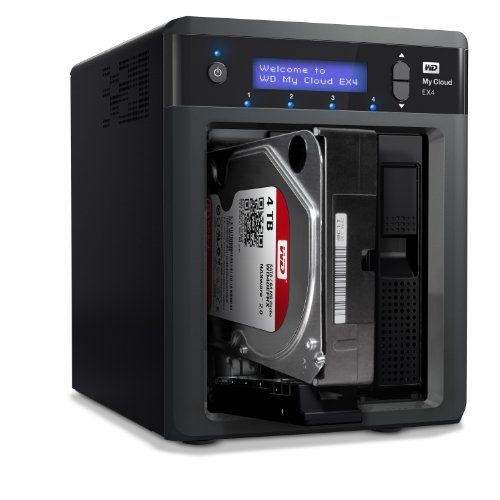
WD WDBZVM0040JWT-NESN 4TB My Cloud Mirror Personal Network Attached Storage


Key features
- •Files are automatically saved twice with Mirror Mode (RAID 1), once on each drive
- •Automatically back up files from all your PC and Mac computers
- •Stream to your DLNA/UPnP-certified connected TVs, media players and gaming consoles
WD WDBZVM0040JWT-NESN 4TB My Cloud Mirror Personal Network Attached Storage
List Price: $726.03$653.43DEALYou Save: $72.60 (10%)
Free shippingFree Returns – 30 daysFree Order CancellationSecure Payment2–3 Days DeliveryGet It October 25, 2026In Stock (2)No marketing spamNo account requiredFulfilment by FedEx / Amazon / UPS / ShipwirePayPal / Card Buyer Protection
Customer Reviews
Reviews sourced from verified Amazon purchasers3.9
out of 5
Based on 10 reviews
5★
60%
4★
40%
3★
0%
2★
0%
1★
0%
Nice, Simple, Easy to Use, But Minor Improvements Still Needed for 5 Stars
William Jorth✓ Verified Purchase•January 31, 2024
Pretty simple to install and use. I'm now relieved that my files of family pictures and trove of music, as well as my financial records, are now safe with a reliable backup while being accessible from all of my devices, and not available to the whims of any cloud provider. I have two issues: 1) I was not presented at startup with administrative functions for adding restricted folders and to set up users and strong passwords (it took some digging but was not too difficult), and 2) the Finder interface is not as natural I think as if this were an Apple product (but the device does show up automatically - the key is to find the "connect" button in the upper right corner of the Finder window so the restricted folders are presented when connected as a privileged user). I have a similar Buffalo branded NAS. Comparing them, the WD is a generation ahead.
Very good with a slight modification
Michael SF✓ Verified Purchase•January 23, 2024
I won't bother reviewing the features. Other people have already covered that very well. The only thing I will say is this works great as a network music server. I have it hooked up and it has no problem playing DSD 128 files.
My only issue was the temperature the NAS was reporting. I was watching the temps on the hard drives (which are reds btw) and they would stay between 49-51 degrees celsius. The tiny fan on the inside turned on for only a few min when temps peaked and if the drives are in the 40's it won't turn on at all. I contacted WD and it seems this is within acceptable range (and all the displays says all is healthy). But I also know that hot HDD's die sooner and was concerned. To its credit (or fault I can't decide) it never shut down or gave any issues even when it hit 56 degrees. The reds are rated up to 70, but that is cooking and I could imagine on the 1096th day (one day out of warranty) one of the drives die, or worse both..
My solution was to purchase the Thermaltake Mobile Fan II. Its quiet, 11 bucks, and plugs into the USB port of the NAS. I keep it at half speed sitting on top the NAS pulling air. Its now at a comfortable 30 degree celsius. The fan could easily drive it colder but I prefer to keep the fan low enough its not audible. Since my NAS is not visible I am fine with this solution but if yours is this might not be the best solution but a laptop cooling pad could be viable.
Normally for this big of a flaw I would give it 3 stars. But considering how easy it was to setup and the price compared to other NAS I only knocked off one.
There is some debate if temp is related to failure rates but a joint paper by the University of Virginia and Microsoft showed fairly convincing evidence (at least for myself). If you want read it yourself do a google search for Datacenter Scale Evaluation of the Impact of Temperature on Hard Disk Drive Failures, first author: SRIRAM SANKAR.
My only issue was the temperature the NAS was reporting. I was watching the temps on the hard drives (which are reds btw) and they would stay between 49-51 degrees celsius. The tiny fan on the inside turned on for only a few min when temps peaked and if the drives are in the 40's it won't turn on at all. I contacted WD and it seems this is within acceptable range (and all the displays says all is healthy). But I also know that hot HDD's die sooner and was concerned. To its credit (or fault I can't decide) it never shut down or gave any issues even when it hit 56 degrees. The reds are rated up to 70, but that is cooking and I could imagine on the 1096th day (one day out of warranty) one of the drives die, or worse both..
My solution was to purchase the Thermaltake Mobile Fan II. Its quiet, 11 bucks, and plugs into the USB port of the NAS. I keep it at half speed sitting on top the NAS pulling air. Its now at a comfortable 30 degree celsius. The fan could easily drive it colder but I prefer to keep the fan low enough its not audible. Since my NAS is not visible I am fine with this solution but if yours is this might not be the best solution but a laptop cooling pad could be viable.
Normally for this big of a flaw I would give it 3 stars. But considering how easy it was to setup and the price compared to other NAS I only knocked off one.
There is some debate if temp is related to failure rates but a joint paper by the University of Virginia and Microsoft showed fairly convincing evidence (at least for myself). If you want read it yourself do a google search for Datacenter Scale Evaluation of the Impact of Temperature on Hard Disk Drive Failures, first author: SRIRAM SANKAR.
Happy with the Purchase, mobile apps needs to be improved!
Nitin Mathew✓ Verified Purchase•January 14, 2024
I got the 8TB version of this product. My use case includes backing up my Windows 10 PC, my 2 external HDD, and the android and iPhone. The device will be used in RAID 1 mode (4TB as the main backup and the other 4TB as the backup of the backup)
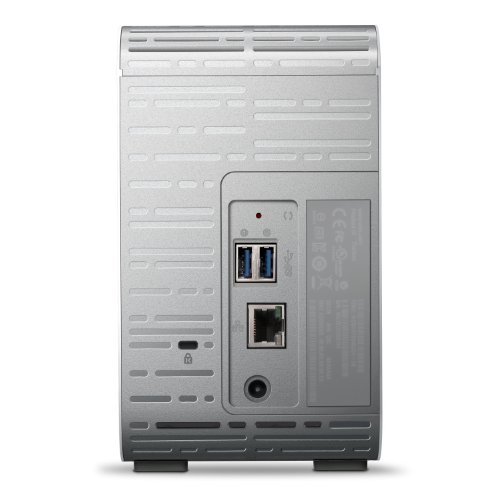
The contents include the unit, 2 WD Red 4TB drives (already in the slot), an Ethernet cable and a power adaptor (dual voltage). In terms of interfaces, there is the Ethernet port for the connection to the router and 2 USB 3.0 ports for connecting external HDD.
For the initial configuration I installed the windows desktop software. The initial configuration was fine but setting up the backups took more time than I expected. The firmware update was one of the first things I did. It updated to the new MyCloud OS version if I am not wrong. The rest of the access is via the Web Interface from a browser. All this was good so far and quite user friendly. The web interface has all the required information but could have been organised better.
Setting up the backups did take some research from my side. I would consider myself more on the tech savvy side. I have not used any other home cloud/backup solutions so I don't have another experience to compare against. So I have not deducted any stars from the rating for this.
In terms of performance I was happy with the speed with which the initial backup happened from the PC (over Wi-Fi) keeping in mind this is a solution targeted for the home. The backup from the 2 external HDD which were connected to the 2 USB ports was much slower than I expected.
The units did get heated up quite a bit during the initial backups, touching 60C. I then opened up the lid and directed a pedestal fan towards the unit which cooled them down to about 42C. To be fair I am in a tropical country and the unit is placed behind the TV near the wall with limited air flow.
The mobile app on both android and iOS as quite basic and buggy. 1 star less due to this in the rating. The interface is confusing and feels cluttered at times. I still need to figure out how to watch a video directly on the iPhone.
For setting up the backups I did the following in case it helps someone else:
Windows 10 Backup:
I found file history to be the easiest way to do this. You need to select the device and a folder on it as the backup location. File history by default includes only certain libraries and user folders. You would need to include the additional directories you need. In windows 10 this can be done from the Backups control panel item. Folder exclusions are also possible.
External HDD Backups:
I connected the HDD to the USB port on the device and once it was recognized I created a backup job from USB Storage to the device. This is available under the 'Backups' menu in the web interface. This can be paused and started whenever you want. Once complete it will show the status as Backup Completed and you then unplug the external HDD if needed.
Mobile Backups:
This is quite straight forward. Install the mobile app and when connected to the same Wi-Fi the device is connected the device is listed in the main screen. Once selected and logged in the folders available in the device are shown. I have used the app to backup all my existing photos. For some reason it allows only the folder which holds the pictures taken by the phone to be backed up. I have also set it up to auto upload all photos that I take to the device.
The contents include the unit, 2 WD Red 4TB drives (already in the slot), an Ethernet cable and a power adaptor (dual voltage). In terms of interfaces, there is the Ethernet port for the connection to the router and 2 USB 3.0 ports for connecting external HDD.
For the initial configuration I installed the windows desktop software. The initial configuration was fine but setting up the backups took more time than I expected. The firmware update was one of the first things I did. It updated to the new MyCloud OS version if I am not wrong. The rest of the access is via the Web Interface from a browser. All this was good so far and quite user friendly. The web interface has all the required information but could have been organised better.
Setting up the backups did take some research from my side. I would consider myself more on the tech savvy side. I have not used any other home cloud/backup solutions so I don't have another experience to compare against. So I have not deducted any stars from the rating for this.
In terms of performance I was happy with the speed with which the initial backup happened from the PC (over Wi-Fi) keeping in mind this is a solution targeted for the home. The backup from the 2 external HDD which were connected to the 2 USB ports was much slower than I expected.
The units did get heated up quite a bit during the initial backups, touching 60C. I then opened up the lid and directed a pedestal fan towards the unit which cooled them down to about 42C. To be fair I am in a tropical country and the unit is placed behind the TV near the wall with limited air flow.
The mobile app on both android and iOS as quite basic and buggy. 1 star less due to this in the rating. The interface is confusing and feels cluttered at times. I still need to figure out how to watch a video directly on the iPhone.
For setting up the backups I did the following in case it helps someone else:
Windows 10 Backup:
I found file history to be the easiest way to do this. You need to select the device and a folder on it as the backup location. File history by default includes only certain libraries and user folders. You would need to include the additional directories you need. In windows 10 this can be done from the Backups control panel item. Folder exclusions are also possible.
External HDD Backups:
I connected the HDD to the USB port on the device and once it was recognized I created a backup job from USB Storage to the device. This is available under the 'Backups' menu in the web interface. This can be paused and started whenever you want. Once complete it will show the status as Backup Completed and you then unplug the external HDD if needed.
Mobile Backups:
This is quite straight forward. Install the mobile app and when connected to the same Wi-Fi the device is connected the device is listed in the main screen. Once selected and logged in the folders available in the device are shown. I have used the app to backup all my existing photos. For some reason it allows only the folder which holds the pictures taken by the phone to be backed up. I have also set it up to auto upload all photos that I take to the device.
Finally, something that works for NAS
Olzab✓ Verified Purchase•January 11, 2024
This is my 4th NAS, the previous ones were worthless, never there to be accessed when you needed them. Besides the fact that this is a mirrored drive (2 separate drives that keep the same data) UNLESS YOU CHANGE THE RAID SETUP, which makes it harder to lose data, This one is simple, shows up on the local network, does its thing, first NAS I've ever seen that did that, it's easily accessed by any device on the network. Besides auto backups, works nicely for saving files to a location where I can access them from any device, although accessing them is a bit slow, for example, when browsing a folder of pictures, the preview icons take a few seconds each page down. I just add it in Windows 7 as a network drive on each laptop, and it's that easy. I'll research if there's an iPhone app soon, and let you know. I'd love to be able to transfer files between iPhones and laptops that way. I realize I haven't tapped the potential of this drive as a media server, etc., but just never get around to it. All I want is reliable storage available anywhere on my network, and this one works great so far!
Very powerful, many features, very happy
Rey✓ Verified Purchase•January 9, 2024
Bought this after weeks and weeks of reading about similar products. I was worried since some of the reviews I saw stated that the device is slow among other things.
Well, don't have other NAS to compare it with but this is a good product. It has many advanced options, some of which I haven't yet played with like the iTunes server, torrents and streaming.
My main use, for now, is the file-server part and to store documents, music, movies and family pictures.
To set it up you have to download a couple of Windows applications, all of which are detailed in the included brochure. After that, you can rename your device, set up folders, user accounts, and opt to use (or not) the default hard drive mirror configuration.
You can create cloud user accounts which allow you to see everything stored from your iPhone (after getting the free apps), and that part is very easy to set up and use.
It has default PUBLIC folders which means that every user will be able to access, but you can set up others and modify the security settings (similar to Windows).
One of my favorite features is that you can set up a schedule for the device to turn itself on and off, which for me works like a charm since I don't want that device turned on 24x7.
When I travel, I can copy my pictures from the iPhone to the WD with just a couple of clicks (it appears as another option from inside Apple's Photos app.)
The only time I've seen it was "slow" was when copying all my movie and MP3 collections from a laptop to the device using Wi-Fi (1.2TB or so), but later I hooked it using a LAN cable and it was fast. I have a N-type of router with 100Mbps wired ports.
As for the other options, already found through Google how to set up the Plex streaming and iTunes server, so I'll be doing that soon.
I'm very pleased with my choice.
Well, don't have other NAS to compare it with but this is a good product. It has many advanced options, some of which I haven't yet played with like the iTunes server, torrents and streaming.
My main use, for now, is the file-server part and to store documents, music, movies and family pictures.
To set it up you have to download a couple of Windows applications, all of which are detailed in the included brochure. After that, you can rename your device, set up folders, user accounts, and opt to use (or not) the default hard drive mirror configuration.
You can create cloud user accounts which allow you to see everything stored from your iPhone (after getting the free apps), and that part is very easy to set up and use.
It has default PUBLIC folders which means that every user will be able to access, but you can set up others and modify the security settings (similar to Windows).
One of my favorite features is that you can set up a schedule for the device to turn itself on and off, which for me works like a charm since I don't want that device turned on 24x7.
When I travel, I can copy my pictures from the iPhone to the WD with just a couple of clicks (it appears as another option from inside Apple's Photos app.)
The only time I've seen it was "slow" was when copying all my movie and MP3 collections from a laptop to the device using Wi-Fi (1.2TB or so), but later I hooked it using a LAN cable and it was fast. I have a N-type of router with 100Mbps wired ports.
As for the other options, already found through Google how to set up the Plex streaming and iTunes server, so I'll be doing that soon.
I'm very pleased with my choice.
Page 1 of 2
Related products


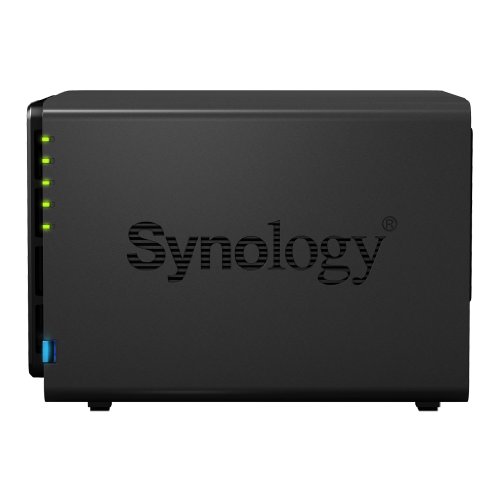
Synology America DiskStation 4-Bay Diskless Network Attached Storage (DS414)
List: $624.20$561.78DEAL