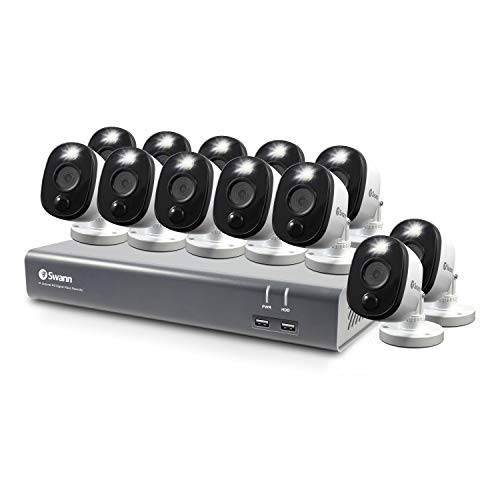
[Audio Video & 960p 4mm] xmartO WB1324 960p HD 1.3 Megapixel IP Network Wireless Security Camera Weatherproof Outdoor with 80ft IR Night Vision (White)
![[Audio Video & 960p 4mm] xmartO WB1324 960p HD 1.3 Megapixel IP Network Wireless Security Camera Weatherproof Outdoor with 80ft IR Night Vision (White)](https://images-na.ssl-images-amazon.com/images/I/31aZlhT3owL.jpg)
![[Audio Video & 960p 4mm] xmartO WB1324 960p HD 1.3 Megapixel IP Network Wireless Security Camera Weatherproof Outdoor with 80ft IR Night Vision (White)](https://images-na.ssl-images-amazon.com/images/I/51a5fjWQ7IL.jpg)
![[Audio Video & 960p 4mm] xmartO WB1324 960p HD 1.3 Megapixel IP Network Wireless Security Camera Weatherproof Outdoor with 80ft IR Night Vision (White)](https://images-na.ssl-images-amazon.com/images/I/41VtIqcunSL.jpg)
![[Audio Video & 960p 4mm] xmartO WB1324 960p HD 1.3 Megapixel IP Network Wireless Security Camera Weatherproof Outdoor with 80ft IR Night Vision (White)](https://images-na.ssl-images-amazon.com/images/I/41Em%2B00fXVL.jpg)
Key features
- •[960p HD Crisp Video] 1.3 Megapixel 960p(1280x960) HD high definition video and image.
- •[80ft IR Night Vision] 3 infrared LED Arrays, IR distance up to 80ft; Color video at daytime and black & white image at night, auto switch
- •[IP66 Weatherproof] Solid made IP66 weatherproof outdoor; Cable pass-through mounting bracket, further protects the cameras from being tampered with
- •[Wide Viewing Angle] 4mm lens allows you to see wider viewing angle
- •Please note that used or refurbished camera may not support audio, if you need audio cameras, purchase the new ones
[Audio Video & 960p 4mm] xmartO WB1324 960p HD 1.3 Megapixel IP Network Wireless Security Camera Weatherproof Outdoor with 80ft IR Night Vision (White)
List Price: $80.49$72.44DEALYou Save: $8.05 (10%)
Free shippingFree Returns – 30 daysFree Order CancellationSecure Payment2–3 Days DeliveryGet It October 27, 2026In Stock (2)No marketing spamNo account requiredFulfilment by FedEx / Amazon / UPS / ShipwirePayPal / Card Buyer Protection
Customer Reviews
Reviews sourced from verified Amazon purchasers3.7
out of 5
Based on 10 reviews
5★
70%
4★
10%
3★
10%
2★
10%
1★
0%
Camera mounting recommendation. Antenna placement and direction is IMPORTANT.
RICKVOO✓ Verified Purchase•April 3, 2017
Upfront.....for those using wireless and confronting the huge cable/plug on back of camera and wondering how to hide it without having to drill a humongous hole in your house, keep reading for a simple solution with photos.
Amazing camera system. Night vision is awesome. This is basically plug and play and my cameras connected up immediately. Wireless distance seems to be no problem with my farthest camera at about 50 feet and 4 walls from the included base station (NVR). Yes, the signal did weaken from that camera but it always connects and remains connected. 3 bars signal strength all 3 cameras.
I'm able to view my cameras on I Phone, IPad and Samsung Droid using the xmartO apps. Just be sure to update your phone apps to latest versions or you may have problems with playback of recorded videos. I'm using version 2.0.6 on IPhone and it solved playback problems.
Works on local home WiFi as well as via 3G/4G network when away. The smart phone apps allow me to view all or selected cameras as well as view NVR recordings by looking back in time. I can also view cameras nicely using suggested CMS free software download on laptop but have yet to figure out recording/viewing recordings on the laptop CMS software.
Now, about that cable......I used grey plastic "Marine outlet boxes" from the large home store with orange everything. I drilled a few holes, painted the boxes to match the house with spray paint for plastic surfaces, installed the cameras on the lids, mounted the boxes to the house and pulled the small 12volt supply line into the boxes through a SMALL hole in the house wall. Boxes have a nice gasket and are weatherproof. Oh, for those with the semi-fake stucco like me, I used four of the metal "twist-in" type screw anchors with Gorilla Glue to secure them.
UPDATE 8/8/17: ( Long update - regarding importance of antenna location and direction)
Generally my four cameras have been operating okay. But, I did experience a period when a WiFi camera would drop-out and either reconnect within 10 seconds or not reconnect at all. At that time I also noticed that the 4 camera on-screen times would not match. Sometimes there would be 10 - 60 seconds difference which made viewing an area with several cameras somewhat confusing.
I contacted XMARTO customer service by e-mail ( Vanessa) and she suggested my issues may be due to weak/inconsistent WiFi signals.
DISCLAIMER: I am not an electrical engineer. Below are just my thoughts and my amateur understandings.
I noticed my most troublesome camera only had 2 bars and the others had 3. After reading up online about WiFi antennas I learned that WiFi transmission strength is fixed by the device and can't be changed. What can be changed is the direction and shape of the transmission. It's like using a magnifier to focus the sun. The sun's strength (over a given area) hasn't changed but the energy is focused in a given direction by a magnifying glass. This can be accomplished by using high gain camera antennas which can shape the transmission signal energy. Again, they don't increase it, they just send it where you want it. This is good if you understand the transmission pattern of the antennas and can use that understanding to send the more focused signal right at your NVR antennas.
Unfortunately, doing all of that correctly can be challenging, especially when your cameras are way up high under the eaves, and your NVR is down low on a desk somewhere. So, I chose to keep using the omnidirectional antennas that come with the cameras and play around with the NVR receiving antennas. The simple act of turning my NVR 90 degrees immediately improved my situation. All cameras are now 3 bars, drop-outs have all but stopped and camera times now match within the acceptable 2-3 seconds.
Based on my reading, it seems that putting the cameras and NVR roughly on the same plane (or level) would be ideal. In most cases this is impractical so I'm going to experiment with using two short WiFi antenna extension cables to raise my NVR antennas up nearer to my ceiling.
MY CONCLUSIONS, FOR NOW:
"¢ Using the Xmarto "Dreamliner" technology is one approach to optimizing WiFi but I don't use it because my cameras are all in a small group together.
"¢ It's clear to me that antenna placement, direction and distance is the key. A weak signal from a camera can probably be improved by simple experiments with placement of the NVR. Certainly the use of cable extensions to move NVR antennas to best location or move camera antennas to, perhaps, inside the building may offer immediate benefits.
"¢ Aftermarket "high gain" WiFi antennas might be considered because they can focus the transmitted signal towards the NVR but an understanding of the high gain antenna signal shaping is necessary to take advantage of it. Otherwise, you might be disappointed.
"¢ The Xmarto system is a good one. WiFi is convenient but usually a challenge to optimize.
"¢ I wish Xmarto offered an accessory WiFi "extender" compatible with their system. These are very commonly used for home WiFi range improvement. I suppose they don't see it as necessary because of their DreamLiner technology. I also hope they make the single extra cameras available in white again. Lately I've only seen single black cameras at Amazon.
Amazing camera system. Night vision is awesome. This is basically plug and play and my cameras connected up immediately. Wireless distance seems to be no problem with my farthest camera at about 50 feet and 4 walls from the included base station (NVR). Yes, the signal did weaken from that camera but it always connects and remains connected. 3 bars signal strength all 3 cameras.
I'm able to view my cameras on I Phone, IPad and Samsung Droid using the xmartO apps. Just be sure to update your phone apps to latest versions or you may have problems with playback of recorded videos. I'm using version 2.0.6 on IPhone and it solved playback problems.
Works on local home WiFi as well as via 3G/4G network when away. The smart phone apps allow me to view all or selected cameras as well as view NVR recordings by looking back in time. I can also view cameras nicely using suggested CMS free software download on laptop but have yet to figure out recording/viewing recordings on the laptop CMS software.
Now, about that cable......I used grey plastic "Marine outlet boxes" from the large home store with orange everything. I drilled a few holes, painted the boxes to match the house with spray paint for plastic surfaces, installed the cameras on the lids, mounted the boxes to the house and pulled the small 12volt supply line into the boxes through a SMALL hole in the house wall. Boxes have a nice gasket and are weatherproof. Oh, for those with the semi-fake stucco like me, I used four of the metal "twist-in" type screw anchors with Gorilla Glue to secure them.
UPDATE 8/8/17: ( Long update - regarding importance of antenna location and direction)
Generally my four cameras have been operating okay. But, I did experience a period when a WiFi camera would drop-out and either reconnect within 10 seconds or not reconnect at all. At that time I also noticed that the 4 camera on-screen times would not match. Sometimes there would be 10 - 60 seconds difference which made viewing an area with several cameras somewhat confusing.
I contacted XMARTO customer service by e-mail ( Vanessa) and she suggested my issues may be due to weak/inconsistent WiFi signals.
DISCLAIMER: I am not an electrical engineer. Below are just my thoughts and my amateur understandings.
I noticed my most troublesome camera only had 2 bars and the others had 3. After reading up online about WiFi antennas I learned that WiFi transmission strength is fixed by the device and can't be changed. What can be changed is the direction and shape of the transmission. It's like using a magnifier to focus the sun. The sun's strength (over a given area) hasn't changed but the energy is focused in a given direction by a magnifying glass. This can be accomplished by using high gain camera antennas which can shape the transmission signal energy. Again, they don't increase it, they just send it where you want it. This is good if you understand the transmission pattern of the antennas and can use that understanding to send the more focused signal right at your NVR antennas.
Unfortunately, doing all of that correctly can be challenging, especially when your cameras are way up high under the eaves, and your NVR is down low on a desk somewhere. So, I chose to keep using the omnidirectional antennas that come with the cameras and play around with the NVR receiving antennas. The simple act of turning my NVR 90 degrees immediately improved my situation. All cameras are now 3 bars, drop-outs have all but stopped and camera times now match within the acceptable 2-3 seconds.
Based on my reading, it seems that putting the cameras and NVR roughly on the same plane (or level) would be ideal. In most cases this is impractical so I'm going to experiment with using two short WiFi antenna extension cables to raise my NVR antennas up nearer to my ceiling.
MY CONCLUSIONS, FOR NOW:
"¢ Using the Xmarto "Dreamliner" technology is one approach to optimizing WiFi but I don't use it because my cameras are all in a small group together.
"¢ It's clear to me that antenna placement, direction and distance is the key. A weak signal from a camera can probably be improved by simple experiments with placement of the NVR. Certainly the use of cable extensions to move NVR antennas to best location or move camera antennas to, perhaps, inside the building may offer immediate benefits.
"¢ Aftermarket "high gain" WiFi antennas might be considered because they can focus the transmitted signal towards the NVR but an understanding of the high gain antenna signal shaping is necessary to take advantage of it. Otherwise, you might be disappointed.
"¢ The Xmarto system is a good one. WiFi is convenient but usually a challenge to optimize.
"¢ I wish Xmarto offered an accessory WiFi "extender" compatible with their system. These are very commonly used for home WiFi range improvement. I suppose they don't see it as necessary because of their DreamLiner technology. I also hope they make the single extra cameras available in white again. Lately I've only seen single black cameras at Amazon.
Not for outdoor use! Poor quality Control. 3 o 8 cameras failed in 13 months. 2 were out of warranty. NOT WEATHERPROOF.
apb✓ Verified Purchase•July 16, 2016
UPDATED REVIEW: 4.7.18 after almost two years of use.
Ive had these for a 1 year and a 8 months or so. I downgraded from 4 stars to 2 stars because 3 of 8 cameras have failed and 4 of 8 power sources have failed in just 18 months. Its a pain in the BUTT to have to take down, ship and reinstall cameras never mind having to buy them twice.
These are NOT weatherproof. The 2 most recent failures are full of water. SEE PICTURE. BUYER BEWARE
Original Review:
I have so much to say about this camera system (my very first camera system installation of any kind) but I'll start with this:
THESE ARE NOT MEANT FOR OUTDOOR USE!
THEY WILL FAIL WHEN EXPOSED TO RAIN.
1. You'll need extender brackets if the cameras are going to be mounted and turned parallel with a wall, ESPECIALLY if the wall has vinyl siding because first of all, you're gonna be looking at mostly the wall in the image because the camera is so close to the wall and because its a wide angle lens and also because the infrared lights create tremendous glare off of the shiny siding at night and you wont see anything but white light. So I recommend you use these aluminum (no rust stains) brackets for outdoor mounting: https://www.amazon.com/gp/product/B0076O6D68/ref=oh_aui_detailpage_o00_s00?ie=UTF8&psc=1 or Woshida Security Camera Outdoor Waterproof Bracket L Style Wall Mount Luxury Bracket https://www.amazon.com/dp/B00PUNB73Q/ref=cm_cr_ryp_prd_ttl_sol_0 which lets you run all of the cable inside the bracket! See my pictures. Its the best option for that very reason.
Its easy to make the camera and any such bracket work together. Just use a piece of wood or fake wood (like AZEK or any plastic wood from home depot) and screw the bracket and the camera to the piece of wood. See my pics.
2. The cameras have good mounting angle adjustability, *however*, it is not possible to turn them all the way to the left because the camera's antennae hits the mounting base of the camera. So if you need to mount it on a wall and turn the camera to the left all the way, the antenna will stop you from getting a 90 degree angle. In this case you'll need an extender bracket.
3. Note that if 2 camera's face each other across a yard or buildings you will create a bright spot in the image at night from the infrared lights the cameras produce. Therefore do not have cameras facing each other directly if possible even at 50 feet distance or more or you will get a "sun spot" in the image.
General Review:
The cameras are instantly recognized by the NVR which is great. The fact that its wireless video signal makes temporary placement of the cameras VERY easy compared to a hardwired system. With an extension cord for power you can move the cameras and pick the best angle and location before final placement. THIS IS CRITICAL.
Night vision is well....black and white. Same for all cameras at this price point.
Software:
Using the NVR's built-in software:
The software works decently well when you're working directly from the NVR with a monitor. Playback of the days recordings can be a little clumsy at times especially when multiple cameras have recorded video at the same time. It not possible to speed up playback in reverse which is very annoying. Going backwards in a recorded scene is not really an option.
Smartphone with WALLPIXEL app:
***If your using your smartphone, you can forget about playing anything back as it will crash relentlessly.*** Even just viewing the cameras from your phone has a 15-20 second delay and the signal is not stable, whether via your own WIFI or via cellular internet.
PC Client Software "CMS":
Using PC Client Software - CMS on your laptop or desktop at home on the same WIFI signal is NOT a substitute for connecting directly to the NVR. The delay in playback is terrible and the video quality is very poor/grainy. So plan on using the monitor and mouse connected directly to the NVR for all playback monitoring.
more to come...
Ive had these for a 1 year and a 8 months or so. I downgraded from 4 stars to 2 stars because 3 of 8 cameras have failed and 4 of 8 power sources have failed in just 18 months. Its a pain in the BUTT to have to take down, ship and reinstall cameras never mind having to buy them twice.
These are NOT weatherproof. The 2 most recent failures are full of water. SEE PICTURE. BUYER BEWARE
Original Review:
I have so much to say about this camera system (my very first camera system installation of any kind) but I'll start with this:
THESE ARE NOT MEANT FOR OUTDOOR USE!
THEY WILL FAIL WHEN EXPOSED TO RAIN.
1. You'll need extender brackets if the cameras are going to be mounted and turned parallel with a wall, ESPECIALLY if the wall has vinyl siding because first of all, you're gonna be looking at mostly the wall in the image because the camera is so close to the wall and because its a wide angle lens and also because the infrared lights create tremendous glare off of the shiny siding at night and you wont see anything but white light. So I recommend you use these aluminum (no rust stains) brackets for outdoor mounting: https://www.amazon.com/gp/product/B0076O6D68/ref=oh_aui_detailpage_o00_s00?ie=UTF8&psc=1 or Woshida Security Camera Outdoor Waterproof Bracket L Style Wall Mount Luxury Bracket https://www.amazon.com/dp/B00PUNB73Q/ref=cm_cr_ryp_prd_ttl_sol_0 which lets you run all of the cable inside the bracket! See my pictures. Its the best option for that very reason.
Its easy to make the camera and any such bracket work together. Just use a piece of wood or fake wood (like AZEK or any plastic wood from home depot) and screw the bracket and the camera to the piece of wood. See my pics.
2. The cameras have good mounting angle adjustability, *however*, it is not possible to turn them all the way to the left because the camera's antennae hits the mounting base of the camera. So if you need to mount it on a wall and turn the camera to the left all the way, the antenna will stop you from getting a 90 degree angle. In this case you'll need an extender bracket.
3. Note that if 2 camera's face each other across a yard or buildings you will create a bright spot in the image at night from the infrared lights the cameras produce. Therefore do not have cameras facing each other directly if possible even at 50 feet distance or more or you will get a "sun spot" in the image.
General Review:
The cameras are instantly recognized by the NVR which is great. The fact that its wireless video signal makes temporary placement of the cameras VERY easy compared to a hardwired system. With an extension cord for power you can move the cameras and pick the best angle and location before final placement. THIS IS CRITICAL.
Night vision is well....black and white. Same for all cameras at this price point.
Software:
Using the NVR's built-in software:
The software works decently well when you're working directly from the NVR with a monitor. Playback of the days recordings can be a little clumsy at times especially when multiple cameras have recorded video at the same time. It not possible to speed up playback in reverse which is very annoying. Going backwards in a recorded scene is not really an option.
Smartphone with WALLPIXEL app:
***If your using your smartphone, you can forget about playing anything back as it will crash relentlessly.*** Even just viewing the cameras from your phone has a 15-20 second delay and the signal is not stable, whether via your own WIFI or via cellular internet.
PC Client Software "CMS":
Using PC Client Software - CMS on your laptop or desktop at home on the same WIFI signal is NOT a substitute for connecting directly to the NVR. The delay in playback is terrible and the video quality is very poor/grainy. So plan on using the monitor and mouse connected directly to the NVR for all playback monitoring.
more to come...
So far, not so good. (8Ch system, w' 4 cameras included + 4 empty for room to grow) *EDITED / ADDING 2 STARS & ALTERNATIVE*
Captain Spanky Of Nazareth✓ Verified Purchase•June 24, 2016
It looks great. It's inexpensive. It gets great camera distance from the recording unit. The cameras pair with the unit automatically and reliably. The image quality is truly worth while. And the night vision is fairly good.
I should note now so there's no confusion... I am a video specialist and an engineer who runs a 150 camera system daily as part of my job and can literally write the headers for most video codecs by hand. I am not a newbe. I'm a pro user.
This unit, has been in my possession for 3 days, and I have yet to get it to play back a single 5-minute segment of recorded video. And my sole introductory test for operating a new video system... is getting it to record, and playback 5 minutes of video. - As another user mentioned the manual does not come with this unit. It's a download from their site. And it may be one of the worst tech manuals I've ever read. - That is not to say I'm having trouble understanding the unit. The unit is dirt simple. It's easily the video surveillance user interface with the fewest moving parts, least confusing menus, and simplest labels I've ever seen. But that accomplishment and a cheap price are a pure, 100% net loss, if it doesn't record and play back.
I fully expect to re-write this review and update it with a clarification regarding what the problem was and how it was fixed once I find it, but right now, I'm about 9 hours into wasting time on this device and it's doing the opposite of paying for itself.
The hard drive installed is a 2TB WD Purple, exactly as recommended. The entire quick-start guide has been read 4 times and the manual once.
That's all I can say for now. - A note for users: The system comes with 2 wide and 2 standard cameras. The cameras look identical but there's a small silver sticker on the back of each one labeling the "focal length" (not in a million years) of each camera. "4mm" are your wider lenses, and 6mm are your narrower field of view lenses. The wider one is about what you'd view through a 16mm in standard 35mm film terms and the 6mm is about the equivalent of a 24-28mm.
Good luck. I'll report back when I solve it.
*I'm back. / Solved it. But have more to say.*
1) What was the error?
There's a bad GUI programming decision with this unit where, it can cycle through all the cameras one at a time, displaying them full screen, OR, it can cycle through displaying 4 at a time... in which case, when you have 4 cameras connected... it goes, "Your four live cameras" for 10 seconds... then displays the 4 slots you're not using for 10 seconds with text that says "NO VIDEO". This is not productive. The 8 camera unit is not capable of displaying 4 cameras up all the time. It can show 9 spaces with 4 filled (annoying wast of screen space) or alternate 4 live 4 dead. Those are your options. Trust me on this.
HOWEVER... it *appears* there's a workaround. But there isn't.
They used the same software for the 8 cam units as the 4 cam units... but the two have different processors. As such, there is a "for engineers only" option in the menu to "switch this unit's software over to being a 4 camera unit" - which... in fact... would display 4 up as desired. But if you press it, it crashes the unit's ability to playback any and all video from any source period, until you factory reset the unit, for certain.
Now there is a warning label on that button... sort of. It's appalling broken English and says (THIS IS A QUOTE): "Warning: perhaps cause problem like playback etc. if change device mode"
What it should say is: WARNING: Switching this disables all video playback, period, for sure, every time. This is not a user option! This is for our use at the factory and instead of password protecting it we left it on the main menu to save coding costs. Thanks.
Do not press that button. - Live with the 9-up display at all times. Problem solved.
2) There's another warning missing from this box. If I were writing it basically I'd say: "WARNING: This unit is not our long-range unit. We do sell a long range version and it's right next to this one on Amazon, and it costs an incredibly small amount more. The unit you're looking at right now is the SHORT DISTANCE unit." But they don't like to use words like "short range" in this industry, so you're not going to hear that from anyone else.
The long range technology xmartO offers is called Dream Line, and it essentially uses each camera as a wifi relay to extend the range. - Buy that. it works. It's awesome. (Yes, I am recommending another one of their products.) XmartO is good technology. Don't be afraid of it. It's basically just atrocious writing and failure to communicate.
And I've already slain those monsters for you above.
As you can see, xMartO has written a comment offering to help me as a user to successfully use their product. (Because a tech who is willing to write is a nightmare reviewer.)
But I am not reviewing "How this product works if you write a nasty review, wait for a reply, engage with the support staff, and then work out the speedbumps once they approach you." - What I'm reviewing is the PRODUCT and the company's forsight right out of the box in the hands of my sweet old mother.
And that, my friends, is a 3 star experience.
Buy the Dreamliner series.
I should note now so there's no confusion... I am a video specialist and an engineer who runs a 150 camera system daily as part of my job and can literally write the headers for most video codecs by hand. I am not a newbe. I'm a pro user.
This unit, has been in my possession for 3 days, and I have yet to get it to play back a single 5-minute segment of recorded video. And my sole introductory test for operating a new video system... is getting it to record, and playback 5 minutes of video. - As another user mentioned the manual does not come with this unit. It's a download from their site. And it may be one of the worst tech manuals I've ever read. - That is not to say I'm having trouble understanding the unit. The unit is dirt simple. It's easily the video surveillance user interface with the fewest moving parts, least confusing menus, and simplest labels I've ever seen. But that accomplishment and a cheap price are a pure, 100% net loss, if it doesn't record and play back.
I fully expect to re-write this review and update it with a clarification regarding what the problem was and how it was fixed once I find it, but right now, I'm about 9 hours into wasting time on this device and it's doing the opposite of paying for itself.
The hard drive installed is a 2TB WD Purple, exactly as recommended. The entire quick-start guide has been read 4 times and the manual once.
That's all I can say for now. - A note for users: The system comes with 2 wide and 2 standard cameras. The cameras look identical but there's a small silver sticker on the back of each one labeling the "focal length" (not in a million years) of each camera. "4mm" are your wider lenses, and 6mm are your narrower field of view lenses. The wider one is about what you'd view through a 16mm in standard 35mm film terms and the 6mm is about the equivalent of a 24-28mm.
Good luck. I'll report back when I solve it.
*I'm back. / Solved it. But have more to say.*
1) What was the error?
There's a bad GUI programming decision with this unit where, it can cycle through all the cameras one at a time, displaying them full screen, OR, it can cycle through displaying 4 at a time... in which case, when you have 4 cameras connected... it goes, "Your four live cameras" for 10 seconds... then displays the 4 slots you're not using for 10 seconds with text that says "NO VIDEO". This is not productive. The 8 camera unit is not capable of displaying 4 cameras up all the time. It can show 9 spaces with 4 filled (annoying wast of screen space) or alternate 4 live 4 dead. Those are your options. Trust me on this.
HOWEVER... it *appears* there's a workaround. But there isn't.
They used the same software for the 8 cam units as the 4 cam units... but the two have different processors. As such, there is a "for engineers only" option in the menu to "switch this unit's software over to being a 4 camera unit" - which... in fact... would display 4 up as desired. But if you press it, it crashes the unit's ability to playback any and all video from any source period, until you factory reset the unit, for certain.
Now there is a warning label on that button... sort of. It's appalling broken English and says (THIS IS A QUOTE): "Warning: perhaps cause problem like playback etc. if change device mode"
What it should say is: WARNING: Switching this disables all video playback, period, for sure, every time. This is not a user option! This is for our use at the factory and instead of password protecting it we left it on the main menu to save coding costs. Thanks.
Do not press that button. - Live with the 9-up display at all times. Problem solved.
2) There's another warning missing from this box. If I were writing it basically I'd say: "WARNING: This unit is not our long-range unit. We do sell a long range version and it's right next to this one on Amazon, and it costs an incredibly small amount more. The unit you're looking at right now is the SHORT DISTANCE unit." But they don't like to use words like "short range" in this industry, so you're not going to hear that from anyone else.
The long range technology xmartO offers is called Dream Line, and it essentially uses each camera as a wifi relay to extend the range. - Buy that. it works. It's awesome. (Yes, I am recommending another one of their products.) XmartO is good technology. Don't be afraid of it. It's basically just atrocious writing and failure to communicate.
And I've already slain those monsters for you above.
As you can see, xMartO has written a comment offering to help me as a user to successfully use their product. (Because a tech who is willing to write is a nightmare reviewer.)
But I am not reviewing "How this product works if you write a nasty review, wait for a reply, engage with the support staff, and then work out the speedbumps once they approach you." - What I'm reviewing is the PRODUCT and the company's forsight right out of the box in the hands of my sweet old mother.
And that, my friends, is a 3 star experience.
Buy the Dreamliner series.
Overall works great and does exactly what it says, would give 5 stars for better app
Joe C✓ Verified Purchase•June 23, 2016
I have had this product now for over a month and can honestly say I am happy with the image quality and reliability. I had some problems setting up but it was related to my TV resolution and HDMI input, not the device itself. The company helped me work this out through email support and I was pleased with their support but I don't think they have a phone number to call for support if you need it. I have the system connected to my internet through TP-LINK AV500 Wi-Fi Range Extender, Powerline Edition Starter Kit w/ 2 LAN Ports, Up to 300Mbps Wireless (TL-WPA4220KIT) bought from Amazon and installed a Western Digital WD1600BEVSRTL Scorpio 160 GB SATA 2.5-Inch Hard Drive. Hard drive installation is easy, just unscrew the box, open up, connect the wires to the hard drive and then screw the hard drive down. I did not want the router box next to my home wifi router in case there was ever a break in, so I have connected the xmarto router box to my wifi using the TP link extender and hid the device in the house.
Pros: easy set up, excellent wireless coverage, I have my furthest camera at the opposite end of my house, going through 3 concrete walls, 150 ft away and it still connects, this is better than my home wifi router. Cameras come online instantly, once powered up. Many features available, record constantly or record on motion. Ability to send email on motion (not tried this yet). Viewing app by phone works on my android phone, android tablets and my iphone, easy to set up following the set up instructions. I was very surprised to see the app works when not on my wifi network (from work or travelling) without any additional set up. The app also allows for playback viewing of motion events. My foscam cameras are much harder to set up due to network and firewall configurations, but this is not an issue with this device.
Cons: only con is the viewing app could be much better. It does now allow configuration to set up emailing motion events and crashes frequently. I would give 5 stars if they had a better app.
Overall, great system, happy with image quality and pleased with set up and features and range of cameras and app works with little configuration. I have recommended this to other people and I am planning on buying some add on cameras.
Pros: easy set up, excellent wireless coverage, I have my furthest camera at the opposite end of my house, going through 3 concrete walls, 150 ft away and it still connects, this is better than my home wifi router. Cameras come online instantly, once powered up. Many features available, record constantly or record on motion. Ability to send email on motion (not tried this yet). Viewing app by phone works on my android phone, android tablets and my iphone, easy to set up following the set up instructions. I was very surprised to see the app works when not on my wifi network (from work or travelling) without any additional set up. The app also allows for playback viewing of motion events. My foscam cameras are much harder to set up due to network and firewall configurations, but this is not an issue with this device.
Cons: only con is the viewing app could be much better. It does now allow configuration to set up emailing motion events and crashes frequently. I would give 5 stars if they had a better app.
Overall, great system, happy with image quality and pleased with set up and features and range of cameras and app works with little configuration. I have recommended this to other people and I am planning on buying some add on cameras.
Has All The Functionality I Was Looking For In A Security Camera System!
sofabulash✓ Verified Purchase•March 26, 2016
This is a long-winded review but I thought it deserved it. It's more of a how-to review because the printed directions are not that helpful and customer service is only available via email.
Why did I decide on purchasing the Xmarto 8 camera system?
1) I did not want to install 8 power/video cables throughout the house and outside surroundings.
You only need access to power outlets because the cameras require being plugged into AC power.
2) I did not want the 8 cameras to connect to my home router as IP devices.
The NVR system has a built in router that communicates with the 8 cameras thus not using the bandwidth of your home router.
Additional Purchases:
- 3TB SATA Hard Drive (2 weeks running continuously and only used a GB)
- VGA to VGA cable
- USB extension cable for the provided mouse
- Two high gain antennas to replace the original NVR system antennas
What I tried but was not successful:
1) I purchased an Almond device to use the NVR as an extended device. This would have allowed me to use the NVR as a device that was not physically connected to my home router. Unfortunately, my home router only allowed me to configure the Almond as a WLAN device and not an extended device. This setup would have worked with the Almond set as an extended device as was discussed in a previous review.
2) I tried connecting the HDMI cable on the NVR system to my HDMI connection on the TV. Unfortunately, my TV didn't recognize the signal from the NVR. Probably my TV but I did not try this connection configuration on one of my other TVs. I had an old VGA monitor from a desktop computer. So I connected the NVR VGA output to the VGA monitor input with the male/female VGA cable that I purchased and that worked.
3) The Ethernet cable that was included was faulty. After a couple of hours not being able to connect to my home network, I swapped out the cable with another Ethernet patch cable as a last resort and that solved the problem.
My setup steps:
1) Removed all components from the box.
2) Removed two external screws on the NVR to gain access from the top to the internal circuit board and the two cables coming off of the circuit card. Connected the cables to my 3TB SATA Hard Drive. I then used the 4 silver screws that were provided to attach the Hard Drive to the bottom inside of the NVR system. I then reattached the top of the NVR system with the two screws that I removed. I placed the NVR system near my home router and VGA monitor.
3) I plugged the NVR VGA output to the VGA input on my monitor.
4) I plugged the extension USB cord to the NVR USB port and then connected the mouse to the other end of the USB cord.
5) I plugged the NVR system to the included 3A power adaptor and then the power adaptor to a power outlet to power on the NVR system. Then turned on the monitor. You will see 9 small windows on your monitor showing "No Video"; your system identification number in the lower right corner; and whether your NVR system is connected to your home network (i.e. "Offline" or "Online"). At this point, I did not worry about connecting to my home network yet.
6) I then used my mouse to navigate the various system options on the NVR to become more familiar with the system software. First thing I did was format the 3TB drive that was just installed. You need to do this so the NVR system recognizes the Hard Drive that you install.
7) I then plugged in each camera to the included power supply adaptors. There are 2 pigtails coming off each camera. You only need one pigtail. The other one is not used. Then I plugged each power adapter in one at a time. As each camera is powered, the individual windows start showing real-time imagery from the camera. Truly plug-n-play for all 8 cameras. No camera issues.
8) I then navigated on the NVR system to a window that has options for each camera. I set each camera to continuously record rather than using the various options like motion record.
9) At this point, I connected an Ethernet cable to my home router and the NVR system. I fully checked out this network functionality and the app functionality before proceeding to install my cameras in their final locations. This took some time. I discuss this below.
10) Now I was ready to place my cameras in their final location. Just need to place the camera near a power outlet. The camera power adapter has a 10 foot cord. In some instances, I had to use an extension cord. I placed all cameras outside and they are within 60 feet of my NVR system. No problems with pictures but there is some buffering that occurs real-time. Every now and then, I get a "No Video" picture on one of my cameras, which is the farthest from the NVR. Night vision was good but then I have landscaping lights that help with the quality of the pic. Farthest night vision for me was the street about 40 feet away.
NOTE: There are four cameras that are 4mm and four cameras that are 6mm. There is a small tag on the back of each camera that identifies it. The 4mm has a wider angle lens and the 6mm has a narrower angle lens. So keep this in mind when placing your camera.
Network Functionality:
1) Plug your Ethernet cable from your router to your NVR and you should see the NVR system change from "Offline" to "Online" in the lower right corner of your NVR screen. As I mentioned earlier, the included Ethernet cable was bad which took me awhile to figure out.
2) Now I used my laptop to wirelessly connect to the NVR system. You have to get the home router assigned IP address of the NVR system from the window options on the NVR or from your home router itself.
3) Open an internet browser window on your laptop. I use Explorer. Type the IP address on the web address line and the screen will show the logon window of the NCR system. The default "Admin" user name appears and password line. I changed the "Admin" password by going to the NVR system and directly changing it on the NVR system. In addition, I created another user name and password directly on the NVR system.
4) Once you logon, you should see all of your cameras streaming real-time. There are a lot of buttons to choose from of which some are dedicated to sound and camera lens movement. These don't work because the camera does not have that functionality.
5) The lower left corner of your laptop screen has a playback button and a system settings button.
6) I didn't bother with the system settings button because I managed those settings on the NVR system directly. The playback button allows you to choose a time and date to playback. Once this information is entered you will get a choice of several files that cover the timespan and a choice to either view right away or download.
7) The download button will download a file that is a ".flv" file. I had to use a 3rd party software package (e.g. Nero) to view the downloaded file and convert to ".mp4". If you choose a large time (e.g. 1 hour), you will get a very large file and it takes time to download.
NVR Functionality:
1) I really haven't used the NVR directly to do a lot of things. I performed playbacks but didn't try saving them. I set the cameras to record continuously. That's about it. I use my laptop more than any other device.
App Functionality:
I downloaded the eseenet and wallpixel applications to my Samsung 6 phone and Nexus 7 tablet. I also downloaded the eseenet application to an Ipad. They work and you can see all cameras real-time. You can snap real-time images and capture real-time videos. You can perform playbacks with the eseenet application but you cannot save the playbacks. You cannot perform playbacks with the wallpixel application. I contacted customer service and they are working on it. You will not be able to save the playbacks on the wallpixel application either.
CMS Client App:
I downloaded the CMS client app from the Xmarto website because I want to use my laptop to perform all of the functions when I am away from home. Not my phone or tablet. I didn't have much success using this client outside of my home network. It works fine on the home network but on an outside network I wasn't able to get it to work"¦yet. The client cannot locate my cameras"¦yet.
In summary, I am very satisfied with the system. It's a basic system with basic software but has all of the functionality I was looking for in a camera security system. I'd prefer a customer contact phone number to speak with a representative directly but using email has been successful because the response time is fairly quick. Not days"¦more like hours. If you have some patience, you can get this system running the way it was intended to be used.
Why did I decide on purchasing the Xmarto 8 camera system?
1) I did not want to install 8 power/video cables throughout the house and outside surroundings.
You only need access to power outlets because the cameras require being plugged into AC power.
2) I did not want the 8 cameras to connect to my home router as IP devices.
The NVR system has a built in router that communicates with the 8 cameras thus not using the bandwidth of your home router.
Additional Purchases:
- 3TB SATA Hard Drive (2 weeks running continuously and only used a GB)
- VGA to VGA cable
- USB extension cable for the provided mouse
- Two high gain antennas to replace the original NVR system antennas
What I tried but was not successful:
1) I purchased an Almond device to use the NVR as an extended device. This would have allowed me to use the NVR as a device that was not physically connected to my home router. Unfortunately, my home router only allowed me to configure the Almond as a WLAN device and not an extended device. This setup would have worked with the Almond set as an extended device as was discussed in a previous review.
2) I tried connecting the HDMI cable on the NVR system to my HDMI connection on the TV. Unfortunately, my TV didn't recognize the signal from the NVR. Probably my TV but I did not try this connection configuration on one of my other TVs. I had an old VGA monitor from a desktop computer. So I connected the NVR VGA output to the VGA monitor input with the male/female VGA cable that I purchased and that worked.
3) The Ethernet cable that was included was faulty. After a couple of hours not being able to connect to my home network, I swapped out the cable with another Ethernet patch cable as a last resort and that solved the problem.
My setup steps:
1) Removed all components from the box.
2) Removed two external screws on the NVR to gain access from the top to the internal circuit board and the two cables coming off of the circuit card. Connected the cables to my 3TB SATA Hard Drive. I then used the 4 silver screws that were provided to attach the Hard Drive to the bottom inside of the NVR system. I then reattached the top of the NVR system with the two screws that I removed. I placed the NVR system near my home router and VGA monitor.
3) I plugged the NVR VGA output to the VGA input on my monitor.
4) I plugged the extension USB cord to the NVR USB port and then connected the mouse to the other end of the USB cord.
5) I plugged the NVR system to the included 3A power adaptor and then the power adaptor to a power outlet to power on the NVR system. Then turned on the monitor. You will see 9 small windows on your monitor showing "No Video"; your system identification number in the lower right corner; and whether your NVR system is connected to your home network (i.e. "Offline" or "Online"). At this point, I did not worry about connecting to my home network yet.
6) I then used my mouse to navigate the various system options on the NVR to become more familiar with the system software. First thing I did was format the 3TB drive that was just installed. You need to do this so the NVR system recognizes the Hard Drive that you install.
7) I then plugged in each camera to the included power supply adaptors. There are 2 pigtails coming off each camera. You only need one pigtail. The other one is not used. Then I plugged each power adapter in one at a time. As each camera is powered, the individual windows start showing real-time imagery from the camera. Truly plug-n-play for all 8 cameras. No camera issues.
8) I then navigated on the NVR system to a window that has options for each camera. I set each camera to continuously record rather than using the various options like motion record.
9) At this point, I connected an Ethernet cable to my home router and the NVR system. I fully checked out this network functionality and the app functionality before proceeding to install my cameras in their final locations. This took some time. I discuss this below.
10) Now I was ready to place my cameras in their final location. Just need to place the camera near a power outlet. The camera power adapter has a 10 foot cord. In some instances, I had to use an extension cord. I placed all cameras outside and they are within 60 feet of my NVR system. No problems with pictures but there is some buffering that occurs real-time. Every now and then, I get a "No Video" picture on one of my cameras, which is the farthest from the NVR. Night vision was good but then I have landscaping lights that help with the quality of the pic. Farthest night vision for me was the street about 40 feet away.
NOTE: There are four cameras that are 4mm and four cameras that are 6mm. There is a small tag on the back of each camera that identifies it. The 4mm has a wider angle lens and the 6mm has a narrower angle lens. So keep this in mind when placing your camera.
Network Functionality:
1) Plug your Ethernet cable from your router to your NVR and you should see the NVR system change from "Offline" to "Online" in the lower right corner of your NVR screen. As I mentioned earlier, the included Ethernet cable was bad which took me awhile to figure out.
2) Now I used my laptop to wirelessly connect to the NVR system. You have to get the home router assigned IP address of the NVR system from the window options on the NVR or from your home router itself.
3) Open an internet browser window on your laptop. I use Explorer. Type the IP address on the web address line and the screen will show the logon window of the NCR system. The default "Admin" user name appears and password line. I changed the "Admin" password by going to the NVR system and directly changing it on the NVR system. In addition, I created another user name and password directly on the NVR system.
4) Once you logon, you should see all of your cameras streaming real-time. There are a lot of buttons to choose from of which some are dedicated to sound and camera lens movement. These don't work because the camera does not have that functionality.
5) The lower left corner of your laptop screen has a playback button and a system settings button.
6) I didn't bother with the system settings button because I managed those settings on the NVR system directly. The playback button allows you to choose a time and date to playback. Once this information is entered you will get a choice of several files that cover the timespan and a choice to either view right away or download.
7) The download button will download a file that is a ".flv" file. I had to use a 3rd party software package (e.g. Nero) to view the downloaded file and convert to ".mp4". If you choose a large time (e.g. 1 hour), you will get a very large file and it takes time to download.
NVR Functionality:
1) I really haven't used the NVR directly to do a lot of things. I performed playbacks but didn't try saving them. I set the cameras to record continuously. That's about it. I use my laptop more than any other device.
App Functionality:
I downloaded the eseenet and wallpixel applications to my Samsung 6 phone and Nexus 7 tablet. I also downloaded the eseenet application to an Ipad. They work and you can see all cameras real-time. You can snap real-time images and capture real-time videos. You can perform playbacks with the eseenet application but you cannot save the playbacks. You cannot perform playbacks with the wallpixel application. I contacted customer service and they are working on it. You will not be able to save the playbacks on the wallpixel application either.
CMS Client App:
I downloaded the CMS client app from the Xmarto website because I want to use my laptop to perform all of the functions when I am away from home. Not my phone or tablet. I didn't have much success using this client outside of my home network. It works fine on the home network but on an outside network I wasn't able to get it to work"¦yet. The client cannot locate my cameras"¦yet.
In summary, I am very satisfied with the system. It's a basic system with basic software but has all of the functionality I was looking for in a camera security system. I'd prefer a customer contact phone number to speak with a representative directly but using email has been successful because the response time is fairly quick. Not days"¦more like hours. If you have some patience, you can get this system running the way it was intended to be used.
Page 1 of 2