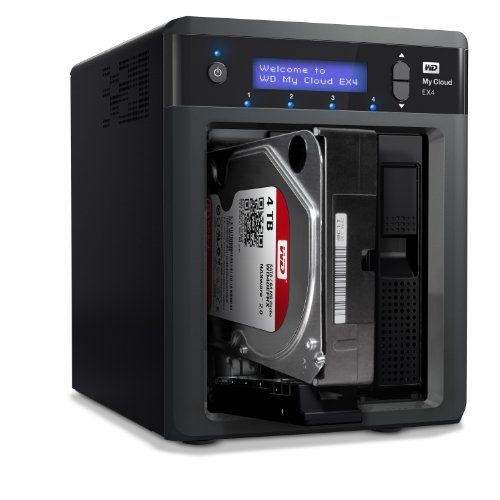
WD 8TB My Cloud Mirror Personal Network Attached Storage - NAS - WDBWVZ0080JWT-NESN


Key features
- •2-Bay, 8TB Personal Cloud Storage includes 2 x 4TB HDD, Compatible with Windows 10, Windows 8, Windows 7, Mac OS X El Capitan, Yosemite, Mavericks or Mountain Lion operating systems.
- •Centralized, whole-home storage and anywhere access with smartphones and tablets
- •Automatically creates a duplicate copy of all your content onto the second drive
- •Automatic backup for all your computers, and photos and videos on your mobile devices
- •Sync content across all your computers for up-to-date access anytime, anywhere
- •Create one place for you, friends and family to collect and share memorable photos and videos
WD 8TB My Cloud Mirror Personal Network Attached Storage - NAS - WDBWVZ0080JWT-NESN
List Price: $1018.49$916.64DEALYou Save: $101.85 (10%)
Free shippingFree Returns – 30 daysFree Order CancellationSecure Payment2–3 Days DeliveryGet It October 25, 2026In Stock (1)No marketing spamNo account requiredFulfilment by FedEx / Amazon / UPS / ShipwirePayPal / Card Buyer Protection
Customer Reviews
Reviews sourced from verified Amazon purchasers3.9
out of 5
Based on 10 reviews
5★
30%
4★
70%
3★
0%
2★
0%
1★
0%
If you can get through the initial frustration, it seems pretty sweet!
Steve Lawson✓ Verified Purchase•August 7, 2023
Man, what an ordeal getting this thing set up, but, now that it is, it seems to be great [I say "seems to be" because this is day one and I won't know for sure until after I, and my techno-phobic wife use it for awhile ;). I'm a quasi-power-user, so my sympathies to the technically challenged!
After opened the box, I followed the Quick Start guide and plugged it in and connected it to a switch I have in the living room [I gave up on WiFi and ran wires everywhere 'cuz we live in an apartment complex and the WiFi airwaves are quite congested [even with the old cable router I turned into a WiFi hotspot for the living room]. The switch serves as a signal conditioner and as an Internet access point for all our networked entertainment appliances -- such as the RoKu 3 and the Wii]. After that, I downloaded and ran the Setup Software from my Firefox browser. That went smoothly and I was able to create user accounts for my wife and I and then create a couple of "Shares" [basically shared directories on the MyCloud], and locate the MyCloud in a Win 7 File Explorer under the Network icon. There I found the shares I created and started transferring files from my PC to the Cloud. I have 100Mb Ethernet "pipes" so the transfer speed wasn't that great. It was estimating "1 day" as the time it would take to upload everything [around 477GB].
It was during the upload that I encountered my first problem. About an hour into it, it stopped with an error message that suggested that the network connection was down. After fiddling with it [link lights glowing all around and the MyCloud led glowing Blue] I started to suspect that the MyCloud had gone to sleep [as is typical of a default linux installation]. So, I reset the MyCloud, and re-started the transfer. Again, after about an hour, the network connection went down. So, I started Googling and learned that many others had suffered the same fate. I finally found a thread that spoke of an upgrade, so I gave it a try. It said to "Open the WD My Cloud Dashboard UI" "“ the What??!? I fumbled into an "Automatic Updater" and let it try "“ after about 15 minutes it failed. Everything seemed to still be working, but after another hour of transfers, it disconnected again!
Then I found my way to the actual Dashboard UI [though it's not actually called that "“ anywhere! "“ you see, there are a number of apps and applications and at the time, being a Newbee, I was confused "“ still am, a little bit!]. The Dashboard showed the firmware version, which was equivalent to the version number that the WD site claimed was the latest. But, because the automatic update had reported failure and because the disconnect problem was still raging, I decided to try a manual update "“ which is what that original article was trying to guide me through [remember my dismay when instructed to Open the Dashboard?] The manual update succeeded and cleared up the periodic disconnects.
Then I tried accessing the MyCloud from my wife's laptop. It wanted a login, so I tried the credentials I had entered when I created her user account. After many frustrating attempts, I discovered that the Password "switch" [on the Dashboard] was in the off position! [so why the heck was it asking for login credentials??!?]. The trick, I soon discovered, was to leave the password box blank! Son of a b.....
So, after many frustrating hours, I was finally able to get the whole thing up and running. The next hurdle will be to see if I can train my wife. She wants to use it for her business where she takes photos with her phone and then uploads them to Facebook and/or to a blogspot page. Sometimes I take the photos, and it was getting to be a mess to keep track of where they were and if where they were was a powered down computer "“ SOL!, hence the cloud "“ always on, single access point, nice! After installing the WD Cloud app on her cellphone, I was able to take some photos [with her phone], and then upload them [from the phone] to the MyCloud and then access them from both her laptop and her desktop "“ sweet!
After opened the box, I followed the Quick Start guide and plugged it in and connected it to a switch I have in the living room [I gave up on WiFi and ran wires everywhere 'cuz we live in an apartment complex and the WiFi airwaves are quite congested [even with the old cable router I turned into a WiFi hotspot for the living room]. The switch serves as a signal conditioner and as an Internet access point for all our networked entertainment appliances -- such as the RoKu 3 and the Wii]. After that, I downloaded and ran the Setup Software from my Firefox browser. That went smoothly and I was able to create user accounts for my wife and I and then create a couple of "Shares" [basically shared directories on the MyCloud], and locate the MyCloud in a Win 7 File Explorer under the Network icon. There I found the shares I created and started transferring files from my PC to the Cloud. I have 100Mb Ethernet "pipes" so the transfer speed wasn't that great. It was estimating "1 day" as the time it would take to upload everything [around 477GB].
It was during the upload that I encountered my first problem. About an hour into it, it stopped with an error message that suggested that the network connection was down. After fiddling with it [link lights glowing all around and the MyCloud led glowing Blue] I started to suspect that the MyCloud had gone to sleep [as is typical of a default linux installation]. So, I reset the MyCloud, and re-started the transfer. Again, after about an hour, the network connection went down. So, I started Googling and learned that many others had suffered the same fate. I finally found a thread that spoke of an upgrade, so I gave it a try. It said to "Open the WD My Cloud Dashboard UI" "“ the What??!? I fumbled into an "Automatic Updater" and let it try "“ after about 15 minutes it failed. Everything seemed to still be working, but after another hour of transfers, it disconnected again!
Then I found my way to the actual Dashboard UI [though it's not actually called that "“ anywhere! "“ you see, there are a number of apps and applications and at the time, being a Newbee, I was confused "“ still am, a little bit!]. The Dashboard showed the firmware version, which was equivalent to the version number that the WD site claimed was the latest. But, because the automatic update had reported failure and because the disconnect problem was still raging, I decided to try a manual update "“ which is what that original article was trying to guide me through [remember my dismay when instructed to Open the Dashboard?] The manual update succeeded and cleared up the periodic disconnects.
Then I tried accessing the MyCloud from my wife's laptop. It wanted a login, so I tried the credentials I had entered when I created her user account. After many frustrating attempts, I discovered that the Password "switch" [on the Dashboard] was in the off position! [so why the heck was it asking for login credentials??!?]. The trick, I soon discovered, was to leave the password box blank! Son of a b.....
So, after many frustrating hours, I was finally able to get the whole thing up and running. The next hurdle will be to see if I can train my wife. She wants to use it for her business where she takes photos with her phone and then uploads them to Facebook and/or to a blogspot page. Sometimes I take the photos, and it was getting to be a mess to keep track of where they were and if where they were was a powered down computer "“ SOL!, hence the cloud "“ always on, single access point, nice! After installing the WD Cloud app on her cellphone, I was able to take some photos [with her phone], and then upload them [from the phone] to the MyCloud and then access them from both her laptop and her desktop "“ sweet!
Get this drive, you will NOT regret it! -Detailed Review-
Chris1683✓ Verified Purchase•July 28, 2023
I was a little hesitant to buy this drive after reading some reviews about users experiencing slow transfer speeds. My main reason for buying this drive was to have mirrored copy of my files in case of failure and also to have access to my files from outside of my home for viewing and streaming. After using it for about 2 weeks I can honestly say it is one of the BEST purchases I have made! I will try to break this review down into several parts to make it easy.
Initial Set Up:
The My Cloud Drive came well packaged and had everything I needed to get started (drive, power cable, ethernet cable, start up guide). It is extremely straight forward and only needed to be plugged in to the wall outlet and then plugged into my home router in one of the unused ethernet ports. From there, you simply go onto the My Cloud website and register the device and that's it. It will show up on any device in your home network (PC or Mac) immediately as a network drive and is available for storage. After initial setup, you will see there are a few shared folders available to copy files to (Public, Shared Pictures, etc).
Transferring of Files:
So I had about 2TB of data to transfer over from my WD My Book to the new My Cloud Drive. I figured that I would try transferring them wirelessly by plugging the My Book into my Mac and then dragging the folders into the My Cloud Network Drive. This proved to be rather slow and also led to a few problems where I would get Error Code 51 - Unexpected Error Occurred on my Mac. The error was solved by going into my Mac settings and checking off "Put Hard Disks To Sleep When Possible." I am not sure why it fixes the issue but it works. So my next option was plugging the My Book USB into the back of the My Cloud. This also proved to be very slow. I found that the ABSOLUTE BEST WAY to transfer files to the new My Cloud Drive was to connect the My Cloud directly to your computer via the Ethernet Cable and then plug your USB Hard Drive into the same computer. From there, I found that using the My Cloud Desktop application was extremely fast transferring files. It took me roughly 9 hours to copy the 2TB of data and it all went without a hitch.
Accessing Your Files:
So with the my Cloud you have several ways to access your files. If you are in your home, you can use any computer connected to your home network to access the My Cloud Drive. If you leave your home and plan on accessing your files, WD makes their own My Cloud app for iPhone and Android. I can confirm it works well on both platforms but my daily use is with my iPhone. From the My Cloud app on the iPhone, you will have access to all of the folders and files you have at home as if you were sitting in front of a computer. You can download, stream and share right from the app.
Streaming Media Content:
This was the deal breaker for me. I have a huge collections of Movies and TV Shows and wanted to be able to stream them when I was away from home. I use Verizon and generally get around 25-30mbps download speeds when on the road. I tested out streaming TV Shows, Movies and Photos and I was pleasantly surprised at how well it works. It takes a few seconds to buffer the content and then it begins to play automatically from within the My Cloud apps built in player. I found that giving the drive a full day to index all of the new files and create thumbnails for the media content made streaming a lot faster.
Setting up Shares and Adding Users:
After setting up your drive, you will be able to access the settings menu of the drive by opening any browser window and typing in the drives local IP Address (usually 192.168.1.XXX) Once there, you can change the settings of the drive (I highly recommend turning off putting the drive to sleep) as this will have to wake your drive each time you need to access it after it goes idle). You will find a section called SHARES. This is where your content is stored and it a folder. You can make folder within these folder if you wish. If you want to make a new main folder, you would add a new share with the + button underneath. Be aware that any "share" has its own settings for whether or not it is public, private, available for streaming, etc. This comes in handy if you want to have a shared folder for Movies that everyone can access but you want to have a private folder for your documents that no one else can access. The beauty of this drive is that even if you make a share that is not publicly available, you can still add or remove users who may access it at any time. The settings user interface is very simple to understand so don't be intimidated if any of this sounds complicated.
Conclusion:
I am extremely pleased with everything about this drive. I would highly recommend this to anyone!
Initial Set Up:
The My Cloud Drive came well packaged and had everything I needed to get started (drive, power cable, ethernet cable, start up guide). It is extremely straight forward and only needed to be plugged in to the wall outlet and then plugged into my home router in one of the unused ethernet ports. From there, you simply go onto the My Cloud website and register the device and that's it. It will show up on any device in your home network (PC or Mac) immediately as a network drive and is available for storage. After initial setup, you will see there are a few shared folders available to copy files to (Public, Shared Pictures, etc).
Transferring of Files:
So I had about 2TB of data to transfer over from my WD My Book to the new My Cloud Drive. I figured that I would try transferring them wirelessly by plugging the My Book into my Mac and then dragging the folders into the My Cloud Network Drive. This proved to be rather slow and also led to a few problems where I would get Error Code 51 - Unexpected Error Occurred on my Mac. The error was solved by going into my Mac settings and checking off "Put Hard Disks To Sleep When Possible." I am not sure why it fixes the issue but it works. So my next option was plugging the My Book USB into the back of the My Cloud. This also proved to be very slow. I found that the ABSOLUTE BEST WAY to transfer files to the new My Cloud Drive was to connect the My Cloud directly to your computer via the Ethernet Cable and then plug your USB Hard Drive into the same computer. From there, I found that using the My Cloud Desktop application was extremely fast transferring files. It took me roughly 9 hours to copy the 2TB of data and it all went without a hitch.
Accessing Your Files:
So with the my Cloud you have several ways to access your files. If you are in your home, you can use any computer connected to your home network to access the My Cloud Drive. If you leave your home and plan on accessing your files, WD makes their own My Cloud app for iPhone and Android. I can confirm it works well on both platforms but my daily use is with my iPhone. From the My Cloud app on the iPhone, you will have access to all of the folders and files you have at home as if you were sitting in front of a computer. You can download, stream and share right from the app.
Streaming Media Content:
This was the deal breaker for me. I have a huge collections of Movies and TV Shows and wanted to be able to stream them when I was away from home. I use Verizon and generally get around 25-30mbps download speeds when on the road. I tested out streaming TV Shows, Movies and Photos and I was pleasantly surprised at how well it works. It takes a few seconds to buffer the content and then it begins to play automatically from within the My Cloud apps built in player. I found that giving the drive a full day to index all of the new files and create thumbnails for the media content made streaming a lot faster.
Setting up Shares and Adding Users:
After setting up your drive, you will be able to access the settings menu of the drive by opening any browser window and typing in the drives local IP Address (usually 192.168.1.XXX) Once there, you can change the settings of the drive (I highly recommend turning off putting the drive to sleep) as this will have to wake your drive each time you need to access it after it goes idle). You will find a section called SHARES. This is where your content is stored and it a folder. You can make folder within these folder if you wish. If you want to make a new main folder, you would add a new share with the + button underneath. Be aware that any "share" has its own settings for whether or not it is public, private, available for streaming, etc. This comes in handy if you want to have a shared folder for Movies that everyone can access but you want to have a private folder for your documents that no one else can access. The beauty of this drive is that even if you make a share that is not publicly available, you can still add or remove users who may access it at any time. The settings user interface is very simple to understand so don't be intimidated if any of this sounds complicated.
Conclusion:
I am extremely pleased with everything about this drive. I would highly recommend this to anyone!
BEWARE OF OLD REVIEWS
Randall S. Donadio✓ Verified Purchase•June 21, 2023
After noticing a lot of negative reviews were due to product purchases quite a long time ago, I decided to pick up the hard drive.
Setup was extremely simple and I was able to update the firmware effortlessly. (Beware, it can hang at 10% and 60%. It is updating just give it time). After doing so, I noticed the speeds were only at 10 mb/s and this is where I think a few poor reviews come in as I used my tech knowledge, that many might not have (especially since the HD simplicity is geared toward the average user) to figure out the problem . If you have VERIZON FIOS and signed up more than three months ago, your router does not have GIGABIT ETHERNET. The back of the My Cloud's Ethernet was lit yellow due to the router not splitting the Ethernet at max capacity. Fios' new routers (now given automatically to new customers who sign up as of three months ago), is capable of the desired Ethernet speed which is 1 Gigabit. 1 Gigabit is essentially 1000 megabits, not to be confused with megabytes, which 1000 megabits actually equals 100 megabytes. So having a 1 Gigabit enabled router allowed me to go from 10 megabytes a second to 100 megabytes a second (1 gigabit).
Sounds confusing, I know, but it really comes down to it being 10x faster on a proper router (or Ethernet Switch). If you do not want to upgrade your router, then you can get an Ethernet Switch on here for cheap that is gigabit enabled. Honestly, gigabit internet and N band routers have been the norm for quite some time now. Fios shouldn't have been giving that old G band router and should have switched their policy a long time ago. However, their outlook is that as long as it delivers the internet hard wired at the sold speed, then wireless is just a bonus and not guaranteed.
Nevertheless, if you are on a G band wireless router and actually use WiFi, I definitely recommend updating your router to a good dual band N router such as the ASUS RT-N66U. Most devices, even the first iPads have N band receivers and updating, which I had planned to do before getting the hard drive, has become one of the most noticeable upgrades I've made to my home network. The wireless connection speeds N delivers far surpasses G band and dual band makes it all the more better.
Now that I have the My Cloud transferring at the max read/write speed, things are great. Also, due to my new router, pulling movies and other videos from my drive to my devices or TV leads to absolutely no buffering. Seriously, a 4GB movie started playing and the entire thing was buffer downloaded within seconds. Allowing me to rewind and fast forward like it was my DVR. Amazing stuff.
So all-in-all, due to the fact that unless you have an SSD, 1 gigabit Ethernet is always going to be faster than the read/write speed of your hard drive. So having that hard drive as a network drive makes it extremely convenient. Being competitively priced with regular externals, containing an easy to use application for access anywhere on the planet, a quick and easy setup with a quiet operation makes this hard drive amazing in my eyes.
There are two things I do not like though; the fact that it doesn't come in black and the fact that WD has overseas support. (warning rant incoming). Overseas support is ruining this country and stripping jobs from Americans. The free trade agreement is supposed to help suppress immigration by creating jobs overseas. However, immigration has not slowed down. Immigration and the fact that jobs are being created overseas and not in America is causing many Americans to not have the opportunities they should. All this free trade garbage is just so corporations such as WD can make more of a profit. Prices remain competitive due to competition so the only people benefiting from this are the corporations themselves. We as Americans lose out so big corporations can profit hand over fist. In my eyes, companies like this are destroying the country for money and it should be illegal. This is why I lack respect for companies who do this. There are plenty of companies such as Microsoft and Apple that are extremely successful while limiting their overseas operations. Calling their support results in English speaking Americans helping Americans. That is how it should be. While many of these overseas representatives may speak English, they do not understand it fluently and telephone connections are not stable making it even harder to understand them. They also seemed to be looking up solutions as I asked questions. You are suffering so someone else can make more money. If this inspires you, please do what you can to speak up about these sorts of issues.
Setup was extremely simple and I was able to update the firmware effortlessly. (Beware, it can hang at 10% and 60%. It is updating just give it time). After doing so, I noticed the speeds were only at 10 mb/s and this is where I think a few poor reviews come in as I used my tech knowledge, that many might not have (especially since the HD simplicity is geared toward the average user) to figure out the problem . If you have VERIZON FIOS and signed up more than three months ago, your router does not have GIGABIT ETHERNET. The back of the My Cloud's Ethernet was lit yellow due to the router not splitting the Ethernet at max capacity. Fios' new routers (now given automatically to new customers who sign up as of three months ago), is capable of the desired Ethernet speed which is 1 Gigabit. 1 Gigabit is essentially 1000 megabits, not to be confused with megabytes, which 1000 megabits actually equals 100 megabytes. So having a 1 Gigabit enabled router allowed me to go from 10 megabytes a second to 100 megabytes a second (1 gigabit).
Sounds confusing, I know, but it really comes down to it being 10x faster on a proper router (or Ethernet Switch). If you do not want to upgrade your router, then you can get an Ethernet Switch on here for cheap that is gigabit enabled. Honestly, gigabit internet and N band routers have been the norm for quite some time now. Fios shouldn't have been giving that old G band router and should have switched their policy a long time ago. However, their outlook is that as long as it delivers the internet hard wired at the sold speed, then wireless is just a bonus and not guaranteed.
Nevertheless, if you are on a G band wireless router and actually use WiFi, I definitely recommend updating your router to a good dual band N router such as the ASUS RT-N66U. Most devices, even the first iPads have N band receivers and updating, which I had planned to do before getting the hard drive, has become one of the most noticeable upgrades I've made to my home network. The wireless connection speeds N delivers far surpasses G band and dual band makes it all the more better.
Now that I have the My Cloud transferring at the max read/write speed, things are great. Also, due to my new router, pulling movies and other videos from my drive to my devices or TV leads to absolutely no buffering. Seriously, a 4GB movie started playing and the entire thing was buffer downloaded within seconds. Allowing me to rewind and fast forward like it was my DVR. Amazing stuff.
So all-in-all, due to the fact that unless you have an SSD, 1 gigabit Ethernet is always going to be faster than the read/write speed of your hard drive. So having that hard drive as a network drive makes it extremely convenient. Being competitively priced with regular externals, containing an easy to use application for access anywhere on the planet, a quick and easy setup with a quiet operation makes this hard drive amazing in my eyes.
There are two things I do not like though; the fact that it doesn't come in black and the fact that WD has overseas support. (warning rant incoming). Overseas support is ruining this country and stripping jobs from Americans. The free trade agreement is supposed to help suppress immigration by creating jobs overseas. However, immigration has not slowed down. Immigration and the fact that jobs are being created overseas and not in America is causing many Americans to not have the opportunities they should. All this free trade garbage is just so corporations such as WD can make more of a profit. Prices remain competitive due to competition so the only people benefiting from this are the corporations themselves. We as Americans lose out so big corporations can profit hand over fist. In my eyes, companies like this are destroying the country for money and it should be illegal. This is why I lack respect for companies who do this. There are plenty of companies such as Microsoft and Apple that are extremely successful while limiting their overseas operations. Calling their support results in English speaking Americans helping Americans. That is how it should be. While many of these overseas representatives may speak English, they do not understand it fluently and telephone connections are not stable making it even harder to understand them. They also seemed to be looking up solutions as I asked questions. You are suffering so someone else can make more money. If this inspires you, please do what you can to speak up about these sorts of issues.
Very difficult to get it to work the way I want
Giraffe✓ Verified Purchase•June 18, 2023
I am updating this review and raising rating because I finally figured out how to get it to work the way I want. I still think the product is not plug-and-play, but I doubt any network device like this is plug-and-play. I do not have any experience with other brands of similar devices, but I doubt the setup is any more user-friendly than this one. The people on the help line are truly helpful. I just wish I did need to use the help line at all - I am a guy after all and don't like asking for directions.
Some of the difficulty I had with set-up is due to the large volume of files I am backing up and using. The default settings on the device did not set up the folders/shares the way I wanted to use the device. Any changes to the settings/folders(shares) on the device resulted in a very long wait to determine what happened as large volumes of files were moved around. This was time consuming and not like the demonstration videos in which 1 file is moved around. I did not lose any files. The device filled up with duplicate files in various shares/folders as I changed the settings and I had to figure out how to delete the files that went to the wrong location because the device filled up with files. Helpful things I discovered were the following:
1) You can delete files/shares(folders) in the WD My Cloud app on your computer by clicking the share/folder you do not want and then clicking the file icon with the "-" sign on it. I had to remove most of the files from the initial setup and start over. This function was very helpful.
2) To back up the files and users I wanted in the WD Smartware program, I needed to change the backup setting to the back up by files setting.
3) I stopped using the WD Sync application as I was not trying to sync files between different computers. Perhaps this is why the application was frustrating to me.
4) I am not using the WD Photo app on my phone. I turned it on briefly and it immediately started downloading photos to the device, but I turned it off because I intended to sync my photos with my computer a different way.
If the device keeps working the way I have it set up now, I think I will be happy with this purchase. I just wish the learning curve for me was not as challenging. Before I purchased I had read the reviews and thought that I was technically smarter than the other people who had challenges with set up. I guess I was wrong. Generally I do well with figuring out how to use software and devices, but I do not have any knowledge about networking and I think networking knowledge would have been helpful to me during the setup. I probably spent about 20 hours of time trying to figure this device out and get it to do what I want it to do. It might have been faster for me just to call the support line. My experience with support was positive. However, I like to try to figure things out myself so that I understand them and can make adjustments in the future.
After watching many videos on how to get the software to work I discovered the following that helped me.
Original review:
I am frustrated by this product. I was looking for a simple way to back up my Windows 7 PC that has multiple users and to stream home videos to my TV. I have never set up a home network before and after this experience I may never try again. The setup program could not locate the MyCloud Mirror on the network so I spent 1hour on phone with support - eventually it did. The next day the drive kept disappearing and reappearing - I had to change some setting to get a fixed address to stop the problem. Now for the past 2 weeks I have been unsuccessfully trying to figure out this system and the poorly named programs that go along with it. The manuals do not answer my questions - probably because everyone's situation is too unique.
The software is somewhat simple but not intuitive. There is WDSync which is supposed to sync files between different devices. WDCloud which is supposed to let you use files on the device by logging in over the Internet. WDSmartware which is supposed to backup your computer.
After 2weeks and about 20 hours of time here is how this device works for me:
1) streaming home movies to TV is easy. You just copy them to the public "shares" which is a folder on the device. My Sony TV found it and can stream movies if they are saved in the correct format.
2) files placed on the device can be seen from different computers and my phone both over local internet and remotely. There does not seem to be a way to limit access to files between different devices only to the local internet (it is either only between the single device and the MyCloud Mirror or all devices over local and remote internet access - there is no setting for all devices over local internet only)
3) I cannot get the poorly named WD Smartware (computer backup software) to do what I want. It backs up parts of my data, but not the other users on my PC. It does not seem to back up any of the files in the My Photos and My Videos folders on my PC. This was one of the primary things I had wanted. The MyCloud app has a statement indicating that it prevents access to your backup from remote devices, but I can access the files that are backed up remotely so I do not think this security is working. I do not have confidence that all of the files are backed up because I cannot locate all of them in the backup folder. This could be my issue.
4) For some reason the photos and videos go the WD Sync software folder and not the Smartware backup folder). I want them backed up. This program is supposed to keep the files synced between devices. So far I do not think it works. I have removed photo files from my PC local hard drive but I can still see the deleted files on the MyCloud phone app. I deleted files from the phone app, but still see them on my PC. Something does not seem to be working correctly. Because of this I do not have confidence that 6 months from now I will have an accurate backup of my photos and videos if my computer hard drive fails. Perhaps I am not using the program correctly but go try to figure that out from the manual. Good luck!
My conclusions are that this device works fine for streaming video to the TV and for placing files on a network for access from different devices either over the local internet or remotely. I have accessed files with iPhone, Mac and Windows 7 PC. Unfortunately I do not have confidence that this device will work to reliably backup all users on my computer and I do not have confidence that this device will reliably back up my photos and videos without me having to manually sync them which would be a real pain. As a result I am looking into an easier way to backup all users on my computer.
Some of the difficulty I had with set-up is due to the large volume of files I am backing up and using. The default settings on the device did not set up the folders/shares the way I wanted to use the device. Any changes to the settings/folders(shares) on the device resulted in a very long wait to determine what happened as large volumes of files were moved around. This was time consuming and not like the demonstration videos in which 1 file is moved around. I did not lose any files. The device filled up with duplicate files in various shares/folders as I changed the settings and I had to figure out how to delete the files that went to the wrong location because the device filled up with files. Helpful things I discovered were the following:
1) You can delete files/shares(folders) in the WD My Cloud app on your computer by clicking the share/folder you do not want and then clicking the file icon with the "-" sign on it. I had to remove most of the files from the initial setup and start over. This function was very helpful.
2) To back up the files and users I wanted in the WD Smartware program, I needed to change the backup setting to the back up by files setting.
3) I stopped using the WD Sync application as I was not trying to sync files between different computers. Perhaps this is why the application was frustrating to me.
4) I am not using the WD Photo app on my phone. I turned it on briefly and it immediately started downloading photos to the device, but I turned it off because I intended to sync my photos with my computer a different way.
If the device keeps working the way I have it set up now, I think I will be happy with this purchase. I just wish the learning curve for me was not as challenging. Before I purchased I had read the reviews and thought that I was technically smarter than the other people who had challenges with set up. I guess I was wrong. Generally I do well with figuring out how to use software and devices, but I do not have any knowledge about networking and I think networking knowledge would have been helpful to me during the setup. I probably spent about 20 hours of time trying to figure this device out and get it to do what I want it to do. It might have been faster for me just to call the support line. My experience with support was positive. However, I like to try to figure things out myself so that I understand them and can make adjustments in the future.
After watching many videos on how to get the software to work I discovered the following that helped me.
Original review:
I am frustrated by this product. I was looking for a simple way to back up my Windows 7 PC that has multiple users and to stream home videos to my TV. I have never set up a home network before and after this experience I may never try again. The setup program could not locate the MyCloud Mirror on the network so I spent 1hour on phone with support - eventually it did. The next day the drive kept disappearing and reappearing - I had to change some setting to get a fixed address to stop the problem. Now for the past 2 weeks I have been unsuccessfully trying to figure out this system and the poorly named programs that go along with it. The manuals do not answer my questions - probably because everyone's situation is too unique.
The software is somewhat simple but not intuitive. There is WDSync which is supposed to sync files between different devices. WDCloud which is supposed to let you use files on the device by logging in over the Internet. WDSmartware which is supposed to backup your computer.
After 2weeks and about 20 hours of time here is how this device works for me:
1) streaming home movies to TV is easy. You just copy them to the public "shares" which is a folder on the device. My Sony TV found it and can stream movies if they are saved in the correct format.
2) files placed on the device can be seen from different computers and my phone both over local internet and remotely. There does not seem to be a way to limit access to files between different devices only to the local internet (it is either only between the single device and the MyCloud Mirror or all devices over local and remote internet access - there is no setting for all devices over local internet only)
3) I cannot get the poorly named WD Smartware (computer backup software) to do what I want. It backs up parts of my data, but not the other users on my PC. It does not seem to back up any of the files in the My Photos and My Videos folders on my PC. This was one of the primary things I had wanted. The MyCloud app has a statement indicating that it prevents access to your backup from remote devices, but I can access the files that are backed up remotely so I do not think this security is working. I do not have confidence that all of the files are backed up because I cannot locate all of them in the backup folder. This could be my issue.
4) For some reason the photos and videos go the WD Sync software folder and not the Smartware backup folder). I want them backed up. This program is supposed to keep the files synced between devices. So far I do not think it works. I have removed photo files from my PC local hard drive but I can still see the deleted files on the MyCloud phone app. I deleted files from the phone app, but still see them on my PC. Something does not seem to be working correctly. Because of this I do not have confidence that 6 months from now I will have an accurate backup of my photos and videos if my computer hard drive fails. Perhaps I am not using the program correctly but go try to figure that out from the manual. Good luck!
My conclusions are that this device works fine for streaming video to the TV and for placing files on a network for access from different devices either over the local internet or remotely. I have accessed files with iPhone, Mac and Windows 7 PC. Unfortunately I do not have confidence that this device will work to reliably backup all users on my computer and I do not have confidence that this device will reliably back up my photos and videos without me having to manually sync them which would be a real pain. As a result I am looking into an easier way to backup all users on my computer.
Excellent network backup drive, but be careful during setup
Gregory M. Stelmack✓ Verified Purchase•June 18, 2023
Update 1/22/2014: A new firmware was just released that claims to have fixes for some of the setup issues I noted below, especially for the status updates during a firmware flash from IE. I haven't tested that part of it yet, but I will also note that I have had zero issues with the drive in the 3 months since my initial setup.
I bought this primarily as a backup drive for my home network. I have 3 PCs, with various photos and documents on each of the 3, and until now had been backing each computer up to the others. This was causing disk space issues on the oldest PC and was difficult to maintain. I didn't feel like I needed the power of a full NAS that would run $400+ including the drives, and a USB drive was just too slow. This seemed the perfect combination of price and speed, so I'm giving it a shot.
Again, I want to emphasize that for me this is a backup drive. I don't care about media sharing / streaming, I do that from the PCs this will be backing up, and if I had this as a streamer I'd need another one to back this one up to (I don't want to lose the photos, etc). So I have not used the DLNA, iTunes, or other media streaming functionality, and cannot comment on them.
I'm going to go backwards with this review. Once I got it setup, it has worked well as a backup drive. I had been using Backup4All as my backup software, and am continuing to use that software because it makes copies of the files, meaning you don't need the software installed to restore a backup or file, you can just access it off the drive. I created a share for each PC on the My Cloud, and changed the backup job to use it, and that has worked fine for about a week now with no issues. The backup is fast, I have a wired gigabit Ethernet network, and this takes full advantage. My initial backup from the main PC with all the photos took 1 hour 39 minutes for 144 Gigabytes of data, a very reasonable speed. Incremental backups since then are taking the seconds I would expect. The backup software I use verifies the files it writes, and that took just about 1 hour on that same data, and I have yet to hit any errors. All the files are there and easily accessible, so it is very successful at its primary job.
Setup was a bit trickier. Plugging it in and connecting it to my network had it appear very quickly from my computer and was easily accessible. I did not need much of the software that comes with it, but I did install the WD Quick View software to get easy status information and access to the common functions on its dashboard (shut down, map, etc). Note that all of these are shortcuts to the dashboard app on the drive itself, which works as a web page. This web interface was I think my biggest source of issues getting the drive set up as I explored it.
It was easy easy to create Shares on the drive, and I could map them, but the reality is you don't REALLY need the mapping unless you want to use just a drive letter to access it. With my Windows 7 and 8.1 PCs, it looks just like another PC on the network, so you just create a share and use a standard Windows path to access it (e.g. \\WDMYCLOUDNAME\ShareName).
I did notice on the main dashboard that my firmware was out-of-date, so I told it to update the firmware. This was the problematic function: the web dashboard gave me an error, but based on later examination I think it actually installed successfully. But thanks to the error and the drive being inaccessible, I had to reboot it. I don't think the firmware took, as the drive kept disappearing after that. Trying again, it just sat on a spinning status update dialog, while I could see the drive actually reboot. The web page doesn't seem to update very well when firmware is being installed on it, or when you ask it to reboot the drive. At this point I had a drive that would disappear from my network after just a few hours, and it was restarting occasionally.
I ended up doing a Quick Restore back to the factory settings (not the full one that fully reformats the drive), then downloading the firmware and telling it to update from the downloaded firmware, then closed the dashboard and waited for the drive to reboot before accessing it again. I then recreated the shares I needed and got the backups set up.
Since then it has worked very well. So be very careful when updating firmware from the dashboard, watch the drive itself rather than the dashboard, and setup will go much smoother. I have not had to install any of Western Digital's other software for the drive, Windows finds and accesses it just fine as if it were another computer on the network, and the backups are running great.
Very happy, and I think it would be 5 stars if the dashboard worked better at keeping you informed of the progress of firmware updates or any other operation that reboots the My Cloud, because it's easy to mess it up. That was my only glitch. We'll see if it stays stable over the coming months.
I bought this primarily as a backup drive for my home network. I have 3 PCs, with various photos and documents on each of the 3, and until now had been backing each computer up to the others. This was causing disk space issues on the oldest PC and was difficult to maintain. I didn't feel like I needed the power of a full NAS that would run $400+ including the drives, and a USB drive was just too slow. This seemed the perfect combination of price and speed, so I'm giving it a shot.
Again, I want to emphasize that for me this is a backup drive. I don't care about media sharing / streaming, I do that from the PCs this will be backing up, and if I had this as a streamer I'd need another one to back this one up to (I don't want to lose the photos, etc). So I have not used the DLNA, iTunes, or other media streaming functionality, and cannot comment on them.
I'm going to go backwards with this review. Once I got it setup, it has worked well as a backup drive. I had been using Backup4All as my backup software, and am continuing to use that software because it makes copies of the files, meaning you don't need the software installed to restore a backup or file, you can just access it off the drive. I created a share for each PC on the My Cloud, and changed the backup job to use it, and that has worked fine for about a week now with no issues. The backup is fast, I have a wired gigabit Ethernet network, and this takes full advantage. My initial backup from the main PC with all the photos took 1 hour 39 minutes for 144 Gigabytes of data, a very reasonable speed. Incremental backups since then are taking the seconds I would expect. The backup software I use verifies the files it writes, and that took just about 1 hour on that same data, and I have yet to hit any errors. All the files are there and easily accessible, so it is very successful at its primary job.
Setup was a bit trickier. Plugging it in and connecting it to my network had it appear very quickly from my computer and was easily accessible. I did not need much of the software that comes with it, but I did install the WD Quick View software to get easy status information and access to the common functions on its dashboard (shut down, map, etc). Note that all of these are shortcuts to the dashboard app on the drive itself, which works as a web page. This web interface was I think my biggest source of issues getting the drive set up as I explored it.
It was easy easy to create Shares on the drive, and I could map them, but the reality is you don't REALLY need the mapping unless you want to use just a drive letter to access it. With my Windows 7 and 8.1 PCs, it looks just like another PC on the network, so you just create a share and use a standard Windows path to access it (e.g. \\WDMYCLOUDNAME\ShareName).
I did notice on the main dashboard that my firmware was out-of-date, so I told it to update the firmware. This was the problematic function: the web dashboard gave me an error, but based on later examination I think it actually installed successfully. But thanks to the error and the drive being inaccessible, I had to reboot it. I don't think the firmware took, as the drive kept disappearing after that. Trying again, it just sat on a spinning status update dialog, while I could see the drive actually reboot. The web page doesn't seem to update very well when firmware is being installed on it, or when you ask it to reboot the drive. At this point I had a drive that would disappear from my network after just a few hours, and it was restarting occasionally.
I ended up doing a Quick Restore back to the factory settings (not the full one that fully reformats the drive), then downloading the firmware and telling it to update from the downloaded firmware, then closed the dashboard and waited for the drive to reboot before accessing it again. I then recreated the shares I needed and got the backups set up.
Since then it has worked very well. So be very careful when updating firmware from the dashboard, watch the drive itself rather than the dashboard, and setup will go much smoother. I have not had to install any of Western Digital's other software for the drive, Windows finds and accesses it just fine as if it were another computer on the network, and the backups are running great.
Very happy, and I think it would be 5 stars if the dashboard worked better at keeping you informed of the progress of firmware updates or any other operation that reboots the My Cloud, because it's easy to mess it up. That was my only glitch. We'll see if it stays stable over the coming months.
Page 1 of 2