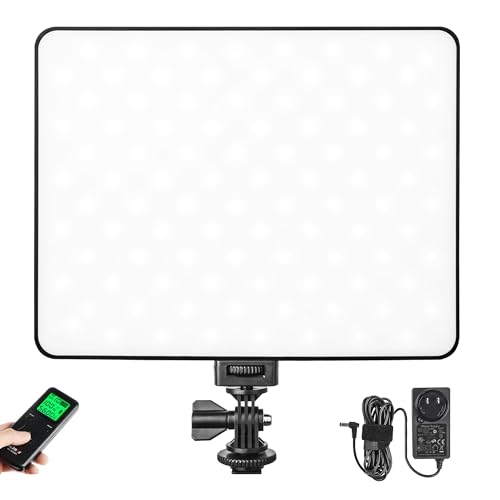
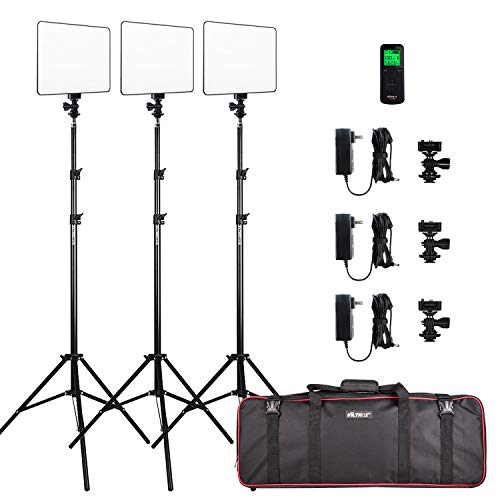
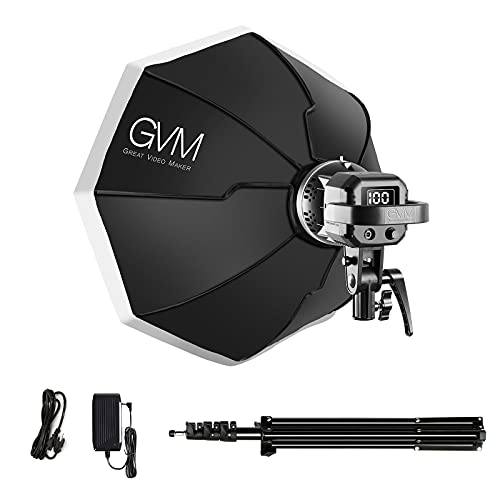
GVM 2 Pack LED Video Lighting Kits with APP Control, Bi-Color Variable 2300K~6800K with Digital Display Brightness of 10~100% for Video Photography, CRI97+ TLCI97 Led Video Light Panel +Barndoor


Key features
- •LED Video Lighting kit with APP Control: 2018 upgrade video lighting kit, APP control model, color temperature from 2300K-6800K, the new addition of digital display screen, 10%-100% high brightness.
- •High quality of 480 Leds: This video light is adopted the American chip, and has a life more than 70,000 hours. it's designed with aerospace aluminum alloy casing to effectively help the led light to better dissipate heat,
- •Guarantee: Come with a hard and thick handbag for this led video light, the handbag contains: 2 * led video light, 2 * light stand, 2 * power adapter, 2 * barn door, 2 * diffuser. GVM video light has 180-days warranty, committed to reply the message within 24 hours, and US local company.
- •AC / DC Power Options:led light panel can use two modes to power, you can use AC adapter and Sony F970/750 battery(not included) to supply power.
- •Professional Bi-color Led Light:The studio light use professional and demanding led light beads, CRI 97+ and TLCI 97+, to show the true and natural color for YouTube Studio Photography Video Shooting.
GVM 2 Pack LED Video Lighting Kits with APP Control, Bi-Color Variable 2300K~6800K with Digital Display Brightness of 10~100% for Video Photography, CRI97+ TLCI97 Led Video Light Panel +Barndoor
List Price: $252.98$227.68DEALYou Save: $25.30 (10%)
Free shippingFree Returns – 30 daysFree Order CancellationSecure Payment2–3 Days DeliveryGet It October 26, 2026In Stock (2)No marketing spamNo account requiredFulfilment by FedEx / Amazon / UPS / ShipwirePayPal / Card Buyer Protection
Customer Reviews
Reviews sourced from verified Amazon purchasers4.6
out of 5
Based on 10 reviews
5★
80%
4★
20%
3★
0%
2★
0%
1★
0%
I now have 7 of these
Charley✓ Verified Purchase•November 15, 2023
I bought 3 of these lights two years ago, but recently bought two more packages of two of these same LED light panels. One pair arrived with a problem controlling the orange LEDs of one of the panels, but a hone call to the GVM help number got a replacement in the mail quickly with only a request for a cell phone video so they could see the problem. All of these panels can be separately controlled via a WIFI App, downloadable from the Play Store Free. They will all work together well right out of the box, but only manually. You need to use the App if you want to control them remotely. Most of the time, my light panels are mounted to a ceiling support frame in my studio, so out of reach unless by step ladder.
The latest version of the App works much better than the 2 year old version, but it still has a few small quirks that could use refining, and instructions for using the App are sadly lacking detail. So from my experience, here is some added info on how to control these lights remotely via the App. The App is readily available via the Play Store FREE. Download it into your cell phone and then using the instructions below you should be able to set up each of your light panels to work remotely via the cell phone App.
When using the App, the cell phone must be switched from it's Internet WIFI connection to the desired LED panel to gain control. With multiple lights, each light must be re-named so that each can be addressed separately. Out of the box, each has the same GVM-LED name. You do this renaming via the App maintenance screen on the cell phone (upper left button). They will not all work remotely with just one WIFI name. The renaming is done with the App and is easy, but only the light being renamed can be powered on during this renaming.. "GVM-ADMIN" is the password. It's in the paper instructions as well. I used GVM-LED1, GVM-LED2, etc for my renaming scheme.
When you have finished renaming each light, each time that you hit the "connect" button on the main App screen (upper right) you will be taken to a list of WIFI addresses. The first on the list is likely your internet connection, so you need to remember this to switch back to when finished using the GVM light control App. The App screen (upper right button) then lets you connect to the WIFI screen and you select the desired LED panel (GVM-LED) and then rename it (GVM-LED1, Etc.) to be able to select and control from this WIFI list. After renaming select the one that you want to control and then close this screen to be taken back to the App screen. Look at the top of the screen and wait for the "Connected" indication. You should then be able to turn the selected LED panel on and off, and change both the color and brightness. (sometimes requires several on, off cycles to get working). Repeat the renaming process for each LED panel. Also, remember to change the WIFI connection back to your Internet WIFI address before exiting the App, or your cell phone won't receive the internet until you do.
The "Channel" selection on the left of the App screen does nothing, at least nothing that I can find. When connected, the App lets you quickly adjust brightness or light frequency of each panel and turn the panel on and off. When first connecting power, if the LED power switch is on, the panel will turn on as the power is connected (it defaults to manual control). When it receives the WIFI signal for it's name it then follows the WIFI signal .
These are not very bright for video needs unless many of them are used, but they only draw about 30 watts each. Their light is quite soft, so modifiers (soft boxes) aren't really needed. The included barn doors are at times handy. There is a thin plastic diffuser panel that can be slid out and a colored panel added as a replacement. I wish the diffuser panel gap was wide enough for both diffuser and colored plastic, but it is not. I have considered adding washers to space the frame out to make the slot wider, but haven't done so, yet. Using all 7 GVM-LED 480 LS panels gets me enough light to light a banquet table area with 2 subjects sitting at it, within my studio. The lights are all attached to a ceiling mounted lighting grid, so no stands are on the floor. Power comes from above as well. At a video recording speed of 60 fps and 400 ISO I have enough even and relatively shadow free light to make good videos in this table area at F4.5-5 level , but all of the LED Panels need to be at 100% and close to 5600 K output for this. My attempts to use these LED panels outdoors has proven them not near bright enough, unless used in very shady areas. Still photography of children and pets that don't handle flash photography well can also be done with these lights, but again, these lights are not near bright enough in many desired shooting setups, unless using many LED panels or very close positioning. The Inverse Square Law applies to these lights too.
The latest version of the App works much better than the 2 year old version, but it still has a few small quirks that could use refining, and instructions for using the App are sadly lacking detail. So from my experience, here is some added info on how to control these lights remotely via the App. The App is readily available via the Play Store FREE. Download it into your cell phone and then using the instructions below you should be able to set up each of your light panels to work remotely via the cell phone App.
When using the App, the cell phone must be switched from it's Internet WIFI connection to the desired LED panel to gain control. With multiple lights, each light must be re-named so that each can be addressed separately. Out of the box, each has the same GVM-LED name. You do this renaming via the App maintenance screen on the cell phone (upper left button). They will not all work remotely with just one WIFI name. The renaming is done with the App and is easy, but only the light being renamed can be powered on during this renaming.. "GVM-ADMIN" is the password. It's in the paper instructions as well. I used GVM-LED1, GVM-LED2, etc for my renaming scheme.
When you have finished renaming each light, each time that you hit the "connect" button on the main App screen (upper right) you will be taken to a list of WIFI addresses. The first on the list is likely your internet connection, so you need to remember this to switch back to when finished using the GVM light control App. The App screen (upper right button) then lets you connect to the WIFI screen and you select the desired LED panel (GVM-LED) and then rename it (GVM-LED1, Etc.) to be able to select and control from this WIFI list. After renaming select the one that you want to control and then close this screen to be taken back to the App screen. Look at the top of the screen and wait for the "Connected" indication. You should then be able to turn the selected LED panel on and off, and change both the color and brightness. (sometimes requires several on, off cycles to get working). Repeat the renaming process for each LED panel. Also, remember to change the WIFI connection back to your Internet WIFI address before exiting the App, or your cell phone won't receive the internet until you do.
The "Channel" selection on the left of the App screen does nothing, at least nothing that I can find. When connected, the App lets you quickly adjust brightness or light frequency of each panel and turn the panel on and off. When first connecting power, if the LED power switch is on, the panel will turn on as the power is connected (it defaults to manual control). When it receives the WIFI signal for it's name it then follows the WIFI signal .
These are not very bright for video needs unless many of them are used, but they only draw about 30 watts each. Their light is quite soft, so modifiers (soft boxes) aren't really needed. The included barn doors are at times handy. There is a thin plastic diffuser panel that can be slid out and a colored panel added as a replacement. I wish the diffuser panel gap was wide enough for both diffuser and colored plastic, but it is not. I have considered adding washers to space the frame out to make the slot wider, but haven't done so, yet. Using all 7 GVM-LED 480 LS panels gets me enough light to light a banquet table area with 2 subjects sitting at it, within my studio. The lights are all attached to a ceiling mounted lighting grid, so no stands are on the floor. Power comes from above as well. At a video recording speed of 60 fps and 400 ISO I have enough even and relatively shadow free light to make good videos in this table area at F4.5-5 level , but all of the LED Panels need to be at 100% and close to 5600 K output for this. My attempts to use these LED panels outdoors has proven them not near bright enough, unless used in very shady areas. Still photography of children and pets that don't handle flash photography well can also be done with these lights, but again, these lights are not near bright enough in many desired shooting setups, unless using many LED panels or very close positioning. The Inverse Square Law applies to these lights too.
Very good value…
dale green✓ Verified Purchase•November 6, 2023
I have only owned it for 3 days, I did a test run with only one light for a Facebook livestream!, it was soo bright and beautiful. I would give it 5 stars, but the Wi-Fi connection did not stay on so that I could use the app. It kept dropping the connection. I have the latest iPhone with the latest updates etc. so I had to get up And adjust- tho that's not terrible. Fix this please
Perfect for the Content Creator
Kenneth "KB" Benson ✓ Verified Purchase•October 22, 2023
I purchased this set of lights as an upgrade to my old YouTube setup and OMG was it the perfect investment! These lights took my youtube production to the next level and I love it! Give them a try, you won't regard it!
KBTHABANDHEAD
KBTHABANDHEAD
Very Impressed....exceeded expecttons. Wonderful
Greg Davis✓ Verified Purchase•October 20, 2023
First of all, the travel case is impressive. The control units are easy to use, remote-controllable, built-in barn doors. Just excellent for my needs doing interviews and still photography as well. The color temp is like many LED lights using a combination of white and amber LEDs in combination to achieve the temps most of us use. Everything is high quality. Love them!
Recommend also getting C stands
James H.✓ Verified Purchase•September 19, 2023
I like these lights.
The solution for the complaints about the frame interring with the barn door and limiting the ability to aim the lights downward is to mount these lights on C-Stands.
The app is not totally necessary as the power and color temperature read outs on the back of the lights can help you dial in brightness as well as white balance on your camera.
These seem to eat up battery life (batteries aren't included) pretty quickly on full power so bring your power supplies or extra batteries if you are going on location.
The solution for the complaints about the frame interring with the barn door and limiting the ability to aim the lights downward is to mount these lights on C-Stands.
The app is not totally necessary as the power and color temperature read outs on the back of the lights can help you dial in brightness as well as white balance on your camera.
These seem to eat up battery life (batteries aren't included) pretty quickly on full power so bring your power supplies or extra batteries if you are going on location.
Page 1 of 2