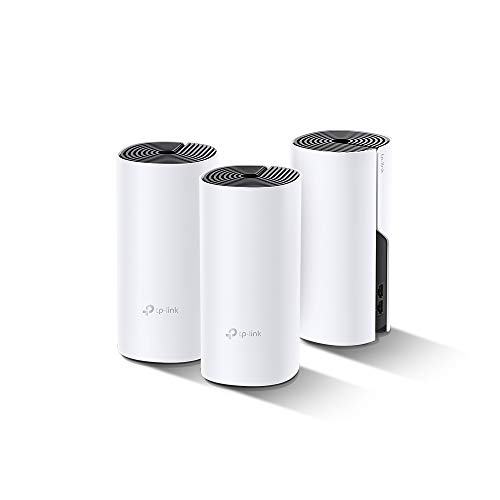
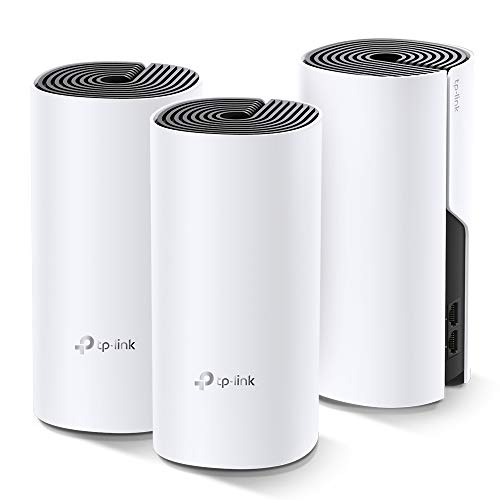
TP-Link Deco Whole Home Mesh WiFi System – Up to 5,500 Sq.ft. Coverage, WiFi Router/Extender Replacement, Gigabit Ports, Seamless Roaming, Parental Controls, Works with Alexa(Deco M4 3-Pack)




Key features
- •JD Power Award ---Highest in customer satisfaction for wireless routers 2017 and 2019
- •Better Coverage than traditional WiFi routers: Deco M4 three units work seamlessly to create a WiFi mesh network that can cover homes up to 5,500 sq. ft. No Dead Zone anymore
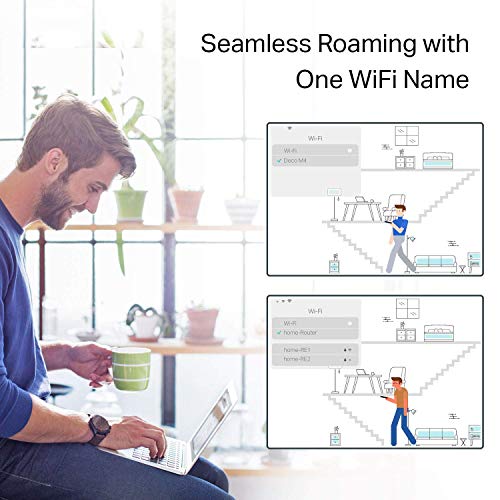
- •Seamless and Stable WiFi Mesh: Rather than wifi range extender that need multiple network names and passwords, Deco M4 allows you to enjoy seamless roaming throughout the house, with a single network name and password
- •Incredibly fast AC1200 speeds makes the deco capable of providing connectivity for up to 100 devices
- •With advanced Deco Mesh Technology, units work together to form a unified network with a single network name. Devices automatically switch between Decos as you move through your home for the fastest possible speeds
TP-Link Deco Whole Home Mesh WiFi System – Up to 5,500 Sq.ft. Coverage, WiFi Router/Extender Replacement, Gigabit Ports, Seamless Roaming, Parental Controls, Works with Alexa(Deco M4 3-Pack)
List Price: $141.11$127.00DEALYou Save: $14.11 (10%)
Free shippingFree Returns – 30 daysFree Order CancellationSecure Payment2–3 Days DeliveryGet It October 26, 2026In Stock (25)No marketing spamNo account requiredFulfilment by FedEx / Amazon / UPS / ShipwirePayPal / Card Buyer Protection
Customer Reviews
Reviews sourced from verified Amazon purchasers4.5
out of 5
Based on 10 reviews
5★
70%
4★
30%
3★
0%
2★
0%
1★
0%
Great coverage, but a few devices had issues connecting
Bob P.✓ Verified Purchase•August 28, 2023
In general it is really nice to have complete high-speed wifi coverage across my house, and I get good wifi signal now in corners of the house that had difficulty with streaming 4k video previously. Now my speed test application shows great upload and download speeds throughout the entire house and outside into the yard.
The setup of the devices themselves was extremely easy - no real issues at all. Very "plug and play".
I'm marking it 4 stars primarily because I had quite a bit of trouble getting certain wifi-connected devices in my house to connect to the new router, primarily because the original firmware and/or mobile application didn't offer the ability to turn off the 5ghz channel. I had trouble getting my weather station, Philips Hue hub, and Amazon Cloud Camera to connect to the Deco, and I'm still unable to connect the Cloud Cam while I have the Fast Roaming turned on, so I have to live without that functionality. It seems like part of your QA process would be to make sure "Internet of Things" (IoT) devices can connect easily, since that's a key part of usability. It took me literally days to get everything connected, and I'm relatively advanced in terms of my knowledge of networking. I had to spend time doing lots of research on various forums and trial and error to get different devices connected.
And of course as soon as I had everything working, literally the next day an update came out that added the option to turn off the 5Ghz band. This is necessary because certain devices that only require the 2.4Ghz band have trouble connecting to the Deco because the Deco only has one SSID (wifi name) for both bands, so if you can't turn off 5Ghz, it seemed like devices would always get confused or if the device connected to wifi by using an app on my phone, there was no way to force my phone to only connect to the 2.4Ghz channel on the router. For example with my weather station, I had to literally set it into pairing mode and then run down my driveway, far enough to be outside the range of the 5Ghz signal for my iPhone Xs to switch to the 2.4Ghz band (2.4Ghz has better range and penetration so it goes further, but the iPhone will always default to 5Ghz if it can, because it's much faster) and once I did that, the app that came with my weather station could sync the weather station to the 2.4Ghz band of the router. If the option to turn off 5Ghz was there originally, this wouldn't have been a problem.
So overall a really solid router, and it appears they are working to improve the firmware and app. But it felt like it maybe wasn't quite fully baked yet and they hadn't done enough testing with different devices to either support easy connection for these devices, or at least provide technical support on their website to guide users on how to connect different IoT devices. I think if I had to do it again I probably would have bought the same router (especially since it was on sale) but TP-link needs to up their game with regards to QA and Tech Support.
The setup of the devices themselves was extremely easy - no real issues at all. Very "plug and play".
I'm marking it 4 stars primarily because I had quite a bit of trouble getting certain wifi-connected devices in my house to connect to the new router, primarily because the original firmware and/or mobile application didn't offer the ability to turn off the 5ghz channel. I had trouble getting my weather station, Philips Hue hub, and Amazon Cloud Camera to connect to the Deco, and I'm still unable to connect the Cloud Cam while I have the Fast Roaming turned on, so I have to live without that functionality. It seems like part of your QA process would be to make sure "Internet of Things" (IoT) devices can connect easily, since that's a key part of usability. It took me literally days to get everything connected, and I'm relatively advanced in terms of my knowledge of networking. I had to spend time doing lots of research on various forums and trial and error to get different devices connected.
And of course as soon as I had everything working, literally the next day an update came out that added the option to turn off the 5Ghz band. This is necessary because certain devices that only require the 2.4Ghz band have trouble connecting to the Deco because the Deco only has one SSID (wifi name) for both bands, so if you can't turn off 5Ghz, it seemed like devices would always get confused or if the device connected to wifi by using an app on my phone, there was no way to force my phone to only connect to the 2.4Ghz channel on the router. For example with my weather station, I had to literally set it into pairing mode and then run down my driveway, far enough to be outside the range of the 5Ghz signal for my iPhone Xs to switch to the 2.4Ghz band (2.4Ghz has better range and penetration so it goes further, but the iPhone will always default to 5Ghz if it can, because it's much faster) and once I did that, the app that came with my weather station could sync the weather station to the 2.4Ghz band of the router. If the option to turn off 5Ghz was there originally, this wouldn't have been a problem.
So overall a really solid router, and it appears they are working to improve the firmware and app. But it felt like it maybe wasn't quite fully baked yet and they hadn't done enough testing with different devices to either support easy connection for these devices, or at least provide technical support on their website to guide users on how to connect different IoT devices. I think if I had to do it again I probably would have bought the same router (especially since it was on sale) but TP-link needs to up their game with regards to QA and Tech Support.
Big Google Fan here, but...
Scott L Sliwinski✓ Verified Purchase•August 6, 2023
I debated between this and Google's WIFI, and overall it came down to cost. The TP-Link is almost $90 Cheaper (At my time of Purchase) then Google's WIFI.
Layout:
- I have a 2500 Square Foot Home
- 3 Floors
- Verizon FIOS at one end of the house and bad internet at the back end.
- How I set it up, you need to connect one to your main router (Pictured, Note: Once all is connected, you will want to disable your Routers internal WIFI, there is a such thing as too much WIFI)
- Then I hooked one up down in the basement and connected it directly to the PS4 (The PS4 non-pro model only supports a 2.4GHz signal, so hooking this up directly to it with a WAN make it like it's god a 5GHz LAN Connection)
- The last one I hooked up in the Master Bedroom.
- Overall I made a Triangle of WIFI.
Setup:
- Setup overall was simple, plugged the main unit into my Router Directly.
- Downloaded the TP-Link app, and took under a minute for it to detect.
- You need to sign up for TP-Link account
- It created a secondary Network, so most routers do 192.168.1.1. This will make another which you can change. This is important to know because if you are using any devices with a Static address (Like a Network / Wireless Printer or even a Home Desktop, you IP Scheme is going to change)
- Also and VERY important, if you leave it create the 2nd VLAN, for Alot of at home devices it won't matter, but if you Work from Home and you need to connect thru VPN, your VPN will no longer work. Why you ask, this network you've create is now a "Double-NAT". VPN will not work through this type of setup, so you need to create "Flat Network" if you use and need VPN for work.
Performance:
- We have 4 Kids, and like 25 overall devices and I notice blazing speeds no matter the scenario of who was using what.
- the pS4 is the biggest factor, so if there is say a 15GB Game Download or Update, it would have normally have told us it could take several hours to download (Again, PS4 only supports 2.4GHz unless you bought the PSPro). Now with it getting 5GHz and a Direct LAN / Cable connection, my test went from 5-6 hours to 12 - 15 minutes for this large file.
Bad:
The biggest pain for me in this was well, ALEXA! This has NOTHING to do with the performance of the TP-Link at all. We have 6 Alexa Speakers and a few smart Plugs. There is no way in the Alexa app to mass change the WIFI Network or Password, you need to basically go around to each device and almost set them up like they are new. The Speakers set back up pretty easily, but the plugs, the app treated them as new Plugs, not existing and I needed to re-do all our Alexa Routines.
Overall:
I would highly recommend this Mesh WIFI for a home, but like me, if you have some smart home devices (Alexa, Security Cameras, Nest Thermostat), just be prepared to redo all those devices as if they just came out of the box.
Layout:
- I have a 2500 Square Foot Home
- 3 Floors
- Verizon FIOS at one end of the house and bad internet at the back end.
- How I set it up, you need to connect one to your main router (Pictured, Note: Once all is connected, you will want to disable your Routers internal WIFI, there is a such thing as too much WIFI)
- Then I hooked one up down in the basement and connected it directly to the PS4 (The PS4 non-pro model only supports a 2.4GHz signal, so hooking this up directly to it with a WAN make it like it's god a 5GHz LAN Connection)
- The last one I hooked up in the Master Bedroom.
- Overall I made a Triangle of WIFI.
Setup:
- Setup overall was simple, plugged the main unit into my Router Directly.
- Downloaded the TP-Link app, and took under a minute for it to detect.
- You need to sign up for TP-Link account
- It created a secondary Network, so most routers do 192.168.1.1. This will make another which you can change. This is important to know because if you are using any devices with a Static address (Like a Network / Wireless Printer or even a Home Desktop, you IP Scheme is going to change)
- Also and VERY important, if you leave it create the 2nd VLAN, for Alot of at home devices it won't matter, but if you Work from Home and you need to connect thru VPN, your VPN will no longer work. Why you ask, this network you've create is now a "Double-NAT". VPN will not work through this type of setup, so you need to create "Flat Network" if you use and need VPN for work.
Performance:
- We have 4 Kids, and like 25 overall devices and I notice blazing speeds no matter the scenario of who was using what.
- the pS4 is the biggest factor, so if there is say a 15GB Game Download or Update, it would have normally have told us it could take several hours to download (Again, PS4 only supports 2.4GHz unless you bought the PSPro). Now with it getting 5GHz and a Direct LAN / Cable connection, my test went from 5-6 hours to 12 - 15 minutes for this large file.
Bad:
The biggest pain for me in this was well, ALEXA! This has NOTHING to do with the performance of the TP-Link at all. We have 6 Alexa Speakers and a few smart Plugs. There is no way in the Alexa app to mass change the WIFI Network or Password, you need to basically go around to each device and almost set them up like they are new. The Speakers set back up pretty easily, but the plugs, the app treated them as new Plugs, not existing and I needed to re-do all our Alexa Routines.
Overall:
I would highly recommend this Mesh WIFI for a home, but like me, if you have some smart home devices (Alexa, Security Cameras, Nest Thermostat), just be prepared to redo all those devices as if they just came out of the box.
Solid economical buy for home Wifi mesh system needs with good signal bandwidth
Varun✓ Verified Purchase•July 4, 2023
This review is about TP-Link Deco Whole Home Mesh WIFI System "“ Seamless Roaming, Adaptive Routing, Up to 5, 500 Sq. ft. Coverage, Works with Alexa(Deco M4 3 Pack).
Need: Setup mesh router system for WIFI on my two-storey 3000 sq.ft home.
Price: I started with Google Wifi system (3-pack) but ended up preferring the TP-link system primarily because of the price-point (approx, $300 vs $150).
Setup: Connect to ISP-provided router (disable WiFi if it has one). The provided setup installations via downloaded TP-Link mobile-app are thoroughly straight forward. One thing to note is that the positioning of the each mesh-router would depend on the layout of the house (location of walls/other signal-blocking obstacles, Wifi-needing devices etc.). Some competitors have option that indicates the strength of the mesh setup as to whether if a router needs to be re-positioned). I myself did the manual way of identifying the places where router needs to be placed, did the setup via the app and then moved throughout the house doing internet-speed tests. Once you do some trial and error, and feel comfortable, it should hold good then onwards (provided your ISP-provided-bandwidth is good enough). The speeds provided (upload/download Mbps) by each router is at par with my ISP-plan speeds.
Notable Aspects: I created dual networks (2.4Ghz, 5Ghz). You may configure WiFi-devices to connect to both/one. Yo may very well assign static IPs which is probably required for camera-security-system setups (involving cameras, receiver, switches etc.). I operate the system in 'Router' mode where it is responsible for IP-assignment. Also, you may assign priority to some devices like mobile-phones, laptop etc (so, they aren't bandwidth-throttled by other competing devices. There are 2 ethernet ports on the back (one obviously to connect to ISP-provided router) and the other may be used in cases where direct LAN access is needed for any devices (I use one to connect to my mobile-carrier-signal-booster). You may stick some devices to a particular router (eg: Ring doorbell) or by default, beam-forming with have devices connect to router generating max-signal-strength. In cases where you may want to reboot the system, it is possible to do so via the mobile-app. The mobile-app is mostly functional with some occasional lag (like when renaming some connected devices, it sometimes takes 2 tries to achieve it, also when refreshing the connected devices list it takes 5-10 seconds for the devices list to refresh etc.).
Attaching few snaps. Overall, hardly any complaints after 6 months of usage. I'll update this review if I notice anything substantial.
Need: Setup mesh router system for WIFI on my two-storey 3000 sq.ft home.
Price: I started with Google Wifi system (3-pack) but ended up preferring the TP-link system primarily because of the price-point (approx, $300 vs $150).
Setup: Connect to ISP-provided router (disable WiFi if it has one). The provided setup installations via downloaded TP-Link mobile-app are thoroughly straight forward. One thing to note is that the positioning of the each mesh-router would depend on the layout of the house (location of walls/other signal-blocking obstacles, Wifi-needing devices etc.). Some competitors have option that indicates the strength of the mesh setup as to whether if a router needs to be re-positioned). I myself did the manual way of identifying the places where router needs to be placed, did the setup via the app and then moved throughout the house doing internet-speed tests. Once you do some trial and error, and feel comfortable, it should hold good then onwards (provided your ISP-provided-bandwidth is good enough). The speeds provided (upload/download Mbps) by each router is at par with my ISP-plan speeds.
Notable Aspects: I created dual networks (2.4Ghz, 5Ghz). You may configure WiFi-devices to connect to both/one. Yo may very well assign static IPs which is probably required for camera-security-system setups (involving cameras, receiver, switches etc.). I operate the system in 'Router' mode where it is responsible for IP-assignment. Also, you may assign priority to some devices like mobile-phones, laptop etc (so, they aren't bandwidth-throttled by other competing devices. There are 2 ethernet ports on the back (one obviously to connect to ISP-provided router) and the other may be used in cases where direct LAN access is needed for any devices (I use one to connect to my mobile-carrier-signal-booster). You may stick some devices to a particular router (eg: Ring doorbell) or by default, beam-forming with have devices connect to router generating max-signal-strength. In cases where you may want to reboot the system, it is possible to do so via the mobile-app. The mobile-app is mostly functional with some occasional lag (like when renaming some connected devices, it sometimes takes 2 tries to achieve it, also when refreshing the connected devices list it takes 5-10 seconds for the devices list to refresh etc.).
Attaching few snaps. Overall, hardly any complaints after 6 months of usage. I'll update this review if I notice anything substantial.
Calidad y tiempo de entrega
Eduardo Zota✓ Verified Purchase•July 3, 2023
Muy recomendado!! cumplidor y eficiente
This completely changed our home internt experience.
Jay✓ Verified Purchase•June 17, 2023
After struggling with spotty wifi connections from our single wifi router, we replaced it with this and have been blown away!
I've always bought "good" wifi and network hardware. In fact, our most recent ones is one of the highest rated multi-band models out there. But it still just couldn't keep up. The wifi signal struggled between floors and was non-existent once you stepped foot out of the house. But our Deco has changed all that.
Mesh networks were something I always wanted, but never something I felt like I could afford. So, I was surprised to see this as inexpensive as it was but quickly ordered one and held my breath. After the normal phenomenal Prime shipping, it got here and I immediately set to stetting it up. I was pleasantly surprised at how well they walked you through the setup process and the hardest part was just me deciding where to put the individual hubs!
Once everything was setup, we tested it. Signal in the basement? Great. Upstairs? Great. Outside... Great?? How could this be?! We found our entire property swaddled lovingly in wifi goodness and now no longer worry about losing signal in the back yard or anywhere else.
If you're not technically inclined, you can fast-forward through this part. :) I did find that I had some trouble with the network subnet changing if we ever lost power. This was causing havoc with my external firewall and caused me to have to change DNS services (which the firewall provides) repeatedly. As it turned out it was an issue with the static IPs that the Deco provided and the DNS which was manually entered. Took some finagling, but I got it worked out and it has been flawless since.
OK, back to the human speak. I love this system. Without reservation. Gone are the headaches of losing our signal in numerous places around the house, gone are the interference provided by our highly over-saturated wifi area. This has been hands down the best network purchase I've ever made. I just wish I had done it sooner.
I've always bought "good" wifi and network hardware. In fact, our most recent ones is one of the highest rated multi-band models out there. But it still just couldn't keep up. The wifi signal struggled between floors and was non-existent once you stepped foot out of the house. But our Deco has changed all that.
Mesh networks were something I always wanted, but never something I felt like I could afford. So, I was surprised to see this as inexpensive as it was but quickly ordered one and held my breath. After the normal phenomenal Prime shipping, it got here and I immediately set to stetting it up. I was pleasantly surprised at how well they walked you through the setup process and the hardest part was just me deciding where to put the individual hubs!
Once everything was setup, we tested it. Signal in the basement? Great. Upstairs? Great. Outside... Great?? How could this be?! We found our entire property swaddled lovingly in wifi goodness and now no longer worry about losing signal in the back yard or anywhere else.
If you're not technically inclined, you can fast-forward through this part. :) I did find that I had some trouble with the network subnet changing if we ever lost power. This was causing havoc with my external firewall and caused me to have to change DNS services (which the firewall provides) repeatedly. As it turned out it was an issue with the static IPs that the Deco provided and the DNS which was manually entered. Took some finagling, but I got it worked out and it has been flawless since.
OK, back to the human speak. I love this system. Without reservation. Gone are the headaches of losing our signal in numerous places around the house, gone are the interference provided by our highly over-saturated wifi area. This has been hands down the best network purchase I've ever made. I just wish I had done it sooner.
Page 1 of 2