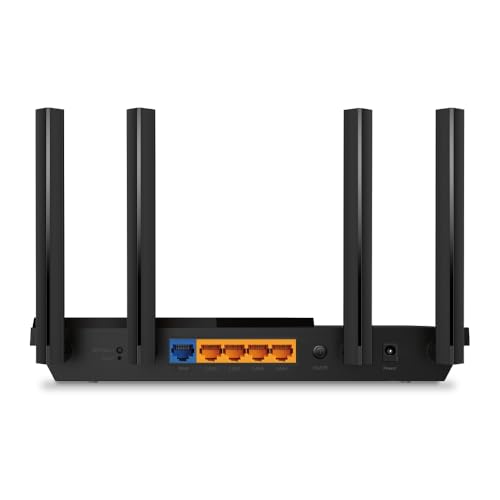
TP-Link AX1800 WiFi 6 Router (Archer AX21 V5) – Dual Band Wireless Internet, Gigabit, Easy Mesh, Works with Alexa - A Certified for Humans Device, Free Expert Support



Key features
- •JD Power Award ---Highest in customer satisfaction for wireless routers 2017 and 2019
- •Dual-Band WiFi 6 Internet Router: Wi-Fi 6(802. 11ax) technology achieves faster speeds, greater capacity and reduced network congestion compared to the previous generation
- •Next-Gen 1.8 Gbps Speeds: Enjoy smoother and more stable streaming, gaming, downloading and more with WiFi speeds up to 1. 8 Gbps (1200 Mbps on 5 GHz band and 574 Mbps on 2. 4 GHz band).
- •Connect more devices: Wi-Fi 6 technology communicates more data to more devices simultaneously using revolutionary OFDMA technology
- •Extensive Coverage: Achieve the strong, reliable WiFi coverage with Archer AX1800 as it focuses signal strength to your devices far away using Beamforming technology, 4 high-gain antennas and an advanced front-end module (FEM) chipset.
- •Powerful Quad-Core Processing For Minimal Latency: The powerful 1. 5 GHz quad-core CPU ensures communications between your wifi ax router and connected devices are smooth.
BrandTP-Link
CategoryRouters
SizeWiFi 6, Dual-Band AX1800
ColorBlack
WarrantyManufacture's 2-year warranty
TP-Link AX1800 WiFi 6 Router (Archer AX21 V5) – Dual Band Wireless Internet, Gigabit, Easy Mesh, Works with Alexa - A Certified for Humans Device, Free Expert Support
List Price: $83.84$75.46DEALYou Save: $8.38 (10%)
Free shippingFree Returns – 30 daysFree Order CancellationSecure Payment2–3 Days DeliveryGet It October 27, 2026In Stock (30)No marketing spamNo account requiredFulfilment by FedEx / Amazon / UPS / ShipwirePayPal / Card Buyer Protection
Customer Reviews
Reviews sourced from verified Amazon purchasers4.5
out of 5
Based on 10 reviews
5★
90%
4★
10%
3★
0%
2★
0%
1★
0%
Great for Oculus Quest 2
Amazon Customer✓ Verified Purchase•July 14, 2023
Long review but hopefully helpful:
Bought this to replace an aged Airport Extreme and give my Oculus Quest 2 a better WiFi connection. So far so good.
Set up was okay but I had some trouble getting the Ethernet light to go green despite all the others being green and I was unable to get online via wired or wireless connection. If you reboot your modem and this device, go make coffee or something when it is starting back up because the router takes a while to restart. The light finally went green but it did feel like it took an inordinate amount of time.
I understand the frustration that comes with setting up these new things and the rage factor sometimes enters the picture. If it does: unplug the cable modem and the router, leave everything unplugged for 5 minutes, plug in the cable modem and wait until it is fully booted up, plug in this router and walk away for a bit. Give it 5-10 minutes and hopefully you'll be good to go.
The interface looks a bit dated and clonky but most do. Seems the least priority is given to creating a clean, attractive interface for all these things, but coming from an Airport Extreme where you have essentially no features to work with, this is a dream. The ability to edit the names of the clients is something I was never able to do before and it really makes a difference.
I wanted something with the ability to kick clients off the network while I am using the Quest to ensure it has no bandwidth competition with devices that are not in use at the time the Quest is being used, but then put them back on without having to jump through hoops, re-entering passwords and such. I have a lot of devices on my network and while they may not be in use, they are still hovering around and eating up some bandwidth even while idling.
This router allows that in an easy peasy way but the icons used are confusing. First, if you go to the Network map, clients section, you will see a list of all the clients on your network. You can click the pencil next to the name of the device and change it to make life easier. On the right side, if you click Block, that client gets blacklisted and cannot connect to the network. If you click View Blacklist, you will see all of the blocked clients and there is a garbage can icon on the right. This is a confusing and poor icon choice because most people would think that this will remove the client entirely. It doesn't. It simply puts the client back on the whitelist. It's a great thing to have, for example:
Let's say you have a Zoom meeting and want to ensure that there's as little connection issues as possible. You can block all other clients on the network that are not needed and have all the bandwidth to yourself for your meeting and when it's over, just click the garbage can on each device in the blacklist and poof! they are all able to connect again.
I am not really understanding the point of the QoS feature on this device because in the past when I've set up QoS in a work environment, you are able to directly allocate bandwidth to devices. Ideally, this would be what you would use if you had a Zoom call rather than kicking clients off for a time. With this router's QoS, you have two choices: On or Off. Each device listed has a Priority switch that is turned on or off. You can turn on the Priority switch for one, some or all devices, but there's nothing else, so you have no idea how bandwidth allocation is implemented here.
Under the On/Off switch for QoS, there is a bandwidth allocation box for both upload and download with each set at 1000. You can change this number, but again, it doesn't tell you how it will divvy out that bandwidth to the clients. If you only have one device with the Priority turned on, you are left to wonder what that client is getting as opposed to other devices on the network. That's kind of a shame because you can prioritize a device for Always or for a couple of hours. Would seem the perfect set up for a Zoom meeting as you can give Priority to your device for a set amount of time and the router will release that restriction at the end of the hour or two or whatever you chose without you having to interact with the admin page at all. Unfortunately, you cannot enter times: i.e,. Priority from 10 a.m. to noon. You can choose Always, 1 hour, 2 hours, or 4 hours.
I'm not sure what people are talking about regarding monthly fees for Parent Controls. I don't have kids, but opened it up and you can add a child's computer as a device, block certain keywords from being searched online and limit the days/times that your child can get online. I didn't see anything about fees or payment for those features.
I have noticed more zip in my Quest 2 since setting up this router and am quite pleased with it so far. I set up a 5ghz network set to AX only for the Quest's exclusive use, a 2.4ghz Guest Network for all the Echos, Kindles, switches for lights, etc., and a 2.4ghz network for laptops, iPads, etc.
Bought this to replace an aged Airport Extreme and give my Oculus Quest 2 a better WiFi connection. So far so good.
Set up was okay but I had some trouble getting the Ethernet light to go green despite all the others being green and I was unable to get online via wired or wireless connection. If you reboot your modem and this device, go make coffee or something when it is starting back up because the router takes a while to restart. The light finally went green but it did feel like it took an inordinate amount of time.
I understand the frustration that comes with setting up these new things and the rage factor sometimes enters the picture. If it does: unplug the cable modem and the router, leave everything unplugged for 5 minutes, plug in the cable modem and wait until it is fully booted up, plug in this router and walk away for a bit. Give it 5-10 minutes and hopefully you'll be good to go.
The interface looks a bit dated and clonky but most do. Seems the least priority is given to creating a clean, attractive interface for all these things, but coming from an Airport Extreme where you have essentially no features to work with, this is a dream. The ability to edit the names of the clients is something I was never able to do before and it really makes a difference.
I wanted something with the ability to kick clients off the network while I am using the Quest to ensure it has no bandwidth competition with devices that are not in use at the time the Quest is being used, but then put them back on without having to jump through hoops, re-entering passwords and such. I have a lot of devices on my network and while they may not be in use, they are still hovering around and eating up some bandwidth even while idling.
This router allows that in an easy peasy way but the icons used are confusing. First, if you go to the Network map, clients section, you will see a list of all the clients on your network. You can click the pencil next to the name of the device and change it to make life easier. On the right side, if you click Block, that client gets blacklisted and cannot connect to the network. If you click View Blacklist, you will see all of the blocked clients and there is a garbage can icon on the right. This is a confusing and poor icon choice because most people would think that this will remove the client entirely. It doesn't. It simply puts the client back on the whitelist. It's a great thing to have, for example:
Let's say you have a Zoom meeting and want to ensure that there's as little connection issues as possible. You can block all other clients on the network that are not needed and have all the bandwidth to yourself for your meeting and when it's over, just click the garbage can on each device in the blacklist and poof! they are all able to connect again.
I am not really understanding the point of the QoS feature on this device because in the past when I've set up QoS in a work environment, you are able to directly allocate bandwidth to devices. Ideally, this would be what you would use if you had a Zoom call rather than kicking clients off for a time. With this router's QoS, you have two choices: On or Off. Each device listed has a Priority switch that is turned on or off. You can turn on the Priority switch for one, some or all devices, but there's nothing else, so you have no idea how bandwidth allocation is implemented here.
Under the On/Off switch for QoS, there is a bandwidth allocation box for both upload and download with each set at 1000. You can change this number, but again, it doesn't tell you how it will divvy out that bandwidth to the clients. If you only have one device with the Priority turned on, you are left to wonder what that client is getting as opposed to other devices on the network. That's kind of a shame because you can prioritize a device for Always or for a couple of hours. Would seem the perfect set up for a Zoom meeting as you can give Priority to your device for a set amount of time and the router will release that restriction at the end of the hour or two or whatever you chose without you having to interact with the admin page at all. Unfortunately, you cannot enter times: i.e,. Priority from 10 a.m. to noon. You can choose Always, 1 hour, 2 hours, or 4 hours.
I'm not sure what people are talking about regarding monthly fees for Parent Controls. I don't have kids, but opened it up and you can add a child's computer as a device, block certain keywords from being searched online and limit the days/times that your child can get online. I didn't see anything about fees or payment for those features.
I have noticed more zip in my Quest 2 since setting up this router and am quite pleased with it so far. I set up a 5ghz network set to AX only for the Quest's exclusive use, a 2.4ghz Guest Network for all the Echos, Kindles, switches for lights, etc., and a 2.4ghz network for laptops, iPads, etc.
Works well, good signal.
Dave G. McShaffrey✓ Verified Purchase•July 8, 2023
Replaced my older ASUS dual-band unit with this. My 100+ year old house has lathe-and-plaster construction and the ASUS couldn't go from the dining room to an Alexa unit 20 feet away in the living room. I had an extender in the TV room because the signal was weak there. This unit was very easy to set up and the signal issues in both those locations has gone away. It was much easier to set up so that both bands have the same name and my phone switches between them seamlessly. I do like the ASUS software a bit more, but that might be due to familiarity as much as anything. As others have noted, even though I used the same network name (and password), I did have to manually bring most of my devices onto the new network manually, a bit of a pain for the numerous smart plugs, lights and the house thermostat.
Life Changing
Harvey✓ Verified Purchase•July 3, 2023
For context:
Internet Service: 1GB/s
Internet Provider: Frontier
Home SqFt: 3,300
So Frontier provided me an Eero router and extender initially. My speed download was averaging at 20mbps download and upload. My office could not get service to save its life. It came with a router and extender.
Well I installed just this bad boy. Now I'm at 150 mbps average download AND upload. (I know there's a drop off in wifi because it's wireless)
I LOVE this thing. Easy to setup in the app as well. PLEASE BUY THIS ROUTER
Internet Service: 1GB/s
Internet Provider: Frontier
Home SqFt: 3,300
So Frontier provided me an Eero router and extender initially. My speed download was averaging at 20mbps download and upload. My office could not get service to save its life. It came with a router and extender.
Well I installed just this bad boy. Now I'm at 150 mbps average download AND upload. (I know there's a drop off in wifi because it's wireless)
I LOVE this thing. Easy to setup in the app as well. PLEASE BUY THIS ROUTER
Works Very Well with TP-Link RE600X OneMesh Range Extender
Craig J.✓ Verified Purchase•June 28, 2023
Functions as advertised. Being advanced user I would prefer a little more granularity in the advanced configuration menus but the bottom line for this router is that is the best bang-for-the buck (i.e. value for your money) you are going to find in a WiFi 6 dual band router, taking into account stability of operation. There may be some competitors in the price range but check the reviews for user comments about stability such as need for rebooting every so often. This AX21 has gone over 30 days without reboot and is performing as perfectly as it did right after that last reboot. Now, I did have an issue initially that caused me to down rate this router initially, but that turned out to be a rather dumb error in configuring it right out of the box. Once I caught that I meant to update my review but got sidetracked and so am now just updating it to give this router the credit it deserves. House is a single level 1800 sq ft living space plus approx 800 sq ft three and half car attached garage. The garage floor is sealed and the exterior walls and overhead doors insulated to make the garage usable as extra space for the home in add'n to containing vehicle and motorcycle (seal coated floor). My point here is the AX21/600X combo covers the entire structure both living space and the garage with garage featuring a streaming client (4K TV). The signal strength admittedly is down to approximately half at farthest point in garage but that is still impressive at the price point of this Wifi 6 mesh network setup using only one extender (the RE600X). Other side of the kitchen wall (exterior wall) that the 600X is plugged into is a small in-ground pool area and the AX21/RE600X mesh network signal is no less that about 75% strength out there. These results are nothing short of phenomenal in my opinion at the price point, but admittedly I got both for around 20% off each during Holiday season discounts by the TP-Link Store here on Amazon. And again, the stability is commendable-- these two devices working together in the OneMesh configuration just keep on keeping on, with no throughput or latency issues in over 30 days on un-rebooted use. If you saw my RE600X review you may note comment on long reboot time and think my statements are not consistent, but take heart: that observation was during the initial setup of the RE600X and is not relevant to my statement that the pair have not required a reboot since. One caveat: The household consists of just two persons, and device load on the network is rarely more than 3 or 4 devices actively using wifi data at same time. Your mileage may vary with higher device load on this same setup.
One final note about the AX21 WiFi 6 router. It accepts prime number Beacon Intervals without issue. I am currently using a Beacon Interval of 167 and DTIM of 1 and have found this to be the sweet spot between throughput, latency, and client battery drain for this router. My previous router was a TP-Link Archer C7 Wifi 5 and 127 was it's sweet spot for Beacon Interval. I utilize a prime number Beacon due to local crowding on the 2.4ghz medium in my neighborhood.
Hard to go wrong with the AX21/RE600X combo if you have a small to medium living space !!
One final note about the AX21 WiFi 6 router. It accepts prime number Beacon Intervals without issue. I am currently using a Beacon Interval of 167 and DTIM of 1 and have found this to be the sweet spot between throughput, latency, and client battery drain for this router. My previous router was a TP-Link Archer C7 Wifi 5 and 127 was it's sweet spot for Beacon Interval. I utilize a prime number Beacon due to local crowding on the 2.4ghz medium in my neighborhood.
Hard to go wrong with the AX21/RE600X combo if you have a small to medium living space !!
I don't need cutting-edge features, so why buy them?
Allendale Dan✓ Verified Purchase•June 12, 2023
There are other units that have more features, but all I wanted was good range, speed and a firewall. I got all three, and how!
My Internet provider asked me why I was clocking so slow on their service. I said, "80Mbps is fast enough, for me, on their 100Mbps feed". They said, "Our feed is 200 Mbps, at the low price you are paying".
My router was old and did not keep up with their system enhancements.
So, I chose NOT to buy the biggest, baddest wifi-router available, but something more budget friendly. Well, what do you think happened?...
354Mbps down
411Mbps Up... That's what happened!
Firewall has nice interface and flexibility.
Range, let's just say, "amazing". I live in an aluminum-sided house, with a metal roof (can you say, "Faraday Cage"?) My wi-fi works fast, at up to 200' from my home. I certainly don't need to place multiple units in and around my home, just to get a signal.
Finally, I noticed that other devices run very warm, to the touch. This one uses less energy (think power vampire rules), and it won't make a footprint in my electric bill.
All that, and I did NOT pay too much.
So, I am very pleased.
I recommend this device for money-savers.
My Internet provider asked me why I was clocking so slow on their service. I said, "80Mbps is fast enough, for me, on their 100Mbps feed". They said, "Our feed is 200 Mbps, at the low price you are paying".
My router was old and did not keep up with their system enhancements.
So, I chose NOT to buy the biggest, baddest wifi-router available, but something more budget friendly. Well, what do you think happened?...
354Mbps down
411Mbps Up... That's what happened!
Firewall has nice interface and flexibility.
Range, let's just say, "amazing". I live in an aluminum-sided house, with a metal roof (can you say, "Faraday Cage"?) My wi-fi works fast, at up to 200' from my home. I certainly don't need to place multiple units in and around my home, just to get a signal.
Finally, I noticed that other devices run very warm, to the touch. This one uses less energy (think power vampire rules), and it won't make a footprint in my electric bill.
All that, and I did NOT pay too much.
So, I am very pleased.
I recommend this device for money-savers.
Page 1 of 2
Related products


Fortinet FortiGate 80E and 1YR 24x7 UTM Protection BDL (FG-80E-BDL-950-12)
List: $2255.25$2029.73DEAL