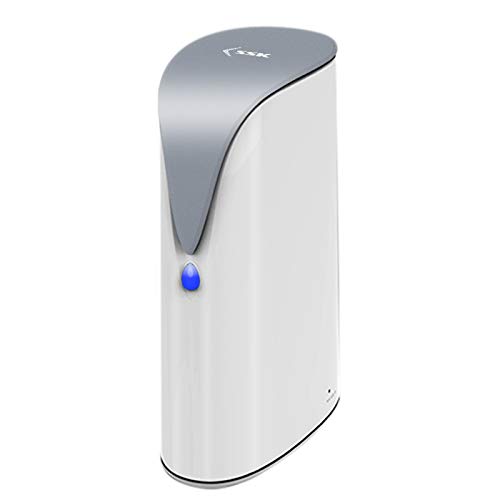
SSK 4TB Personal Cloud Network Attached Storage Support Auto-Backup, Home Office NAS Storage with Hard Drive Included for Phone/Tablet PC/Laptop Wireless Remote Access


Key features
- •【Your personal cloud storage with 4TB large capacity doesn't have own WIFI】:This NAS built-in 3.5inch 4TB storage, as long as it is powered and connected to the internet, you will be able to remote access and manage the storage data freely at anywhere by PC/Mobile phone,without geographical restrictions.Point to Point(P2P) confidential transmission to ensure the data security.Support Samba and DLNA Protocol, all smart devices interconnection in the same LAN, smart TVs,laptops and mobile phones.
- •【Two working mode with LED Indicator】: Two working mode meets all of your needs. NAS(Network-attachment Storage) Mode and DAS(Direct-attached storage) Mode. With 1000M Ethernet port for NAS mode, true wireless speed can reach to 30-40MB/s. With USB3.0 High speed transmission port for DAS mode to transfer larger numbers of various sized files. Two Modes with different LED indicator colors, easy understanding;
- •【Centralize all your data】: Support IOS, Android, Windows, MAC, all have proprietary client software, centralize all your photos,
- •【One-click back up & Auto sleep】: One-click backup of photos and videos, designated folders real-time synchronous update and backup on Mobile Phone/ Tablet /PC, you can save everything and access anywhere. No longer to worry when you are on a business trip, go hiking and travel around the world. This 4TB Personal Cloud Network Attached Storage will automatically switch the work/sleep state according to the usage, which can better reduce power consumption and protect the drive.
SSK 4TB Personal Cloud Network Attached Storage Support Auto-Backup, Home Office NAS Storage with Hard Drive Included for Phone/Tablet PC/Laptop Wireless Remote Access
List Price: $226.97$204.27DEALYou Save: $22.70 (10%)
Free shippingFree Returns – 30 daysFree Order CancellationSecure Payment2–3 Days DeliveryGet It October 26, 2026In Stock (1)No marketing spamNo account requiredFulfilment by FedEx / Amazon / UPS / ShipwirePayPal / Card Buyer Protection
Customer Reviews
Reviews sourced from verified Amazon purchasers3.4
out of 5
Based on 10 reviews
5★
20%
4★
80%
3★
0%
2★
0%
1★
0%
Nice bare bones NAS
Bernard Jackson II✓ Verified Purchase•August 1, 2023
I was in the market for a NAS to use in conjunction with Dropbox Sync to free up space on my laptops. Unfortunately, the software installed by SSK does not support Dropbox like some other similar products. This was no fault of the company, I just hadn't done my research before buying.
The device is great for a bare bones NAS. Detailed documentation is available on their website, so setup was simple, and you can easily set this up as a network drive if you prefer that over the included software interface. The software isn't bad, but I just prefer working in Windows Explorer.
The mobile app isn't bad, but it isn't perfect either. It is not intuitive to use, and thankfully it isn't required beyond the initial setup for my purposes.
Overall, I am happy with the purchase. It doesn't have all the features of more expensive models, but it works and has a ton of space.
The device is great for a bare bones NAS. Detailed documentation is available on their website, so setup was simple, and you can easily set this up as a network drive if you prefer that over the included software interface. The software isn't bad, but I just prefer working in Windows Explorer.
The mobile app isn't bad, but it isn't perfect either. It is not intuitive to use, and thankfully it isn't required beyond the initial setup for my purposes.
Overall, I am happy with the purchase. It doesn't have all the features of more expensive models, but it works and has a ton of space.
Better Documentation Please
Doe LeStorr✓ Verified Purchase•July 15, 2023
The screen shots in the print documents and the pdf are grey and small. Luckily, customer support was responsive and got me up and running. Happy for now
Drive is okay, documentation blows!
Frank✓ Verified Purchase•June 25, 2023
The drive attached and works well. I have so many "How do I..." questions. I have many years experience repairing and building PCs, so I consider myself quite capable with technical issues. You don't know what you don't know, however. I marked it 3 stars as it appears that I need to install the SSK Cloud software on every computer I want to use it on. I've been unable to directly map the drive in Windows explorer. Better documentation on the preset folders and how to setup private vs public folders for different users. I purchased this so my family could use it to upload and share family photos with each other. I'd like it better if they didn't need to install software on each computer to share the drive, a web link to the drive would be better. The unit works well as a local NAS except for the lack of being able to map the drive without the SSK Cloud software. I might be returning this drive if it doesn't meet my needs. Bottom line: if you can't magically figure out technical things, don't count on any documentation. I suggest looking elsewhere for a more user friendly personal Cloud server/NAS.
Update: I got a message from the seller with an attachment for problems and solutions for FM-100/FM-200. This pdf document is very helpful and answers many of the how to questions that should be included with the unit in the first place. Be aware this is an English translation of an Asian language documentation which itself requires some translation. I will be adding another star because of good customer service.
UPDATE 2:
The reason I was unable to directly map the drive was operator error! It would help if I could type better and remember the password I gave the drive. The drive CAN be mapped without software as long as you turn on network discovery and sharing.
I do still have one major gripe. The software you can use should allow for multiple users to log in with their own password instead of a single password for sharing files. Also, be aware that the folder labeled "private", isn't. It's only encrypted from the SSK app but shows up easily as a hidden folder from any PC. The private folder should not be used for confidential files.
Update: I got a message from the seller with an attachment for problems and solutions for FM-100/FM-200. This pdf document is very helpful and answers many of the how to questions that should be included with the unit in the first place. Be aware this is an English translation of an Asian language documentation which itself requires some translation. I will be adding another star because of good customer service.
UPDATE 2:
The reason I was unable to directly map the drive was operator error! It would help if I could type better and remember the password I gave the drive. The drive CAN be mapped without software as long as you turn on network discovery and sharing.
I do still have one major gripe. The software you can use should allow for multiple users to log in with their own password instead of a single password for sharing files. Also, be aware that the folder labeled "private", isn't. It's only encrypted from the SSK app but shows up easily as a hidden folder from any PC. The private folder should not be used for confidential files.
SSM-F100 4TB DAS/NAS drive- Excellent Product and Tech Support
Eddie✓ Verified Purchase•June 22, 2023
This is a review of the SSM-F100 drive with 4TB storage
1. The device and connectivity
This is a sleek, aesthetically very pleasing piece of hardware with a very small footprint. I purchased it to use as a Direct-Attached-Storage (via USB to Windows 10 PC) and as a Network-Attached-Storage (via Ethernet cable to home router). DAS will be used to back up PC and NAS will be used to back up mobile devices, namely Android phones and iPads.
2. DAS setup
DAS connectivity is very smooth. Once I plugged in the USB cable from the F100 to my PC, the drive immediately appears with the next available drive letter assigned. The capacity is 4TB, that is 4,000,768,323,584 bytes to be exact, with a tiny amount used for system and a few pre-loaded empty folders for ease of categorizing future backups. The disk is formatted as NTFS and works well with my Win 10 Pro 64-bit OS. Internally, the hard disk is a 3.5" disk but I could neither tell who's the manufacturer nor the model number.
The drive is nice to include a host USB port so that you can attach another USB drive to it. However, I can only see the additional device when the F100 is attached to the home router via Ethernet cable as a NAS deice, not when it is directly attached to the PC via USB.
3. NAS setup
First, follow instruction in the provided user manual to install the SSKCloud app on your mobile device, giving the app permission to access the storage of your device (to allow the app to read from and write to the folders). I used my Android phone to initialize the drive for network access.
Next, download and install SSKCloud.exe from SSK's website "eng.ssk.cn". Run SSKCloud.exe and click "Samba Management" in the upper right of screen to launch SMB access. Windows Explorer will pop up with the network share "share_sda1" visible. The drive is now a network share. If another USB drive is attached to its host port now, it will also be visible, as "share_sdb1".
It is easy to transfer files between PC and the F100, using Windows Explorer, either as DAS or NAS. No problem at all. For mobile devices, it is another story"¦
4. Connecting and transferring files using mobile device
First, attach the F100 to the home router using Ethernet cable. Second, connect your device via WiFi to your router and start the SSKCloud app. It should "see" the F100 as both are in the same LAN. If so, all the folders in the F100 as well as the folders in your device are visible. You can then transfer files freely. In my case, this worked with my two Android phones. However, my iPad could not "see" the F100 via WiFi LAN. I have to use Remote Access to access the F100 from my iPad. To do that you need to know the UID and the password to log in to the device. Once the F100 is connected "remotely", you launch the Files app from the iPad, choose option to "Connect to Server" (SMB://x.x.x.x), then you can transfer files between F100 and iPad.
5. 5-Star Customer support
Throughout this testing process, I have been greatly helped by the SSK support tech Jessie with suggestions for trouble-shooting and problem resolution. The time zone difference is actually to my advantage. Emails I sent to Jessie at night got reply from Jessie in the morning and I have plenty of time to test for scenarios.
1. The device and connectivity
This is a sleek, aesthetically very pleasing piece of hardware with a very small footprint. I purchased it to use as a Direct-Attached-Storage (via USB to Windows 10 PC) and as a Network-Attached-Storage (via Ethernet cable to home router). DAS will be used to back up PC and NAS will be used to back up mobile devices, namely Android phones and iPads.
2. DAS setup
DAS connectivity is very smooth. Once I plugged in the USB cable from the F100 to my PC, the drive immediately appears with the next available drive letter assigned. The capacity is 4TB, that is 4,000,768,323,584 bytes to be exact, with a tiny amount used for system and a few pre-loaded empty folders for ease of categorizing future backups. The disk is formatted as NTFS and works well with my Win 10 Pro 64-bit OS. Internally, the hard disk is a 3.5" disk but I could neither tell who's the manufacturer nor the model number.
The drive is nice to include a host USB port so that you can attach another USB drive to it. However, I can only see the additional device when the F100 is attached to the home router via Ethernet cable as a NAS deice, not when it is directly attached to the PC via USB.
3. NAS setup
First, follow instruction in the provided user manual to install the SSKCloud app on your mobile device, giving the app permission to access the storage of your device (to allow the app to read from and write to the folders). I used my Android phone to initialize the drive for network access.
Next, download and install SSKCloud.exe from SSK's website "eng.ssk.cn". Run SSKCloud.exe and click "Samba Management" in the upper right of screen to launch SMB access. Windows Explorer will pop up with the network share "share_sda1" visible. The drive is now a network share. If another USB drive is attached to its host port now, it will also be visible, as "share_sdb1".
It is easy to transfer files between PC and the F100, using Windows Explorer, either as DAS or NAS. No problem at all. For mobile devices, it is another story"¦
4. Connecting and transferring files using mobile device
First, attach the F100 to the home router using Ethernet cable. Second, connect your device via WiFi to your router and start the SSKCloud app. It should "see" the F100 as both are in the same LAN. If so, all the folders in the F100 as well as the folders in your device are visible. You can then transfer files freely. In my case, this worked with my two Android phones. However, my iPad could not "see" the F100 via WiFi LAN. I have to use Remote Access to access the F100 from my iPad. To do that you need to know the UID and the password to log in to the device. Once the F100 is connected "remotely", you launch the Files app from the iPad, choose option to "Connect to Server" (SMB://x.x.x.x), then you can transfer files between F100 and iPad.
5. 5-Star Customer support
Throughout this testing process, I have been greatly helped by the SSK support tech Jessie with suggestions for trouble-shooting and problem resolution. The time zone difference is actually to my advantage. Emails I sent to Jessie at night got reply from Jessie in the morning and I have plenty of time to test for scenarios.
Very slow loading
StarLog✓ Verified Purchase•June 3, 2023
Does not allow for WiFi and Cat5 connectivity at the same time.
Very slow uploading files/directories to the device.
Very slow uploading files/directories to the device.
Page 1 of 2