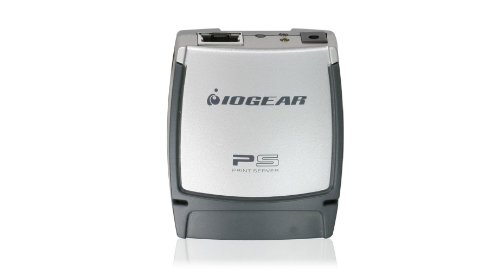
IOGEAR USB 2.0 1-Port Multi-Language Version Print Server, GPSU21W6


Key features
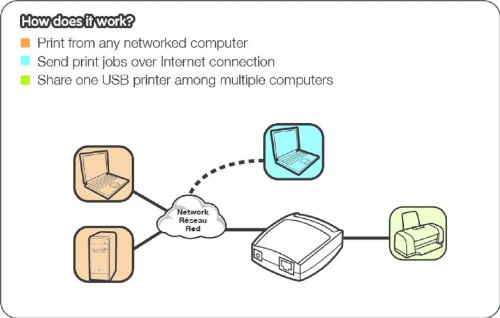
- •Easily connect your USB printer to a network
- •Allows multiple computers to share one USB printer on the network
- •Print from any computer on your network or from across the Internet
- •Supports DHCP Client and multiple network protocols
- •10Base-T/100Base-T auto-sensing
- •Supports Telnet and Web Management software
BrandIOGEAR
CategoryPrint Servers
IOGEAR USB 2.0 1-Port Multi-Language Version Print Server, GPSU21W6
List Price: $111.93$100.74DEALYou Save: $11.19 (10%)
Free shippingFree Returns – 30 daysFree Order CancellationSecure Payment2–3 Days DeliveryGet It October 25, 2026In Stock (30)No marketing spamNo account requiredFulfilment by FedEx / Amazon / UPS / ShipwirePayPal / Card Buyer Protection
Customer Reviews
Reviews sourced from verified Amazon purchasers3.5
out of 5
Based on 10 reviews
5★
30%
4★
20%
3★
20%
2★
10%
1★
20%
Will Work Well for Dymo Labelwriter 4XL
Fly On The Wall✓ Verified Purchase•August 11, 2017
This worked perfectly for me. For those that wonder, it will run your Dymo labeler. It serves my Labelwriter 4XL. I almost deducted 1 point because it is finicky to get started in Windows, but it's windows problem in how to setup a network print server, but I figured it in 10 minutes, so I haven't deducted. But be forewarned that you will need to setup a network printer and use the software that comes with Iogear Print Server to get it to work, and you need to assign it a static address, not one that is dynamic and changes all the time. Once it works, it works well and works across three of my computers using our wireless network. So, we only need one Dymo labeler. Much cheaper than the Dymo print server and does the same thing.
Works Great, Price is Right, Great Phone Tech Support!
H. M.✓ Verified Purchase•July 25, 2017
I have a Brother MFC-2700DW in which the ether net port went bad. I connected this unit up to the USB printer port on one end and a hiigh speed switch which was hard wired to my high-speed router and it works like a charm on both wired and wi-fi connected network computers (2 wired/3 on wifi). Works great, instructions were a little confusing so I called the help line and was up and running in 5 minutes. I take good notes, they also emailed me a simpler set of instructions. Definitely less expensive solution than buying a new MFC printer.
Customer service is excellent. Spent over an hour with two separate techs
Roger K✓ Verified Purchase•March 8, 2017
Customer service is excellent. Spent over an hour with two separate techs. However, it isn't bi-directional or a true multi function print server. Spend half my day (two occasions) attempting to get two windows 7 Pro hard wired desktops to work with a Dymo 450 Twin Turbo label maker. One desktop works fine. The other one doesn't consistently work. When I reboot that specific desktop. It drops connection. Waste of time. I was told to look for an MFP with true scanner print server ability and it will work once you dedicate an IP address to print server.
Stinks on Ice!
Joel G. Dietrich✓ Verified Purchase•June 20, 2016
Second try with this, second failure. Followed all instructions, tried all driver/setup combinations, nothing. Note the literature states the device is for Windows XP, but it didn't work on that machine either. I couldn't get it to work on Windows XP, Windows 8, Windows 8.1 or Windows 10. To make things even worse, the install CD hangs and won't do any install functions. What ever is necessary to install and use this puppy is entirely up to the user. I gave up and sent it back in spite of the STOP notice in the package. Obviously other purchasers have had similar problems. Rather than print and include a STOP notice, IOGEAR should tune up the install procedure, make the install CD work, clean up the User Manual, then and only then is this product worth the money, time and effort. As it is now, run, don't walk away from this one.
Avoid this one.
draculabus✓ Verified Purchase•March 7, 2016
UPDATE - 5/22/16 - So after a few months of using this, i'm lowing the rating to 2 stars. Honestly, I've given up on it. It is just not reliable. You set it up, and it works, then it just stops working. You uninstall the printer and reinstall, and it starts working again. Reboots don't fix it. Rebooting the printer doesn't fix it. It requires an uninstall/reinstall to get it functional again. It's stilling on the table across from me as I write this. Next stop is probably the garbage can next to the table.
Works once you get it configured. The install software on the included disc, as well as the more recent version on the manufacturers website, did not work for me on Windows 10. However, you really don't need it. First, make sure you've already installed the printer drivers on any machine you plan to use the printer with. To set up without it, plug the printer into the print server, connect the network cable, and plug in the power. The device will grab an IP address via DHCP. Determine what IP address it is on (check your router's dhcp table), and make it a static address. Open a browser and enter the print server's IP address and set the IP address to static on the setup page. Now open Control Panel and "Devices and Printers", and click "Add a Printer". Click "The printer that I want isn't listed". Choose "Add a printer using a TCP/IP address or host name". Leave the device type as AutoDetect and enter the IP address of the Print Server. Choose Generic Network Card if it isn't already selected. Choose your printer and use the driver that is already installed. You should be good to go.
Works once you get it configured. The install software on the included disc, as well as the more recent version on the manufacturers website, did not work for me on Windows 10. However, you really don't need it. First, make sure you've already installed the printer drivers on any machine you plan to use the printer with. To set up without it, plug the printer into the print server, connect the network cable, and plug in the power. The device will grab an IP address via DHCP. Determine what IP address it is on (check your router's dhcp table), and make it a static address. Open a browser and enter the print server's IP address and set the IP address to static on the setup page. Now open Control Panel and "Devices and Printers", and click "Add a Printer". Click "The printer that I want isn't listed". Choose "Add a printer using a TCP/IP address or host name". Leave the device type as AutoDetect and enter the IP address of the Print Server. Choose Generic Network Card if it isn't already selected. Choose your printer and use the driver that is already installed. You should be good to go.
Page 1 of 2