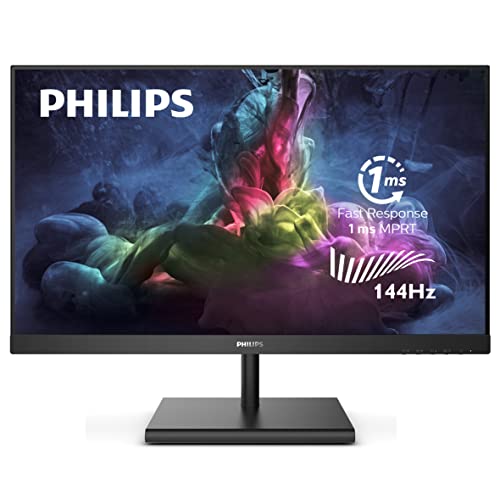
PHILIPS Computer Monitors Frameless Monitor, Full HD, 124% sRGB, FreeSync 144Hz, VESA, Black, 27 inch Full hd (272E1GSJ)


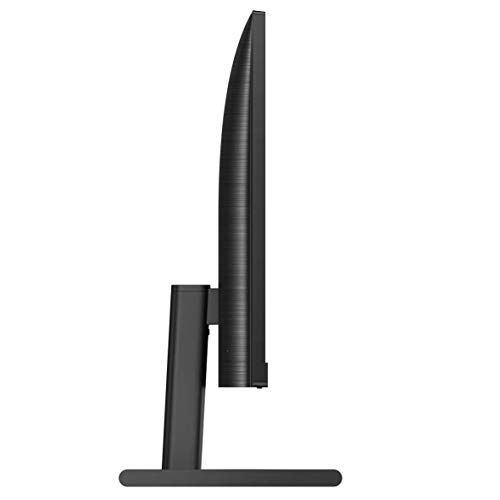

Key features
- •Philips 27-Inch Class Computer Gaming Monitor, Full HD 1920x1080 Res, VA, 1ms, LED Monitor
- •Rapid 1ms response and 144Hz refresh rate
- •3-sided frameless design
- •HDMI and DP input
- •4 Year Advanced Replacement
PHILIPS Computer Monitors Frameless Monitor, Full HD, 124% sRGB, FreeSync 144Hz, VESA, Black, 27 inch Full hd (272E1GSJ)
List Price: $344.98$310.48DEALYou Save: $34.50 (10%)
Free shippingFree Returns – 30 daysFree Order CancellationSecure Payment2–3 Days DeliveryGet It October 29, 2026In Stock (1)No marketing spamNo account requiredFulfilment by FedEx / Amazon / UPS / ShipwirePayPal / Card Buyer Protection
Customer Reviews
Reviews sourced from verified Amazon purchasers4.4
out of 5
Based on 10 reviews
5★
70%
4★
30%
3★
0%
2★
0%
1★
0%
Amazing monitor for M1 Pro MacBook
E✓ Verified Purchase•October 23, 2023
This review focuses on using this monitor with my 2021 M1 Pro MacBook Pro. This monitor is awesome for the following reasons:
- USB-C video in and power delivery means I only need one cable running to my MacBook
- It supports 4K@120Hz via USB-C out of the box for M1 Pro+ MacBooks, which I didn't think was even possible
- NOTE to enable this, you have to enable USB-C Setting > High Resolution on the OSD, then select 120Hz in MacOS settings
- When connected via USB-C video input, it also acts as a hub, meaning I can play aux audio output to my external speakers through the monitor, again without having to plug anything more than a single USB-C into my Mac
- The max brightness of the screen (in SDR mode) is very bright "“ the same nits as the built-in screen of the MacBook Pros
Aside from those points, the 'Ambiglow' lighting on the back is a cool extra touch. The metal base of the monitor stand is quite heavy, which in my eyes is a plus since it's less likely to move around and makes it feel very solid.
TL;DR "” If you are looking for a 32" monitor which has USB-C power delivery and 4K@120Hz video through one cable for an Apple Silicon MacBook Pro, this is probably one of the best/only options out there right now.
- USB-C video in and power delivery means I only need one cable running to my MacBook
- It supports 4K@120Hz via USB-C out of the box for M1 Pro+ MacBooks, which I didn't think was even possible
- NOTE to enable this, you have to enable USB-C Setting > High Resolution on the OSD, then select 120Hz in MacOS settings
- When connected via USB-C video input, it also acts as a hub, meaning I can play aux audio output to my external speakers through the monitor, again without having to plug anything more than a single USB-C into my Mac
- The max brightness of the screen (in SDR mode) is very bright "“ the same nits as the built-in screen of the MacBook Pros
Aside from those points, the 'Ambiglow' lighting on the back is a cool extra touch. The metal base of the monitor stand is quite heavy, which in my eyes is a plus since it's less likely to move around and makes it feel very solid.
TL;DR "” If you are looking for a 32" monitor which has USB-C power delivery and 4K@120Hz video through one cable for an Apple Silicon MacBook Pro, this is probably one of the best/only options out there right now.
great picture and great gameplay with caveat for switching from DP to USBC input
Greg✓ Verified Purchase•October 16, 2023
I have been using this monitor with a Geforce RTX 3070 on gaming pc connected to DP or HDMI, NUC11th gen over usbc, Razerbook over USBC, and Xbox series S with HDMI.
The good:
The picture on this monitor is superb. Best uniformity I have ever had measured with my luminance meter. Little to no backlight bleed. No dead or stuck on pixels despite the warranty allowing up to 2 bright pixels. peak brightness over 600 so could get hdr-600 certification if it had local dimming. I dont calibrate colors but reviews indicate color is accurate.
I have never used a high refresh rate monitor before. 144 Hz over DP with the gaming PC has really improved my gameplay in sports games. It really does make a big difference compared to 60 Hz. PSA: for those using Nvidia RTX cards, make sure to turn on vertical sync, and max FPS to 3 below the refresh rate over HDMI or DP once you have activated G-Sync. Refer to blurbusters.com article for explanation. This was important for preventing stuttering when using this with HDMI 120 Hz as my card was able to exceed the 120 Hz limit and I got stuttering when it did.
I really enjoy the ambiglow which gives more contrast to the image when playing at night time.
This worked perfectly with my xbox series S 4k HDR 120 Hz. You can watch the "Information" option in the OSD and it shows you the frame rate in real time while playing. The Xbox actually rarely dipped under 120 Hz. CEC works great with xbox so the screen turns on and off with xbox and volume of monitor can be controlled without having to go into OSD menu.
The not so good:
KVM Auto only works when there is one computer on USBC for video and one computer to USBA. If you try to use a USBC to USBA cable for a 2nd computer on a non USBC video input, Auto doesnt work. You have to manually select the USB and it's buried in the OSD menu unfortunately without a shortcut.
The volume with xbox is really loud and even if you set the volume to 1 out of 100 it is still too loud. I think it would be better to output to an amp with speakers.
The manual has no description for the DTS audio options or what they mean. The manual doesnt describe the KVM Auto functionality - I had to figure it out on my own.
I dont understand the point of SmartPower 45 watt vs 65 watt for USBC. It seems like in HDR mode Ambiglow turns off if you have it set to 65 watt, but I havent noticed it.
The monitor is not so great at getting an HDMI signal from a computer. I have to manually switch to a different HDMI input and then switch back to get a picture.
The bad:
I have contacted philips support about both of these issues below which I believe require a firmware update. I have not heard from them after a few weeks. I can work around these issues for my needs but people should know.
1) switch from DP to USBC input does not work when DP is using DSC
I have my gaming PC connected to displayport for 144 Hz as HDMI over 144 Hz doesnt work. Then I have my Razerbook laptop connected to USBC.
When I have my laptop connected and on I see the picture on USBC. When I switch to DP on my gaming PC, I see the DP picture. However, if I try to switch back to USBC with the laptop still on, the monitor is unable to display the picture from the laptop. There are 3 ways to get the picture back
from the laptop: leave the monitor input on USBC and then turn the monitor off and turn it back on again, put the gaming PC to sleep so there is no output on DP connection, OR set the gaming PC to 98 Hz HDR or 120 Hz SDR so it is not using Display Stream Compression.
It seems like a defect in the monitor because the same behavior happens when I connect an Intel NUC 11th generation (11PAHi5 model) over usbc, I cannot switch back to the NUC over USBC.
If I connect the gaming PC to HDMI on the monitor, it is able to switch to USBC no problem.
2) No true 144 Hz with HDMI:
This monitor cannot run 144 Hz over HDMI. Even if you switch to 144 hz in the OSD and switch to 144 hz in windows settings, it is actually only running at 120 hz. Somehow it is tricking windows settings into thinking it is at 144. HDMI 2.1 full 48 GBps bandwidth should support 144 Hz.
Under "Information" in the monitor OSD when windows is set to 144 Hz, the monitor OSD says 120 Hz. And when I set vertical sync to On in the nvidia control panel, the max frame rate that games render at is 120 fps despite the same game rendering at up to 135 fps using displayport 144 hz.
Summary:
I am happy with the picture, happy with the gameplay on xbox over hdmi or PC over DP at 144 Hz. USBC 65 watt charging works great and you can set the Nuc or razerbook to do 120 Hz SDR which is actually nice for office work. There are some issues that hopefully will be corrected and then I can give this 5 stars.
Update 5/11/23
I used a utility called Custom Resolution Utility to look at the HDMI 2.1 features of the monitor when in 144 Hz mode.
I attached a screenshot of the settings in CRU.
It shows full bandwidth 48 GBps which is awesome. So that is not the problem. The Freesync range is set to go up to 144 Hz. But when you click to edit the HDMI 2.1 features, the VRR range is set to a max of 120 Hz. With Nvidia G-sync turned on over HDMI, it uses that max of the VRR range as the max refresh rate so that is why the monitor OSD "Information" shows 120 Hz with G -sync on. If I turn G-sync off, then the monitor OSD "Information" shows 144 Hz. So G-sync does not use that Freesync range programmed into the monitor, it's using that VRR range which makes complete sense. For some reason Philips and I think all manufacturers probably have to set the max VRR to 120 probably to conform to some kind of HDMI certification. I havent found proof to bolster that claim though.
So all I did was change that max VRR to 144 in CRU, and restarted the graphics driver and voila, G-Sync on and monitor Information now shows 144 hz. Frame rates in games over HDMI now going above 120 Hz just like what I had on Displayport. Getting 144 fps in Madden 23 and up to 135 fps in FIFA 23. Working perfectly no issues. If I put the computer to sleep, it retains those settings. If I restart, I just need to run CRU again and it's set back to max VRR of 144 Hz.
So now I can do full uncompressed HDMI 2.1 on this monitor at 4k 144 Hz. I honestly havent noticed a difference compared to DP, but this solves the problem I was having switching from DP to USBC input by just having the gaming PC on an HDMI input. Hopefully this helps others using an Nvidia graphics card with this freesync monitor.
I am raising my review to 4 stars. It's awesome that the HDMI 2.1 ports are full bandwidth 48 GBps. I learned after purchasing this one that other less expensive 4k 32 in monitors from Dell and Gigabyte actually use 24 GBps bandwidth on their HDMI ports with display stream compression so this full bandiwdth is not common. Philips doesn't advertise this monitor as G-sync compatible and so technically it is supposed to do 120 Hz with G-sync over VRR and 144 Hz is with Freesync. I was able to figure out how to get it to do 144 Hz over HDMI with VRR using the above trick, but I shoudn't dock the monitor for that. It would be nice if philips would just set the EDID to have a VRR range of up to 144 Hz to avoid confusion for people though.
I had some legwork to figure this monitor's technology out, but in the end I am happy. I do have to say though that it is very concerning that Philips support has not responded to me in several weks. I am considering a 3rd party warranty as my confidence level in philips warranty service is low as a result.
The good:
The picture on this monitor is superb. Best uniformity I have ever had measured with my luminance meter. Little to no backlight bleed. No dead or stuck on pixels despite the warranty allowing up to 2 bright pixels. peak brightness over 600 so could get hdr-600 certification if it had local dimming. I dont calibrate colors but reviews indicate color is accurate.
I have never used a high refresh rate monitor before. 144 Hz over DP with the gaming PC has really improved my gameplay in sports games. It really does make a big difference compared to 60 Hz. PSA: for those using Nvidia RTX cards, make sure to turn on vertical sync, and max FPS to 3 below the refresh rate over HDMI or DP once you have activated G-Sync. Refer to blurbusters.com article for explanation. This was important for preventing stuttering when using this with HDMI 120 Hz as my card was able to exceed the 120 Hz limit and I got stuttering when it did.
I really enjoy the ambiglow which gives more contrast to the image when playing at night time.
This worked perfectly with my xbox series S 4k HDR 120 Hz. You can watch the "Information" option in the OSD and it shows you the frame rate in real time while playing. The Xbox actually rarely dipped under 120 Hz. CEC works great with xbox so the screen turns on and off with xbox and volume of monitor can be controlled without having to go into OSD menu.
The not so good:
KVM Auto only works when there is one computer on USBC for video and one computer to USBA. If you try to use a USBC to USBA cable for a 2nd computer on a non USBC video input, Auto doesnt work. You have to manually select the USB and it's buried in the OSD menu unfortunately without a shortcut.
The volume with xbox is really loud and even if you set the volume to 1 out of 100 it is still too loud. I think it would be better to output to an amp with speakers.
The manual has no description for the DTS audio options or what they mean. The manual doesnt describe the KVM Auto functionality - I had to figure it out on my own.
I dont understand the point of SmartPower 45 watt vs 65 watt for USBC. It seems like in HDR mode Ambiglow turns off if you have it set to 65 watt, but I havent noticed it.
The monitor is not so great at getting an HDMI signal from a computer. I have to manually switch to a different HDMI input and then switch back to get a picture.
The bad:
I have contacted philips support about both of these issues below which I believe require a firmware update. I have not heard from them after a few weeks. I can work around these issues for my needs but people should know.
1) switch from DP to USBC input does not work when DP is using DSC
I have my gaming PC connected to displayport for 144 Hz as HDMI over 144 Hz doesnt work. Then I have my Razerbook laptop connected to USBC.
When I have my laptop connected and on I see the picture on USBC. When I switch to DP on my gaming PC, I see the DP picture. However, if I try to switch back to USBC with the laptop still on, the monitor is unable to display the picture from the laptop. There are 3 ways to get the picture back
from the laptop: leave the monitor input on USBC and then turn the monitor off and turn it back on again, put the gaming PC to sleep so there is no output on DP connection, OR set the gaming PC to 98 Hz HDR or 120 Hz SDR so it is not using Display Stream Compression.
It seems like a defect in the monitor because the same behavior happens when I connect an Intel NUC 11th generation (11PAHi5 model) over usbc, I cannot switch back to the NUC over USBC.
If I connect the gaming PC to HDMI on the monitor, it is able to switch to USBC no problem.
2) No true 144 Hz with HDMI:
This monitor cannot run 144 Hz over HDMI. Even if you switch to 144 hz in the OSD and switch to 144 hz in windows settings, it is actually only running at 120 hz. Somehow it is tricking windows settings into thinking it is at 144. HDMI 2.1 full 48 GBps bandwidth should support 144 Hz.
Under "Information" in the monitor OSD when windows is set to 144 Hz, the monitor OSD says 120 Hz. And when I set vertical sync to On in the nvidia control panel, the max frame rate that games render at is 120 fps despite the same game rendering at up to 135 fps using displayport 144 hz.
Summary:
I am happy with the picture, happy with the gameplay on xbox over hdmi or PC over DP at 144 Hz. USBC 65 watt charging works great and you can set the Nuc or razerbook to do 120 Hz SDR which is actually nice for office work. There are some issues that hopefully will be corrected and then I can give this 5 stars.
Update 5/11/23
I used a utility called Custom Resolution Utility to look at the HDMI 2.1 features of the monitor when in 144 Hz mode.
I attached a screenshot of the settings in CRU.
It shows full bandwidth 48 GBps which is awesome. So that is not the problem. The Freesync range is set to go up to 144 Hz. But when you click to edit the HDMI 2.1 features, the VRR range is set to a max of 120 Hz. With Nvidia G-sync turned on over HDMI, it uses that max of the VRR range as the max refresh rate so that is why the monitor OSD "Information" shows 120 Hz with G -sync on. If I turn G-sync off, then the monitor OSD "Information" shows 144 Hz. So G-sync does not use that Freesync range programmed into the monitor, it's using that VRR range which makes complete sense. For some reason Philips and I think all manufacturers probably have to set the max VRR to 120 probably to conform to some kind of HDMI certification. I havent found proof to bolster that claim though.
So all I did was change that max VRR to 144 in CRU, and restarted the graphics driver and voila, G-Sync on and monitor Information now shows 144 hz. Frame rates in games over HDMI now going above 120 Hz just like what I had on Displayport. Getting 144 fps in Madden 23 and up to 135 fps in FIFA 23. Working perfectly no issues. If I put the computer to sleep, it retains those settings. If I restart, I just need to run CRU again and it's set back to max VRR of 144 Hz.
So now I can do full uncompressed HDMI 2.1 on this monitor at 4k 144 Hz. I honestly havent noticed a difference compared to DP, but this solves the problem I was having switching from DP to USBC input by just having the gaming PC on an HDMI input. Hopefully this helps others using an Nvidia graphics card with this freesync monitor.
I am raising my review to 4 stars. It's awesome that the HDMI 2.1 ports are full bandwidth 48 GBps. I learned after purchasing this one that other less expensive 4k 32 in monitors from Dell and Gigabyte actually use 24 GBps bandwidth on their HDMI ports with display stream compression so this full bandiwdth is not common. Philips doesn't advertise this monitor as G-sync compatible and so technically it is supposed to do 120 Hz with G-sync over VRR and 144 Hz is with Freesync. I was able to figure out how to get it to do 144 Hz over HDMI with VRR using the above trick, but I shoudn't dock the monitor for that. It would be nice if philips would just set the EDID to have a VRR range of up to 144 Hz to avoid confusion for people though.
I had some legwork to figure this monitor's technology out, but in the end I am happy. I do have to say though that it is very concerning that Philips support has not responded to me in several weks. I am considering a 3rd party warranty as my confidence level in philips warranty service is low as a result.
Solid gaming or WFH monitor
Brian Kidd✓ Verified Purchase•October 12, 2023
Use this for both PC gaming and work from home on a M2 Macbook Air.
Don't let the XBOX branding fool you, it works just fine with PCs and Macs. On the PC side, I've got it hooked up via good quality HDMI 2.1 cable and I'm able to get the 4k@144hz resolution and speed advertised. The included USB-C cable actually allows my M2 MacBook Air to run this as a main screen at 4k@120hz which has been a struggle in the past.
The lighting isn't responsive enough to really follow your on scsreen gaming action, but it is bright enough to serve as a key light when manually set to the brightest setting and a color that works for your setup.
I switched from an OLED setup to this, so I do miss the deep blacks that come from OLED panels, but between some Windows calibration and minor tweaks on the monitor itself, I've found the HDR600 setting on the montior to be sufficient enough.
The stand is super heavy and very sturdy. I recommend arm mounting it to avoid the stand taking up too much of your desk space.
Solid monitor for the cost.
Don't let the XBOX branding fool you, it works just fine with PCs and Macs. On the PC side, I've got it hooked up via good quality HDMI 2.1 cable and I'm able to get the 4k@144hz resolution and speed advertised. The included USB-C cable actually allows my M2 MacBook Air to run this as a main screen at 4k@120hz which has been a struggle in the past.
The lighting isn't responsive enough to really follow your on scsreen gaming action, but it is bright enough to serve as a key light when manually set to the brightest setting and a color that works for your setup.
I switched from an OLED setup to this, so I do miss the deep blacks that come from OLED panels, but between some Windows calibration and minor tweaks on the monitor itself, I've found the HDR600 setting on the montior to be sufficient enough.
The stand is super heavy and very sturdy. I recommend arm mounting it to avoid the stand taking up too much of your desk space.
Solid monitor for the cost.
Perfect
Amazon Customer✓ Verified Purchase•August 28, 2023
Got for our son in college. Exactly what he wanted for gaming and doing homework.
Great Screen
Tig2424✓ Verified Purchase•August 21, 2023
I purchased this for use as my main monitor in my 2 monitor set up. I enjoy it, but it is a tad dark for throwing shows or movies on, I usually use my Sceptre instead. The only downside to this screen is it only has one HDMI input so if you wanted to hook up a console to it (like myself) you would have to interchange the HDMI cords every time.
Page 1 of 2